· Digital Footprint Check · Content Marketing · 21 min read
How to Check if a Website Is Safe to Protecting Your
Learn how to check if a website is safe with our guide. Discover practical tips and tools to spot scams, avoid malware, and protect your digital identity.

On an unfamiliar website, a quick visual scan before you click can tell you most of what you need to know. It protects you from identity theft, financial scams, and malware.
Criminals count on you being in a hurry and missing the signs. A habit of quick on-page assessment stops phishing and malware, whether you're shopping, banking, or protecting a gaming account.
Here's what to look for.
Dissecting the URL for Deceptive Tricks
The address bar is the first place scammers try to fool you. They use typosquatting: registering domains that misspell or vary trusted sites, hoping your brain autocorrects what it sees. One wrong letter can be the difference between a secure login and handing over your credentials.
A phishing site might use "paypal-payments.co" or "Amaz0n-support.net" to mimic real sites, relying on you not noticing the switch from an "o" to a "0" or an unfamiliar extension. This is a common tactic in romance scams, where a fake dating profile might direct you to a malicious "verification" site.
Always check for these signs:
- Subtle Misspellings: Look for swapped letters and numbers (like 'o' for '0' or 'l' for '1') or extra, unnecessary characters.
- Weird Domain Extensions: Be suspicious if a well-known brand is paired with an odd extension like
.biz,.info, or.xyz. - Long, Confusing URLs: Scammers often bury a fake domain inside a long string of random characters, hoping to confuse you. The real domain is what comes right before the
.comor.org.
Key Takeaway: The domain name is everything. If the core URL doesn't match the company you're trying to visit, close the tab. This check can prevent identity theft.
Why Professional Design and Grammar Matter
Legitimate businesses invest in polished websites; the site is their brand's storefront. Scammers prioritize speed and volume, throwing up sloppy, temporary sites that then disappear.
This haste almost always leads to obvious flaws:
- Bad Grammar and Spelling: Real companies have editors. A website littered with typos and awkward sentences is a massive red flag.
- Low-Quality Images: Watch out for blurry, stretched, or pixelated images. Scammers often just rip graphics from other sites, and it shows.
- Broken Links and Layouts: If links go nowhere or the site looks jumbled on your screen, it's a sign of a rushed, unprofessional job.
These might feel like minor details, but they reveal a bigger truth. If a company doesn’t care about its own public image, it definitely doesn't care about protecting your data. A poorly designed site can negatively impact your perception of a brand, and in the case of scams, it's a direct warning about its lack of legitimacy.
H3: Identifying Aggressive Pop-Ups and Ads
One of the loudest and most dangerous signs of an unsafe site is a barrage of aggressive pop-ups. While legitimate sites use pop-ups for newsletters, malicious ones use them for far more sinister reasons, often leading to malware that can compromise everything from your bank accounts to your gaming profiles.
Your alarm bells should be ringing if you see pop-ups that:
- Scream that your computer is infected and demand you download their "security software."
- Are impossible to close, sometimes spawning even more pop-ups when you try.
- Demand personal information to claim a prize you never entered to win.
This tactic preys on fear and urgency. It’s no surprise that 90% of cyber incidents are rooted in human error—scammers are experts at manipulating us. With 236.1 million ransomware attacks hitting in just the first half of 2022, learning to spot these tricks is more important than ever. You can learn more about the latest cyber crime statistics to see just how widespread these threats have become.
To help you remember these initial checks, here's a quick reference table.
Instant Website Safety Checklist
Use this quick reference to spot immediate red flags the moment you land on a new website. This is your first line of defense in preventing identity theft and protecting your online accounts.
| What to Check | Potential Danger If It's Wrong | Real-World Impact |
|---|---|---|
| URL Spelling & Domain | Typosquatting to impersonate a trusted brand. | Giving login details to a fake banking site; losing money. |
| Design Quality | Sloppy design suggests a throwaway phishing site. | Falling for a fake e-commerce store and losing payment info. |
| Grammar & Spelling | Lack of professionalism indicates a probable scam. | Being tricked by a catfishing scheme on a poorly written site. |
| Pop-Ups & Ads | Aggressive pop-ups are often used to deliver malware. | Infecting your device, leading to stolen gaming accounts or data. |
| Contact Information | No "Contact Us" page or physical address is suspicious. | Inability to resolve issues with a purchase; sign of a fake business. |
| Social Media Links | Fake or dead links show the site isn't legitimate. | Verifying a company's reputation before applying for a job. |
Keeping these simple checks in mind will help you build a powerful instinct for spotting dangerous websites before they can cause any harm.
Reading Your Browser's Security Signals
Think of your web browser as your first line of defense online. It's constantly giving you visual cues about a website's safety, and learning to read them is a fundamental skill. This goes way beyond just glancing for that little padlock in the address bar.
A lot of people see the padlock and breathe a sigh of relief, thinking the site is trustworthy. That’s a dangerous oversimplification. The lock simply means the connection between you and the site's server is encrypted. While that's essential, it says nothing about the website owner's intentions. Scammers know this and often get security certificates just to make their malicious sites look legit, a common tactic in sophisticated romance scams.
What HTTPS and the Padlock Icon Really Mean
When you see that padlock, it means the website is using HTTPS (Hypertext Transfer Protocol Secure). This scrambles the data you send and receive—like passwords or credit card numbers—making it gibberish to anyone trying to eavesdrop. It’s the difference between sending a sealed letter and a postcard.
Checking for HTTPS is a critical first step. By 2025, it's expected that over 90% of the top 1 million websites will use it. But remember, with phishing attacks contributing to roughly 36% of all data breaches, you can't rely on HTTPS alone. It's just one piece of the puzzle. You can learn more about the evolution of web security protocols to get a deeper understanding of how we got here.
Modern browsers make it painfully obvious when a connection isn't secure, like this:

If you see a "Not Secure" warning, that's your cue to leave. Never, ever enter sensitive information on a site that displays this message. The real-world impact could be devastating, from financial loss to complete identity theft.
Heeding Critical Browser Warnings
Today’s browsers come equipped with powerful security features, like Google Safe Browsing, which maintain massive blocklists of known dangerous sites. If you try to visit a page flagged for phishing or malware, you'll often be stopped by a full-screen, bright red warning.
These alerts are your browser practically screaming, "Stop! This place is dangerous." They aren't gentle suggestions; they are serious alarms based on real threat intelligence. Ignoring them is like walking past a "Danger: Do Not Enter" sign at a construction site.
Expert Tip: Never click the "proceed anyway" button on a browser security warning unless you're an advanced user who knows exactly what you're doing and accepts the risk. For everyone else, the only safe move is to hit the back button.
Treat these warnings like a dead end. They pop up for a few key reasons:
- Phishing Detected: The site is a known fake, built to impersonate a legitimate service and steal your login details.
- Malware Hosted: The site has been caught trying to infect visitors' devices with malicious software.
- Deceptive Content: The page is designed to trick you into doing something harmful, like downloading a virus or giving up personal info.
Recognizing these browser-level signals is a cornerstone of good online defense. To build on this, check out our complete guide on personal cybersecurity best practices.
Going a Level Deeper: Checking Certificate Details
For those who like to dig in, you can get more intel by clicking the padlock icon itself. This opens up a small window with the website's security certificate details, which can be surprisingly revealing.
Here’s a quick rundown of what to look for:
- Who Issued It? Certificates from well-known authorities like Let's Encrypt, DigiCert, or GlobalSign are the norm. An issuer you've never heard of could be a red flag.
- Who Was It Issued To? The certificate should be issued to the company that owns the site. If the name doesn't match the brand or just looks fishy, be wary.
- Is It Valid? A legitimate certificate will be current, not expired.
While this is a more technical check, it provides another layer of validation. A scammer might bother to get a basic certificate, but they often slip up on the details. By combining your analysis of the URL, the padlock, and any browser warnings, you can make a far more informed decision about whether a website is safe to use.
Digging into a Website's Background and Reputation
A trustworthy website has a history; a fraudulent one often pops up overnight. While the on-page clues and browser signals we've covered are your first line of defense, a quick background check can tell you the real story behind a domain. Think of it like looking up a company's business license before you hire them—it’s just smart due diligence for your digital safety and reputation management.
Scammers love to stay anonymous and move fast. They spin up temporary websites that exist just long enough to run a scam before vanishing without a trace. By taking a few minutes to investigate a site’s history and reputation, you can often spot these fly-by-night operations before they get a chance to do any damage.
Uncovering the Domain's Age and Ownership
One of the single most powerful clues to a website's legitimacy is its age. Established, reputable companies have domains that are often years, if not decades, old. A phishing site that appeared last Tuesday? That's a massive red flag.
Cybercriminals rely on this newness, setting up fraudulent sites with a very short lifespan to pull off their scams and disappear. This tactic makes the domain's age a vital signal. In fact, one study found that for about 32.78% of web resources, their creation date could be verified using digital footprints, highlighting just how useful this data is for flagging potentially unsafe sites.
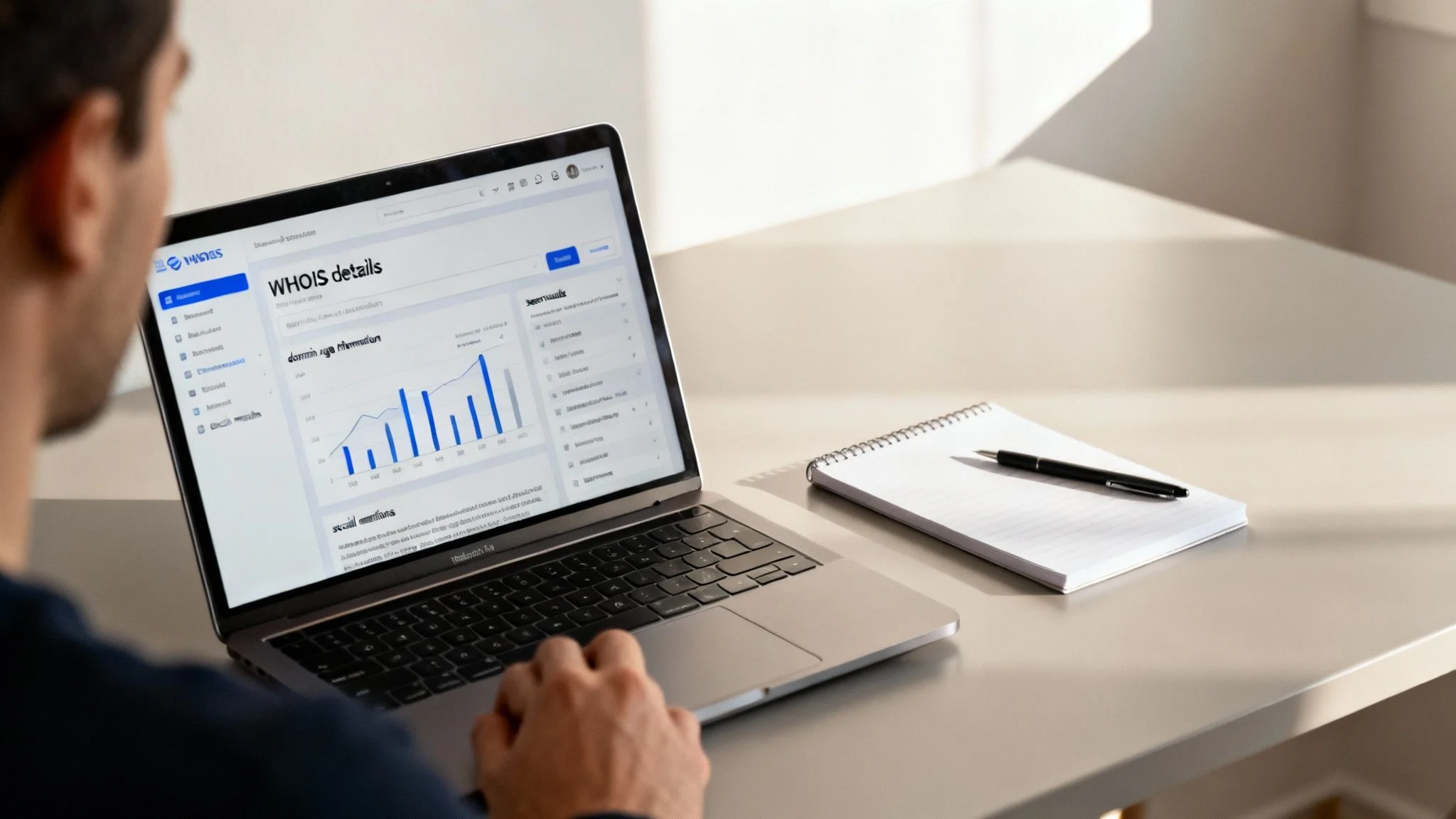
You can check this information in seconds using a WHOIS lookup tool. These are free online services that pull the public registration details for any domain. Here's what you're looking for:
- Creation Date: When was the domain first registered? A site created just days or weeks ago should be treated with extreme suspicion.
- Registrant Information: Who owns the domain? It should list the name and contact info of the person or organization.
- Expiration Date: When is the registration up for renewal? Scam sites are often registered for the bare minimum—a single year.
How to Read the WHOIS Tea Leaves
When you get the lookup results, pay close attention to the owner’s details. Legitimate businesses typically list their official company name and contact information. But what if the details are hidden behind a "privacy protection" service? That's not automatically a bad sign; many legitimate site owners do this for their own privacy.
The real warning sign is when that hidden information is combined with other red flags, like a brand-new creation date or a total lack of any other online presence. A legitimate business wants to be found. A scam operation wants to hide. This combination of newness and anonymity is a classic calling card of a fraudulent website. If you're interested in digging deeper, our guide on OSINT tools for digital footprint checking offers some great techniques.
Real-World Scenario: You're on a dating app and your match sends you a link to a "private verification site" to prove you're real. A quick WHOIS lookup reveals the domain was created three days ago. This profile screams "romance scam"—it's designed to steal your personal data or credit card details under the guise of safety, a classic catfishing tactic.
Searching for Social Proof and User Reviews
Beyond the technical data, the court of public opinion is one of your best resources. A legitimate company will have a presence beyond its own website. Scammers, on the other hand, tend to exist in a vacuum. This is crucial when considering job prospects, as a fake company website can be a front for an employment scam.
Start by searching for the website or company name on external platforms. Your goal is to find unfiltered feedback from real people.
- Social Media: Look up the company on X (formerly Twitter), Facebook, or Instagram. Do they have active profiles with real people engaging? Or are the accounts brand new with a handful of followers and generic, stock-photo posts?
- Forums and Review Sites: Check for mentions on places like Reddit or dedicated review sites like Trustpilot. A simple Google search for "[Website Name] + review" or "[Website Name] + scam" can quickly uncover a history of complaints.
- News Articles: See if any reputable news outlets or industry blogs have ever mentioned the company. If a business claims to be a major player but no one has ever written about them, that’s highly suspicious.
When a website handles sensitive personal information, its commitment to security is non-negotiable. This includes using protocols for things like HIPAA compliant data transfer. If you can't find any mention of their security policies or public discussion about their practices, consider it another warning. Sometimes, a complete lack of an online footprint is just as telling as a long trail of negative reviews.
Using Free Tools for a Deeper Safety Check
When your gut feeling and the browser's basic signals leave you feeling uneasy, it's time to bring in the heavy hitters. A handful of powerful, free online tools can give you a definitive verdict on a website's safety, almost like a digital forensics team uncovering threats you can't see on the surface. These OSINT (Open-Source Intelligence) tools are essential for online identity protection.
This is the step you take before trusting any site with your login details, payment information, or personal data. Think of it as getting a second opinion from dozens of security experts at once. These services don't just glance at the homepage; they dig into the site's code, reputation, and the plumbing that holds it all together, giving you a clear, data-backed risk assessment. It’s how you move from suspicion to certainty.
Unleash the Power of URL Scanners
One of the most effective and straightforward ways to verify a site is with a dedicated URL scanner. You give it a link, and it runs that address against massive, constantly updated databases of known malicious sites. Many also perform real-time analysis to catch brand-new threats.
The highest standard here is VirusTotal. It’s a free service that’s an absolute powerhouse. It doesn't rely on just one opinion; it checks the URL with over 70 different antivirus scanners and domain blacklisting services.
VirusTotal aggregates all the results into a single, comprehensive report, telling you if the site has been flagged for phishing, malware, or other nasty business. The real-world impact of using such a tool is preventing identity theft and financial loss with a simple, ten-second check.
The real magic of these tools is their ability to see what's invisible. A website can look perfectly professional and legitimate, but it might be hiding malicious scripts or secretly redirecting you to a harmful domain in the background. A good URL scanner cuts right through that deception.
How to Actually Read the Scanner Reports
Getting the report is just the first step; you need to know how to interpret it. A report with zero flags is a great sign, of course. But what happens if one or two vendors flag a site? That's where context is everything.
- Look for the big names. If major security vendors like Google Safe Browsing, McAfee, or Bitdefender flag a site, you should take it very seriously. These services have vast amounts of data and are generally very reliable.
- Check the type of threat. The report will usually tell you why the site was flagged. A "phishing" label is an immediate, no-questions-asked dealbreaker. Back away immediately. "Malicious" or "suspicious" are also serious red flags.
- Be aware of false positives. It can happen. A brand-new or very obscure (but perfectly safe) website might get incorrectly flagged by one or two lesser-known scanners. If only one or two small vendors raise an issue and everything else looks clean, it could be a false positive. But when in doubt, it’s always better to be safe than sorry.
While these scanners are phenomenal for checking individual websites, they're focused on external threats. If you're more concerned about where your personal information might already be exposed across the web, you need a different kind of tool. Using a service that offers a free scan of your digital footprint can give you a much broader picture of your overall online safety.
Top Free Website Safety Checkers
While VirusTotal is a go-to for many experts, it's not the only tool out there. Different scanners have different strengths, and knowing which one to use for a specific situation makes your safety checks faster and more effective. Here’s a quick comparison of some of the best free options available.
| Tool Name | What It Does Best | Ideal For | Ease of Use |
|---|---|---|---|
| VirusTotal | Aggregates results from over 70 security vendors. | Getting a comprehensive consensus on a URL's threat level. | Very Easy |
| Google Safe Browsing | Checks a site's status against Google's massive blocklist. | A quick, reliable check for known phishing or malware sites. | Very Easy |
| Norton Safe Web | Provides community reviews alongside its security rating. | Assessing a site's reputation based on user experience. | Easy |
| URLVoid | Scans a URL with multiple services and provides domain details. | Combining a threat scan with basic background information. | Easy |
By adding these free tools to your online safety toolkit, you're no longer just guessing or relying on a gut feeling. You are actively verifying a website's integrity before you engage with it—one of the most powerful habits you can build to protect your digital life.
What to Do After Visiting a Suspicious Website
That sinking feeling in your stomach when you realize you’ve just landed on a sketchy website is all too common. It's a moment of digital panic. The good news? A fast, calm response can shut down most threats before they do any real damage. The trick is to act decisively, not frantically.
First things first: immediately close the browser tab or window. Don't click on anything else. No pop-ups, no "unsubscribe" buttons, nothing. Your only goal is to sever the connection to that site as quickly as possible, stopping it from loading any more malicious scripts or trackers.
Once the tab is closed, your next move is to clean house. Go into your browser settings and clear your recent browsing history, cookies, and cache. This helps scrub any lingering files or tracking cookies the site might have dropped onto your device. Think of it as wiping the slate clean so nothing nasty persists after you've left.
Taking Action If You Entered Information
The situation gets a lot more serious if you typed any personal information into a form on the site. Whether it was a password, your credit card number, or just your email, you have to operate under the assumption that it's now in the hands of scammers. This is the start of identity theft.
If you entered a password, you need to change it right away. And I don't just mean on that one account. Change it on every account where you use that same password. This is critical. Cybercriminals bank on the fact that people reuse passwords, and they will immediately try to use your stolen credentials on major platforms like your email, bank, and social media accounts, including valuable gaming profiles.
For financial information, the checklist is just as urgent:
- Contact Your Bank or Credit Card Company: Call the number on the back of your card. Tell them what happened and that your details might be compromised. They can put a watch on your account, block the card, and issue a new one.
- Review Recent Transactions: Go through your bank and credit card statements with a fine-tooth comb. Look for any charges you don't recognize, even tiny ones. Scammers often test a card with a small purchase of a dollar or two before going for a big score.
- Consider a Credit Freeze: If you're worried your identity is at risk, you can place a security freeze with the major credit bureaus. This is a powerful step that stops anyone from opening new lines of credit in your name.
If you think your machine might have been infected during the visit, knowing how to remove a virus from your computer is an essential skill for taking back control.
Running a Security Scan and Reporting the Site
Even if you didn't type anything, it's still a smart move to run a full antivirus and anti-malware scan on your computer. Some sketchy sites use "drive-by downloads" to try and install malware without you even clicking a button. A deep scan will help find and quarantine any threats that might have snuck in.
Takeaway Tip: Don't just walk away from the experience. Report the malicious website to services like Google Safe Browsing or Microsoft Defender SmartScreen. By flagging the site, you help their systems learn, protecting the next person who might stumble upon the same trap. Your report makes the internet a bit safer for everyone.
Finally, if this incident has you worried about your overall online exposure, it’s a good moment to take stock. Use a personal data leak checker to see if your information has shown up in known data breaches. It gives you a much clearer picture of your digital footprint and highlights where you might need to tighten up your security.
Website Safety FAQs
Even with a solid process, the web is full of tricky situations that can leave you second-guessing. It's those gut feelings you need to trust. Let's walk through some of the most common questions people have when trying to figure out if a site is safe.
Can a Website Steal My Information if I Just Visit It?
Yes, unfortunately, it can. This is often done through a nasty trick called a “drive-by download.” A malicious website can find and exploit vulnerabilities in your browser, its plugins, or other outdated software on your machine.
Without you clicking a single thing, it can force your computer to download and install malware. That malware can then do anything from logging your keystrokes to stealing passwords or personal files. This is exactly why keeping your browser, operating system, and all your plugins updated is non-negotiable. Those updates often contain critical security patches that shut the door on these kinds of attacks.
Are Websites with .org or .edu Domains Always Safe?
Not always. While these domains generally feel more trustworthy because they're restricted to specific organizations, they aren't immune to attack. Hackers can and do compromise legitimate university or non-profit websites.
Once inside, they can inject malicious links, host phishing pages, or use the site's good reputation to trick visitors. The real-world impact is that a scammer can leverage the trust associated with an .edu domain to create a more convincing phishing campaign, potentially affecting job prospects if it's a fake university career portal.
The key takeaway is to never let a domain extension lull you into a false sense of security. Whether it's a .com, .org, or .gov, you should run through the same basic checks every time. Look at the full URL, check for a professional design, and be skeptical of any unexpected requests for information.
What Is the Single Most Important Website Safety Check?
If you build just one habit, make it this: carefully inspecting the website's URL. The vast majority of successful phishing attacks rely on tricking you into visiting a fake site that looks identical to a real one but has a slightly different web address.
Always double-check the domain name for common tricks:
- Subtle misspellings (like "G00gle" with zeros instead of the letter 'o')
- Extra words or hyphens (e.g., "yourbank-login-portal.com")
- Unusual endings that don't match the actual brand
If a link comes through in an email, text, or social media message, the safest move is to open your browser and manually type in the correct, known URL yourself. Don't click the link. This simple act is the bedrock of online safety and stops countless scams in their tracks. For an even stronger defense, consider adding some of the best internet privacy tools to your setup for another layer of protection. It all starts with making sure you're in the right place.
Your digital footprint is bigger than you think, and what you don't know can hurt you—affecting everything from your job prospects to your personal safety. Digital Footprint Check provides a comprehensive look at your online presence, uncovering exposed data before criminals do. Take control of your identity today with our free scan.