· Digital Footprint Check · Content Marketing · 15 min read
How to Search History: a Guide to Your Digital Past
Learn how to search history on browsers, Google, and social media. This guide covers managing your digital footprint for privacy and reputation.

You open your browser to find an article you read last week. You remember the topic, maybe even the color of the page, but not the site name. A quick history search should solve it.
Then a second thought hits. If you can barely keep track of what you’ve clicked, what else is still sitting in old accounts, search logs, app archives, and forgotten profiles?
That’s the primary reason learning how to search history matters. It’s not just about recovering a recipe, a receipt, or a lost tab. It’s about understanding your digital past before someone else does. An employer, a scammer, a stalker, or a curious stranger doesn’t need your full life story. They only need a few exposed fragments to build one.
Your History Is More Than Just Browser Clicks
Browser history is often equated with the list behind Ctrl+H or Command+Y. That’s one layer, and it’s the easiest one to reach. But your online history is bigger than that.
It includes your browser records, yes. It also includes your search engine activity, your YouTube watches, your likes on social media, old usernames, public comments, account registrations, app activity, and the traces other companies infer from all of that.
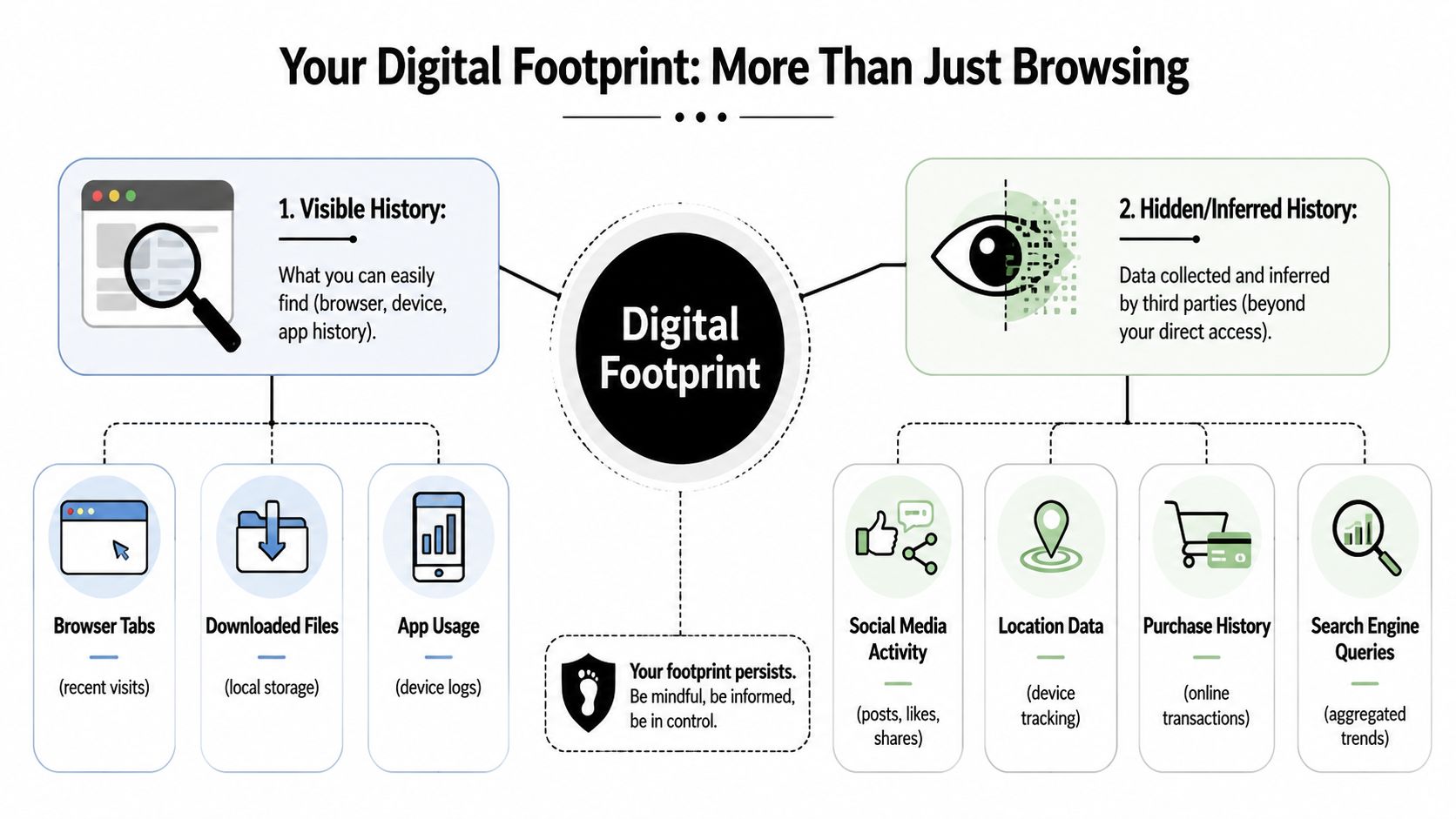
Two kinds of history people confuse
One reason readers get stuck is that they mix up visible history with stored history elsewhere.
- Visible history means the records you can usually open yourself. Browser visit logs, recent downloads, app search records, and account activity pages fit here.
- Stored history elsewhere means records held by platforms and services. Google, social apps, shopping sites, and ad systems may keep information even after you clear your local browser.
- Inferred history is another layer. A company may not just store what you clicked. It may also connect searches, watch habits, location patterns, and account behavior into a profile.
That broader view matters for privacy. Your past activity can affect ad targeting, but the more serious issue is exposure. An old forum post can shape how someone judges you. A forgotten account can reveal an old email address. A reused username can connect your gaming profile to your real identity.
Practical rule: If a record lives on a company’s servers, clearing your browser probably didn’t erase it.
A lot of people only realize this after they search their own name and find something they forgot years ago. A comment. An old marketplace listing. A profile photo attached to a handle they still use somewhere else.
If you want a fuller picture of how browsing fits into a wider identity trail, this guide on the broader implications of your digital footprint is a helpful next read.
Why this matters in real life
The risks aren’t abstract.
A hiring manager may search your name and find an old public post. A scammer may use old usernames and exposed emails to guess which accounts you still use. Someone trying to impersonate you may stitch together scraps from multiple platforms.
That’s why I tell people to think like an archivist for their own life. One historical research workflow recommends starting with a central question, doing background research, and documenting each note with its exact page number so the evidence can be traced later during verification and writing, as described in this archival research guide. The same mindset works for your digital past. Start with a clear question. What can be found about me, where is it stored, and what needs to go?
Mastering Your Browser and Device History
Your browser history is still the first place to look because it’s immediate, searchable, and often enough to recover something you recently visited.
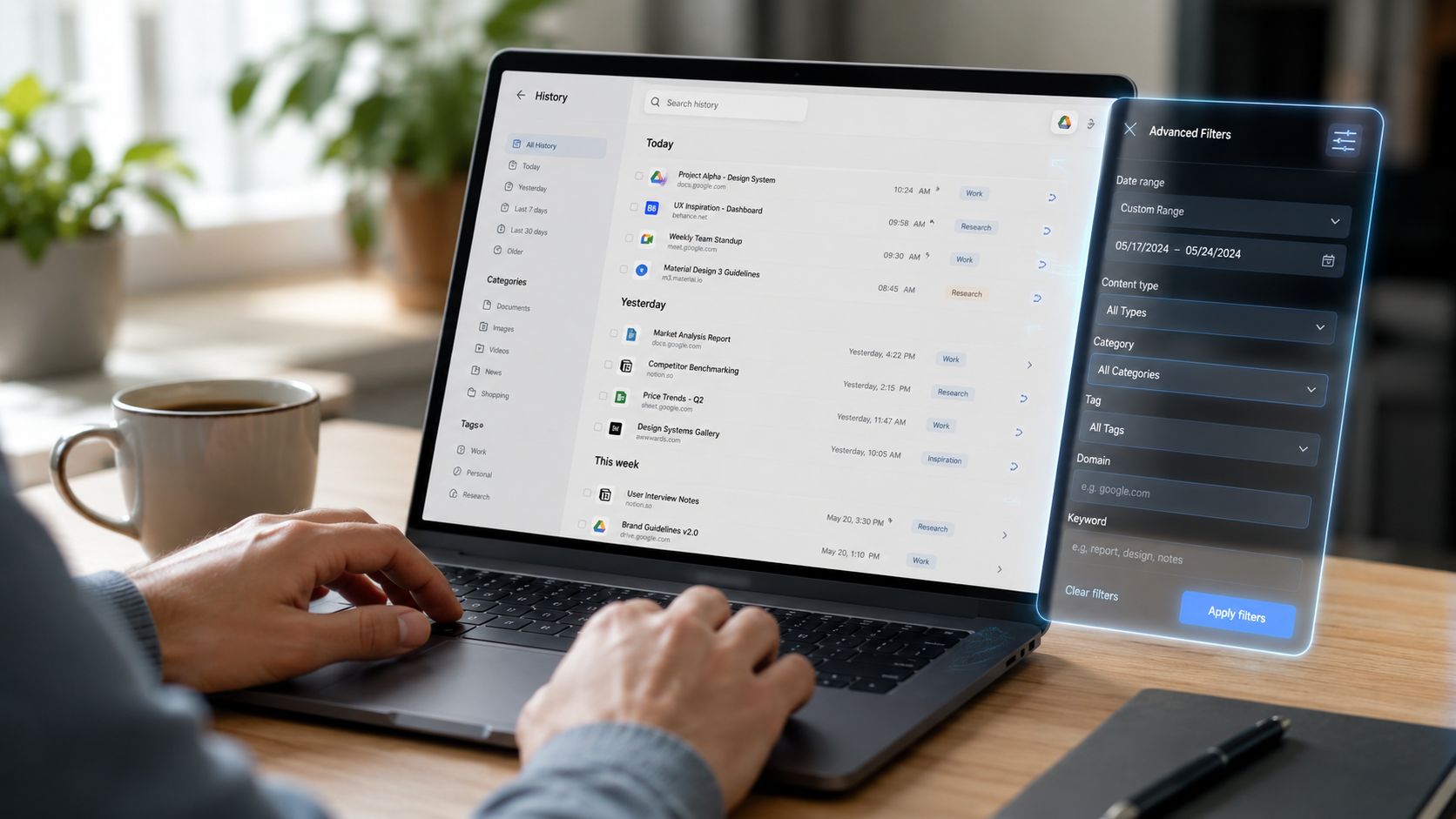
What your browser usually stores
Most browsers keep some combination of:
- Page titles that appeared in the tab
- URLs for visited pages
- Timestamps showing when you visited
- Downloaded file references in a separate downloads view
- Autocomplete clues drawn from prior visits
This data is usually local to the device and browser profile you used. That last part trips people up. If you used Safari on your phone, Chrome on your work laptop, and Firefox on a personal desktop, you may have three separate histories.
How to search the main browsers
The exact menus differ, but the basic method is similar.
Chrome and Edge
Open History from the menu or use the keyboard shortcut your system supports. Then use the search box inside the history page. Search for:
- A topic word such as “passport” or “invoice”
- Part of a site name if you remember the brand
- A unique phrase from the page title
Chrome and Edge are good for keyword searching, but many people get frustrated trying to jump to an exact date. That’s one reason platform-level records become important later.
Firefox
Firefox gives you a Library or History view where you can search visits and sort them. If you know whether you visited something today, yesterday, or months ago, use the sidebar or date groupings first, then keyword search.
Safari
Safari’s History menu and full history view make it easy to browse by day. If you mostly remember when you saw a page, that’s often faster than guessing keywords.
How to delete without wiping everything
You don’t always need a scorched-earth cleanup.
- Remove one page if it contains a sensitive search or site visit you don’t want saved locally.
- Delete a time range if you borrowed a device or searched something private in a short session.
- Clear downloads history if filenames reveal more than the browser visit itself.
- Check synced devices because deleting on one browser may or may not affect another, depending on your sync settings.
People often assume “clear history” means “gone everywhere.” It doesn’t. It usually means removed from that browser’s local record, and sometimes from synced copies if sync is active.
If your goal is prevention, not just cleanup, learn how private browsing works and where it helps. It can reduce local traces in some situations, but it doesn’t make you invisible to websites, networks, or account providers.
Browser history is your easiest record to search and your easiest record to misunderstand.
A few practical habits help:
- Search before deleting. If you’re trying to reconstruct your activity, export or note what matters first.
- Use precise words. Product names, uncommon page titles, and document names work better than broad terms.
- Check device-level search too. Phones, tablets, and laptops may keep recent app activity, downloads, and file access outside the browser itself.
This video gives a useful visual walkthrough before you start digging through menus yourself.
Beyond the Browser Your Google and YouTube Activity
A browser log shows what happened on one device. Your Google account can show something broader. If you were signed in while searching, watching YouTube, using Maps, or interacting with other Google services, your activity may be stored in one central account history.
Why Google activity feels different
This isn’t just a convenience feature. It’s a timeline of behavior tied to an identity.
When people ask how to search history, they usually mean “How do I find something I did online?” If you use Google services often, the answer may be easier in Google My Activity than in the browser itself, because the record follows the account rather than one machine.
A practical workflow for analyzing Google search history is described in this published tutorial on Google Search History. It explains a sequence of exporting the archive, merging JSON files, converting them into tabular data, converting Unix timestamps into calendar dates, and then analyzing the result in a spreadsheet or visualization tool. It also notes that Chrome itself lacks a built-in way to jump to a specific date in history, so people often rely on Google My Activity filters or outside tools for date-range searching.
What to look for in My Activity
Once you’re inside your Google account activity dashboard, search with intent. Don’t just scroll.
Try these approaches:
- Search by keyword when you remember a product, question, place, or topic.
- Filter by service if you only care about YouTube, Search, Maps, or another Google product.
- Use date filters when you know the rough time period.
- Review deleted assumptions because browser cleanup may not match what’s still attached to the account.
If you’re checking for privacy risk, look beyond the obvious search queries. YouTube watch history can reveal interests, health concerns, relationship troubles, financial stress, or political curiosity. Location-related records can reveal routines. Voice interactions can be especially personal because they often happen in casual, unguarded moments.
Where your history is stored
| Data Type | Stored in Browser History | Stored in Google My Activity |
|---|---|---|
| Web pages you visited in Chrome | Often yes | May appear if connected to signed-in Google activity |
| Search queries typed into Google | Sometimes indirectly through visited search result pages | Often yes when signed in |
| YouTube videos watched | Not reliably as a useful viewing archive | Often yes when watch history is enabled |
| Google service interactions | Usually not in a complete account-level form | Often yes within the account dashboard |
| Cross-device activity tied to one account | No, not as one unified view | Yes, to the extent the account recorded it |
The privacy setting most people skip
Many people search their history once and leave. That misses the more useful move: changing what gets kept from now on.
Look for settings that let you:
- Pause or reduce tracking categories
- Set auto-delete rules
- Turn off histories you don’t want linked to your account
- Review old entries before changing settings
Search first, configure second. If you change retention settings before checking what’s already there, you may lose the chance to understand your exposure.
This matters for job prospects and personal safety because your account history can reveal patterns, not just isolated searches. Someone with access to your account, your open device, or a shared family system could learn more than you expect.
Uncovering Your History on Social Media Platforms
Social media keeps a different kind of past. Browser history tells you where you went. Social platforms record what you did, what you searched for, what you liked, and what you said in public or semi-public spaces.
That’s where reputation risk starts to feel personal.
The records worth checking first
Each platform uses different labels, but most give you some form of activity log, archive request, or account center. Start with the places where people are most likely to judge you out of context.
- Facebook often has an Activity Log where you can review posts, reactions, comments, and search-adjacent behavior.
- Instagram usually lets you inspect account activity, likes, comments, and saved content through settings and account tools.
- X commonly offers archive tools and searchable views of posts, replies, and likes.
- TikTok and similar apps may include watch history, search history, and account data request options.
The exact menus change over time, so the easiest method is to search the platform’s settings for words like “activity,” “archive,” “download your information,” or “your data.”
Search for the version of you that no longer uses today’s words
Many people make a significant error. They search their current name and current style of writing, then conclude there’s nothing to find.
Archival guidance for finding hard-to-locate records recommends searching with historical or contested terms, using subject headings, and consulting local records. The same principle applies to your old digital self. You may need old usernames, forgotten email addresses, or outdated slang to locate accounts and posts you no longer remember creating, as discussed in this archival strategies resource.
That means searching for:
- Old usernames you used in gaming, forums, fandoms, or early social apps
- Past email addresses from school, old jobs, or discontinued providers
- Nickname spellings friends used instead of your legal name
- Outdated phrases you posted years ago that you’d never write now
A recruiter, a journalist, or a hostile stranger won’t care that the post is old if they can still connect it to you.
A simple review order
Don’t review social history randomly. Use this order instead.
Start with public-facing content
Check posts, replies, comments, captions, bios, and profile photos. These are easiest for others to screenshot, misread, or share.
Then inspect interactions
Likes, reposts, follows, and group memberships often reveal more than your own posts. People forget these because they feel less visible, but they still shape how someone interprets your identity.
Finally request archives
If a platform offers a downloadable archive, request it. That gives you a fuller record than scrolling. It’s also useful if you’re cleaning up old accounts and want a copy before deleting anything.
If you’re trying to locate old profiles across platforms, this guide on finding a person on social media can help you think more systematically about names, handles, and search variations.
Old posts don’t have to be malicious to become risky. They only have to be visible, searchable, and easy to misread.
For professionals, this can affect hiring. For people leaving abusive relationships, it can affect safety. For teenagers who are now adults, it can surface identities and jokes that no longer reflect who they are.
Finding What You Cannot See Your Hidden Digital Footprint
By this point, you can search a browser, inspect a Google account, and dig through social media logs. That still leaves a serious blind spot.
You can only search what you know to access.
Why manual searching breaks down
Your personal data doesn’t live in one place. It’s scattered across old forums, data brokers, cached pages, breach databases, public records, gaming communities, comment systems, marketplace accounts, and profiles tied to email addresses you stopped using years ago.
Historical researchers deal with the same problem in another form. Effective research means combining topic terms with source-type terms and searching across fragmented archives and multiple databases. That same logic applies to your personal data online, where information is spread across many platforms and repositories, which is why a unified search tool is useful for building a more complete picture, as explained in this library guide on fragmented archives.
In privacy terms, this is your digital shadow. It includes records you forgot, records others created about you, and records that may be public without your realizing it.
What belongs to your digital shadow
- Old accounts tied to retired email addresses
- Forum mentions under usernames you reused elsewhere
- Data broker listings that aggregate contact details
- Breach exposure involving usernames, emails, or other identifiers
- Public-facing profiles on gaming, shopping, or niche community sites
- Posts by others that tag, mention, or identify you
This is the point where manual methods become time-consuming and incomplete.
When to use an OSINT-style tool
If you’re preparing for a job search, cleaning up after a breakup, checking exposure after a breach scare, or trying to map old usernames across the web, you need something wider than account-by-account review.
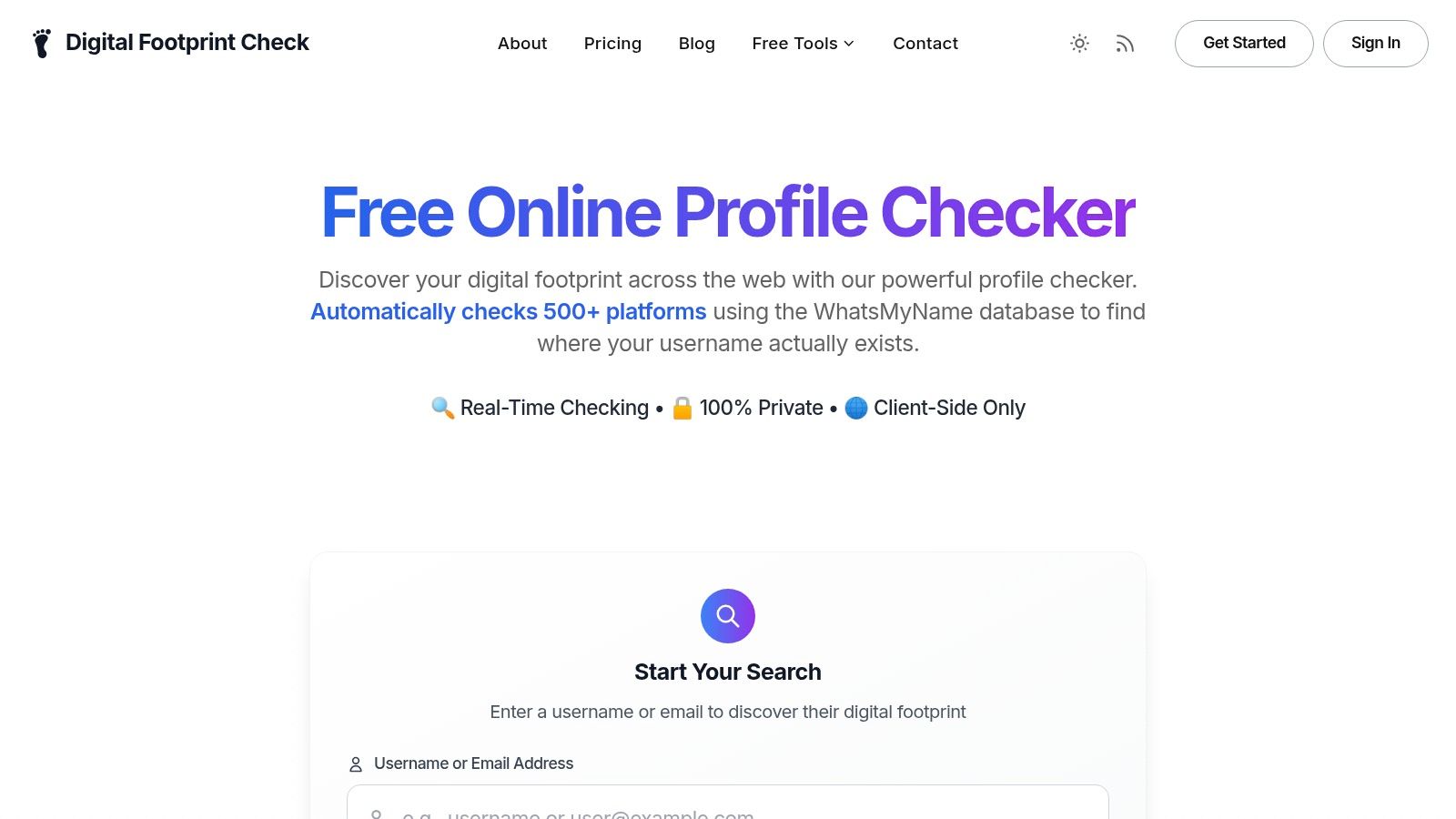
One option is the free checker from Digital Footprint Check, which scans for publicly accessible traces across websites, social media, data brokers, public records, and related sources. Used carefully, a tool like that helps you spot connections you wouldn’t find by searching one platform at a time.
That’s especially useful when the risk isn’t just embarrassment. A forgotten profile can expose a recovery email. A reused gamer tag can connect your real name to discussion boards. A data broker listing can expose an address history that someone else can misuse.
For content that appears online without clear dates, context matters too. If you’re trying to work out when an image, profile, or post first appeared, AI Image Detector’s digital detective’s guide to content age offers practical ways to think about timing and origin.
The right goal isn’t perfect deletion
People often ask for a total wipe. That usually isn’t realistic.
A better goal is to answer four questions:
- What’s publicly visible about me right now?
- Which accounts or records can still be tied to me?
- Which exposures create real risk for safety, fraud, or employment?
- What can I remove, lock down, or monitor from here?
If data brokers are part of your concern, this guide on finding what data brokers have on you is worth keeping open while you audit the rest of your footprint.
A Proactive Plan for Managing Your Digital Past
Searching history once is useful. Building a routine is better.
What protects your privacy isn’t one dramatic cleanup. It’s a repeatable habit of reviewing, reducing, and monitoring what follows you online.
A simple privacy routine that people can actually keep
Use a checklist you won’t avoid.
- Review browser history regularly. Look for sensitive searches, downloads, and site visits on shared or travel devices.
- Check account-level histories. Search Google, YouTube, and social logs for topics, actions, or identities you’d rather not leave unattended.
- Track all accounts in one place. A password manager helps you remember what exists, which matters when old accounts become the weakest link.
- Audit old usernames and emails. Keep a short list of every handle and address you’ve used. They are keys to your older digital self.
- Scan your wider footprint on a schedule. Quarterly works well for many people because it’s frequent enough to catch new exposure without becoming a daily chore.
What to do when you replace or dispose of devices
Searching history only matters if old hardware doesn’t leak the rest.
If you’re selling, donating, or recycling a computer, browser cleanup alone isn’t enough. Stored files, sync remnants, and account traces can remain on the drive. This guide to data destruction for hard drives is a useful reference for thinking through proper device disposal.
Keep the goal realistic
You don’t need a spotless internet. You need a manageable one.
The safest digital past is the one you review before someone else reviews it for you.
Generally, a strong plan looks like this:
| Action | Why it matters |
|---|---|
| Search local browser and device history | Finds easy-to-recover recent activity and shared-device risks |
| Review account histories | Catches records that remain after local deletion |
| Search old identities | Helps uncover forgotten accounts and outdated public traces |
| Monitor broader exposure | Identifies data outside platforms you directly control |
| Remove or restrict high-risk records | Reduces harm to job prospects, privacy, and personal safety |
If you’re planning a larger cleanup, this guide on how to delete your online presence gives a practical next step after you’ve identified what’s out there.
Your digital past is easier to manage when you can view it. If you want a starting point beyond browser logs and account settings, try the Digital Footprint Check free checker to look for publicly accessible traces tied to your online identity.