· Digital Footprint Check · Content Marketing · 19 min read
How to Use Private Browsing: the Complete 2026 Guide
Learn how to use private browsing (Incognito) on Chrome, Safari & more. Understand what it hides—and what it doesn't—to truly protect your digital privacy.

You’re probably using private browsing for one of three reasons. You’re on a shared laptop and don’t want the next person seeing what you searched. You need to sign into a second account without disturbing your normal browser session. Or you’re researching something sensitive, from a job move to a health issue, and you want the session to disappear when you close it.
That instinct is reasonable. Private browsing is useful.
It’s also widely misunderstood. It hides activity from other people using the same device far better than it hides activity from websites, networks, and services on the internet. If you want to know how to use private browsing well, you need both parts of the picture: how to open it, and what it does not protect.
The Private Browsing Promise and Its Hidden Catch
Private browsing solves a local privacy problem. It stops your browser from keeping the usual trail on the device after the session ends. That includes browsing history, cookies, site data, and form inputs in major browsers.
That matters on a family PC, a borrowed laptop, or a work machine where multiple people share the same user profile. It’s the right tool when your goal is, “Don’t leave this in the browser after I’m done.”
The catch is more significant than commonly realized. A 2025 Privacy International report cited in recent analyses says 78% of users mistakenly believe incognito fully anonymizes them (Microsoft Edge learning center on private browsing). That belief causes real mistakes.
Local privacy is not internet anonymity
When you open Incognito, InPrivate, or a Private Window, your browser changes how it stores data on your device. It does not magically hide your IP address, erase your browser fingerprint, or stop network-level observation.
A website can still receive your requests. A network administrator can still inspect traffic patterns on a managed network. If you log into an account, you still tie that session to your identity.
Practical rule: Use private browsing to control what the browser remembers. Don’t use it as your only protection when you care about who can identify you online.
This matters for more than general privacy. Job seekers often search employers, competitors, or interviewers and assume those sessions are detached from their online identity. Gamers create or test alternate sign-ins and think the session won’t connect to existing profiles. Neither assumption is safe if the browser session still exposes account logins, identifiers, or a stable device fingerprint.
Your digital footprint doesn’t pause
Most guides stop at “click this menu item.” That misses the harder issue: private mode doesn’t stop your persistent digital footprint from growing. Public usernames, forum activity, account registrations, and breached credentials still live outside your browser after the window closes.
If you want a deeper explanation of how routine browsing behavior can reveal more than people expect, this piece on how your browsing habits create an invisible trail is worth reading.
Private browsing is useful. It just has a narrow job. Once you understand that boundary, you can use it properly instead of expecting it to do work it was never built to do.
Launching a Private Session on Any Device
A private window is easy to open. Using the right one matters more on a shared laptop, a work machine, or a phone where regular and private tabs sit side by side.
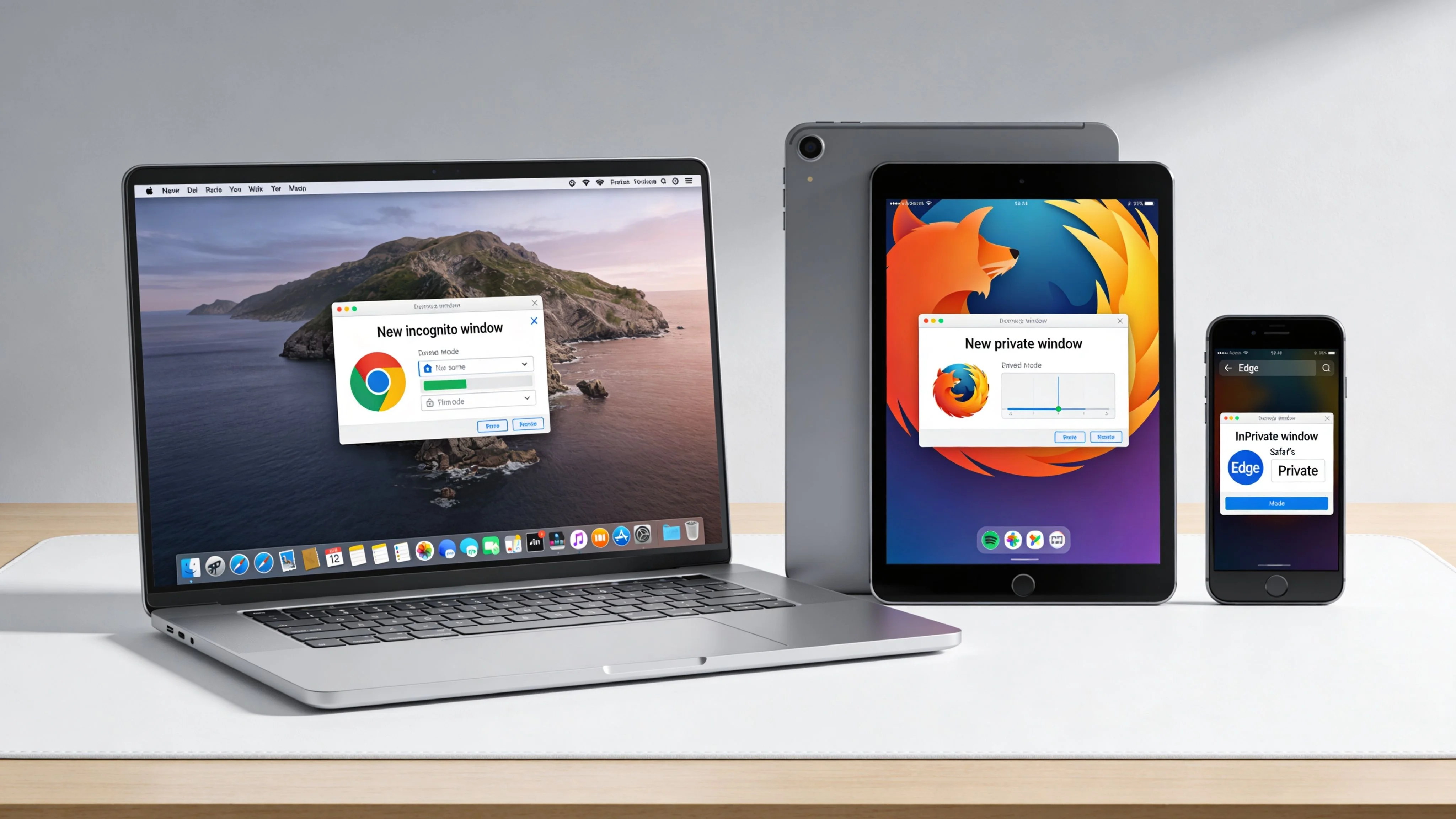
Chrome labels it Incognito. Firefox uses Private Window. Microsoft Edge calls it InPrivate. Safari keeps the plainest name, Private Browsing. The labels differ, and so do some privacy defaults, so it helps to know which browser you are using before you rely on it for a sensitive search.
On desktop browsers
Google Chrome
On Windows and Linux, press Ctrl+Shift+N. On macOS, press Cmd+Shift+N. You can also open the browser menu and choose New Incognito Window.
Chrome keeps the process simple. That simplicity helps if you just want a clean session for a second account, a gift search, or research on a shared device. It does not change how traffic moves across the network.
Mozilla Firefox
Open the menu and select New Private Window. Firefox also applies stronger anti-tracking settings than some browsers do by default, which is one reason privacy-focused users often prefer it for routine private sessions.
If you want to review Firefox’s broader privacy controls before relying on them, spend a minute on understanding a service's privacy policy and then compare that habit against Firefox’s own settings and documentation. Private mode works best when you know what the browser blocks, and what it leaves untouched.
Microsoft Edge
Open the three-dot menu and choose New InPrivate window. If you want more aggressive tracker blocking, go to Settings > Privacy, search, and services and raise Tracking prevention to Strict.
That setting can improve privacy during the session, but it can also break some logins, shopping carts, and embedded media. The trade-off is real. Stronger blocking usually means more site friction.
On mobile devices
Private mode on phones is easy to miss because the controls move around with browser updates. In most mobile browsers, open the tab switcher or menu, then create a new private tab or private tab group.
Safari on iPhone and iPad usually puts Private under the tab view and tab groups. Chrome on mobile offers New Incognito tab from the menu. Firefox mobile and Edge mobile use similar private tab options.
The practical mistake I see most often is simple. Someone thinks they switched modes, then searches, logs in, or fills out a form in a standard tab. Before doing anything sensitive, confirm you are in the private tab group first.
What changes when the private window opens
Private mode changes what the browser keeps on the device after the session ends. In normal use, that means local browsing history, cookies, site data, and many autofill traces from that session are not stored the same way after you close all private windows.
Some things stay behind or stay visible elsewhere:
- Downloads remain on the device unless you delete them manually.
- Bookmarks remain saved if you create them during the session.
- Extensions may still collect data if you allow them in private mode.
- Your IP address still reaches the sites you visit unless you add another layer. If that is your goal, this guide on how to hide your IP address explains the options.
- Account activity still ties back to you if you sign in.
- Public traces still persist outside the browser. A private tab does nothing to erase forum posts, old usernames, people-search listings, or exposed account data already tied to your name.
That last point matters for job seekers checking recruiters, gamers testing alternate accounts, and everyday users trying to separate one search session from their broader online identity. Private mode controls local browser memory. It does not stop your wider digital footprint from growing.
A short walkthrough can help if you want to see the browser interfaces in action:
A few practical habits that prevent mistakes
The feature is simple. The mistakes are simple too.
- Check the browser indicator first. Look for Chrome’s Incognito symbol, Firefox’s private mask, Edge’s InPrivate label, or Safari’s private tab styling.
- Disable unnecessary extensions. An extension with permission to run in private mode can still observe what you do.
- Decide whether login defeats your goal. If you are researching an employer, testing ad results, or comparing prices, signing in may remove much of the privacy benefit.
- Close every private tab when you finish. One open tab can keep a session alive longer than intended.
- Audit the traces private mode cannot hide. If your concern is reputation, discoverability, or old accounts tied to your identity, use a footprint audit such as Digital Footprint Check to review exposure that a private window will never remove.
The Hard Truth What Private Browsing Actually Hides
The simplest way to understand private browsing is this: it helps against people who use your device after you. It does far less against organizations and services that see your traffic while you browse.
That distinction clears up most of the myths.
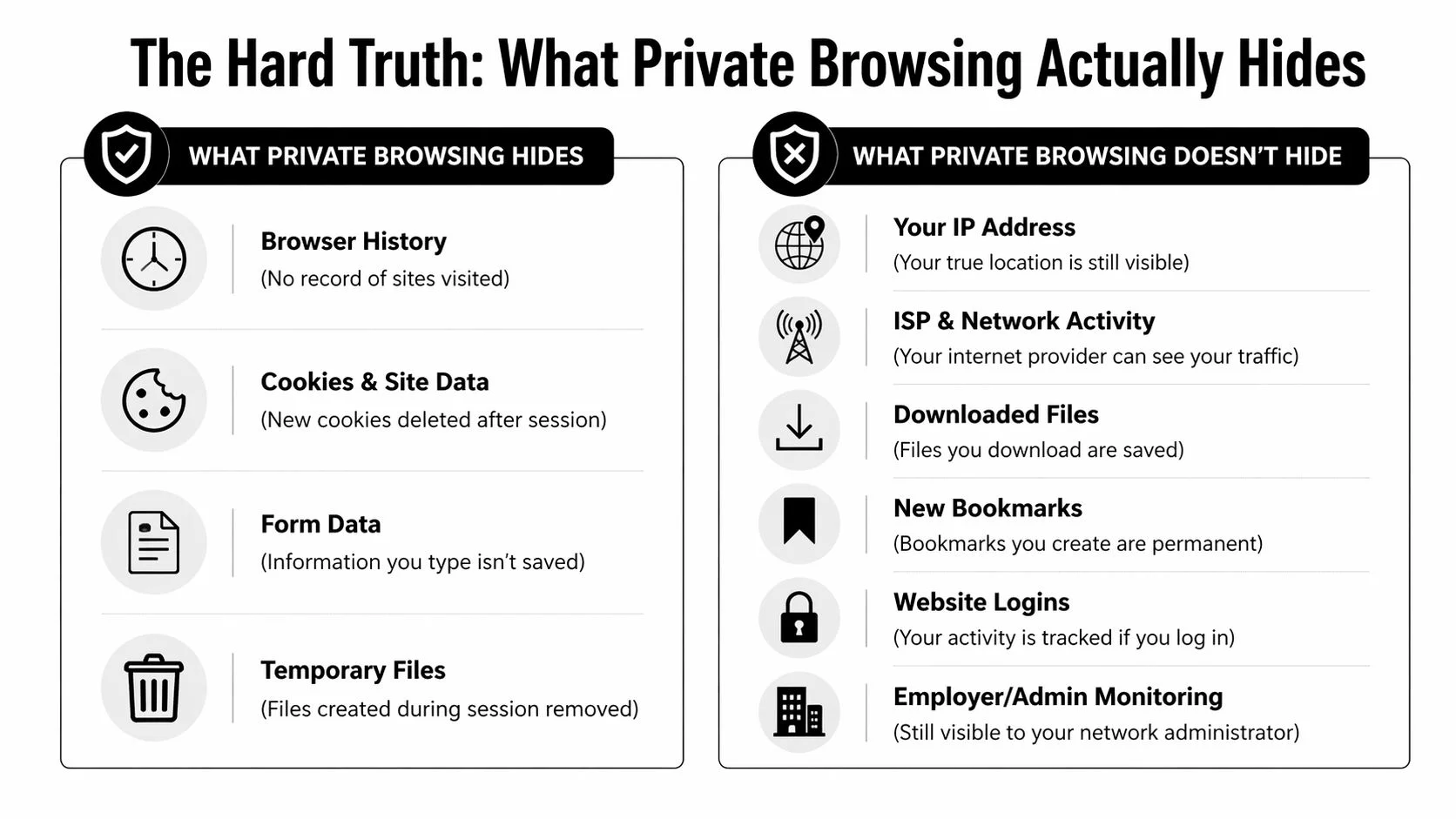
Private browsing protection at a glance
| Data/Activity Type | Protected by Private Browsing? | Who Can Still See It |
|---|---|---|
| Browsing history on the device | Yes | Someone monitoring the network or website operators |
| Cookies and site data after session close | Yes, for that session’s local storage | Websites during the live session |
| Form inputs saved in the browser | Yes | The site receiving the form |
| Temporary local session traces in the browser | Usually | System or network observers may still have visibility outside the browser |
| IP address | No | Websites, network operators, and admins |
| ISP or network activity | No | ISP, workplace, school, or managed network admin |
| Activity while logged into accounts | No | The service you logged into |
| Downloaded files | No | Anyone with access to the device can still find them |
| Bookmarks created in the session | No | Anyone using the same browser profile later |
Myths and realities
Myth: Incognito means anonymous.
Reality: It means the browser won’t keep the usual local record after the session closes.
Myth: Private mode hides me from my employer.
Reality: On a work network, the network owner can still observe traffic patterns and destinations.
Myth: Private browsing prevents tracking completely.
Reality: Some browsers add useful anti-tracking measures, but private mode by itself doesn’t erase identity signals such as IP address, logins, and browser fingerprinting.
Private browsing is a privacy feature inside the browser. It isn’t a shield against the rest of the internet.
Why the distinction matters in real life
A job seeker using a private window to research recruiters may still identify themselves the moment they sign into LinkedIn, Gmail, or an employer portal. A gamer checking account recovery options in private mode still exposes downloaded files and any service-side activity associated with the account. A parent using a private tab on a household computer may protect the browser history, but not the downloaded PDF sitting in the Downloads folder.
Those are not edge cases. They’re the normal way people use the web.
It also helps to read the terms and disclosures of the services you rely on. If you want a plain-language example of what to look for, understanding a service's privacy policy can sharpen your eye for how vendors describe collection, retention, and sharing.
The limits users overlook most often
The biggest operational misses are usually these:
- Logged-in sessions still count: If you authenticate, the service can associate activity with your account.
- Files survive the session: Downloads remain on disk even after the private window is gone.
- Bookmarks persist: Saving a page creates a permanent marker in the normal browser profile.
- Cookies aren’t the whole story: Clearing local site data doesn’t stop server logs or fingerprint-based recognition.
If you’re trying to reduce site-level tracking during normal browsing, this explainer on how to delete tracking cookies is a useful companion to private mode. Cookies matter. They just aren’t the entire tracking stack.
Advanced Configurations and Best Practices
A private window helps only if the setup matches the job.
That matters in ordinary situations. A job seeker may need a hiring portal to load correctly on the first try. A gamer trying to recover an account may need email verification, CAPTCHA, and embedded support widgets to work without interference. An everyday user researching a medical issue may care more about reducing local traces and ad tracking than forcing the strongest blocking setting possible.
Choose settings based on risk, not ideology
Browsers now add more privacy protections inside private mode than they used to. Apple notes that Safari Private Browsing can block known trackers, reduce identifying URL data, and make fingerprinting harder, while browser privacy controls can also interfere with site features depending on how aggressively they are configured (Apple Safari Private Browsing support).
Use that fact carefully. More blocking can reduce tracking, but unusual browser behavior can also create compatibility problems and sometimes make your setup stand out.
For high-stakes tasks, reliability comes first. Use a moderate or balanced tracking-prevention setting for job applications, banking, school portals, healthcare forms, and account recovery.
For lower-stakes browsing, stricter blocking makes more sense. Use it for ad-heavy news sites, quick product research, or one-off searches where a broken widget is only an annoyance.
Field advice: If a login page, checkout flow, video player, or support chat fails in private mode, test the same page with a less aggressive privacy setting before assuming the site is down.
Review extensions every time the task is sensitive
Extensions regularly weaken private browsing more than the browser itself. Coupon tools, shopping assistants, AI sidebars, screenshot helpers, and productivity add-ons can still read page data if you allow them in private windows.
Check three things before you start:
- Which extensions are allowed in private windows
- Whether each one needs that permission
- Whether the site still works after you disable the extras
Privacy add-ons can help, but stacking too many blockers often creates a different problem. You stop a few more trackers and lose access to the page you opened private mode to use.
Use private mode as a controlled session
Treat private browsing like a temporary workspace. Configure it on purpose, finish the task, then close it completely.
A workflow that holds up in practice looks like this:
- Open a fresh private window for one task only
- Set protection to balanced for account, payment, or application flows
- Switch to stricter blocking for casual research on tracker-heavy sites
- Allow only the extensions you trust and need
- Sign out when the task is done
- Close the entire private window, not just the active tab
That setup reduces local residue, but it does nothing to erase what happened on the service side or what is already tied to your public identity.
That is the part people miss. Private mode can limit local browser traces. It cannot hide an old forum post, a breached email address, a public username, or personal details already indexed online. If you want to see the exposure private browsing cannot touch, pair it with a check of your broader privacy stack and public presence using internet privacy tools that include digital footprint auditing.
When Private Browsing Is Not Enough Real-World Alternatives
A job seeker researches a company from a private window on airport Wi-Fi, then logs into a hiring portal. A gamer checks a ban appeal forum under a familiar handle. An everyday user searches a health concern privately, then signs into the same email account they use everywhere else. In all three cases, private mode clears local traces later. It does not solve the bigger exposure in the moment.
Private browsing is a local cleanup feature. If the risk involves your network, your IP address, account linkage, or a public profile that persists after the session, use a different tool.

Use a VPN when the network is the weak point
A VPN helps when you do not trust the connection itself. It encrypts traffic between your device and the VPN provider, which reduces what a local Wi-Fi operator or internet provider can inspect. It also masks your public IP from the sites you visit.
That makes a practical difference on hotel Wi-Fi, airport networks, school connections, and shared apartments.
The trade-off is straightforward. A VPN shifts trust from the local network to the VPN company. It also does not stop a site from linking activity to you once you sign in, reuse the same email address, or keep the same browser fingerprint. Good online privacy practices treat a VPN as one layer, not a disguise that fixes identity exposure by itself.
Use Tor Browser when identity separation matters more than convenience
Tor Browser is built for stronger anonymity than standard private mode. It routes traffic through multiple relays and isolates sessions more aggressively than a normal browser does. It also clears browsing state by design.
That extra protection comes with friction. Browsing is slower. Some sites block Tor exit nodes. Account logins, CAPTCHAs, and media-heavy pages often become harder to use. For sensitive research, source protection, or cases where linking the session back to your home IP would create real consequences, that trade-off can be worth it.
A few practical rules matter more than any feature list. Do not log into your usual accounts in Tor if anonymity is the goal. Do not reuse a known username. Do not treat Tor as a magic fix for behavior that identifies you anyway.
Use privacy-focused browsers for everyday reduction, not full anonymity
Browsers such as Brave or Firefox with stronger privacy settings can block more trackers than default browser private mode. Private search tools can also reduce how much query history gets tied to a mainstream search profile.
This is the middle ground many people need. It is useful for routine browsing, shopping research, casual reading, and less invasive ad tracking. It is not the right answer when you need to hide traffic from the network, separate identities cleanly, or prevent a service from connecting activity to a logged-in account.
Choose the tool based on the risk
| Situation | Better tool | Why |
|---|---|---|
| Shared computer at home, school, or work | Standard private browsing | Reduces local history, cookies, and autofill residue after the session |
| Public or untrusted Wi-Fi | VPN | Protects traffic on the network and masks your public IP |
| Sensitive research that should not point back to your usual identity | Tor Browser | Adds stronger identity separation and origin protection |
| Daily browsing with fewer trackers and less ad profiling | Privacy-focused browser | Improves default privacy with less friction than Tor |
The common mistake is using private mode for problems it cannot solve. If your concern is who can see your traffic, who can connect a session to your account, or what remains publicly visible after you post, register, or recover an account, private browsing is too narrow.
That is why I recommend pairing browser hygiene with an audit of your public exposure. Private mode can close a session. It cannot remove an old username, a searchable profile, a breached email address, or cached content tied to your identity. If you want to see what remains visible after the window closes, use a guide on how to check your digital footprint.
Connecting Private Browsing to Your Digital Footprint
Private browsing ends when the window closes. Your digital footprint doesn’t.
That’s the part users usually discover too late. They open a private window, assume the session is detached, then log into a platform, create a new account, post under a familiar username, or submit an application with an email address they’ve used elsewhere. The browser may forget the session. The internet often won’t.
Actions inside a private window can still become public traces
A private session doesn’t stop a forum from publishing your comment. It doesn’t stop a gaming platform from creating a profile page. It doesn’t stop a dating app from associating a username, photo set, or handle with your broader online identity.
For job seekers, this matters during employer research and application flows. For gamers, it matters when testing alternate usernames or account recovery paths. For everyday users, it matters any time a private session still touches a real account or creates content that others can index, archive, or link.
Reputation risk is often indirect
Most privacy mistakes are not dramatic. They’re incremental.
You search a company from a private tab, click through from a logged-in account, then reuse the same username on a public board. You browse a sensitive topic privately, then download a document to a shared machine. You sign up for a service in a private window, but the public profile it creates persists long after the local session disappears.
That’s why basic browser hygiene isn’t enough on its own. Broader online privacy practices matter because identity leakage usually happens across services, not just inside one browser window.
Verify what the web can still see
The smartest habit is to treat private browsing as one control in a larger privacy process. Use it to reduce local traces. Then separately check what information about you is still discoverable online through usernames, email addresses, public profiles, and exposed records.
If you want to audit your exposure, start with a guide on how to check your digital footprint. That’s the missing verification step often skipped.
The browser can forget your session and the internet can still remember you.
That’s the practical reason privacy-conscious users should think beyond Incognito. A temporary local session is not the same thing as a temporary online identity.
Frequently Asked Questions About Private Browsing
Can my employer see my private browsing on a work computer
Yes. Private browsing helps prevent local history from staying in the browser after the session ends, but it doesn’t stop visibility on a managed work network. If the company controls the device, the network, or both, they may still observe sites visited, traffic destinations, and account activity tied to workplace systems.
The safer rule is simple: don’t treat employer-owned devices as private devices.
Does private browsing protect me from malware or phishing
No. A private window doesn’t screen downloads for malicious behavior or make a phishing page harmless. If you download an infected file, click a bad link, or enter credentials into a fake login page, private mode doesn’t rescue you.
It changes storage behavior. It does not replace cautious browsing or endpoint security.
If I log into an account in Incognito mode, is the activity still tied to me
Yes. Once you sign into Google, a social network, a marketplace, a gaming platform, or any other service, that service can associate the activity with your account. Private browsing may keep the local browser cleaner, but it doesn’t erase the fact that you authenticated.
That’s why private mode is weak for identity separation if you continue using your normal accounts.
Are downloads and bookmarks deleted when I close the private window
No. Files you download remain on the device, and bookmarks you create remain in the browser profile. This is one of the most common misunderstandings because people assume the whole session vanishes. It doesn’t.
If the session involved sensitive material, check the Downloads folder and bookmark list before you walk away from the device.
You use private browsing to limit what the device remembers. Use Digital Footprint Check to see what the internet still remembers about you. The free checker can help you review publicly exposed profiles, accounts, and other footprint signals that private mode can’t hide.