· Digital Footprint Check · Content Marketing · 16 min read
How to Delete Tracking Cookies: Quick Privacy Win
Tired of online tracking? Learn how to delete tracking cookies across Chrome, Safari, and Firefox with a simple, step-by-step privacy guide.

Deleting tracking cookies is straightforward. Find your browser’s privacy and security settings, locate the cookie data, and clear it — either all of it or only cookies from specific sites. The exact steps vary by browser, but the idea is the same.
Your Quick Guide to Deleting Tracking Cookies
Browser settings can feel like a maze. This guide keeps it simple: what tracking cookies are, and why a few minutes of management helps your privacy.
Understanding the Basics
Cookies are tiny notes left on your browser by the sites you visit. Many are harmless — they keep you logged in or your cart full.
Third-party tracking cookies follow you across the internet, building a profile of your habits and interests to serve targeted ads.
Deleting these trackers is also part of a wider conversation about data privacy. Regulations like GDPR in Europe and CCPA in California give users more control by requiring consent for non-essential cookies. CookieYes reports acceptance rates below 25% in privacy-conscious Germany, versus over 80% in the U.S.
Managing your cookies is one of the most direct ways to control your online identity. It’s deciding who gets to watch what you do online.
Taking Immediate Action
Before the browser-by-browser steps, get a head start on digital security. Our free privacy checklist is a structured way to secure your entire footprint, not just cookies: https://www.digitalfootprintcheck.com/free-privacy-checklist
For quick reference, here’s a cheatsheet to jump directly to the right settings in the most popular browsers.
Quick Cookie Deletion Cheatsheet for Major Browsers
This table gives you the direct path to the cookie settings, so you don’t have to search through menus.
| Browser | Quick Path to Cookie Settings |
|---|---|
| Google Chrome | Settings > Privacy and security > Clear browsing data |
| Mozilla Firefox | Settings > Privacy & Security > Cookies and Site Data |
| Apple Safari | Preferences > Privacy > Manage Website Data |
Just follow these paths, and you’ll be exactly where you need to be to start clearing out unwanted trackers.
A Step-by-Step Guide to Clearing Cookies on Desktop
Rolling up your sleeves and diving into browser settings is the quickest way to get your privacy back. While every browser has a slightly different layout, the core steps for deleting tracking cookies are surprisingly consistent across the board. Let’s walk through exactly how to do it on the major desktop browsers so you can wipe that data with confidence.
Ever been shopping for a new pair of running shoes online? Suddenly, ads for those exact shoes are stalking you across every site you visit. That’s a classic sign of third-party tracking cookies at work, and it’s the perfect reason to do a manual cleanup.
Or maybe you’ve used a public computer at a library or a friend’s house. If you forget to clear your cookies, you might be leaving your login details wide open for the next person who sits down. Knowing how to quickly erase that trail is a basic, but critical, security habit.
Navigating Google Chrome’s Privacy Settings
Let’s start with the big one. With a staggering 67% of the global browser market share, Google Chrome is where most people will need to begin. Thankfully, its settings are fairly straightforward, tucking all the data management tools into one central spot.
First, pop open Chrome’s main menu—it’s the icon with three vertical dots in the top-right corner. From there, find Settings, then look for the Privacy and security section in the left-hand menu. Think of this as your command center for all things data.
Once you’re in that section, the most direct route is clicking Clear browsing data. This brings up a new window where you get to decide what gets deleted. You can be surgical here, or you can just wipe the slate clean.
You’ll see two main tabs: Basic and Advanced.
- Basic view: This is your quick-and-dirty option. It lets you clear your browsing history, cookies, and cached files in one go. Perfect for a fast cleanup.
- Advanced view: This tab gives you more precise control. You can pick and choose, deleting things like download history or saved passwords while leaving other data untouched.
For our purpose, you’ll want to make sure the “Cookies and other site data” box is checked. You can also pick a time frame, anything from the last hour to “All time.” To give yourself the most thorough privacy reset, always choose “All time.”
Here’s what that “Clear browsing data” menu looks like in Chrome, showing you exactly where to make your selections.
The screenshot highlights the checkboxes for different kinds of data, showing just how much you can customize the deletion process.
Customizing Your Cookie Deletion
But what if you don’t want to be logged out of every website you use? Hitting “clear all” can be a real pain, forcing you to re-enter your password for your email, social media, and other sites you trust.
Chrome has a smarter way to handle this. Instead of the broad “Clear browsing data” tool, navigate to Privacy and security > Third-party cookies > See all site data and permissions. This page is a complete list of every website that has ever stored data in your browser.
This granular view is your most powerful tool. It allows you to target and remove cookies from specific ad networks or unfamiliar sites while preserving the useful login cookies from websites you use daily.
For example, you can search for that shoe store that’s been following you around with ads and delete only its data. The targeted ads will stop, but you won’t be logged out of your email. This selective approach is the key to balancing privacy and convenience, turning a confusing task into a simple, routine check-up for your browser’s health.
Clearing Tracking Cookies from Your Mobile Device
Let’s be honest, your smartphone is probably glued to your hand more than any other device. That makes it a massive target for digital tracking, yet most of us never touch the privacy settings buried in our phones. Learning how to delete tracking cookies on your mobile browser is just as critical as on your desktop, especially since the menus and steps can be worlds apart.
Ever looked up a gift idea on your phone during your lunch break, only to be bombarded with ads for that exact thing on Instagram a minute later? That’s the handiwork of mobile tracking cookies, quietly syncing your activity across every app and platform you use. This is precisely why regular cleanups on your phone are a must-do for anyone who values their privacy.
Wiping Cookies from Safari on iPhone and iPad
If you’re an Apple user, the process feels a bit counterintuitive. You won’t find the cookie-clearing options inside the Safari browser itself; instead, they’re tucked away in the main device settings. It’s a bit odd at first, but it does put all your controls in one central spot.
First, pop open the Settings app on your iPhone or iPad. You’ll need to scroll down a bit until you see the entry for Safari—tap on that. This is the command center for all of your browser’s privacy and security options.
Once you’re inside the Safari menu, head toward the bottom and tap on Clear History and Website Data. A confirmation box will pop up, giving you a heads-up that this will erase your history, cookies, and other browsing data. Go ahead and confirm your choice.
This is the nuclear option. It logs you out of everything and wipes your recent history, giving you a fresh start. It’s the most effective way to ensure no trackers are left hanging around.
Removing Cookies from Chrome on Android
For the Android crowd, the process will feel much more familiar, as the settings are located right inside the Chrome app, just like on a desktop.
Start by opening the Chrome app on your device. Tap the three-dot menu icon, which you’ll almost always find in the top-right corner. This brings up the main menu, where you’ll want to select Settings.
Inside the Settings menu, find and tap on Privacy and security. This section is your go-to hub for managing all your data. Now, tap Clear browsing data to get to the final screen.
Here, you’ll see a few choices that mirror the desktop experience:
- Time range: You can pick from the last hour, day, week, or “All time.” To do a thorough privacy sweep, you should always choose All time.
- Data types: Make sure the box next to “Cookies and site data” is ticked. You can also nuke your browsing history and cached files at the same time if you want.
Once you’ve made your selections, just hit the Clear data button at the bottom. This permanently deletes that data from your phone, breaking the connection between your past browsing and the ads that follow you around. Making this a regular habit is a small step that gives your mobile privacy a huge boost.
Moving Beyond Deletion With Proactive Cookie Management
Just clearing out your cookies every so often is a decent start, but it’s a reactive move. If you really want to take control of your digital privacy, you need to switch gears from playing catch-up to building a proactive, automated defense. That means setting up your browser to handle trackers for you, so you’re protected without having to think about it.
One of the simplest and most effective long-term strategies is just telling your browser to automatically clear cookies every time you close it. Think of it like tidying up a room as soon as you’re done—it prevents the clutter from ever building up. This simple action ensures any trackers you pick up are wiped away at the end of each session, giving you a fresh, private start every time.
Automating Your Privacy Defense
Most modern browsers have a built-in option for this, usually labeled something like “Clear cookies and site data when you quit.”
- In Chrome, you’ll find it under Settings > Privacy and security > Third-party cookies.
- In Firefox, it’s located at Settings > Privacy & Security > Cookies and Site Data.
Flipping this one switch is probably one of the most powerful moves you can make for your everyday privacy.
Still, the world of online tracking is always in flux. Take Google’s decision to delay the phase-out of third-party cookies in Chrome. With Chrome holding about 67% of the global browser market, that was a huge deal. While competitors like Safari and Firefox have been blocking these trackers for a while, this delay means manual control is still essential for the vast majority of internet users. Knowing how to manage and block these cookies yourself remains a critical skill.
Leveraging Privacy Tools and Extensions
Beyond your browser’s native settings, there’s a whole world of privacy extensions designed to block trackers before they even get a chance to load. These tools act as a frontline shield, preventing tracking scripts from ever running in the first place.
A few of the most trusted and effective options include:
- uBlock Origin: This is the highest standard for many. It’s lightweight and powerful, blocking ads and trackers without slowing down your browser.
- Privacy Badger: Developed by the Electronic Frontier Foundation (EFF), this extension is smart. It doesn’t use static block lists but instead learns to identify and block invisible trackers based on their behavior as you browse.
- Ghostery: If you like to see what’s happening under the hood, Ghostery gives you a user-friendly dashboard showing exactly which trackers are on a page and lets you block them individually.
To help you figure out where to start on mobile, this decision tree breaks down the process for both iOS and Android.
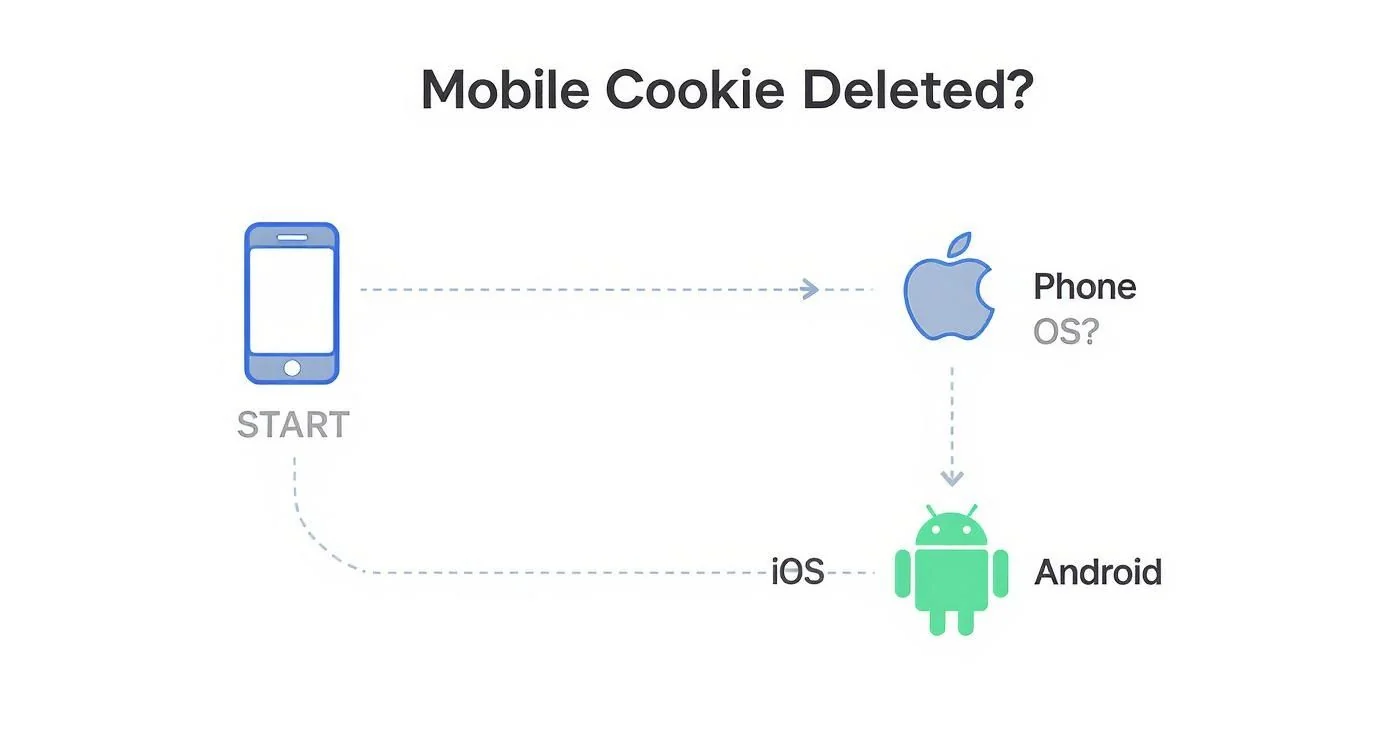
As the visual shows, while the exact steps differ, both operating systems give you direct pathways to manage your browser’s data.
On managing tracking cookies, you’ve got a few different ways to approach it. The best method really depends on how much effort you’re willing to put in versus how much protection you want. I’ve put together a quick table comparing the most common strategies.
Cookie Management Methods Compared
| Method | Level of Effort | Effectiveness | Best For |
|---|---|---|---|
| Manual Deletion | High | Moderate | Occasional cleanups or targeting specific site data after the fact. |
| Automated Browser Settings | Low | High | Everyday users looking for a simple, “set-it-and-forget-it” solution. |
| Privacy Extensions | Low | Very High | Privacy-conscious users who want active, real-time tracker blocking. |
| Privacy-Focused Browsers | Low | Very High | Users who want maximum privacy built-in from the ground up, without add-ons. |
Each path offers a different level of control. Combining automated browser settings with a good extension often provides the best balance of convenience and robust protection for most people.
The ultimate goal is to build a set of sustainable privacy habits. Combining automated browser settings with a reliable tracker-blocking extension creates a robust, multi-layered defense against unwanted surveillance.
This approach transforms your browser from a passive data collector into an active guardian of your information. Getting familiar with the basics of general privacy principles can give you even more context for these efforts. And for a much deeper dive, don’t miss our guide on https://www.digitalfootprintcheck.com/privacy-in-pixels-practical-steps-to-minimize-your-digital-exposure.
The Hidden Impact of Deleting Cookies

Hitting that “clear data” button feels like a solid victory for your privacy, and in many ways, it is. But it’s not without a few minor trade-offs you’ll notice pretty quickly. Knowing what to expect can save you some frustration and help you get a better handle on your browser settings.
The most immediate change? You’ll be logged out of just about everywhere. Suddenly, your email, social media accounts, and favorite online stores will treat you like a complete stranger. This happens because the helpful cookies that remember your login status (first-party cookies) are wiped out right alongside the intrusive ones.
First-Party vs. Third-Party Cookies
Think of first-party cookies as the website’s personal memory. They’re created by the site you’re visiting to handle useful things, like keeping items in your shopping cart or remembering you prefer English over Spanish. Generally, these are the good guys.
Third-party cookies, on the other hand, are the real privacy invaders. These are placed by domains other than the one you’re currently on—usually ad networks—to follow you around the web. These are the trackers that build those scarily accurate profiles about your interests and habits. Our guide on the invisible trail your browsing habits leave digs deeper into how this digital footprint takes shape.
When you learn how to delete tracking cookies, the main goal is to eliminate the third-party trackers. The logout inconvenience is simply a side effect of clearing out the helpful first-party cookies at the same time.
The Broader Economic Ripple Effect
Your choice to clear cookies sends ripples through the digital advertising world, too. When users regularly delete cookies, it shatters the tracking models advertisers depend on to see if their campaigns are actually working. This disruption has led to a massive 21% misallocation of digital ad budgets across the globe as companies can no longer attribute sales to specific ads.
As a result, many businesses are scrambling to adapt. They’re shifting toward more privacy-friendly, first-party data strategies and exploring cookieless tracking solutions. For example, some are adopting server-side tagging, a method that’s less affected by you clearing your browser data and has been shown to boost measurement accuracy by up to 30%. You can find more details on cookie tracking’s market impact at datainsightsmarket.com.
Understanding this context helps explain why the web is changing so fast and why your small act of clearing cookies is part of a much bigger conversation.
Got Questions About Deleting Cookies? We’ve Got Answers.
Diving into your browser’s data settings usually brings up more questions than answers. Once you start clearing out tracking cookies, you might worry about what else you’re breaking or how often you need to keep doing it. Let’s tackle some of the most common questions to clear things up.
Will Deleting Cookies Log Me Out of Websites?
Yes, almost every time. When you wipe your cookies, you’re also deleting the tiny files that websites use to remember that you’re signed in. This means you’ll be logged out of your email, social media accounts, and any online stores you use.
This happens because your login status is managed by first-party cookies, which get tossed out along with the third-party trackers. Some browsers offer a more surgical approach, letting you target specific tracking sites while leaving your trusted login cookies alone. But for a full privacy reset, you just have to accept the minor inconvenience of logging back in everywhere.
How Often Should I Delete Tracking Cookies?
The right answer really depends on your own browsing habits and how seriously you take your privacy. For most people, a monthly cleanup is a perfectly reasonable routine to adopt.
If you’re more privacy-conscious or you frequently visit a lot of new websites, you might feel better doing a weekly sweep.
The best long-term strategy, though, is to put it on autopilot. Set your browser to clear cookies automatically every time you close it. Or, even better, use a privacy extension to block trackers from the get-go. This pretty much eliminates the need for constant manual cleanups.
Is Incognito Mode Enough to Stop Tracking Cookies?
Not by a long shot. Incognito or private mode is just a temporary, isolated session. It’s designed to forget the cookies and browsing history from that single session as soon as you close the window, which is definitely useful in some situations.
But it does not stop websites from dropping tracking cookies on your device while you’re in that session. It also doesn’t hide what you’re doing from your internet service provider (ISP), your boss if you’re on a work network, or the websites you’re visiting. Think of it as a handy tool for temporary privacy, not a real substitute for managing your cookie settings properly.
What Is the Difference Between Cookies and Cache?
This is a classic point of confusion. Both are just bits of data your browser stores, but they do different jobs.
Cookies: These are all about you and your preferences. They store things like your login status, what’s in your shopping cart, or a unique ID that lets advertisers follow you around the web.
Cache: This is about speed. The cache stores parts of websites you’ve already been to—like images and code—so they load much faster on your next visit.
When it comes down to it, deleting cookies is about protecting your privacy and controlling how sites personalize your experience. Clearing your cache is mostly about freeing up a little disk space and making sure you’re seeing the latest version of a website.
Take control of your entire online identity with Digital Footprint Check. Our service scans the web to find where your personal data is exposed and gives you the tools to secure it. Start your free scan today and see what’s out there.