· Digital Footprint Check · Content Marketing · 14 min read
How Do I Find My Network SSID on Any Device
Learn how do i find my network ssid on Windows, Mac, iPhone, Android, and the router, including hidden and lookalike names.
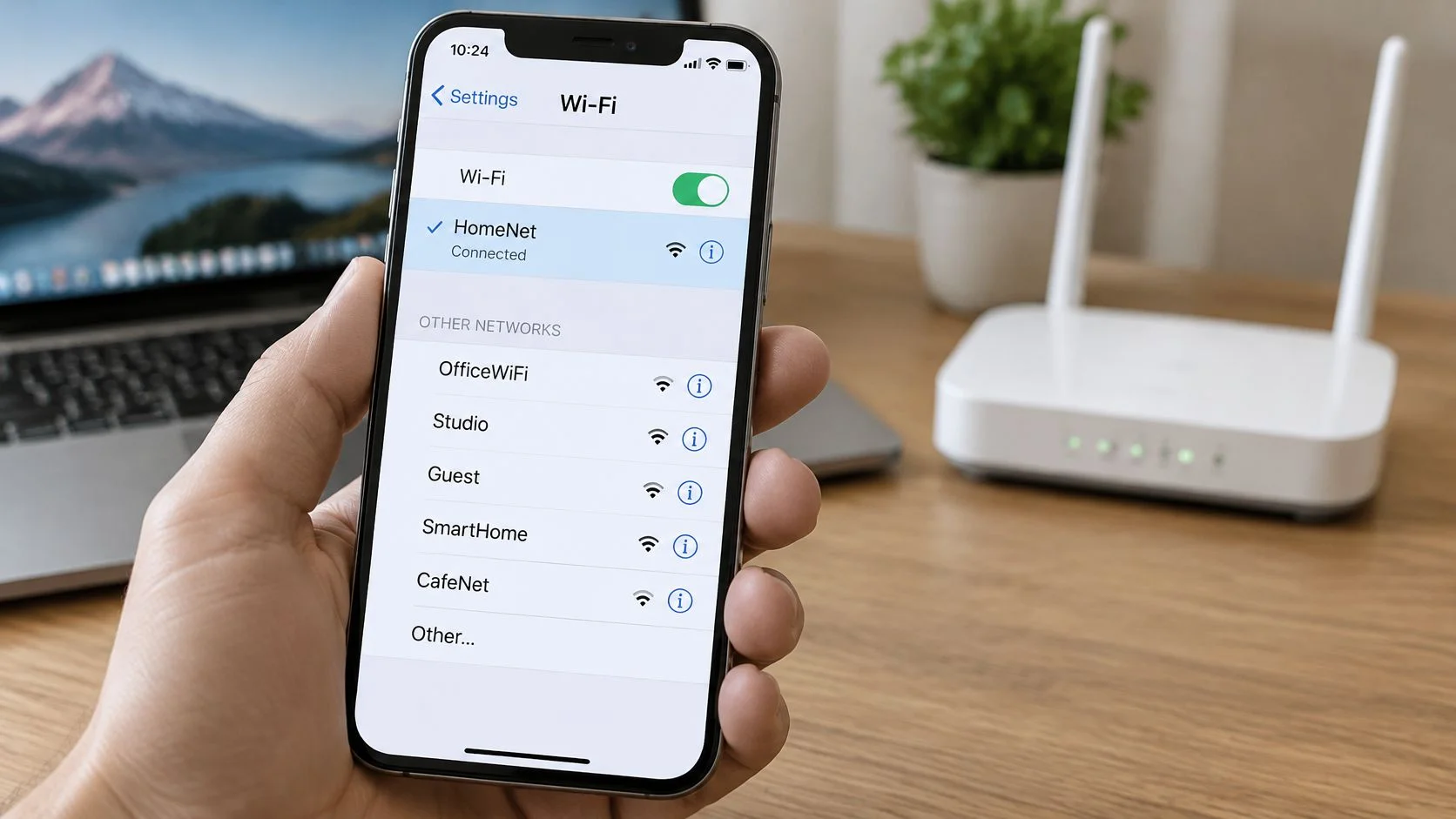
You're holding a new phone, a work laptop, or a streaming stick. It asks for your Wi-Fi name. You flip the router over, read the sticker, and type that name. Nothing matches. Your old laptop is online in the next room, so the internet clearly works, but it's joined to something with a different name.
That mismatch is the whole problem. The sticker shows what the router was called at the factory. Your devices show what it's called now. Start with the device that's already online, and you'll save yourself a lot of guessing.
Find the Connected SSID Before Anything Else
An SSID, or Service Set Identifier, is the visible name of your Wi-Fi network. When you ask, "How do I find my network SSID," the reliable answer comes from a device that's already connected. As the TP-Link guide to finding your SSID explains, Windows marks the active network as "Connected" in the taskbar, Android lists it in Wi-Fi settings, and iPhone or iPad shows it with a checkmark.
That mark matters more than the name itself. A long list of networks in an apartment building doesn't mean they're all yours. Most belong to neighbors, a printer, a TV, or the cafe downstairs.
Trust the mark, not the memory. The name marked Connected, or checked, is the one your household is actually using right now.
Match Your Device to the Right Mark
Use this quick table before you dig into router menus. Find your device in the left column, open that menu, and read only the marked row.
| Device | Where to look | Mark to trust |
|---|---|---|
| Windows | Taskbar Wi-Fi icon | Name labeled Connected |
| Mac | Menu bar Wi-Fi icon or System Settings, Wi-Fi | Name beside the connection status |
| iPhone or iPad | Settings, Wi-Fi | Name with a checkmark |
| Android | Settings, Network and Internet, Wi-Fi | Name shown as the current network |
Don't tap the first familiar name if three look alike. Say you see "Home," "Home-5G," and "HOME" in a kitchen list. Only one carries the connected mark on your laptop, and that's the spelling you'll need for the new device.
Keep the Sticker in Its Proper Place
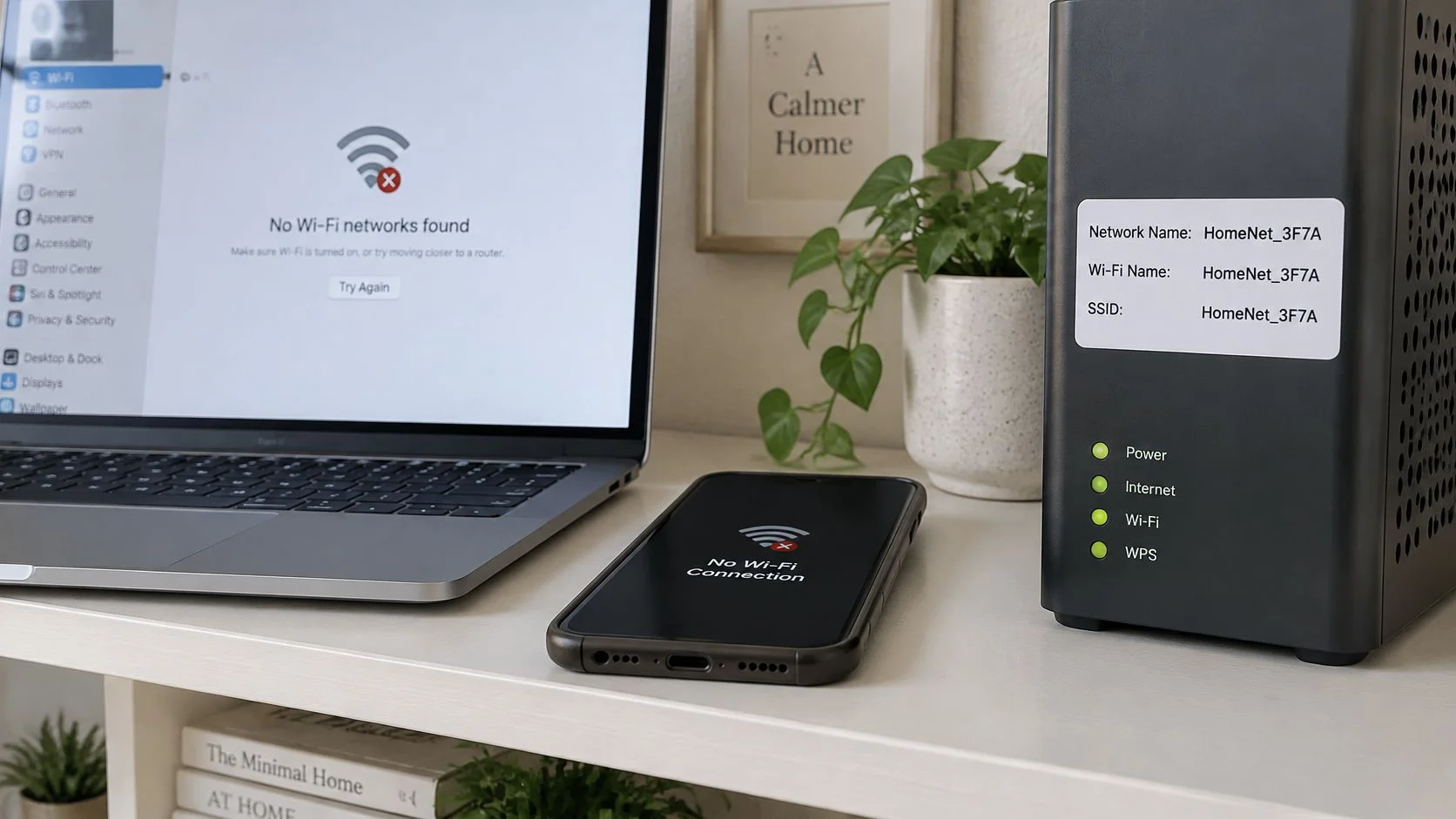
The router label is a backup, not proof. It usually prints the factory name as Network Name, Wi-Fi Name, or SSID, often beside the default password. If someone renamed the network during installation, that printed name may no longer be broadcast at all.
That's why a sticker can send you in circles. You keep searching for a name your router stopped using a year ago. Check the connected laptop or phone first, then use the sticker only to compare.
Separate the two credentials while you're here. The SSID identifies the network, and the password authenticates access. They're different fields, and swapping them is a common reason a join fails.
This habit helps away from home, too. In a hotel, airport, or rental, a similar name doesn't mean a safe network, which is why it helps to check whether hotel Wi-Fi is safe before you join and sign in to accounts. At home, the connected mark still settles which name is yours.
If no device is connected, don't panic and don't reset the router yet. You've still got the sticker, the provider app, and the router settings. But when something in the house is already online, that device gives you the fastest, most accurate reading.
Write the name down exactly as shown. Keep the capitals, spaces, hyphens, and numbers. You'll need that exact spelling if you type it by hand later.
Click Paths on Windows Mac iPhone and Android
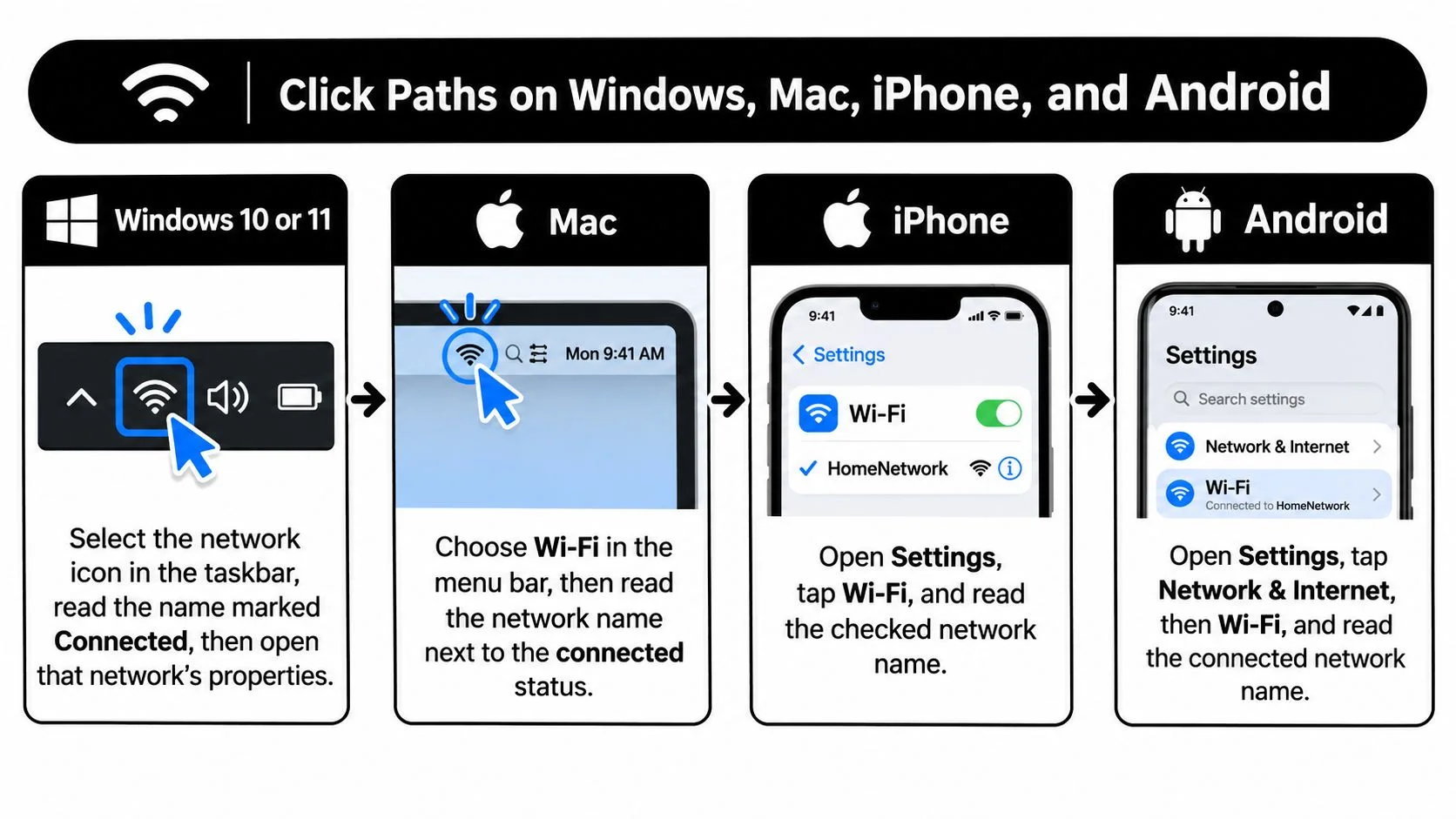
Each system hides the active name in a slightly different spot. The logic stays the same on all four. Open the Wi-Fi menu, ignore the full list for a second, and read the marked connection first.
Apple's guidance on joining Wi-Fi networks follows that same order. On iPhone or iPad you open Settings, then Wi-Fi. On macOS you open the Apple menu, then System Settings, then Wi-Fi, where the connected name appears with the connection status indicator.
This flow shows the four paths side by side.
Windows and Mac Paths
- Windows 10 or 11: Select the network icon in the taskbar. Read the name marked Connected. If both a private and a guest network are saved, open that network's properties to confirm which one you're on.
- Windows slip to avoid: Don't pick the strongest signal in the list. A neighbor's router by a shared wall can look stronger than yours down the hall.
- Mac: Click the Wi-Fi icon in the menu bar for the quick view. For the full view, open the Apple menu, choose System Settings, then Wi-Fi, and read the name next to the connection status.
The menu bar path is faster when Settings is buried under other windows. Either way, you're looking for the active entry, not the longest list of nearby names. A Mac in a living room may show a printer and two TVs, and none of those is your internet connection.
iPhone iPad and Android Paths
- iPhone or iPad: Open Settings and tap Wi-Fi. Use only the row with the checkmark. Every unchecked row is just a network your phone can hear.
- Android: Open Settings, then tap Network and Internet or Connections, then Wi-Fi. Read the block labeled as the current network, which usually sits above the other names.
- Android wording differences: Pixel phones tend to say Network and Internet. Samsung phones often say Connections. The label changes, but the active name still sits at the top.
That top placement is the clue people miss. They scroll through twenty apartment networks looking for something familiar. Your phone already separated the answer from the noise.
If you use an iPhone on networks you don't control, naming the right SSID is only the first step. Setting up protection for traffic on shared Wi-Fi is covered in our guide to iPhone VPN configuration. At home, though, confirm the name before you change anything else.
When Two Rows Look Identical
Stop if two rows look the same. Don't assume they're one network. Compare the router label, the saved network details, or the gateway page before you join.
Spelling, spaces, and capitalization must match if someone types the name manually. The password goes in a separate field, so a correct name with a password pasted into the wrong box still fails. Type each one where it belongs.
A mesh kit adds one more wrinkle. Several radios around the house can advertise one SSID, so the visible name doesn't tell you which access point in the hallway or bedroom answered. That's normal, and for finding the name, you don't need to know which radio it was.
Recover the Name When Nothing Is Connected or Hidden
A dead phone, a brand new laptop, and a router on a shelf. Nothing in the house shows a connected mark. Now you're recovering the name, not just reading it.
This situation looks like a total failure, but it's usually a records problem.
Start With the Sticker Then Question It
Read the line marked Network Name, Wi-Fi Name, or SSID. Treat the printed password beside it as the factory key only. Both were true on day one, and either one may have changed since.
If the installer renamed the network to something your family would recognize, the sticker points to a name that's no longer broadcast. Searching for it won't work, no matter how carefully you type. The sticker tells you where the router started, not where it ended up.
Check for setup paperwork next. Internet providers often leave a card with the name the technician set. A photo on a household phone, taken during installation, can settle it in seconds.
Open the App or the Router Settings
Many households already have the router or provider app on a phone, even if nobody remembers installing it. Open it and look for Wi-Fi or Wireless settings. The current name sits in the network name field there.
If there's no app, use the gateway address printed on the hardware to reach the router's administration page. Sign in with the admin password, which isn't always the same as the Wi-Fi password. Mixing those two up locks people out of a page they own.
- Wireless or Wi-Fi settings: The current network name field is usually located on most routers here.
- Separate band rows: Some routers list one name for the lower band and another for the higher band, so read both rows.
- Guest network row: A guest name may appear nearby, so don't copy it by mistake for your main devices.
Write down the exact spelling, the security type, and whether the guest name is separate. That small note prevents the next round of guessing when you add a tablet or a game console. Keep it somewhere private, not on a sticky note on the router.
Landlord, dorm, office, and hotel equipment works differently. There's usually no personal sticker you should rely on. Use the welcome card or ask the administrator for the name instead of joining a similar network that happens to be open.
Keep Three Identifiers Apart
Confusion grows when three different labels get treated as one. The name you use today, the factory name, and the hardware address of one radio are separate things.
| Identifier | What it is | Where to read it |
|---|---|---|
| Current SSID | Name the network uses now | Connected device or router admin network-name field |
| Default SSID | Factory name printed on the router | Sticker, may be stale after a rename |
| BSSID | MAC address of one access-point radio | Router or mesh admin page, one SSID can map to several BSSIDs |
The BSSID matters in crowded buildings and mesh setups. It's the hardware identifier for a specific radio, while the SSID is the human readable name people join. If your laptop roams between a kitchen node and a bedroom node, the SSID stays the same and the BSSID changes.
That difference explains a common scare. A network tool shows an unfamiliar code, and someone assumes a stranger joined. Often it's just another radio in their own mesh kit.
Join a Hidden Network by Hand
A hidden network won't appear in the list at all. On a Mac, choose Wi-Fi, then Other Networks, then Other. Enter the exact network name, the security type, and the password.
One wrong character makes this fail in the same way a wrong password does. The error message rarely tells you which field you got wrong. Check spelling first, then the security type, then the password.
The video below walks through the recovery order visually, which helps if menus on your router use slightly different words.
Hiding a name feels private, but it doesn't lock anyone out. As Apple's guidance on hidden networks explains, a hidden network omits the SSID from beacon frames, yet devices may still send the name in connection probes. Hiding it doesn't provide meaningful security and can expose information about networks your device uses.
Think of it this way. Your phone walks through a coffee shop asking for your home network by name. Anyone listening for those requests learns the name anyway.
A hidden name is not a locked door. WPA2 or WPA3 with a strong password is what keeps strangers off your network.
If you're asking, "How do I find my network SSID when it's hidden," the recovery order stays practical. Check a device with the network saved. Then check the app. Then check the gateway page. Then ask whoever manages the equipment.
Don't hide the name as your main defense once you recover it. You'll make every new device harder to add, and you'll gain no real protection in return. A visible name with proper encryption is the safer, simpler setup for a household.
Fix a Network Name That Will Not Appear
Don't factory reset the router first. A missing name usually comes from a small setting, a weak signal, or a band your device can't use. Work through the cheap checks in order.
Microsoft's guidance on getting connected starts with the basics. Confirm Wi-Fi is enabled, move closer to the router, refresh the list, and verify the router is set to broadcast its name.
Check in This Order
- Radio on: Confirm Wi-Fi is enabled and airplane mode is off on the phone or laptop.
- Distance: Move into the same room as the router and refresh the available network list.
- Broadcast setting: Confirm the router is set to broadcast the name, so devices can see it without typing.
- Band support: Check both 2.4 GHz and 5 GHz, and use 6 GHz only when your device supports that band in your region.
A band mismatch makes a working network look absent. An older laptop in a spare room may only see the lower band. A newer phone beside it sees both, which makes the laptop look broken when it isn't.
A fixed channel can cause the same confusion. If the router sits on a channel your device can't use well, the name may vanish or refuse to join. Changing the band you're checking often reveals the network before any deeper repair.
One shared name across bands is convenient. Windows can pick the best band for you, but you won't see which radio answered. Separate names for each band help only when you need to know which band a device used.
Match the Symptom to the First Fix
| What you see | Usual cause | First fix |
|---|---|---|
| No Wi-Fi names at all | Radio off or airplane mode | Turn Wi-Fi on and refresh the list |
| Home name missing, others visible | Out of range or broadcast disabled | Move closer, then confirm the router broadcasts the name |
| Only some devices see it | Band or channel mismatch | Check 2.4 and 5 GHz, try 6 GHz only if the device supports it |
| Must type the name | SSID is hidden | Enter the exact name, security type, and password |
| Name appears, join fails | Typo, wrong security mode, or wrong password | Re-enter spelling and the matching security mode |
| Sticker name is online but unknown | Factory name still broadcast | Do not join it, change default router admin credentials |
A hidden network and a dead router can look identical. So can a typo, a wrong security mode, a disabled band, and a wrong password. That's why the order matters, since each step rules out one cause without creating a new problem.
A default name, often a brand plus a few digits, isn't proof the network is yours or safe. Anyone on your street can broadcast a similar name. Join only the name you've confirmed from your own equipment or administrator.
Change default router admin logins, too. Published factory credentials can help unauthorized users reach your settings. While you're hardening devices, it's worth reviewing how to secure your phone from hackers, since phones carry your saved networks, email, and banking apps everywhere.
Secure the Name Then Check Your Public Profiles
A network name can identify your home before anyone connects. If it includes a surname, street, or apartment number, replace it with something neutral that your household can recognize. The name shown in the Wi-Fi list is separate from the factory name printed on the router sticker, and a familiar-looking name does not prove a network is yours. Hiding the SSID only removes it from the usual list. It does not secure the network.
The name identifies the network. The password controls who can join.
Set the Protections That Actually Work
- Encryption: Choose WPA2 or WPA3 in the router's wireless security settings. Skip older modes if your devices support either option.
- Passphrase: Replace the sticker password with a unique passphrase. Do not reuse one you use for email, gaming, or banking.
- Guest SSID: Set up a separate guest network for visitors and smart home devices. That keeps the guest password separate from the one for your private network.
- Remote administration: Turn it off unless you manage the router from outside your home.
A separate guest network gives visitors and smart devices their own place to connect. If you change its password, you can leave the password for your other devices alone.
Check What Else Carries Your Name
Your router name is one label. Reused usernames can link old social accounts, gaming profiles, and dating apps. Those profiles may show photos, locations, or contact details you no longer want public.
Review social media privacy settings to limit what people can see. Employers, clients, and the general public may also find profiles associated with a username.
Digital Footprint Check's free Username search looks for public profiles associated with a username. The process has three steps: search a username or email, review potential matches, then use step-by-step guides to take action.
Enter a username or email at Digital Footprint Check. Review the potential matches, then close or lock down profiles you do not want public. A neutral network name protects household details from casual view, while checking public profiles helps you manage what others can find online.