· Digital Footprint Check · Content Marketing · 13 min read
Is Hotel Wifi Safe: Your 2026 Traveler's Guide
Is hotel WiFi safe? Discover the real risks of public networks and get a 2026 step-by-step security checklist to protect your data while traveling.

Hotel Wi‑Fi is usually safe for casual browsing because most websites now use encryption, but it’s still not a smart place for sensitive activity unless you add extra protection. Hotels remain a meaningful cyber target, with one industry summary saying they are the third most common target of cyberattacks and account for 13% of all cyber compromises, while roughly 31% of hospitality organizations have experienced a data breach at some point.
You’ve probably had this moment before. You check in late, drop your bag, sit on the bed, open your laptop, and see a list of networks like “HotelGuest,” “Hotel Guest,” and “Hotel_Conference.” You just want to answer a few emails, maybe stream something, maybe log into your bank for a quick transfer. That’s where people ask the simple question, is hotel WiFi safe.
The honest answer is more useful than a yes or no. Hotel Wi‑Fi isn’t automatically dangerous the second you join it. But it also isn’t a place where you should behave as if you’re on your home network. A safer mindset is this: treat hotel Wi‑Fi like a hotel room door that closes but doesn’t lock by itself. It may be fine for a while, but you still need to check the latch, use the deadbolt, and stay alert.
The Inconvenient Truth About Free Hotel Wi‑Fi
A lot of travel security advice still sounds like it came from an earlier internet. It warns that the biggest problem is someone nearby reading everything you send. That used to be a bigger issue because more websites exposed traffic in readable form. Today, the web is more encrypted, so the problem has changed shape.
Hotels still attract attackers for a practical reason. They bring together large numbers of tired, distracted guests who need internet access right away. According to Surfshark’s summary of hotel Wi‑Fi risks, hotels are the third most common target of cyberattacks, accounting for 13% of all cyber compromises, and about 31% of hospitality organizations have experienced a data breach at some point.
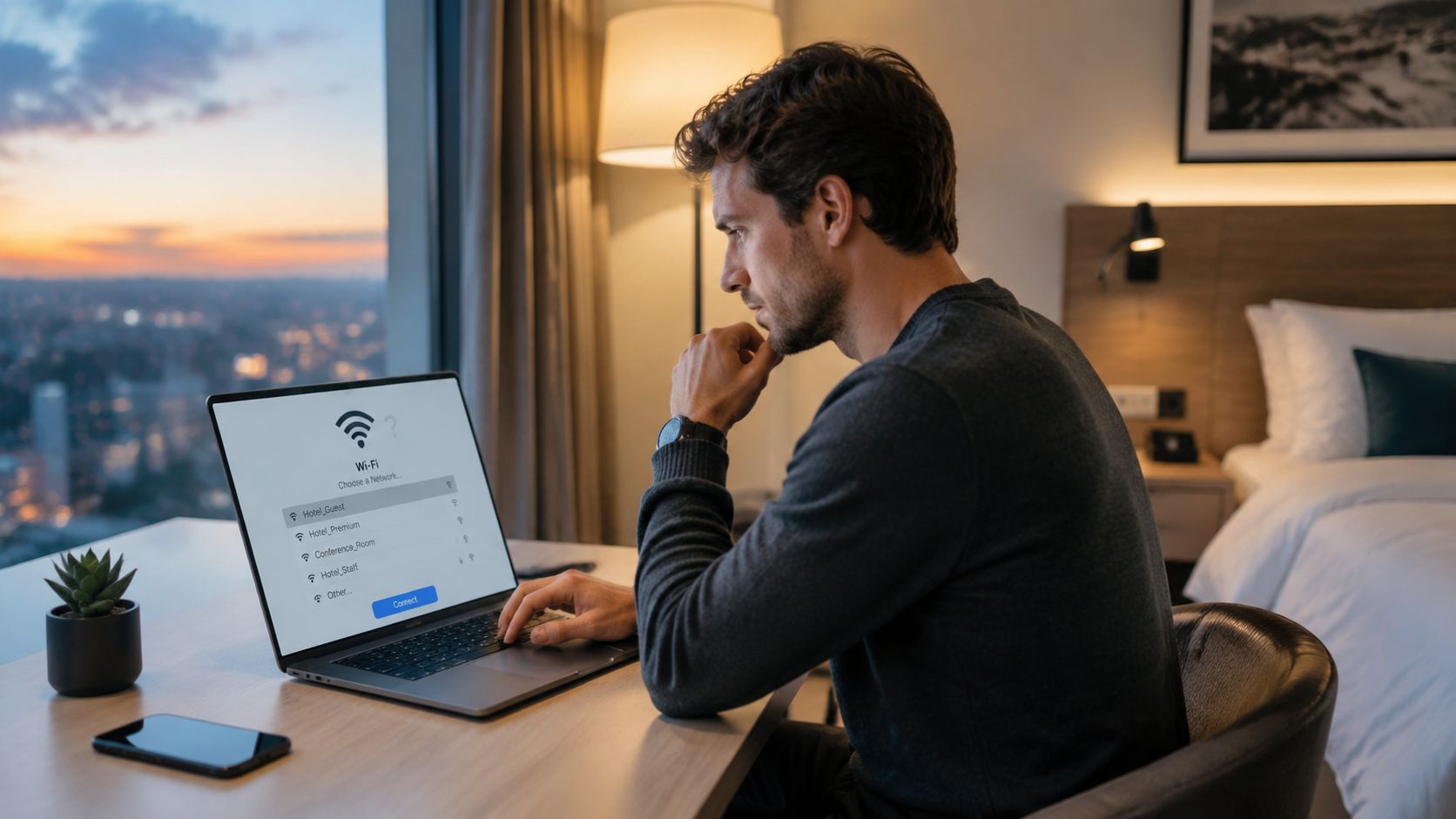
Why the risk feels confusing
People hear two messages that seem to clash:
- Message one: public Wi‑Fi is risky.
- Message two: most websites are encrypted now, so public Wi‑Fi is often okay for everyday use.
Both are true. The difference is what you’re doing and what kind of network you joined.
If you connect to the actual hotel network and browse normal HTTPS websites, your traffic is often better protected than it was years ago. But if you connect to a fake network that only looks like the hotel’s, or a captive portal pushes something malicious, encryption alone won’t save you. The threat has shifted from simple eavesdropping to impersonation and trickery.
Free Wi‑Fi isn’t automatically unsafe. Unverified Wi‑Fi is the real problem.
Think in travel cycles, not single moments
A safer travel habit starts before the trip, continues in the hotel, and finishes after you get home. That full-cycle approach matters more than memorizing scary attack names.
A traveler who updates devices, turns off risky settings, confirms the exact network name, and checks accounts afterward is much safer than someone who only remembers to “be careful.” If you want a broader privacy checklist for trips, this guide on managing your digital footprint while traveling abroad is a good companion.
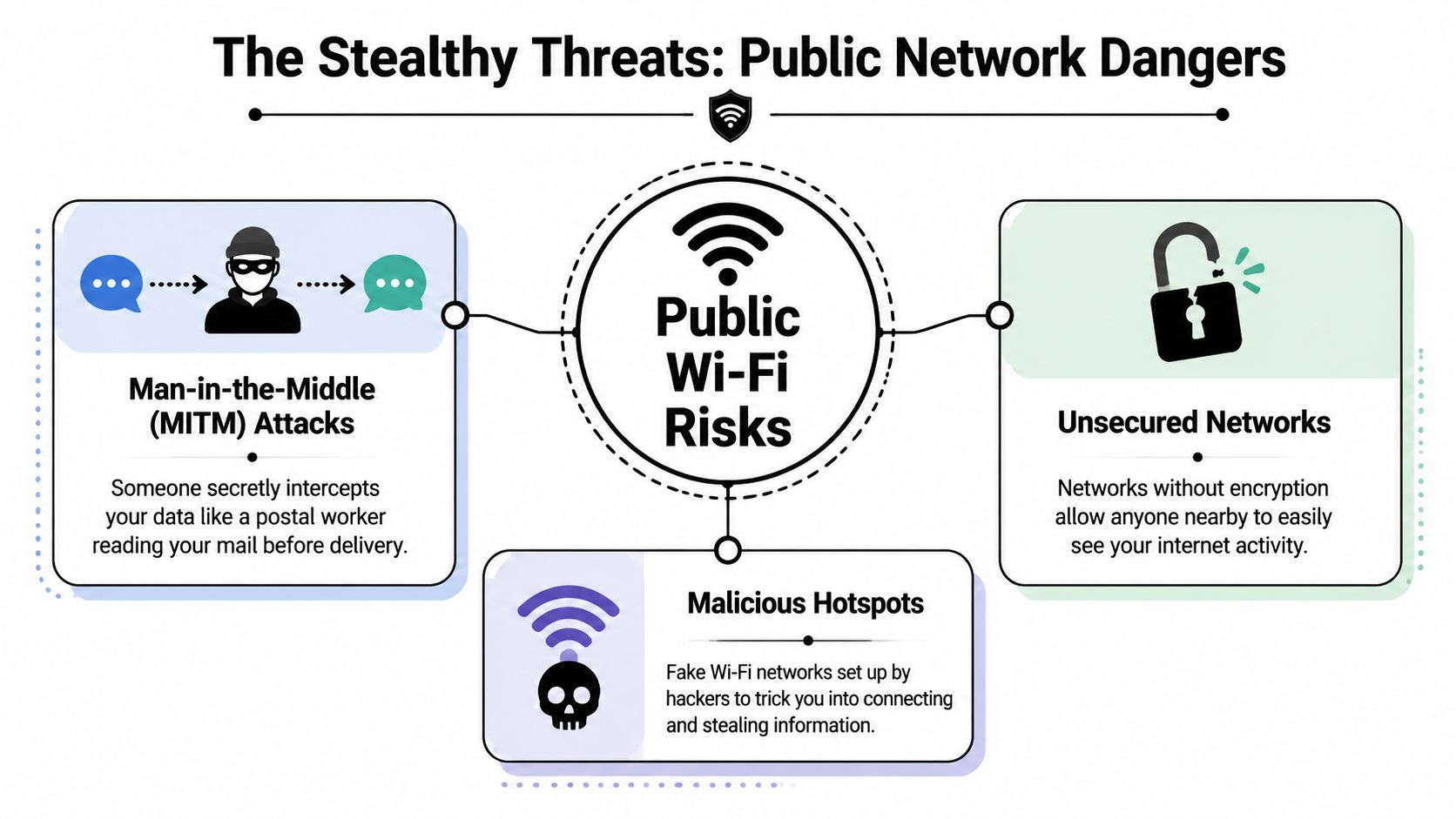
The Top 3 Dangers Lurking on Public Networks
The biggest mistake people make is picturing hotel Wi‑Fi as one single threat. It’s really a small group of different risks. Once you understand the main ones, your decisions get much easier.
Someone intercepts traffic in the middle
Think of this like sending a postcard instead of a sealed envelope. If the message is exposed, the wrong person can read it while it travels.
That’s the basic idea behind a man-in-the-middle attack. An attacker gets between your device and the website or service you’re using. Years ago, this often meant grabbing readable information from unencrypted websites. The FTC explains that most websites now use encryption, shown by a lock icon or https in the browser, which is why ordinary public Wi‑Fi use is now often acceptable for lower-risk browsing.
That’s good news, but it doesn’t mean everything is solved. Encryption protects a lot of web traffic, but it doesn’t stop every trick that can happen before you reach your intended destination.
A fake network pretends to be the real one
This is the hotel Wi‑Fi danger I want most travelers to remember.
A rogue hotspot, often called an evil twin, works like a fake hotel front desk in the lobby. The sign looks close enough. The person behind it sounds confident. You hand over details because you assume it’s legitimate. In Wi‑Fi terms, the fake network might use a name very close to the actual one, and your device may connect before you notice the difference.
That same FTC guidance notes that the main public Wi‑Fi threat has shifted toward rogue hotspots that mimic legitimate names. In a hotel, that can look like this:
| What you see | What could be happening |
|---|---|
| “GrandHotel WiFi” and “GrandHotel_WiFi” | One may be fake |
| Your phone auto-joins a familiar network name | Your device trusts the name, not the owner |
| A login page asks for extra details | You may be feeding information into a fake portal |
Account takeover begins with stolen login details. If someone steals login details, they may not use them immediately. They may wait, test them later, or combine them with other exposed data. If that topic worries you, this article on account takeover prevention is worth reading next.
Practical rule: The safest public network is the one you’ve verified with a human being, not the one that merely looks familiar on your screen.
The login page or pop-up delivers malware
Some hotel networks use a captive portal. That’s the page that appears before you get full internet access. Legitimate portals are common. The trouble starts when a fake or compromised portal asks you to install something, update something, or approve something you weren’t expecting.
A simple analogy helps here. It’s like accepting a flyer at check-in and discovering it had a tracking device taped to the back. Malware doesn’t need to arrive with flashing warning signs. Sometimes it arrives disguised as a required update, a certificate prompt, or a “helpful” download.
Watch for these red flags:
- Unexpected downloads: A hotel network should not need you to install random software to browse.
- Security prompts with no context: If a page suddenly asks you to trust a certificate or install a profile, stop.
- Aggressive redirects: Repeated pop-ups and forced pages can signal something is wrong.
The best response is boring and effective. Don’t install anything from hotel Wi‑Fi prompts unless you independently confirm it with the hotel and understand exactly what it is.
How to Spot a Compromised or Risky Wi‑Fi Network
You don’t need to be a network engineer to catch most suspicious hotel Wi‑Fi situations. You just need a short mental checklist before you connect and a few warning signs after you join.
The single most useful habit is also the least technical: ask the front desk for the exact network name. Not “something like Hotel Guest.” The exact spelling. If there’s a password, ask for that too.
Check the network before you tap
A hotel network using WPA2 or WPA3 is materially stronger than an open network, according to Norton’s public Wi‑Fi safety guidance. The same guidance also recommends disabling auto-connect and turning off file sharing because many evil-twin attacks rely on device behavior, not just weak encryption.
Use this quick screen test:
- Misspelled names: “MarriotGuest” instead of “MarriottGuest” should make you pause.
- Too many similar choices: If several names look almost identical, don’t guess.
- Open network with no protection: Open isn’t always malicious, but it deserves extra caution.
- Unexpected password behavior: If staff says there’s a password and the network doesn’t ask for one, stop.
Watch what happens right after connecting
Sometimes the danger only becomes obvious after you’ve joined.
| Sign after connecting | Why it matters |
|---|---|
| Repeated disconnects | Can indicate an unstable or spoofed setup |
| Strange pop-ups | May be fake prompts or malicious redirects |
| Requests to install software | Not normal for basic guest access |
| Sudden sharing prompts | Your device may be exposing more than it should |
You should also keep your firewall on and sharing off. That reduces the chance that another device on the same network can poke around yours.
A short checklist you can actually remember
If you want one travel rule to memorize, use this:
- Ask staff for the exact SSID
- Check whether the network shows WPA2 or WPA3
- Disable auto-connect
- Turn off file sharing
- Leave if the login flow feels strange
For a broader business-facing explanation of how weak network design creates security gaps, IT Cloud Global’s cybersecurity guide gives useful context in plain language.
Your Essential Digital Travel Security Kit
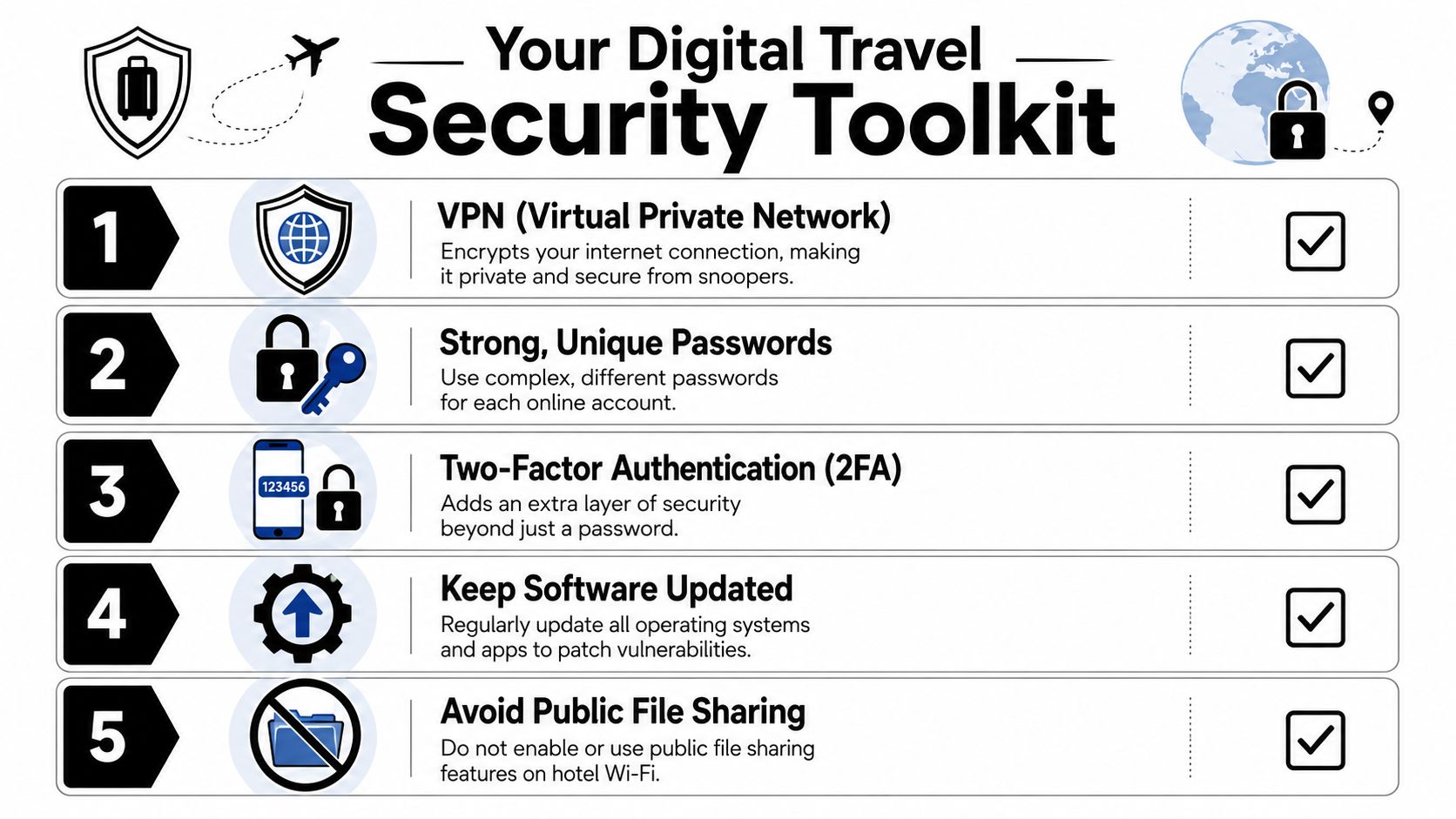
Security works best in layers. Don’t think of protection as one magic app or one perfect setting. Compare it to packing for weather. A coat helps. Good shoes help. An umbrella helps. Together, they make the trip manageable.
Start before the trip
The safest hotel Wi‑Fi session often begins at home.
Update your phone, laptop, browser, and important apps before you travel. Updates close known security holes. If your firewall is off, turn it on. If file sharing is enabled on your laptop, switch it off before you leave. Those aren’t glamorous steps, but they remove easy opportunities for attackers.
Also look at your saved networks. Devices that auto-join remembered names can drift toward the wrong hotspot. Disable auto-connect for networks you don’t fully trust.
Put a VPN at the top of the list
A VPN creates an encrypted tunnel for your internet traffic. That means other people on the same network have a much harder time seeing what you’re doing. It also helps reduce what the network operator can observe about your browsing.
If you regularly work while traveling, a VPN shouldn’t be an afterthought. It should be part of your default setup. If you use an iPhone or iPad, this walkthrough for iPhone VPN configuration can help you get it ready before the trip.
Here’s a practical way to prioritize use:
- For email and general browsing: A VPN is strongly recommended.
- For banking, work dashboards, cloud storage, or sensitive logins: Use a VPN or skip hotel Wi‑Fi entirely.
- For the highest-risk tasks: Use your mobile hotspot instead.
A related idea for people who build more permanent secure setups at home or in small offices is understanding how VPN routing works across devices. This piece on choosing a VPN router for CCTV is niche, but it explains the logic of protected traffic clearly.
Strengthen the accounts behind the connection
Good network habits matter. Strong accounts matter just as much.
If a password gets exposed anywhere during travel, two-factor authentication can stop a bad day from becoming a disaster. Your email account deserves special attention because it often acts as the reset key for everything else. The same goes for banking, cloud storage, and any work-related accounts.
Your hotel network is only one layer of risk. Your accounts need their own locks too.
Use unique passwords for important services. If one account falls, you don’t want the same password opening five more doors.
Here’s the stack I recommend, in order:
- VPN for any untrusted network
- Two-factor authentication on critical accounts
- Unique passwords, ideally managed with a password manager
- Current software and browser updates
- Firewall on, sharing off
- Mobile hotspot for anything sensitive
A short video can make some of these habits easier to visualize:
Know when not to use hotel Wi‑Fi at all
This part gets overlooked. Sometimes the safest move isn’t adding another protective layer. It’s choosing a different connection.
Use your phone’s hotspot for:
- Banking and payments
- Confidential work documents
- Password resets
- Health or legal portals
- Anything that would seriously hurt if exposed
That decision alone removes a lot of risk. Hotel Wi‑Fi can be fine for streaming, reading the news, or checking low-stakes information. It doesn’t need to carry your most sensitive digital life.
Back Home? How to Check for Account Breaches
Travel-related security problems don’t always show up in the hotel lobby. Sometimes they surface days later, when a login alert appears, a password reset email lands in your inbox, or a phishing message references details only a recent trip would explain.
That’s why post-travel monitoring matters. If you connected to a suspicious network, or even if something just felt off, don’t wait for obvious damage.
What to do first if a connection seemed suspicious
Consumer guidance often stops at “be careful on public Wi‑Fi,” but that’s not enough once you think something may have gone wrong. Kyber’s hotel Wi‑Fi safety guidance gives a more practical recovery path: disconnect immediately, change passwords for accounts used on the network, and scan for malware.
That sequence is worth remembering because it gives you an action plan instead of just anxiety.
A smart post-trip review
When you get home, check your most important accounts in this order:
- Email first: If someone gets your inbox, they may try to reset everything else.
- Banking and payment apps: Review recent activity and login alerts.
- Cloud storage: Look for unfamiliar sessions or shared files.
- Social and messaging accounts: Attackers sometimes test lower-friction accounts first.
- Work accounts: If you traveled with a company device, follow your employer’s reporting process.
You should also review recent sign-in activity where platforms provide it. If anything looks unfamiliar, sign out of other sessions and rotate the password.
Why breach monitoring matters after a trip
A compromised login doesn’t always get used immediately. Attackers often hold stolen details, combine them with other leaked data, or try them later on different accounts. That delayed pattern is one reason ongoing monitoring matters.
If you want to check whether a key account may already be exposed, you can start by checking if your email was hacked. It’s a useful first step after travel because your email account often sits at the center of your digital identity.
If something feels odd after a trip, trust that instinct. Security isn’t about proving a breach happened. It’s about shrinking the window in which it can hurt you.
Travel Smarter and Safer in a Connected World
The best answer to is hotel WiFi safe isn’t fear. It’s preparation.
Travel security gets easier when you remember three words: verify, protect, monitor. Verify the exact network before you connect. Protect your traffic and accounts with a VPN, strong passwords, software updates, and two-factor authentication. Monitor your accounts after the trip, because not every problem shows up right away.
That approach keeps hotel Wi‑Fi in its proper place. It’s a convenience, not a trusted environment. Use it for low-risk tasks when you need it. Switch to a hotspot for sensitive work. Keep your digital doors locked the same way you lock your room at night.
If you want to build a stronger privacy setup beyond travel, this guide to internet privacy tools is a solid next step.
Travel can expose more of your online identity than you realize. Digital Footprint Check helps you see what personal information is publicly exposed across the web, spot breach-related risks, and monitor the digital trails that can affect your privacy, safety, and accounts. If you want a simple starting point, try the free checker before your next trip and again when you get back.