· Digital Footprint Check · Content Marketing · 14 min read
Ultimate Iphone Vpn Configuration Guide 2026
Get the best iPhone VPN configuration for 2026. Our guide covers app & manual setup, troubleshooting, and protecting your digital footprint. Learn more!
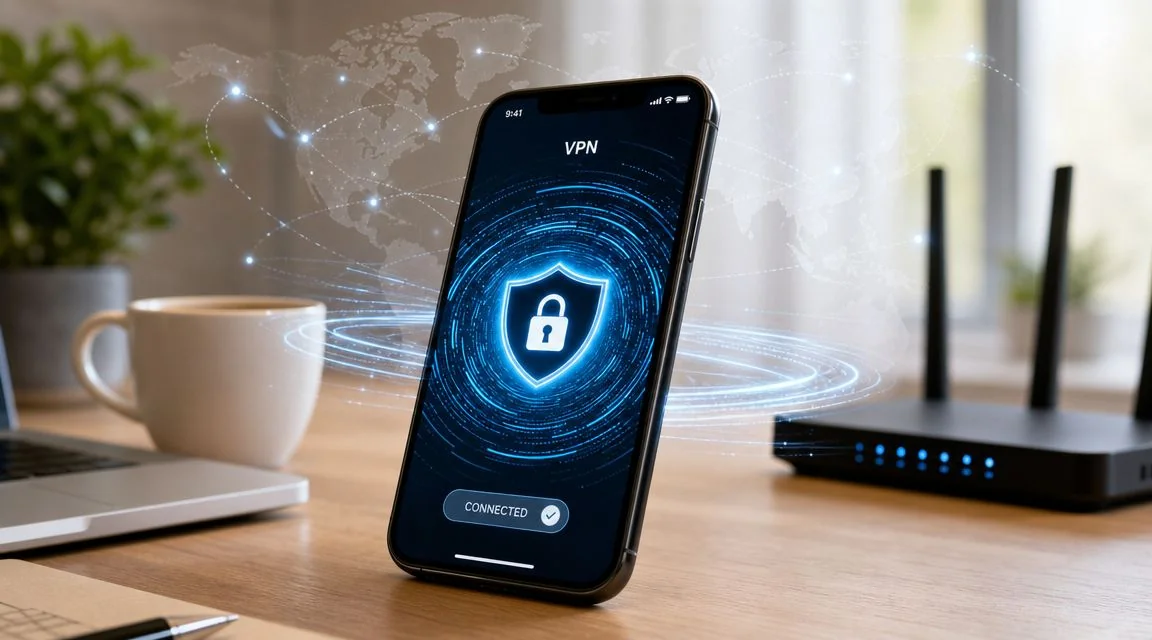
You’re on your iPhone at a coffee shop, switching between LinkedIn, a recruiter email, your bank app, and a dating app. That feels normal. It also creates a trail. Not just the sites and apps you use, but patterns about where you are, when you log in, and how your accounts connect back to you.
That’s why iphone vpn configuration matters more than many realize. It isn’t only about hiding your IP or accessing a region-locked stream. It’s about reducing unnecessary exposure while you handle parts of your life that shape your reputation, safety, and future options.
Why Your iPhone VPN Configuration Matters More Than You Think
Your digital footprint is the information already tied to you online. Your digital shadow is the extra layer created by passive tracking, app behavior, network logs, and account activity you may not think about at all. A VPN won’t erase either one, but it can reduce how much fresh network-level data you leak while using your iPhone.
That matters in ordinary situations. Job hunting on public Wi-Fi. Messaging a new match while traveling. Checking a gaming account from an airport. Logging into a work portal from a hotel. In each case, your phone is carrying sensitive traffic across networks you don’t control.
Apple’s own enterprise deployment guidance shows how far iPhone VPN support has evolved. Apple notes that iOS VPN can be configured as a device-wide connection or on a per-app basis, and for supervised devices Always On VPN is available for IKEv2 so all IP traffic can be tunneled back to the organization, according to Apple’s VPN deployment overview. That tells you something important. VPN on iPhone is no longer a niche privacy trick. It’s a serious security control used by both individuals and organizations.
Why this is bigger than public Wi-Fi fear
A lot of people think a VPN is only for “risky networks.” That’s too narrow.
A clean iphone vpn configuration helps when you want to:
- Reduce casual network visibility while browsing or messaging on shared Wi-Fi
- Separate work traffic from personal traffic on managed devices
- Lower metadata exposure tied to your location and connection habits
- Protect account sessions in transit when you’re moving between networks during the day
Practical rule: If you’d hesitate to read it aloud in a crowded room, don’t send it over a random network without protection.
If you’re also worried about the broader security of your phone, this guide on whether an iPhone can get a virus is a useful companion. A VPN helps protect traffic in transit. It doesn’t replace basic device security.
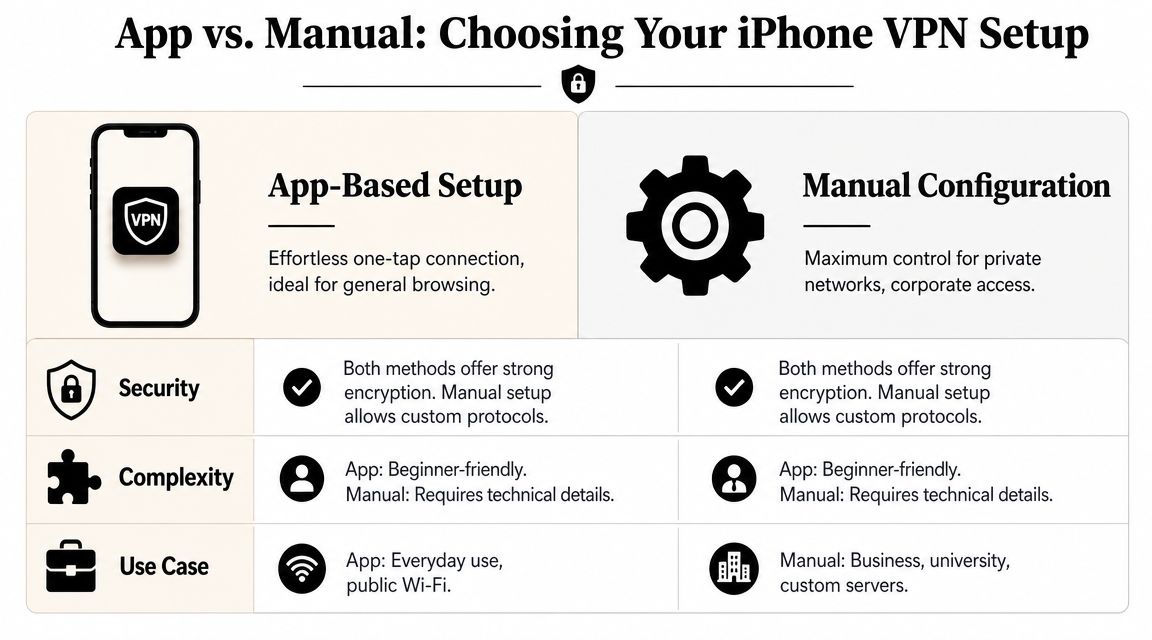
Users typically choose between two setup paths. App-based VPN setup is faster and less error-prone. Manual setup gives you more control and is often required for work, school, or private network access. The right choice depends on who manages the connection and how much control you need.
The Fast Path App-Based VPN Setup in Minutes
Typically, the best iphone vpn configuration starts with an app. It’s simpler, faster, and less likely to break because the provider handles a lot of the technical details in the background.
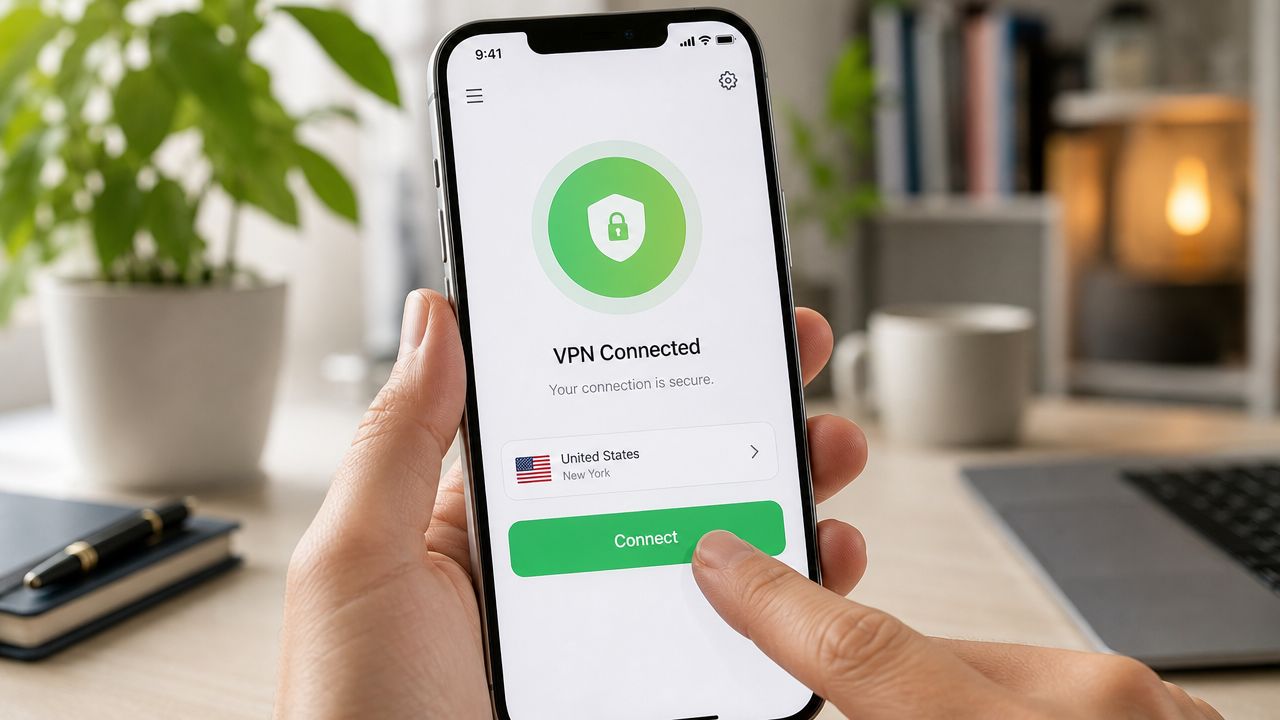
If your goal is everyday privacy, this is the route I’d recommend first. It’s especially practical if you use your phone for mixed personal activity like gaming logins, banking, social media, work chat, and dating apps. Fewer manual settings means fewer chances to type one field wrong and wonder why nothing connects.
McAfee’s 2026 guidance says modern iPhone VPN setup is usually app-driven: users should download VPN apps only from the App Store, create an account if needed, allow the app to add VPN configurations, and connect using an automatically or manually selected server. It also notes that the VPN icon appears in the status bar when connected, and you can disconnect from either the app or iPhone Settings, as described in McAfee’s iPhone VPN setup guide.
What app-based setup gets right
A good VPN app removes friction. That sounds minor until you’re rushing through a real day.
Here’s where app-based setup works well:
- Public Wi-Fi use: You sit down at a cafe and connect before opening mail, cloud docs, or messaging apps.
- Gaming account protection: You reduce exposure while signing into mobile gaming profiles on networks you don’t trust.
- Dating privacy: You make it harder for local network operators to casually observe connection behavior while you browse profiles or send messages.
- Travel: You don’t have to remember protocol names or manual fields while moving between hotel, airport, and mobile data.
The simple setup flow
The process is usually straightforward:
Choose a reputable provider in the App Store
Don’t sideload random VPN apps. Stick to the Apple App Store and review what the app is asking for.Create an account if the provider requires one
Some services connect immediately. Others require registration before activation.Open the app and approve VPN configuration permission
This is the moment iOS asks whether the app can add a VPN configuration to your iPhone.Pick a server
Many apps offer an automatic “best location” option. Others let you choose manually.Connect and verify the VPN icon appears
On iPhone, the status indicator is your quick visual check that the tunnel is live.
A VPN app should feel boring. If setup feels confusing, hidden, or overly clever, that’s usually a bad sign.
If you want a practical explainer before choosing a provider, this guide on how to hide your IP address helps connect the VPN step to the privacy outcome you actually care about.
A quick visual walkthrough can help if you’re doing this on your own phone right now:
What to watch for before you trust the app
App-based doesn’t mean risk-free. A few checks matter:
- Store source only: Download from the official App Store, not from ads or copied links.
- Permission clarity: The VPN configuration prompt is expected. Extra unrelated permissions deserve skepticism.
- Disconnect behavior: Make sure you know how to turn it off in both the app and iPhone settings.
- Server choice: Automatic is usually fine for speed and simplicity. Manual selection makes sense if you need a specific region or network path.
If you’re not managing a business device and you don’t need a private corporate endpoint, app-based setup is usually the cleanest answer. It protects your active traffic without making you learn fields that your provider should handle for you.
Manual iPhone VPN Configuration for Greater Control
Manual iphone vpn configuration is for people who need something specific. Usually that means a work VPN, a university network, a self-managed service, or a provider that gave you exact connection details instead of a one-tap app.
This setup is less forgiving. The upside is control. The downside is that every field matters.
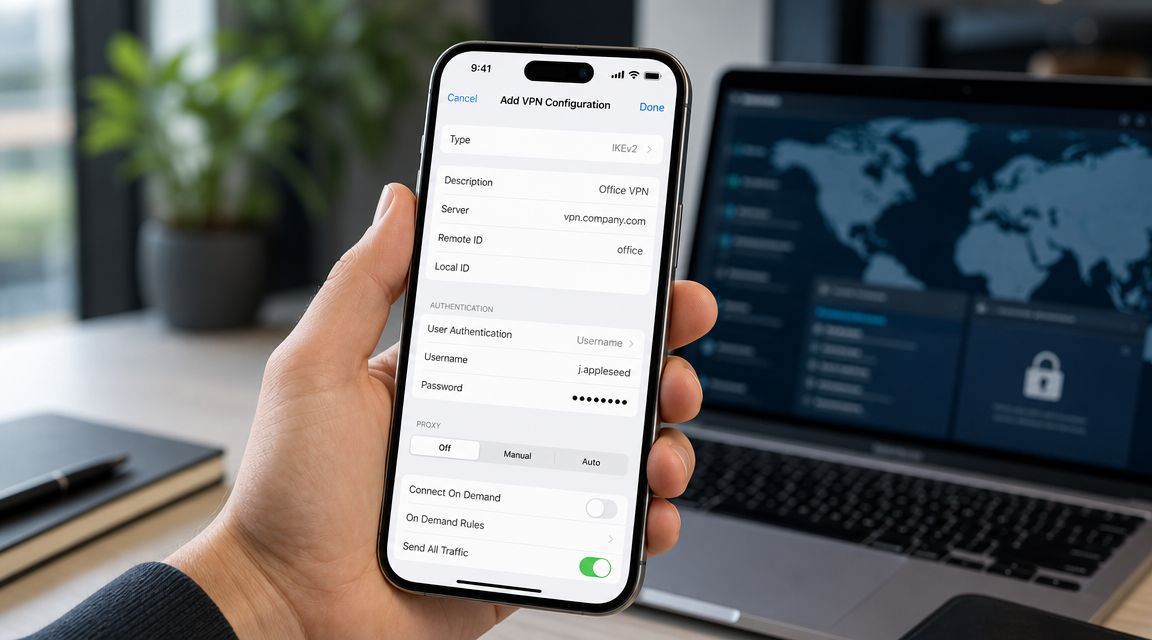
ExpressVPN’s guidance describes the manual path clearly: go to Settings > General > VPN & Device Management > Add VPN Configuration, select a supported protocol such as IKEv2, L2TP/IPsec, or IPsec, then enter the server address, remote ID, and authentication details before toggling the VPN on. It also notes that app-based setups are simpler because the app usually handles certificate, protocol, and routing details automatically, reducing configuration errors, as outlined in ExpressVPN’s iPhone setup guide.
When manual setup makes sense
You probably need manual setup if any of these apply:
- Your employer or school gave you connection details instead of telling you to install an app
- You need a specific protocol for compatibility or policy reasons
- You’re working with certificates or managed profiles
- You want tighter control over how the connection is defined on the phone
The fields that confuse most people
The menu itself isn’t hard. The confusing part is knowing what each entry means.
Type
This is the protocol. You don’t guess here. Use the exact type your provider or IT admin gave you.Server
This is the VPN server address. If it’s wrong, nothing else matters.Remote ID
Common in IKEv2 setups. Think of it as part of how the server identifies the connection target.Username and password
These may be separate from your ordinary account login, especially in business environments.Secret or certificate-related details
Some setups require a shared secret, certificate, or profile file. If that piece is missing, the tunnel usually fails.
Manual setup step by step
Use this sequence on the iPhone:
- Open Settings
- Tap General
- Tap VPN & Device Management
- Tap Add VPN Configuration
- Select the protocol your provider supports
- Enter the required details exactly as provided
- Save the configuration
- Toggle the VPN on and test the connection
If you’re entering details manually, copy them carefully from the provider or IT instructions. A single wrong character can break the connection.
VPN Setup Method Comparison App-Based vs Manual
| Feature | App-Based Setup | Manual Configuration |
|---|---|---|
| Ease of setup | Very simple for most users | Requires exact technical details |
| Best for | Everyday privacy, travel, public Wi-Fi | Work, school, private networks, custom needs |
| Error risk | Lower because the app handles more automatically | Higher because you enter fields yourself |
| Protocol handling | Usually managed by the app | You choose the protocol manually |
| Certificates and profiles | Often hidden from the user | You may need to install and manage them |
| Control | Good for general use | Better when you need a precise setup |
What manual control is actually good for
Manual setup is useful when trust and separation matter. If you’re carrying one phone for both work and personal life, a manually defined VPN can support a cleaner boundary between activities, especially in environments with company rules, private systems, or managed access.
That’s also why broader personal cybersecurity best practices matter alongside the VPN itself. The tunnel protects traffic. It doesn’t fix weak passwords, reused credentials, overshared social accounts, or risky app habits.
For most non-technical users, manual setup is not the better option just because it feels more advanced. It’s better only when you have a real reason to need that level of control.
Advanced VPN Settings for Business and Security
Some of the strongest iPhone VPN features don’t matter much to casual users, but they matter a lot if you handle client data, work on a managed phone, or use one device for both personal and professional tasks.
Apple’s VPN framework supports more than basic connect and disconnect behavior. In managed environments, teams can use features like per-app VPN and Always On VPN for supervised devices. That changes the privacy and security equation because it reduces the chance that sensitive traffic leaves the device unprotected.
Per-app VPN and work-life separation
Per-app VPN is one of the most useful iOS capabilities for business. Instead of sending everything through the tunnel, administrators can route only selected app traffic through the VPN.
That can be helpful when:
- A work app needs protection but personal browsing doesn’t need to go through the same network
- A company wants to secure internal tools without monitoring all personal traffic on the phone
- You want cleaner boundaries between your employer’s network controls and your private life
For job seekers and employees, that distinction matters. If you’re using a company-managed device, it’s worth understanding which apps are routed through the corporate VPN and which are not.
Always On VPN and managed profiles
Always On VPN is designed to prevent accidental exposure. On supervised devices using IKEv2, the phone can be configured so traffic is tunneled continuously under organizational policy. That’s valuable for legal, healthcare, finance, and any role where a missed connection could expose sensitive traffic.
Some organizations deliver this through MDM profiles or .mobileconfig files. If your employer asks you to install one, check what it changes in VPN & Device Management and ask whether the profile applies device-wide or only to work apps.
On a company-issued phone, privacy isn’t just about encryption. It’s also about knowing who controls the profile, what traffic is routed, and which apps fall under that policy.
Understanding the basics of symmetric key encryption can also make these conversations less opaque. You don’t need to become a cryptographer, but it helps to know what secure tunneling is trying to achieve under the hood.
What small businesses often miss
Small teams often treat VPN rollout as a box-checking exercise. That’s a mistake. The useful question isn’t “Do we have a VPN?” It’s “Which traffic are we protecting, when does it connect, and who manages the device?”
If you’re responsible for team devices, these cybersecurity tips for small businesses are a good complement to VPN policy. A business VPN only works well when it sits inside a wider device, identity, and access plan.
Troubleshooting Common iPhone VPN Connection Problems
A broken VPN usually fails in predictable ways. The good news is that most iphone vpn configuration problems come down to a short list of issues: wrong credentials, bad protocol choices, or profile mistakes.
Kaspersky’s setup guidance highlights those exact risks. It notes that manual configuration often fails because of credential mismatches, unsupported or deprecated protocols, or incorrect profile installation. It also points out that some providers require an IKEv2 certificate or a mobileconfig profile, and that app-based installs are often easier for non-experts because those steps are abstracted in the app, as described in Kaspersky’s iPhone VPN setup article.
If the VPN won’t connect at all
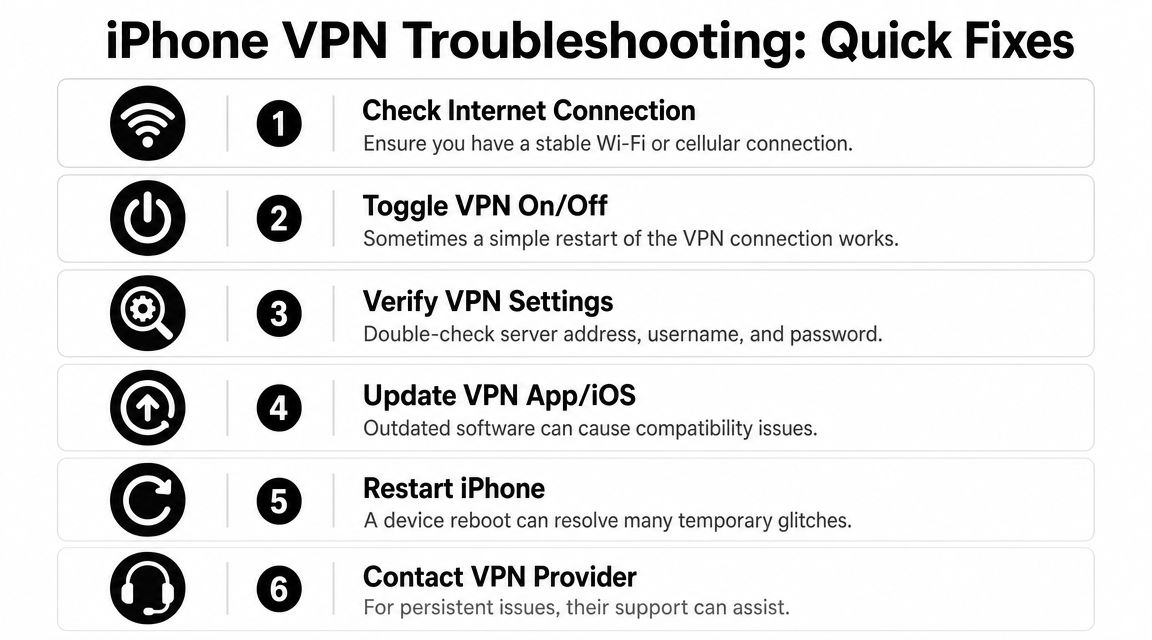
Start with the simplest explanation. Most total connection failures happen because one required value is wrong.
Try this checklist:
- Check credentials first: Re-enter the username and password exactly as provided.
- Confirm the server hostname: One typo is enough to kill the connection.
- Match the protocol: If your provider expects IKEv2, don’t improvise with another option.
- Review installed profiles: If the setup required a certificate or profile file, make sure it was installed properly.
If it connects but keeps dropping
Random disconnects usually point to unstable networking, bad profile behavior, or a shaky app state.
A useful order of operations is:
- Toggle the VPN off and back on
- Switch between Wi-Fi and cellular to see if one network is the problem
- Restart the iPhone
- Update iOS and the VPN app
- Remove and reinstall the VPN profile or app if the issue started after a failed configuration attempt
A VPN that drops silently is worse than one that fails loudly. Check whether your app gives clear connection status before trusting it on sensitive traffic.
If the internet feels slow
Some slowdown is normal because traffic is being tunneled. But severe slowness usually means the chosen server or protocol isn’t a good fit.
Try these adjustments:
- Switch servers: A different location can improve stability
- Let the app choose automatically: Manual picks aren’t always the fastest
- Use the provider’s recommended protocol: Newer iOS-compatible options usually behave better than older legacy choices
- Test without the VPN briefly: That helps confirm whether the slowdown is the VPN or your base connection
If repeated manual fixes go nowhere, move back to the provider’s app. For many users, that’s the fastest route back to a stable connection.
Make Your VPN a Core Part of Your Digital Defense
A solid iphone vpn configuration is one of the few privacy upgrades you can make in minutes that changes your day-to-day exposure right away. It protects traffic while you move through ordinary moments that carry real consequences, like job searching from public Wi-Fi, checking financial accounts on the go, or talking to someone new on a dating app.
It also helps restore some control. Not perfect control. A VPN won’t erase old posts, remove data broker listings, or clean up an exposed username that’s already tied to your identity. What it does is reduce fresh leakage while you use your phone.
The bigger picture beyond the tunnel
That’s why a VPN should sit inside a wider privacy routine:
- Use the VPN on untrusted networks
- Understand whether your phone is personally managed or employer managed
- Keep your apps and iOS updated
- Review what your online accounts already reveal about you
- Secure your home setup too, because mobile privacy matters less if your home network is sloppy. This home network security guide is a practical place to start.
The best mindset is simple. A VPN protects the traffic you’re sending now. Your broader privacy posture depends on the accounts, profiles, and traces you’ve already left behind. If you want a fuller toolkit, these internet privacy tools can help you think beyond one app or one setting.
A VPN is not just a technical checkbox. It’s part of digital self-defense.
A VPN can protect what your iPhone is doing right now, but it won’t show you what’s already exposed about you online. That’s the gap Digital Footprint Check helps close. If you want to see what personal data, profiles, and public traces may already be tied to your name, email, username, or phone number, start with the free checker at www.digitalfootprintcheck.com/free-checker.