· Digital Footprint Check · Content Marketing · 13 min read
How Do I Turn Off My Location: How to Turn Off Your
Discover how do i turn off my location on iOS, Android, and apps in 2026. Go beyond settings to stop hidden tracking and protect your digital footprint now.
You’re probably reading this after noticing something unsettling. You visited a store, drove across town, or talked about a neighborhood, and then your phone started acting like it knew more than it should. That feeling isn’t paranoia. Location data sits at the center of your digital footprint, and once companies, apps, brokers, or bad actors can map where you go, they can infer where you live, work, shop, date, and spend time.
That matters far beyond ads. Location trails can expose routines, connect anonymous accounts to your real identity, affect reputation management, and make identity theft or impersonation easier when someone can piece together enough public and semi-public information. If you’re a job seeker, a gamer protecting linked profiles, or someone trying to stay safe on dating apps, location privacy isn’t a niche setting. It’s a personal security control.
Why Turning Off Location Is More Than One Switch
Many begin with the same question: How do I turn off my location? They expect one switch and one result. In practice, that rarely happens.
A lot of users want two things at once. They want less tracking, but they also want their phone back if it’s stolen, directions when they need them, and emergency features to work. That tension is common. A 2025 survey found that 58% of privacy-conscious users struggle with this exact dilemma, because many guides tell people to disable everything without explaining that doing so can block emergency services and make a stolen phone harder to recover, according to Malwarebytes’ discussion of Android location tracking trade-offs.
Practical rule: If a guide only tells you to flip one master setting, it’s incomplete.
Location privacy also isn’t only about your map app. It affects the broader record of who you are online. A phone that shares your movements can reinforce data tied to social media accounts, shopping habits, gaming profiles, and public-facing identity records. That’s why it helps to think about location as part of your wider digital footprint, not as an isolated phone setting. This deeper view is well explained in this breakdown of the broader implications of your digital footprint.
What “off” often fails to stop
Turning off visible app permissions can help, but it doesn’t always stop background collection methods. Phones can still rely on system services, saved history, browser permissions, and nearby network signals to build a rough or precise picture of where you are.
That gap is where many people get caught. They disable one setting, assume the issue is solved, and move on. Meanwhile, old location history remains stored, or a hidden system feature keeps sending data in the background.
Why this matters in real life
A location trail can reveal routines faster than one might expect. If someone can see repeated visits to a gym, office, apartment building, or campus, they don’t need much else to build a profile. For people dealing with stalking concerns, romance scams, catfishing, reputation attacks, or gaming account targeting, that’s not theoretical.
The smart approach isn’t panic. It’s layered control. Turn off what you don’t need, keep what you do need, and verify each layer.
Disabling Location Services on Your Devices
Start at the operating system level. This is the foundation. If you don’t control location at the device level, app-by-app cleanup won’t go far enough.
iPhone and iPad
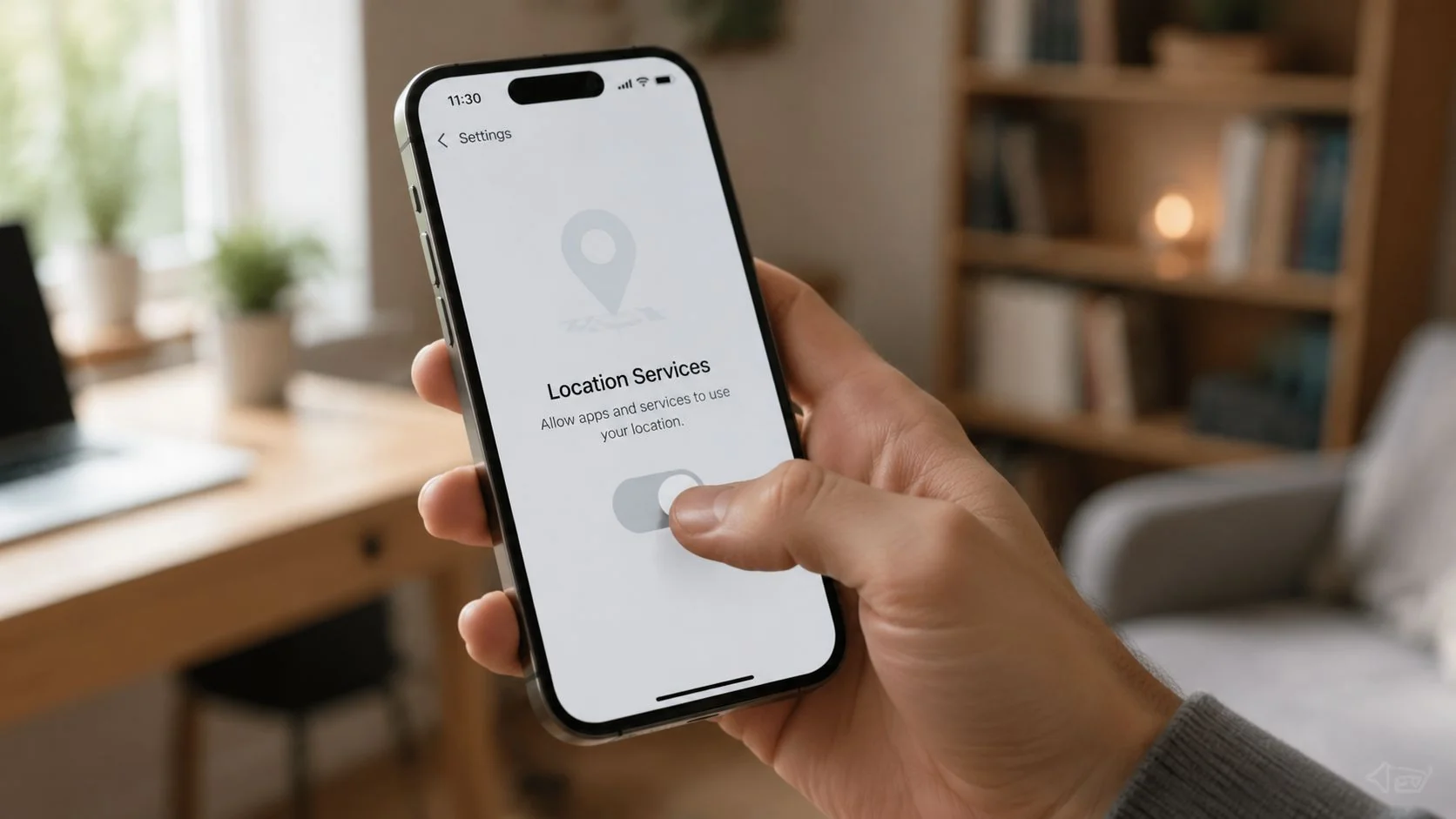
On iOS, the cleanest full shutdown is direct. To fully disable location on iOS, go to Settings → Privacy & Security → Location Services and toggle the main switch off. This blocks all apps, foreground and background, from accessing your GPS data, as shown in this iOS walkthrough.
If you want less tracking without breaking every app, iOS gives better granular control than many people realize. On iOS 14 and later, each app can be set to Never, Ask Next Time or When I Share, While Using the App, or Always. iOS also lets you switch off Precise Location for individual apps, which means the app gets approximate coordinates instead of exact GPS.
A few practical examples:
- Maps and rideshare apps usually need While Using the App.
- Weather apps often work fine without precise location.
- Social media apps usually don’t need location at all unless you’re actively tagging a post.
- Retail, coupon, or dating apps often ask for more access than they need.
If you want to verify what’s still active on iPhone, check the arrow indicators inside Location Services. They show which apps recently used location.
Android phones
Android’s blanket control is simple, but its granularity depends on device version and manufacturer. The broad switch is typically Settings → Location → Access my location and then turning it off.
That cuts off the main location feed for all apps. The trade-off is obvious. Navigation, fitness tracking, local weather, and similar apps may stop working properly. Some users turn location back on because they need those functions in daily life.
Android also varies a lot between Samsung, Pixel, Motorola, and other device makers. If you don’t see the exact menu path above, search “Location” inside Settings and look for the main device-level toggle plus app permissions.
Windows and macOS
Laptop location matters too, especially if you use web apps, browsers, or messaging tools that request your area.
For Windows, open Settings, search for Location, and review both the main device location setting and app-level permission list. If you want stronger privacy, disable location for apps you don’t trust and keep browser permissions blocked unless there’s a real need.
For macOS, open System Settings, go to Privacy & Security, then Location Services. You can disable Location Services entirely or review app access one by one. Safari, weather tools, video conferencing apps, and maps are common places to audit first.
Location Control iOS vs Android
| Feature | iOS | Android |
|---|---|---|
| Master location switch | Yes. Turns off all app access | Yes. Turns off device location broadly |
| Per-app control | Strong built-in controls | Varies by version and device |
| Approximate vs precise location | Available for individual apps | Available on many current Android versions, but menus vary |
| Best use case | Fine-grained privacy without breaking everything | Broad control, then selective review of app behavior |
If you suspect location abuse is part of a larger privacy problem, don’t stop at permissions. Hidden monitoring apps can bypass your assumptions, so it’s worth reviewing how to find spyware on your phone.
Managing Location Permissions in Popular Apps
Device settings stop a lot, but not everything. The next layer is the apps that most aggressively collect movement data, especially navigation and social platforms.
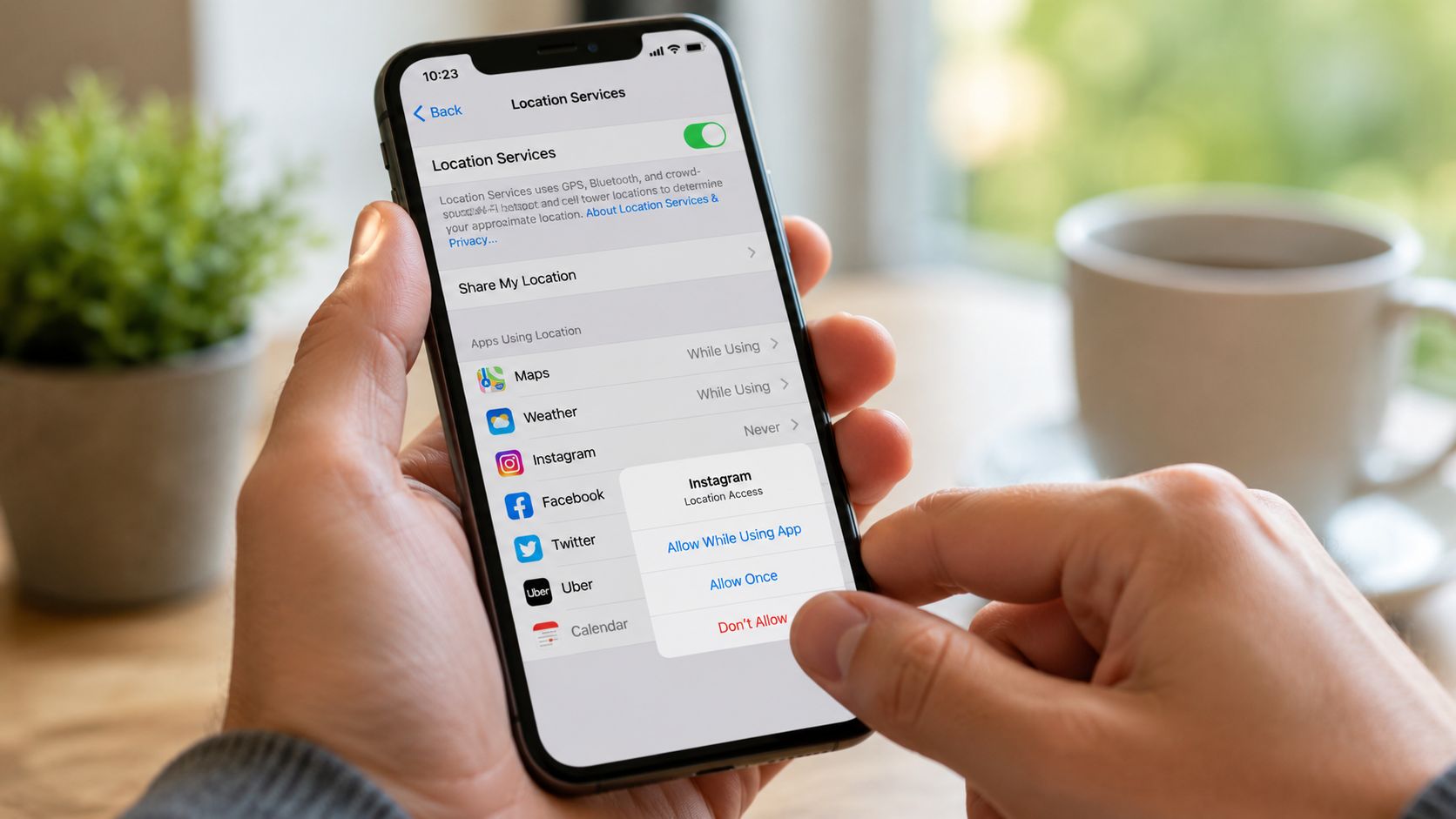
Apple’s stricter controls changed user behavior in a visible way. Since Apple introduced stricter privacy controls in iOS 13, there has been a nearly 70% decline in apps requesting “always on” location data, as users increasingly choose access only while the app is running, according to discussion around Apple’s privacy shift. That’s a strong signal that many apps were asking for more than they really needed.
Google Maps and Google account history
Google Maps is useful, but it can also build a detailed movement archive if you leave Timeline active. In 2024, Google Maps updated Your Timeline so users can permanently delete all historical location data. Inside the app, go to Location & Privacy Settings and use Delete All Timeline Data if you want a full wipe. There’s also a Delete range of Timeline data option if you only want to remove selected dates or places.
Important detail: deleting active device history isn’t the same as disabling cloud backups. If you had backups enabled, review that separately inside the Timeline area so old records don’t keep syncing across devices.
Facebook, Instagram, and Snapchat
These apps often tie location to posts, stories, nearby recommendations, ad targeting, and account profiling. The safest default for most users is simple:
- Facebook: Set location access to Never or While Using only if you actively use check-ins or nearby features.
- Instagram: Many users can use Never. If you tag places manually, you don’t need permanent location access for that.
- Snapchat: Audit both phone-level permission and in-app map features. If you don’t actively use Snap Map, turn it off.
A good audit question is this: Would this app become unusable if it didn’t know my exact location all the time? For most social apps, the answer is no.
If you’re tightening social platforms more broadly, review these social media privacy settings alongside your app permissions.
Pick the permission that matches the risk
The decision usually comes down to four levels on iPhone and similar options on newer Android devices:
Never
Best for apps that don’t need your location to function.Ask Next Time
Good when you only want to approve access case by case.While Using the App
The best middle ground for maps, rideshare, and weather.Always
Reserve this for rare cases. Most users don’t need it.
A quick visual walkthrough can help if you’re reviewing these settings on your phone:
Why app cleanup matters beyond ads
Location-rich apps can expose more than where you are. They can reveal routine patterns, social circles, events attended, and places associated with your reputation or relationships. That matters in online dating safety, infidelity investigations, catfishing checks, and scam prevention. A scammer doesn’t need your full address if your shared signals already point to your habits.
Revoking Location Access from Your Web Browser
Your browser is one of the most overlooked sources of location leakage. News sites, food delivery pages, store locators, event sites, and weather tools routinely ask for your location. If you click “Allow” once and forget about it, that site may keep the permission.
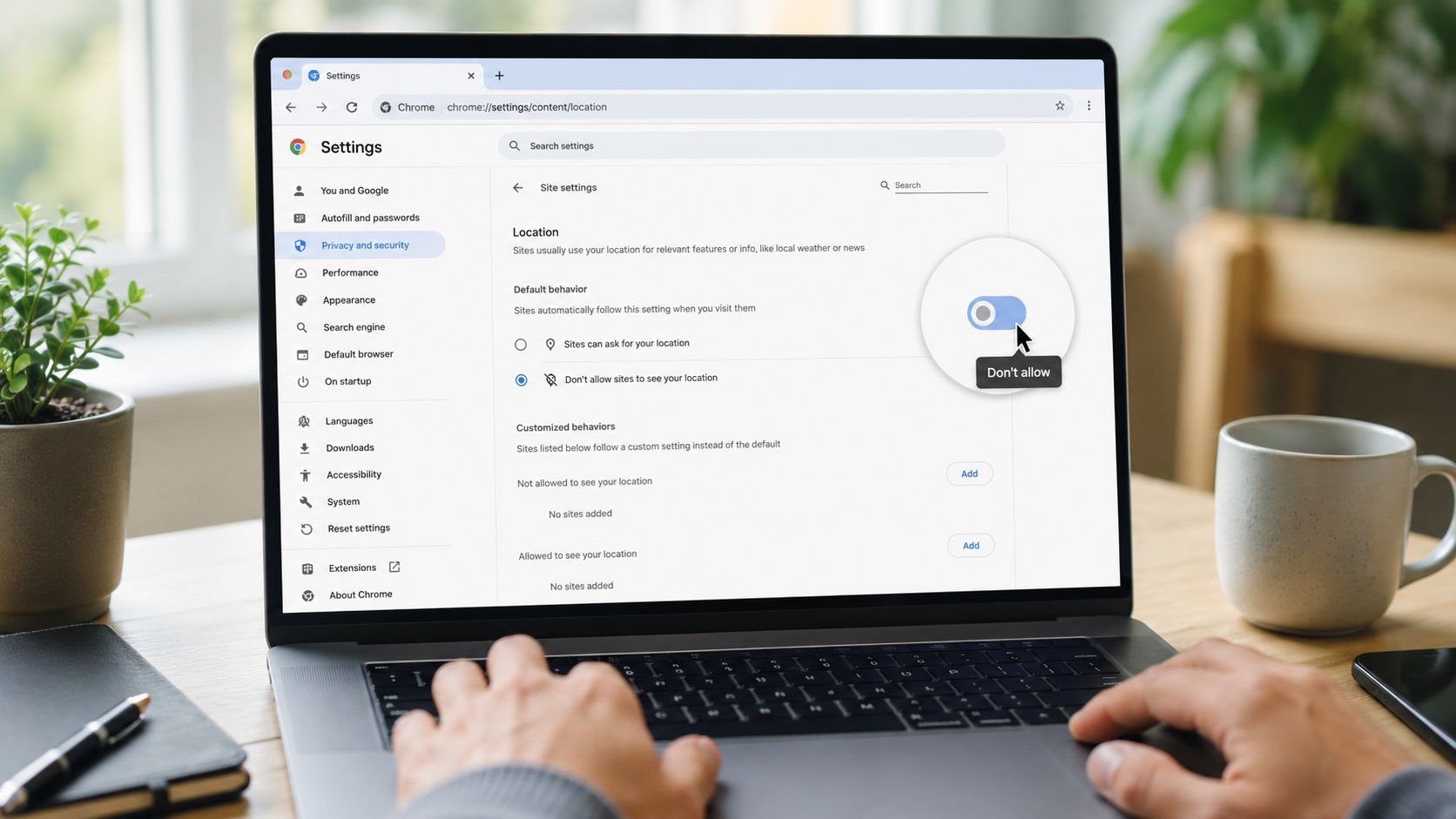
Google Chrome
In Chrome, open Settings, then Privacy and security, then Site settings, then Location. Set the default behavior to block location requests if you want the strongest baseline. Then review the list of sites that already have permission and remove any you no longer trust.
Chrome matters because many users stay signed into Google services there. That means browser-granted location can connect with a broader account profile more easily than people expect.
Safari
On iPhone, iPad, or Mac, Safari handles site permissions through system privacy controls and Safari website settings. Review any websites that have been granted location and revoke what you don’t need. If a site asks again later, you can allow it temporarily.
For privacy-sensitive browsing, temporary approval is usually safer than permanent approval.
Don’t give a browser site permanent access unless the feature is central to what you’re doing right now.
Firefox
Firefox lets you manage location requests through its privacy settings and site permissions. The key move is to block new requests by default if you’re trying to reduce your exposure. Then check saved exceptions and clear any site that no longer needs access.
Why browser permissions deserve attention
Browsers often become the “silent exception” in someone’s privacy setup. They lock down apps but continue handing precise or approximate location to websites. That can still affect local pricing, ad targeting, account correlation, and public traceability.
This matters for people using shared family devices, work laptops, gaming computers, or dating platforms in the browser. If a site can repeatedly confirm your area, it becomes easier to connect one identity fragment to another. For privacy work, browser permissions should be treated like app permissions. Review them regularly and keep defaults strict.
Uncovering the Hidden Tracking You Haven’t Turned Off
Most tutorials fall short in this regard. They explain GPS. They don’t explain the layers underneath it.
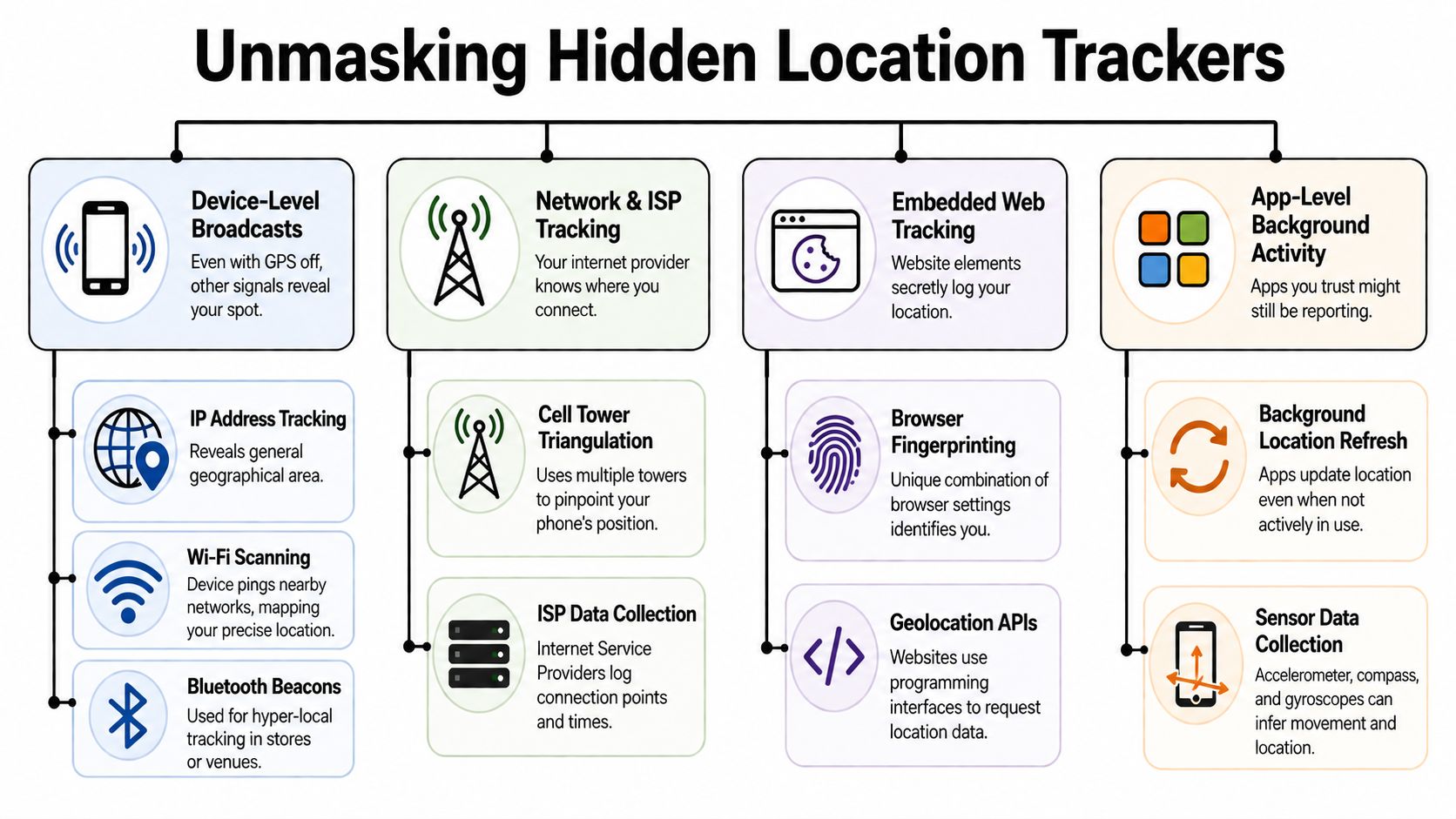
A ZDNET analysis found that 78% of Android users who turn off “Use Location” still have their devices tracked through Wi-Fi and Bluetooth scanning, which are enabled by default in advanced settings and work independently of GPS, as described in Google’s location-related account support documentation.
That single point changes the whole conversation. Turning off visible location access doesn’t always stop location inference.
Android settings people miss
On Android, look beyond the main Location toggle. Search Settings for terms like:
- Wi-Fi scanning
- Bluetooth scanning
- Location Accuracy
- Find My Device
- Emergency Location Services
These settings vary by device, but the pattern is the same. Some features use nearby wireless signals to estimate where you are even when GPS appears off. Others exist for safety or recovery, which means you may want to keep them on. The key is making a deliberate choice instead of accepting defaults.
If you’re trying to reduce exposure without crippling your phone, check each feature individually. Disable scanning features you don’t want. Then test the apps you use so you know what breaks and what doesn’t.
iPhone settings people skip
On iPhone, the hidden layer often sits inside System Services. Go to Settings → Privacy & Security → Location Services → System Services and review what’s active. Also inspect Significant Locations if it appears on your device, along with any product improvement or analytics features tied to location behavior.
Some of these settings exist for convenience. Some support system-level functions. None should be left on without review if your goal is privacy.
Hidden tracking usually lives in “advanced,” “system,” or “improvement” menus, not in the obvious app list.
What works and what doesn’t
A lot of people ask whether airplane mode solves this. It can reduce connectivity, but it’s not a practical long-term privacy setup for normal daily use. Others rely only on app permissions, which misses system-level broadcasts.
What tends to work better is a layered audit:
- Turn off the master location switch if you need a clean reset.
- Re-enable only the apps that require access.
- Disable wireless scanning features you don’t want.
- Review system services and product enhancement settings.
- Remove stored location history where applicable.
- Check browser permissions on phones and laptops.
This isn’t only about privacy from ad networks. It also affects personal safety, dating verification, scam resistance, and reputation management. A hidden location trail can expose where someone studies, works, worships, games, or meets people.
If you’re concerned that your phone may be disclosing more than it should, it’s worth reviewing the broader issue of phone listening devices and hidden monitoring risks.
Take Full Control of Your Online Presence
Location privacy works best when you stop thinking in terms of one switch and start thinking in layers. Device settings matter. App permissions matter. Browser permissions matter. Hidden system services matter. Stored history matters too.
That’s the complete answer to how do I turn off my location. You don’t just turn it off once. You reduce exposure across every place your devices, apps, and accounts can leak it.
The reason this matters is simple. Location data helps other people build a profile around you. That profile can shape identity theft risk, expose personal routines, affect your online reputation, and make it easier to connect your private life to public accounts. That can spill into job prospects, dating safety, gaming account security, and family privacy.
If you want a useful reference point for policy thinking, our information privacy outlines why data handling practices matter beyond convenience settings. And if you’re trying to clean up what’s already visible, this guide on how to delete your online presence is a practical next step.
One more point matters here. Turning off tracking today doesn’t erase what’s already been collected. Old location patterns, public account links, exposed usernames, breach records, and profile fragments can still sit across the web. You need visibility before you can fix that.
To discover what personal information, including potential location data, is publicly available about you across 500+ platforms, get your free, instant privacy scan at Digital Footprint Check’s free checker.
Your phone settings are only part of the picture. To see what personal information may already be exposed across social platforms, public records, breach databases, gaming profiles, and other online sources, run a free scan with Digital Footprint Check.