· Digital Footprint Check · Content Marketing · 20 min read
How to Find Spyware on Your Phone (android & Ios Guide)
Learn how to find spyware on your phone with our expert guide. We cover warning signs, Android & iOS removal steps, and how to protect your privacy in 2026.
Your phone usually fades into the background of your life. Then something changes. The battery drops faster than it should. The device gets warm while sitting untouched on a table. A partner, ex, roommate, or colleague seems to know things they shouldn’t know. That’s when a normal piece of technology starts to feel personal, intrusive, and hard to trust.
That uneasy feeling matters. Sometimes it points to spyware, which is software designed to monitor your activity, collect information, and send it elsewhere without your informed consent. Sometimes it points to something less dramatic, like a buggy app, an old battery, or location sharing you forgot was enabled. The hard part is that both can feel the same from the outside.
The stakes are real. Private messages can affect relationships, jobs, legal disputes, and personal safety. Access to email or account logins can lead to fraud. Location monitoring can become a stalking risk. If you’re trying to figure out how to find spyware on your phone, the goal isn’t to panic. The goal is to separate signal from noise, check the device methodically, and regain control.
The Unsettling Feeling Your Phone Is Not Your Own
The people who search for this usually aren’t curious. They’re worried.
Sometimes it’s a person leaving a difficult relationship and realizing their movements are being anticipated. Sometimes it’s a professional who notices private conversations surfacing in the wrong place. Sometimes it’s a phone that has started acting unlike itself, and the change feels too sudden to ignore.
What spyware actually is
Spyware is software that watches, records, or exfiltrates information from your device. That can include messages, call logs, location, browsing activity, microphone access, camera access, or account credentials. Its purpose is surveillance.
That makes it different from a few other things people lump together:
- Adware shows intrusive ads and may track behavior for marketing.
- General malware is a wider category that includes ransomware, trojans, and destructive tools.
- Over-permissioned apps may collect too much data, but they might still be operating within permissions you granted.
The distinction matters because the fix is different. A malicious monitoring app calls for immediate device triage. A social media app with excessive permissions calls for privacy cleanup and account review. A data broker listing your details online calls for footprint management, not malware removal.
Practical rule: Treat unexplained surveillance as a safety issue first and a tech issue second. If you believe another person may be monitoring you, be careful about what you do on the possibly compromised device.
The impact is bigger than the phone
A compromised phone can spill into the rest of your life quickly.
- Personal safety: Location access, microphone use, and message visibility can expose routines and private plans.
- Career risk: Sensitive chats, photos, or contact data can affect reputation and job prospects if they leak.
- Financial harm: Access to email, texts, or saved credentials can open the door to account takeover and fraud.
- Relationship manipulation: Spyware often shows up in situations involving coercion, control, or accusations.
The good news is that most checks are practical. You don’t need a forensics lab to start. You need a calm process, a clear eye for false alarms, and the discipline to verify what the phone is doing.
Telltale Signs of Spyware on Your Device
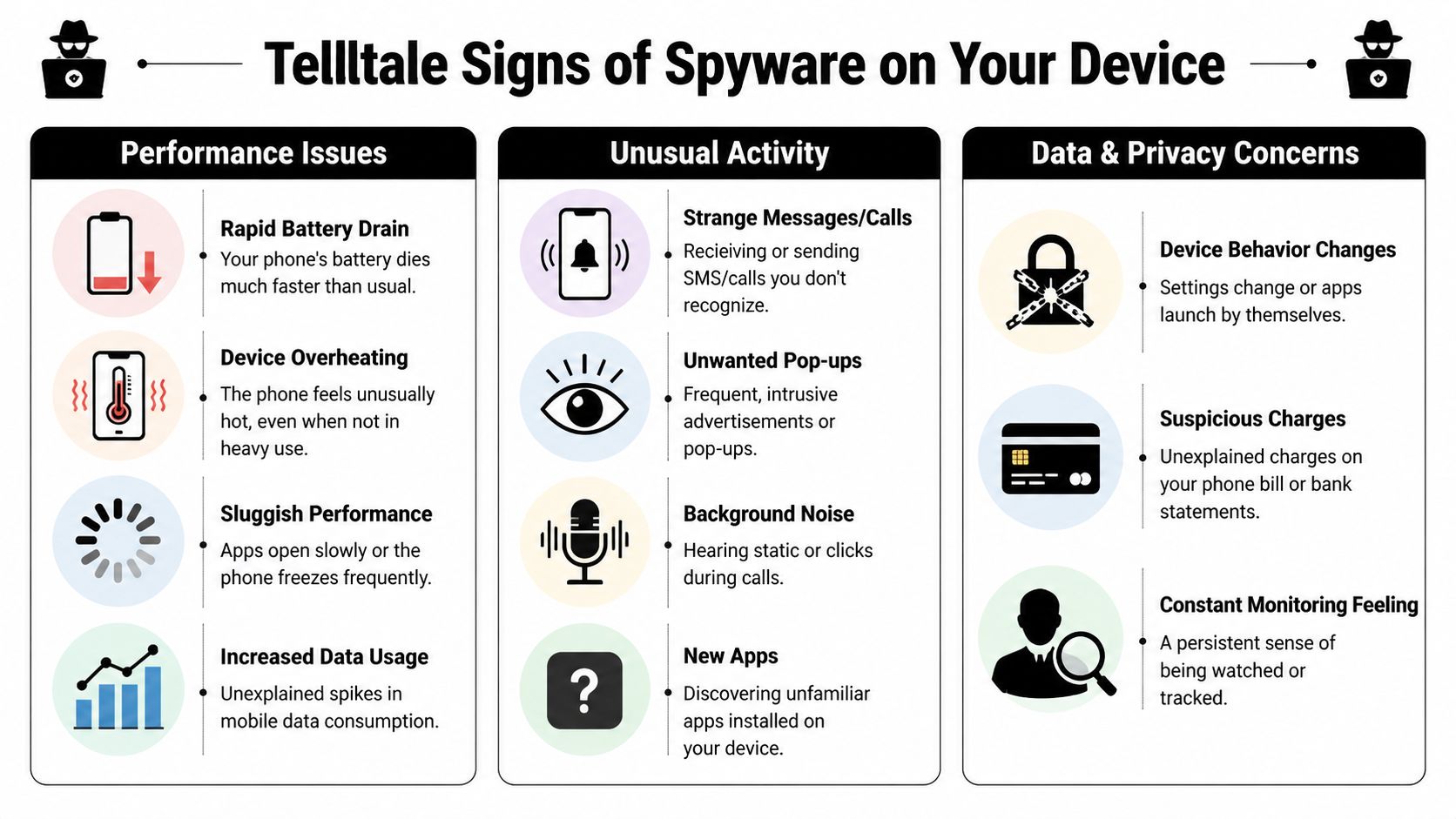
Most spyware doesn’t announce itself. It leaks clues through performance, network behavior, and settings changes. A single symptom rarely proves anything. A pattern is what matters.
One sign stands above the rest on Android: unexpected mobile data usage spikes. Norton notes that spyware sends stolen data using your phone’s mobile data, which can produce a large increase in usage, and that became a prominent detection clue during the rise of campaigns such as Joker malware, which infected over 37 million devices globally by 2020 according to Norton’s Android spyware guidance. When a phone is shipping out messages, location data, or recordings, that traffic has to go somewhere.
Performance problems that deserve attention
A phone under surveillance often works harder than it should. That can show up as battery drain, heat, slow performance, or apps freezing more often than usual.
Those symptoms aren’t unique to spyware. A bad update, a weak cellular connection, or an aging battery can do the same thing. What raises concern is timing and context. If the phone suddenly worsened without a normal explanation, and the change arrived with other signs like strange permissions or unfamiliar apps, take it seriously.
Data and account anomalies
Network behavior is more useful than gut feeling. Check whether your mobile data usage has jumped in a way that doesn’t match your habits. Review which apps consumed that data. On Android, Norton points users to app-level data usage in Settings because that can expose an app transmitting in the background when the phone is idle.
Also watch for linked-account oddities. If your email, cloud storage, or messaging apps show unfamiliar sessions or security alerts, that may indicate account compromise rather than device spyware. It’s a different problem, but it can feel identical from the user side. If you’re worried your credentials were exposed, checking whether they appear in breaches is a sensible parallel step through this email breach check.
Strange behavior on the device itself
Suspicion often starts when you notice things that don’t feel normal.
- Unknown apps appear: Especially generic names like “System Update” or apps you don’t remember installing.
- Permissions don’t make sense: A flashlight app wanting microphone access is not normal.
- Settings change without you: New accessibility privileges, install permissions, profiles, or VPN settings deserve scrutiny.
- Texts or notifications look odd: Some users notice cryptic messages, unfamiliar prompts, or activity they can’t explain.
- Calls sound wrong: Static or odd behavior during calls can happen for many reasons, so treat this as a weak signal unless other signs line up.
If your concern began in a dating or relationship context, it’s worth broadening your review beyond the phone itself. Suspicious behavior sometimes starts with impersonation, account reuse, or deception rather than malware. This guide to spotting fake dating profiles is useful when you’re trying to separate social engineering from device compromise.
Is it spyware or a common glitch
| Symptom | Potential Spyware Cause | Common Non-Malicious Cause |
|---|---|---|
| Fast battery drain | Background monitoring, constant data transmission, microphone or location use | Aging battery, poor signal, recent OS update, heavy app usage |
| Phone overheating while idle | Hidden background activity | Charging issue, warm environment, app stuck in sync |
| High mobile data usage | Data exfiltration to remote servers | Cloud backups, video apps, app updates, hotspot use |
| Slow performance | Spy app running continuously | Low storage, old hardware, buggy app, too many background processes |
| Unfamiliar app installed | Monitoring tool disguised as a utility or system app | Preinstalled carrier/software update, family safety app, enterprise app |
| Settings changed unexpectedly | Spyware enabling access or persistence | OS update, work device policy, another user on shared device |
A symptom becomes more credible when it appears with two or three others. One glitch is maintenance. A cluster is investigation.
Your Action Plan for Finding Spyware on Android
Android gives you a lot of visibility, which is good for investigation and also why many spyware guides focus on it. The trade-off is that Android devices vary by manufacturer, so menus may look slightly different. The logic stays the same. Isolate the problem, audit the apps, inspect permissions and downloads, then scan.
Start by isolating the phone in Safe Mode
If you suspect a third-party app is causing the problem, Safe Mode is the cleanest first test. According to Protectstar’s Android spyware removal guide, booting into Safe Mode disables third-party apps so you can see whether symptoms persist. The same source notes that permission anomalies such as microphone access on a simple utility app are a red flag in 70% of stalkerware cases, and reputable tools can reach detection rates of up to 95% for known threats in benchmarked testing.
On many Android phones, you hold the power button, then long-press the power off or restart option until the Safe Mode prompt appears. If your phone’s odd behavior stops in Safe Mode, that strongly suggests a third-party app is involved.
What you’re looking for is not perfection. You’re looking for change. If overheating, weird pop-ups, or battery collapse disappear in Safe Mode, the phone has narrowed the suspect list for you.
Audit installed apps like an investigator
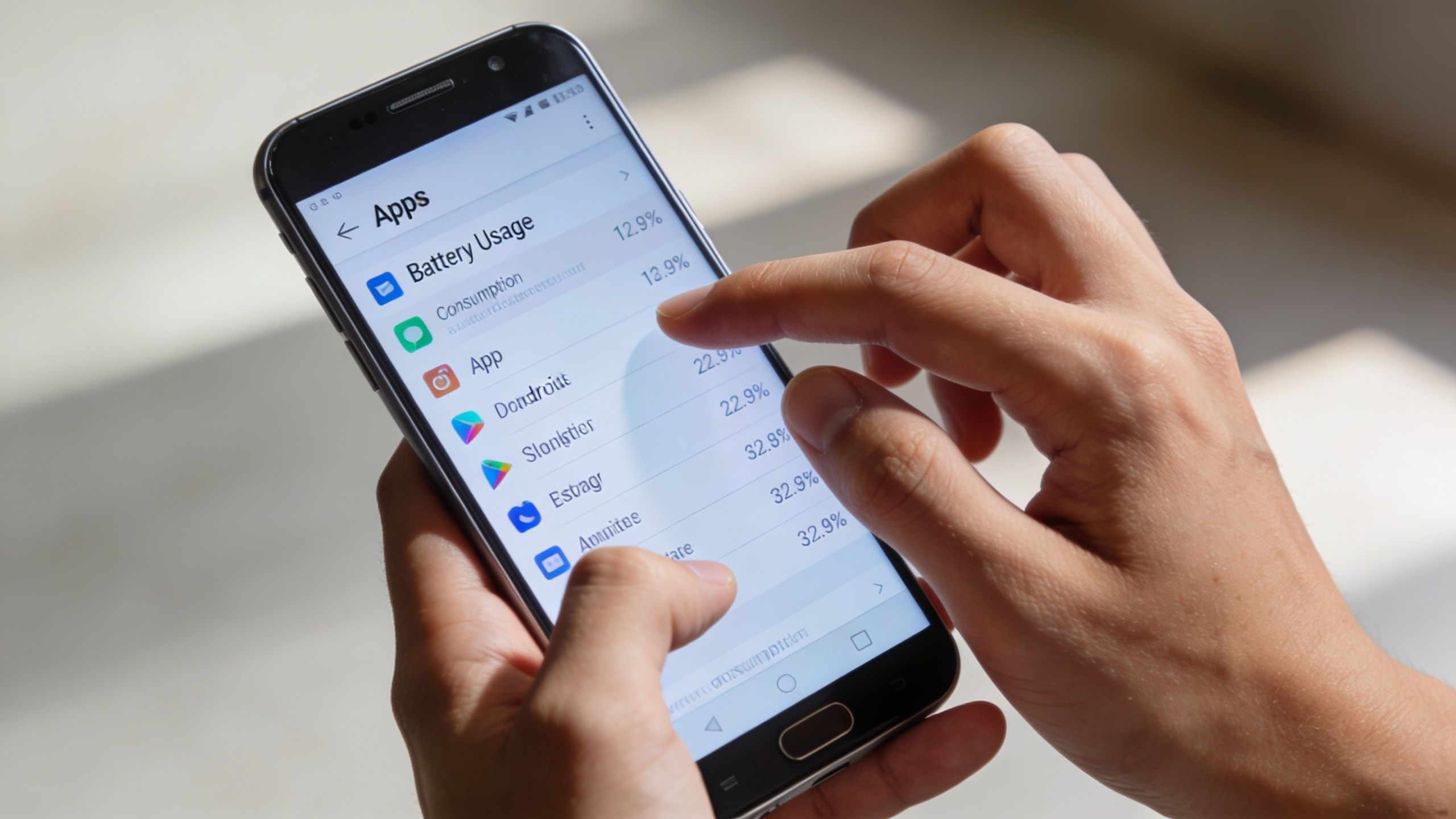
Open Settings > Apps and make sure you can view all apps, including system apps if your device allows it. Read the list slowly. Spyware often hides behind bland names, fake utility branding, or icons that are easy to ignore.
Focus on apps that match any of these patterns:
- Generic naming: “System Service,” “Sync Service,” “Device Health,” or similar names that don’t match something you knowingly installed.
- No clear purpose: An app you can’t explain, especially if it appeared around the time the problems began.
- Hidden or stripped identity: Missing icon, generic icon, or sparse app info.
- Uninstall resistance: If an app behaves oddly when you try to remove it, pause and review its permissions and device admin rights first.
Now tap into suspicious apps one by one and look at permissions. A calculator or file cleaner doesn’t need the microphone. A wallpaper app usually doesn’t need location all the time. A note app may reasonably ask for storage, but not SMS access.
Check permissions, device admins, and install settings
Many people overlook a critical detail. The app itself may look ordinary. The permissions tell the truth.
Review:
- Microphone
- Camera
- Location
- SMS
- Accessibility access
- Install unknown apps
- Device admin privileges
Accessibility access deserves special attention because abusive apps sometimes use it to monitor screen content or control actions. Also inspect whether any browser, messaging app, file manager, or unfamiliar utility has permission to install unknown apps. If that setting is enabled without a good reason, disable it.
For broader defensive habits after cleanup, these internet privacy tools can help you reduce exposure beyond the device itself.
Inspect downloads and stored installer files
A lot of Android spyware arrives through sideloaded APK files. Open your file manager and look in Downloads and other obvious folders for APKs you didn’t deliberately save. An installer file sitting there doesn’t prove infection, but it can explain how the app got on the phone.
Also review your browser’s download history if available. If someone had temporary physical access to the phone, this step sometimes reveals the trail they left behind.
A practical sign is timing. If a suspicious APK was downloaded around the same time the device started behaving differently, that connection matters.
Here’s a walkthrough if you want a visual companion while you work through the Android checks:
Run built-in and reputable security scans
Start with Google Play Protect inside the Play Store. It’s built in, easy to access, and worth using even if you plan to run another scanner afterward.
Then consider a reputable mobile security app such as Malwarebytes or Norton. Don’t install three or four scanners at once. Pick one known tool, run the scan, read the findings carefully, and remove what it identifies if the result aligns with your manual review.
Clean scan results do not guarantee a clean phone. They tell you the tool didn’t match the threat against what it knows.
That’s why manual auditing matters. Signature-based tools are strongest on known threats. Hidden abuse of permissions or a disguised family-monitoring app may still need human review.
Know when removal is enough and when you need a reset
If you identify a suspicious app, remove it. Then restart normally and watch the phone for a while. Recheck battery, data usage, and permissions.
A factory reset becomes the practical next step when:
- you can’t confidently identify the offending app,
- the app returns after removal,
- administrator or accessibility settings keep re-enabling,
- or the phone still behaves like it’s being monitored.
Back up what you need first, but be selective. If you restore every app and setting blindly, you can bring the problem back with you.
For personal safety cases, think carefully before making visible changes on a device that may be monitored. If the threat involves someone you know, preserving evidence and getting support may matter as much as cleaning the phone.
Your Action Plan for Finding Spyware on iPhone
iPhones are generally harder to infect with conventional spyware because iOS is more restricted. That helps, but it doesn’t make the device immune. The most important difference is that iPhone investigations often center less on random app installs and more on profiles, account access, and device management settings.
Check for profiles and device management first
This is the highest-value iPhone check for most users. According to Trans Lifeline’s guide to spotting and removing phone spying apps, an unauthorized MDM profile can enable monitoring of calls, SMS, and location in 90% of stalkerware installs on iPhones, and manual removal methods succeed in 85% of cases.
Go to Settings > General > VPN & Device Management or Profiles, depending on your iOS version. If you see a profile you don’t recognize, stop and inspect it carefully. On a personal phone, an unknown management profile is a major red flag.
There are legitimate exceptions. Work phones often have real MDM tools installed by employers. School-issued devices can too. The question is simple: Do you know why this profile is there? If not, investigate before trusting the phone.
Review app permissions with common sense
Open privacy settings and check which apps can access:
- Location
- Microphone
- Camera
- Photos
- Contacts
- Bluetooth
- Background app refresh
The goal isn’t to remove every permission. It’s to match access with purpose. A maps app needs location. A voice app may need microphone access. A random shopping app probably doesn’t need constant location, and a utility app usually doesn’t need the microphone at all.
This is also where many false alarms get resolved. Users often discover the “tracking” came from a family safety app, photo-sharing service, or long-forgotten location setting they once allowed.
Inspect VPN settings and unfamiliar apps
A VPN entry you don’t recognize can be a clue. Some monitoring setups route traffic in ways that deserve attention, and at minimum, an unknown VPN profile means someone or something changed a network-level setting.
Also review installed apps slowly. iPhones are less prone to the sort of disguised installer clutter seen on Android, but unfamiliar apps still matter. If an app looks suspicious, search its App Store listing, check when it was installed, and compare that timing to when the problem began.
On iPhone, the absence of obvious malware doesn’t mean the absence of monitoring. Account access and management profiles often matter more than the app list.
Secure your Apple ID and linked services
A lot of iPhone “spyware” cases are really account compromise. If someone has access to your Apple ID, backups, shared services, or linked accounts, they may gain visibility without planting classic malware on the phone.
Review your Apple account security from a trusted session. Look at signed-in devices, change your password if needed, and use strong authentication. Also review whether messages, photos, notes, calendars, or location-sharing settings are synced with someone you didn’t intend.
If privacy is the bigger issue, not just malware, this guide on how to protect your data online is a solid next read after the device check.
Watch battery and behavior, but don’t overinterpret it
Battery usage can still help on iPhone. If one app stands out as unusually active in the background, inspect it. But don’t lean on battery alone. iOS background processes, indexing, updates, and cloud syncing can all create short-term spikes that look suspicious.
The stronger iPhone indicators are configuration profiles, unexplained account activity, odd permission combinations, and any evidence the phone was jailbroken in the past. If you suspect a highly advanced threat, consumer tools may not give you a final answer. At that point, preserving the device state and getting expert help can be wiser than repeatedly resetting settings.
When a reset is the right call
If you find an unknown management profile, delete it if you’re certain it isn’t legitimate. If you can’t explain multiple signs, or if the phone remains untrustworthy after cleanup, a factory reset is the cleanest consumer option.
Back up carefully. Exclude anything suspicious when possible. Then reset the device, update iOS fully, reinstall only the apps you use, and review permissions as you rebuild. If the concern involves a controlling partner or family member, secure your Apple ID from another trusted device before you rely on the reset alone.
Spyware vs Your Digital Footprint What You Should Really Worry About
A client notices eerily specific ads, finds an old username in search results, and sees their home address on a people-search site. Their first conclusion is usually that the phone is infected. Sometimes it is. More often, the phone is only part of the story.
That distinction matters because the fix is different. Active spyware is a device compromise. Passive exposure comes from normal app permissions, account settings, data brokers, public records, breached accounts, and services that collected more than you realized. Both can put you at risk. Only one involves malicious software on the phone.
What an active spyware problem looks like
Active spyware tends to leave device-level clues that line up into a pattern. An app appears that you did not install. Permissions are broader than the app’s purpose justifies. Background activity stays high without a clear reason. On iPhone, an unknown profile or device management entry is a serious finding. On Android, sideloaded apps and accessibility abuse deserve close attention.
That is a containment problem. You inspect the device, remove what does not belong, secure the accounts tied to it, and reset the phone if trust is gone.
What a digital footprint problem looks like
A digital footprint problem works differently. Your data gets exposed because legitimate systems collected it, shared it, indexed it, or lost control of it.
Common examples include an old account tied to your real name, a data broker listing your address, a shopping app with location access it never needed, a family-sharing setting left on, or reused passwords from an old breach. None of that requires spyware. It still creates real risk, including stalking, impersonation, account takeover, and social engineering.
If you want a clearer view of how phone-linked identifiers spread across apps, brokers, and public records, review this guide to your digital footprint and online exposure. For readers tracing how a phone number can connect across services, resources on digital footprint analysis for phones can add context.
What people often get wrong
The mistaken conclusion is usually simple: someone knew where I was, so my phone must be hacked.
I see other explanations more often. Location sharing was left enabled. A family safety app stayed active after it was no longer needed. Social posts revealed routines. A breached email account exposed travel receipts or login alerts. A data broker filled in the rest.
The concern is still valid. The investigation just needs to cover more than malware.
If the phone checks out but your life still feels exposed, focus on the trail your accounts, apps, and brokers leave behind.
What to review after the device check
Once the phone itself looks clean, audit the systems around it.
- Account sessions: Check signed-in devices for email, cloud storage, messaging, and social platforms.
- Sharing settings: Review location sharing, family plans, shared albums, calendars, and find-my-device features.
- App permissions: Remove access that no longer matches the app’s purpose, especially location, contacts, microphone, photos, and Bluetooth.
- Public exposure: Search your phone number, usernames, email addresses, and old profile names.
- Old accounts and breaches: Change reused passwords, close abandoned accounts, and update recovery options.
This is the trade-off many people miss. Spyware is urgent, but it is less common than over-permissioned apps and a data trail that has been growing for years. If your goal is privacy, check the phone thoroughly, then spend just as much effort reducing what legitimate services already know and share about you.
Conclusion Building Your Proactive Privacy Defense
The best way to approach phone spyware is with discipline, not fear. Check the symptoms. Separate common glitches from meaningful warning signs. Inspect the device the way an analyst would, not the way a panicked user would.
On Android, that means Safe Mode, app auditing, permissions review, installer checks, and a reputable scan. On iPhone, it means profiles, VPN settings, app permissions, and account security. In both cases, a factory reset is your fallback when the phone still doesn’t earn your trust.
Prevention is less dramatic than removal, but it matters more over time:
- Use strong, unique passwords for key accounts.
- Turn on strong authentication wherever possible.
- Install apps only from official stores and be skeptical even then.
- Review permissions regularly instead of granting access once and forgetting it.
- Keep the operating system updated so known weaknesses get patched.
- Don’t leave your phone past its lock screen and unattended if you’re worried about direct access.
One more point matters just as much as malware removal. Privacy threats rarely stop at the device. Data brokers, leaked credentials, old accounts, public records, and overshared profiles can expose you even when your phone is technically clean. If you want an ongoing way to monitor that broader risk, this guide to the top tools for monitoring your digital footprint and keeping your data safe is a useful next step.
Frequently Asked Questions About Phone Spyware
Can someone install spyware on my phone without touching it
Yes. But in the cases I see most often, someone had physical access first.
That matters because people often picture a remote hacker breaking in through thin air, when the more common risk is simpler. A partner, roommate, family member, or anyone who knew your passcode may have had enough time to install a monitoring app, change account settings, enable location sharing, or add their own device to your cloud account. Remote compromise does happen through phishing links, malicious downloads, stolen credentials, and software flaws, but it usually takes more skill or more luck.
If a specific person had access to your phone, check for signs of direct tampering and account changes, not just malware.
Will a factory reset remove spyware
Usually, yes.
A factory reset removes ordinary apps and clears out most user-level spyware. If the phone still feels untrustworthy after you have reviewed apps, permissions, and settings, a reset is often the cleanest way to get back to a known state.
The trade-off is that a reset only fixes the device itself. If someone still has access to your email, Apple ID, Google account, cloud backups, or shared location settings, the exposure can continue after the reset. Before restoring your data, change key passwords from a separate trusted device and review account recovery options, connected devices, and shared services.
Are free anti-spyware apps safe
Some are useful, and some are garbage.
A bad security app can waste your time, flood you with fake warnings, or push you into paying for a problem it never proved. Use established vendors from the official app store, and treat dramatic claims as a warning sign. Good tools help you inspect the phone and flag suspicious behavior. They do not promise certainty, and they do not replace manual checks.
A clean scan is helpful. It is not proof that nothing is wrong.
What if I think a partner or family member installed it
Handle that as a safety issue first.
Removing spyware, changing settings, or confronting the person too early can change their behavior. If the situation feels controlling or unpredictable, use a different device to look for help, document what you find, and make account changes somewhere they cannot watch. Email, cloud storage, phone account access, shared calendars, and location-sharing services often matter as much as the app on the handset.
If children, finances, transportation, or housing are tied up in the situation, support from a domestic abuse organization, legal advocate, or local resource may be more useful than another phone tool.
If my phone is clean, why do I still feel exposed
Because a clean phone does not mean a private life.
A lot of people focus on spyware and miss the quieter problem. Over-permissioned apps, ad networks, data brokers, breached passwords, old social accounts, public records, and reused usernames can expose your habits, location, contacts, and identity without any malicious app being installed. That kind of exposure feels different, but it is still real.
If your scan comes back clean and your concern remains, shift your attention to accounts, sharing settings, old logins, brokered data, and what information about you is already public. That broader footprint often explains the feeling that someone knows too much.