· Digital Footprint Check · Content Marketing · 15 min read
How to Lock a Folder on Any Device in 2026
Learn how to lock a folder on Windows, macOS, Linux, and mobile in 2026 with clear steps, comparisons, and security tips that actually protect your data.
The most popular advice on this topic is also the weakest: people keep asking how to “put a password on a folder” as if every operating system forgot to include a giant button for it. That button mostly doesn’t exist, and the reason matters. Real folder protection is usually encryption, permissions, or concealment, and each one stops a different kind of person from seeing your files.
If you want the short answer, stop looking for a universal folder password and start matching the method to the threat. A nosy relative, a coworker on a shared PC, and a thief with your powered-off laptop are not the same problem. If you want a broader privacy check beyond the folder itself, start with how to protect your digital assets and then audit the rest of your exposure with the hidden dangers of your digital footprint.
Why There Is No Universal Folder Password
People keep hunting for a native set password on folder feature because the idea feels obvious. Windows and macOS both steer users toward encryption instead, and that’s not an accident. Microsoft’s built-in Encrypting File System (EFS) uses the folder’s Properties → Advanced path and the Encrypt contents to secure data box, which ties access to the user account and certificate, not to a shared folder password. Microsoft also warns users to back up the encryption key or certificate because losing it can lock you out permanently, which is exactly why this is a security feature, not a casual password prompt.
Encryption is not the same as a folder password
A lot of search results blur together three things that are different. Encryption protects the contents, permissions control who can open or modify a location, and concealment just hides the folder from casual eyes. That confusion creates false confidence, especially on shared laptops where a hidden folder still isn’t protected if someone knows how to look for it.
Practical rule: if the file matters, use encryption. If you only want to stop casual browsing, don’t fool yourself into thinking a hidden folder is secure.
That’s the central point behind the usual folder-lock advice. On Windows, the built-in path is EFS or whole-disk encryption. On macOS, it’s FileVault or an encrypted disk image. On Linux and mobile, it’s the same story with different tools. The platforms converged on encryption because a true universal folder-password system is messy, inconsistent, and easy to misunderstand.
Choose the lock before you choose the clicks
You need to decide what you’re defending. If the goal is to keep a family member out of private photos, a local encryption workflow may be enough. If the goal is to protect a laptop that might get stolen, full-disk encryption is the right answer, not a cute hidden-folder trick. If the goal is portability, archive encryption or a vault container makes more sense than a device-bound feature.
That’s also why a lot of generic guides feel wrong. They tell you to “lock a folder,” but they don’t tell you whether the lock survives a password reset, a device change, or a second user account. Once you understand the threat model, the rest of the article gets much simpler.
Locking Folders on Windows With Built-In Tools
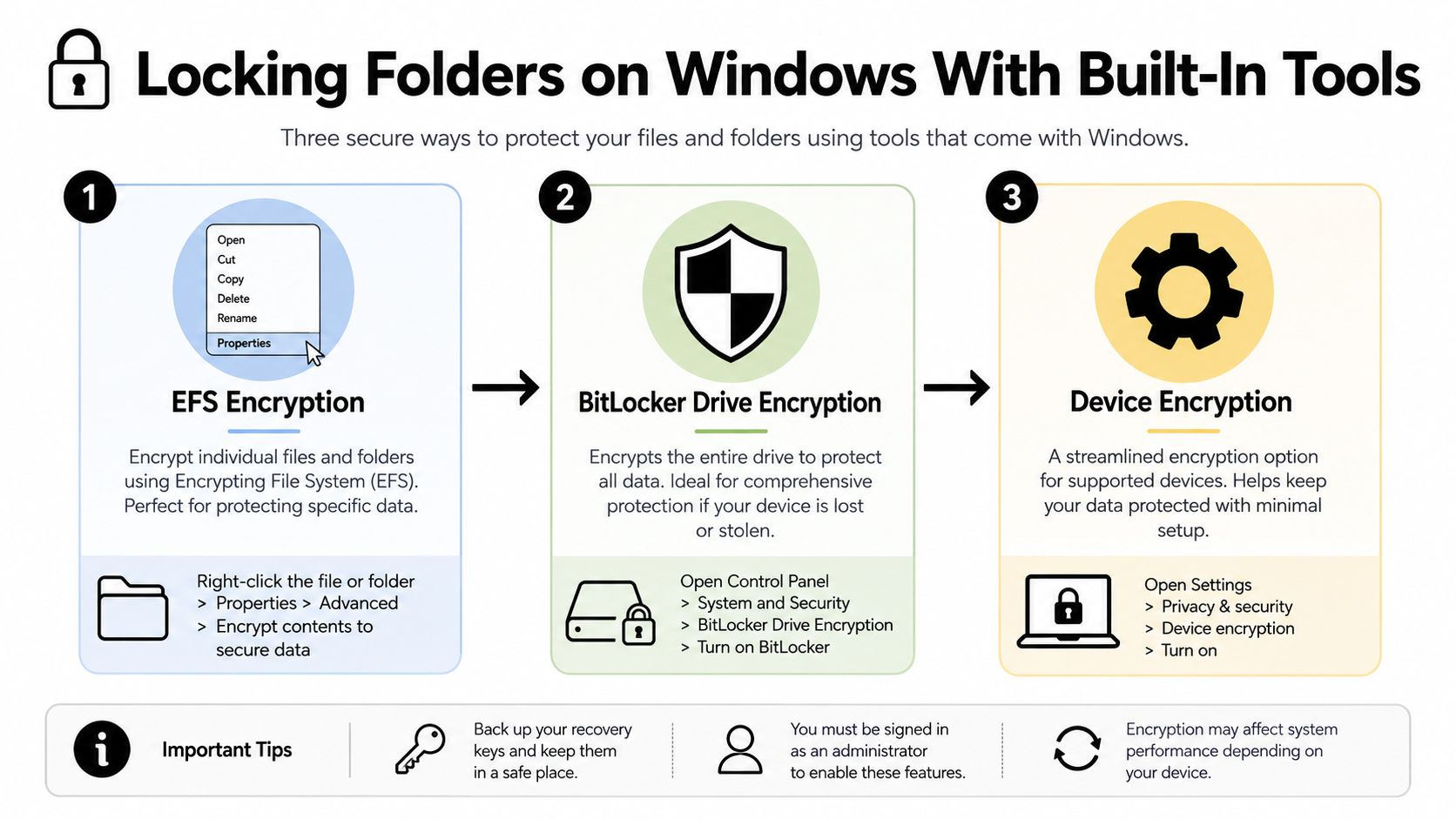
Windows gives you three very different answers, and only one of them is a real folder-level lock. EFS protects individual files and folders, BitLocker protects the whole drive, and Device encryption is the lighter-weight version on compatible systems. Microsoft’s built-in workflow for EFS is still the most direct local option if you want to secure a folder without installing extra software, and the usual path is still right-click the folder, open Properties, go to Advanced, and check Encrypt contents to secure data. Microsoft Community guidance also notes that Windows prompts you to back up the encryption key, because losing it can mean losing the data.
EFS for folder-level protection
Use EFS if you want the folder to open only under your Windows account. After you apply it, Windows can encrypt just the folder or the entire folder, subfolders, and files when prompted. That’s the right move for private work documents on a machine you control, especially if someone else also signs into the same PC with a different account.
The limit is simple. EFS is file-system encryption, not password protection. That means it’s tied to the Windows user profile and certificate, not a reusable folder password you can hand to someone else. If you don’t export or back up the certificate, you’re gambling with permanent lockout.
BitLocker and Device encryption for the whole machine
If you care about a stolen laptop or a drive that leaves your hands, BitLocker is the stronger built-in move. It encrypts the entire drive rather than a single folder, which makes it a better fit when you want theft protection instead of just privacy from other users on the same PC. Windows and third-party guidance also note that Device encryption doesn’t appear on every device, and if it doesn’t appear, it isn’t available there. Avira also points out that you need an administrator account before checking Settings → Update & Security → Device encryption.
A drive-level lock protects the machine. It doesn’t solve sharing, but it does matter when the hardware disappears.
Skip the batch-file theater
The popular Folder Locker.bat trick is not encryption. It creates a folder called Locker, renames it into a disguised system-like name, and asks you to type Y to lock it. That’s concealment with a little user interaction, not cryptographic protection. It can stop a curious family member who doesn’t know Windows well, but it won’t stand up to anyone who knows what they’re looking at.
If you want the built-in Windows path and only care about local privacy, EFS is the one to use. If you care about theft, use BitLocker or Device encryption when your hardware supports it. For a step-by-step Windows security checklist, this Windows privacy guide is worth keeping open while you set it up.
Locking Folders on macOS With FileVault and Disk Utility
macOS doesn’t give you a magic password-on-folder button either. It gives you two honest options, FileVault for the whole disk and an encrypted disk image for one folder you want to carry around. That’s a better design than fake “folder lock” features because it forces you to decide whether you want to protect the whole device or create a portable vault. If you’re checking whether your Mac really needs extra software, the question is whether you need theft protection or a movable encrypted container.
FileVault for the stolen-Mac problem
FileVault protects the entire Mac, which is exactly what you want if the device could be lost, stolen, or left powered off in the wrong hands. It doesn’t give you selective folder passwords, and that’s fine. A disk-wide lock is the right tool when the whole laptop is the asset.
The workflow is straightforward. Turn on FileVault in macOS security settings, then keep the recovery method somewhere safe. If you’re asking how to lock a folder because you’re worried about someone taking your Mac, FileVault is the cleaner answer than trying to build a folder-by-folder patchwork.
Encrypted disk images in Disk Utility
If you want a portable vault, use Disk Utility to create an encrypted disk image from the folder you want to protect. macOS supports 128-bit AES and 256-bit AES, and the stronger choice is the one I’d use for anything sensitive. The image behaves like a mounted container, so you access it when you need it and close it when you’re done.
A sparse bundle is better than a simple read/write image when you expect the vault to grow over time, because it can expand in chunks instead of feeling clunky. That makes it more practical for a working archive you open often, store in cloud storage, or move between devices. The important point is that the file is portable, while FileVault is not.
Don’t confuse convenience with real privacy
macOS, like Windows, converged on encryption because a universal folder-password dialog would be misleading. The system can protect a disk or wrap a folder in an encrypted image, but it can’t magically make a plain folder behave like a vault just because you asked nicely. That’s also why people get into trouble when they treat “hidden” or “library” style workarounds as if they were security.
If you use a Mac and want to sanity-check your setup, it’s worth reading whether you actually need antivirus on a Mac before you decide whether folder locking is enough or if your broader device hygiene needs work too.
Comparing Encrypted Archives, Permissions, and Third-Party Tools
Finally, you pick a default. Encrypted archives are the best portable choice, permissions are the best shared-PC control, and third-party vault tools are the best when you need a real container instead of a one-off folder wrapper. If you want a practical outside view, throughwire’s secure folder methods line up with the same core idea, but the decision still comes down to portability, recovery, and the kind of attacker you care about.
What each option actually stops
A permissions change on a work computer can stop coworkers from poking into your files, but it doesn’t turn the data into ciphertext. An encrypted ZIP or 7-Zip archive protects the contents if someone copies the file, but you have to open it each time. A tool like VeraCrypt gives you a stronger vault-style container, which is better when you need something that behaves like a private drive rather than a zipped bundle.
Strongest practical habit: verify the archive opens before you delete the original folder. People lose data because they trust the new vault before they test it.
That mistake is common enough to be worth calling out directly. You create the archive, feel done, delete the original folder, and then discover a typo in the password or a bad export. Don’t do that. Open the archive once, confirm the files are there, then remove the original copy if that’s still what you want.
Folder-Lock Methods Compared
| Method | Strength | Main Risk |
|---|---|---|
| EFS | Strong for Windows account-based folder protection | Lose the certificate, lose access |
| BitLocker | Strong for a stolen drive or powered-off laptop | Not a folder-level tool, it protects the whole device |
| Encrypted archive with AES-256 | Portable and easy to share safely | Password loss makes recovery hard |
| Permissions changes | Good for shared computers and casual access control | Not true encryption |
| Third-party container like VeraCrypt | Strong vault behavior across files | More setup, more recovery responsibility |
| Folder Locker batch trick | Stops casual snooping | It’s concealment, not encryption |
Pick by portability, not by habit
If you need to move a protected folder between computers, encrypted archives or a container tool make more sense than Windows-only EFS. If you want to keep files private on a shared office PC, permissions can be enough when your organization manages accounts properly. If you want one clean rule, use AES-256 archives for transport and a real container tool for ongoing sensitive storage.
The only thing I’d reject outright is using a hidden-folder trick and calling it security. That’s theater. If the folder matters, use encryption or use permissions with eyes open.
Locking Folders on Linux and Mobile Devices
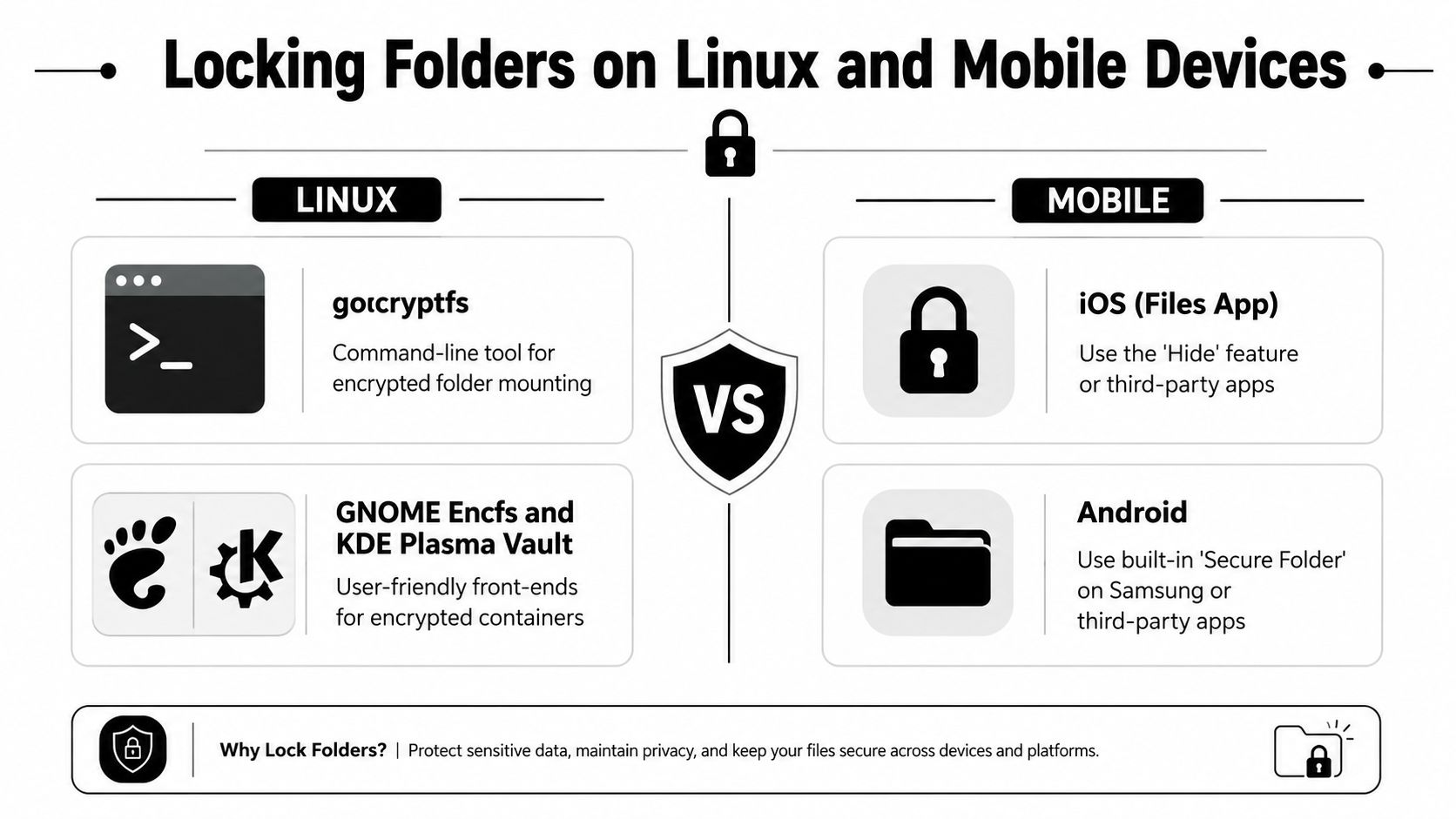
Linux gives you more control than most consumer systems, which is great until people assume the desktop magically solved privacy for them. A real encrypted folder on Linux can be built with gocryptfs, and desktop front-ends like GNOME Encfs and KDE Plasma vault make that workflow less painful. On phones, the picture is weaker. Android’s built-in options vary by device and app, while iPhone’s Hidden album is mostly concealment, not encryption. If you want stronger mobile hygiene, also check how to find spyware on your phone because a folder lock won’t help if the device is already compromised.
Linux gives you a real encrypted mount
For a straightforward encrypted folder on Linux, gocryptfs is the one I’d reach for first. You create a source directory, mount the encrypted view somewhere else, and work inside the mounted folder as if it were normal storage. That’s the kind of setup that protects your data rather than just hiding filenames.
The GUI route is easier if you don’t want terminal work. GNOME Encfs and KDE Plasma vault give you front-end tools that wrap encryption in a desktop workflow. They’re friendlier than hand-rolling commands, but the underlying idea is the same, a mounted encrypted container rather than a plain folder with a password sticker on it.
Mobile locks are often about hiding, not vaulting
On Android, the practical value depends on the phone and the app. Samsung users often rely on built-in secure-folder style features, while others use app-level storage or third-party vaults. The useful part is the separation from the normal gallery or file browser, but that still isn’t the same thing as universal portable encryption.
On iPhone, the Hidden album is about reducing accidental discovery, not giving you a secure encrypted folder you can treat like a vault. Apple’s real protection is the screen passcode and encrypted backups, not a magical secret-folder mechanism. If the phone is accessed, a hidden album is not the kind of barrier people imagine.
Use the mobile lock for the right job
For phones, I’d use the built-in feature to stop accidental browsing or casual snooping. I would not trust it as the only barrier for sensitive documents that matter after a device is lost or shared. For files that need protection, the safer move is to keep them inside a properly encrypted workflow rather than relying on a visible gallery toggle.
Mobile privacy is mostly about limiting easy access, not pretending the device has a full desktop-grade folder vault. That’s the honest answer, and it saves people from assuming the UI equals security.
Matching the Lock to Your Threat Model
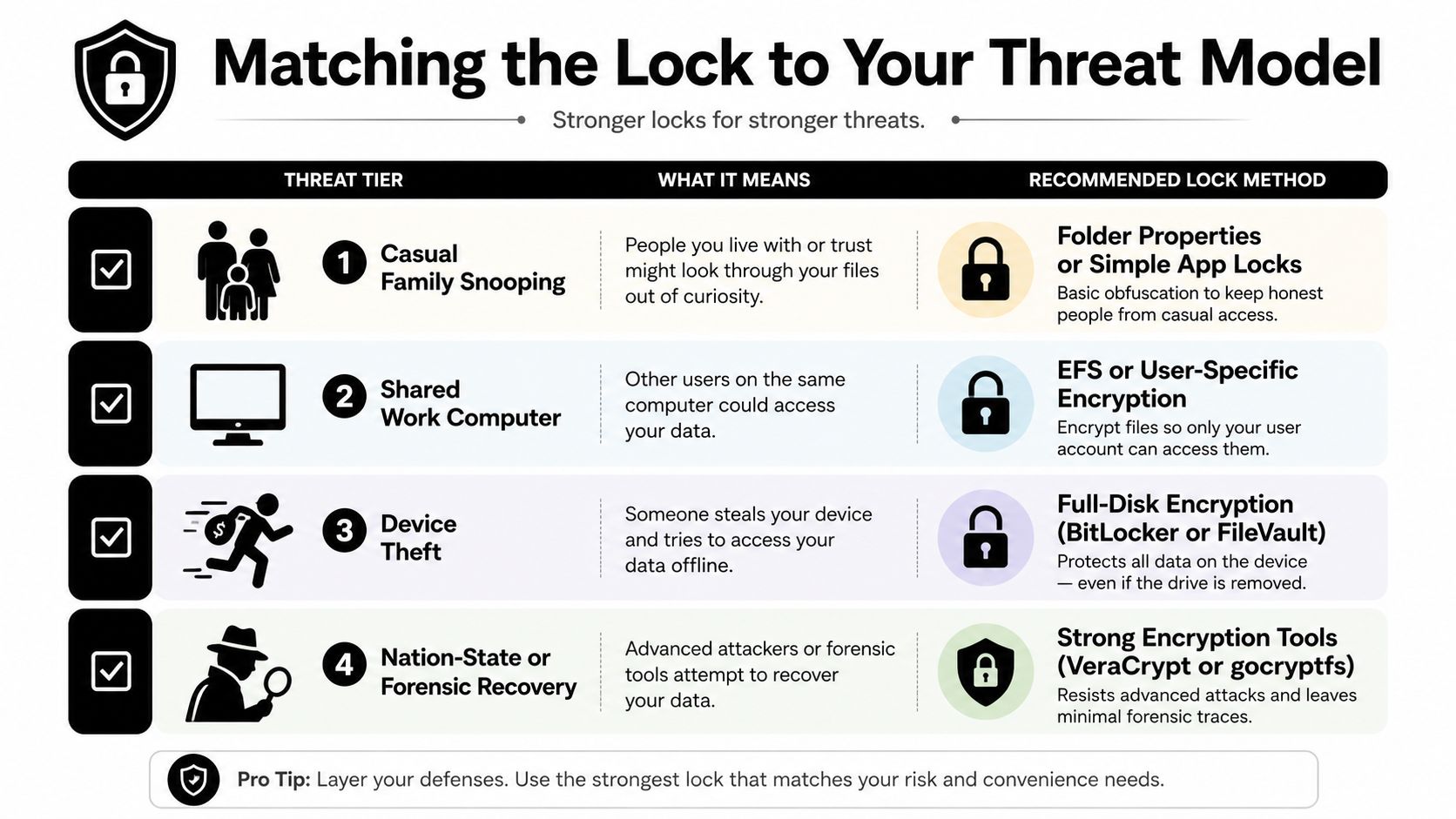
The right folder lock depends on who you’re trying to beat. A family member who opens your laptop out of curiosity is not a forensic analyst. A coworker on a shared machine is not a thief with your powered-off drive. The mistake is treating every threat like it needs the strongest tool, or treating every tool like it solves every threat.
Use the simplest tool that matches the attacker
For casual family snooping, a real encryption feature is usually enough, and a simple app lock can help on mobile. For a shared work computer, user-specific encryption or strict permissions make more sense because the device is already in a managed environment. For device theft, full-disk encryption such as BitLocker or FileVault is the right answer, because the attacker has physical possession of the machine.
For a nation-state or forensic recovery concern, you’re in stronger-container territory, such as VeraCrypt or gocryptfs, and you should assume convenience will drop. That isn’t paranoia, it’s scope control. If the threat is extreme, the workflow should feel stricter.
Tie the folder lock to the rest of your exposure
Sensitive local files usually connect to something bigger, passwords, identity documents, client records, dating photos, gaming credentials, or private notes that reveal too much about your routine. If those files exist on a machine, the rest of your digital footprint probably matters too. A locked folder won’t help much if your usernames, recovery emails, or old accounts are already easy to find elsewhere online.
Here’s the shortest decision checklist I trust:
- Family snooping: use EFS, a secure app vault, or a hidden-folder option only if the content is low risk.
- Shared computer: use permissions first, then user-specific encryption if the files are sensitive.
- Stolen device: use BitLocker on Windows or FileVault on Mac.
- Portable private archive: use AES-256 encrypted archives or a container tool.
- High-sensitivity data: use a real vault like VeraCrypt or gocryptfs, not a disguise.
That’s the whole model. Don’t ask, “How do I lock a folder?” Ask, “Who am I locking it from, and what happens if the device is copied, stolen, or recovered?” That question gives you the right answer faster than any generic guide ever will.
Recovery, Backup, and Tying Folder Locks to Your Digital Footprint
The most important part of folder protection is recovery, because a lock you can’t open is just self-inflicted data loss. Microsoft’s EFS workflow pushes you to back up the encryption certificate for that reason, and the same logic applies to BitLocker recovery keys and archive passwords. If you’re building a secure workflow, the recovery plan belongs next to the lock, not after it.
Don’t treat the key like an afterthought
Back up your encryption material before you need it. That means certificates, recovery keys, and the password manager entry that stores any archive password you create. If you plan to upgrade devices or reinstall an OS, export what you need first, then verify you can restore it later.
An encryption key you cannot recover is not security, it’s data loss waiting to happen.
That’s the cleanest way I can put it. If the folder matters enough to protect, it matters enough to recover.
The folder is only one piece of the privacy picture
Local files usually reflect broader exposure, not just one folder. If a folder contains account notes, identity documents, or private photos, the same person who might want that folder could also learn a lot from your online footprint. That’s why file security and digital privacy belong in the same conversation, and why a full audit is smarter than only fixing the folder you noticed first.
If you want a structured follow-up, use this disaster recovery planning guide as the mindset, then check what else is already exposed about you online.
If you want to know what else about you is already visible beyond the folder you just protected, visit Digital Footprint Check and run a free scan. It’s the fastest way to see whether your private files are the only thing you need to worry about, or whether your public footprint is handing away more context than you think.