· Digital Footprint Check · Content Marketing · 13 min read
How to See What Google Knows About You in 2026
Learn how to see what Google knows about you with this practical 2026 guide to My Activity, Ad Center, Takeout, and removal settings that actually work.

You're searching for a pair of shoes, watching a video, or discussing a holiday near your phone when an ad appears that feels uncomfortably specific. Sometimes the explanation is simple personalization. Other times, the important question is not whether Google “heard everything,” but which account data was saved, what Google inferred, what remains visible elsewhere, and which controls can change it.
Learning how to see what Google knows about you requires more than opening one history page. Google separates information across activity records, advertising preferences, account settings, downloadable archives, public search results, and security logs. This guide walks through those surfaces in plain language, shows what each control does, and explains why an apparently empty screen doesn't necessarily mean Google has no information about you.
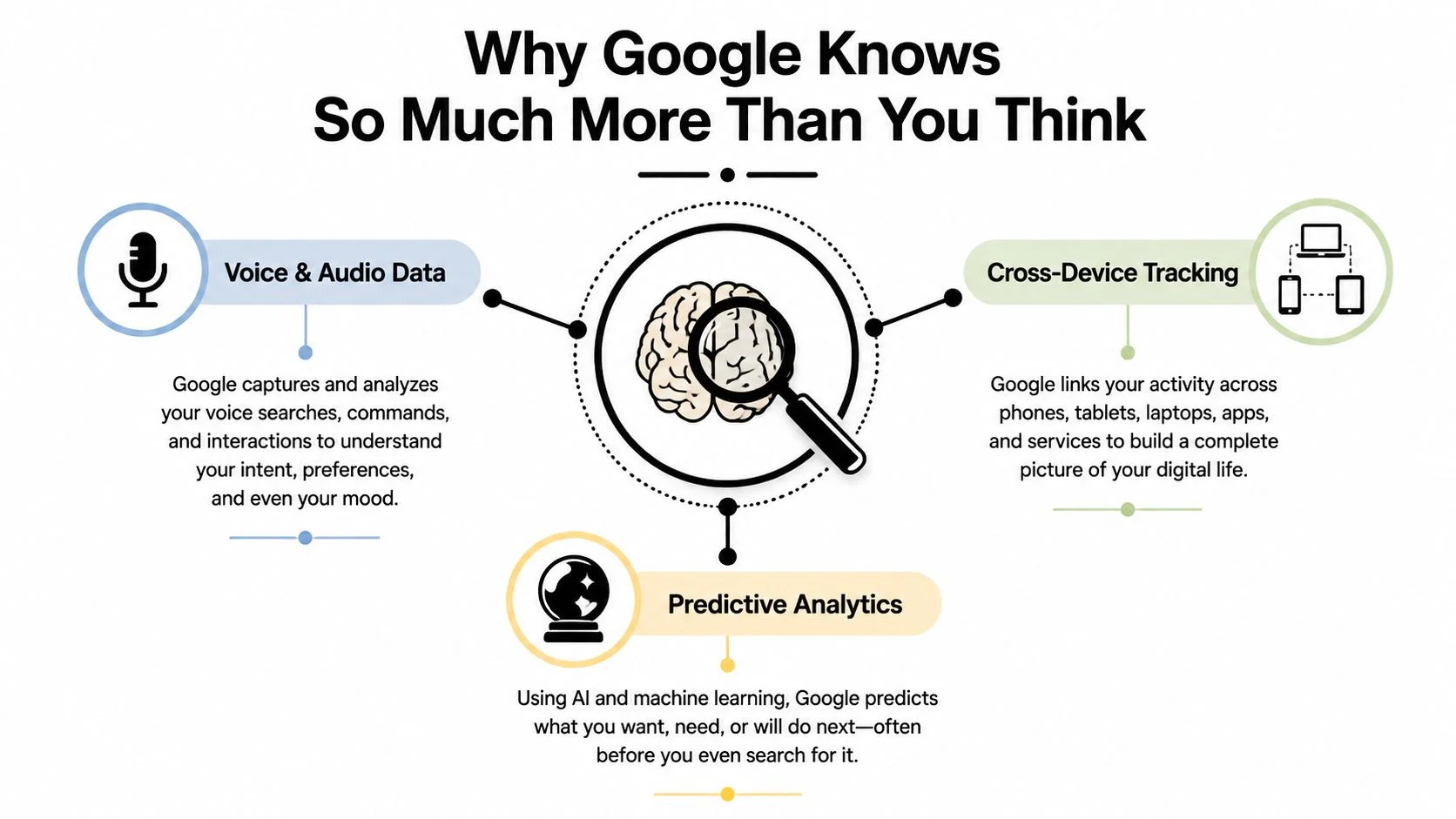
Why Google Knows So Much More Than You Think
Google's privacy policy describes personal data as information that can identify you directly, such as your name, email address, or billing information, along with other information that can reasonably be linked to your account. You can review the broad categories in Google's privacy policy, but the practical experience is spread across several products rather than presented as one complete dossier.
That split matters. My Activity shows time-stamped behavior. My Ad Center shows some interests and personalization signals inferred from that behavior. Data & privacy contains retention, history, download, and verification controls. Google Takeout creates a downloadable copy of selected account data. Results about you helps you find personal information appearing publicly in Google Search. Each dashboard answers a different question.
The five-dashboard mental model
Think of your Google account as a collection of ledgers connected by your sign-in, not as one storage box. A search may appear in My Activity, contribute to an advertising category in My Ad Center, and remain represented in a downloaded archive even after a different setting is changed.
Start with Google's explanation of data ownership and control if you want the broader privacy principle. The key practical point is that visibility is uneven:
- Saved records may show an event, such as a search, video, location-related activity, or voice interaction.
- Inferences may summarize your interests or personalization signals without showing every underlying calculation.
- Product-specific data may sit in Gmail, Photos, Maps, YouTube, Chrome, or another service rather than in one timeline.
- Public exposure is separate from private account history. A result about your phone number or address may be visible in Search even when you're reviewing account settings.
- Security evidence can appear in account-access tools, including Gmail's account-activity view.
Google says activity can include searches, videos watched, interactions with content and ads, voice and audio information, purchases, communications, third-party sites and apps using Google services, and synced Chrome browsing history. That doesn't mean every category is active for every account. It means your audit should check the controls instead of assuming one default profile.
Practical rule: An empty timeline is evidence about that screen and its settings, not proof that no Google-related data exists anywhere.
Reading Your Activity Timeline in My Activity
Open My Activity while signed in to the Google Account you want to inspect. This is usually the clearest window into raw, time-stamped account activity, and it's the right place to begin because it lets you examine individual events rather than only broad categories.
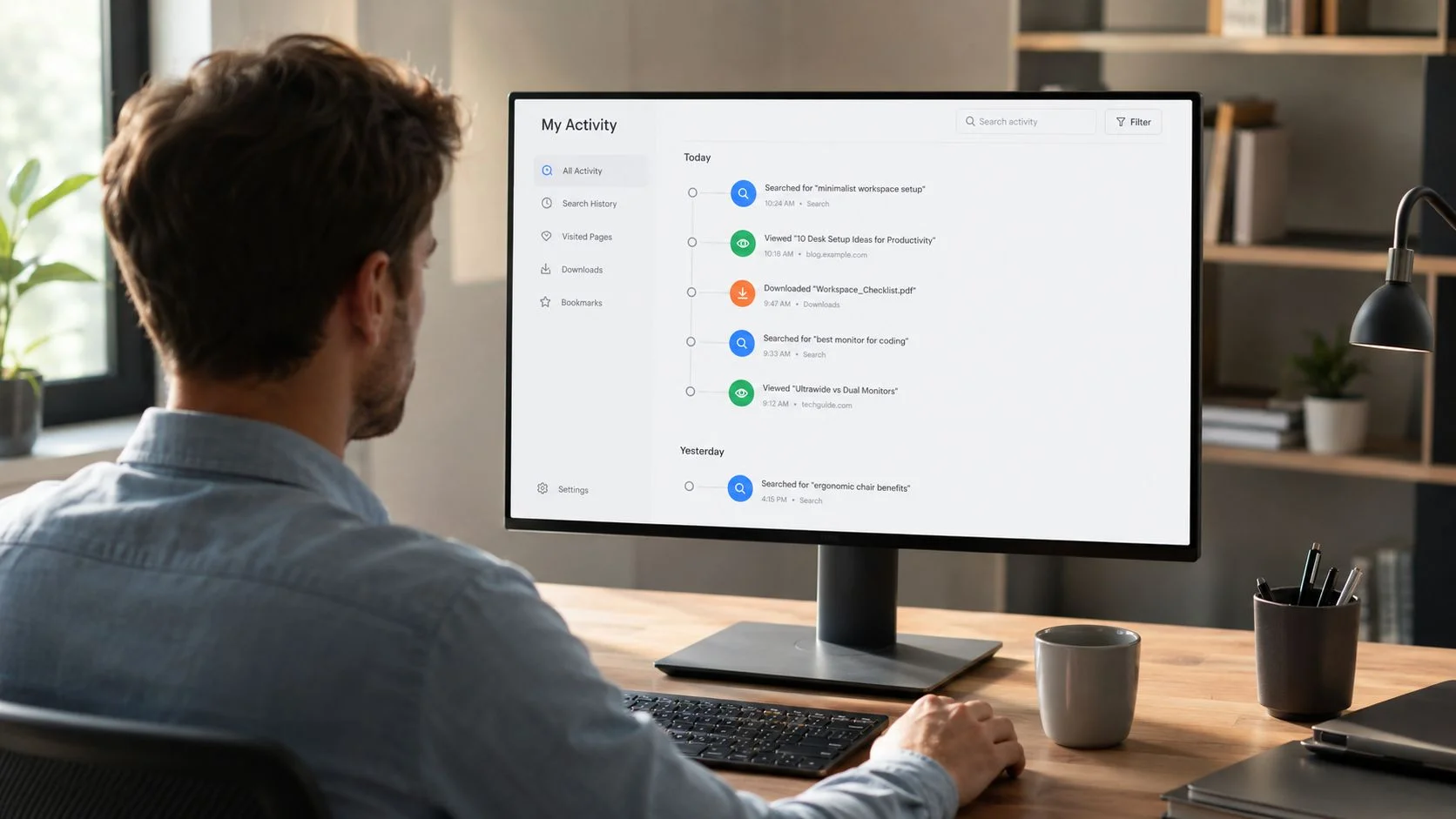
The timeline can bring together activity from services such as Google Search, YouTube, Maps, the Play Store, and Assistant, depending on your settings and the products you use. You might see a search phrase, a video interaction, an app-related event, or an Assistant command. Open an entry rather than relying only on its title. Expanded details can show the product involved and associated context.
Three ways to narrow the timeline
Use Filter by date and product when the timeline feels too crowded. Select a date range, then choose one product, such as YouTube or Search. Filtering to one service makes patterns easier to recognize and reduces the chance that you'll mistake a grouped entry for a complete record.
The keyword search box provides a second route. Search for a topic, product, place, or phrase you remember using. For example, searching for a travel destination can help you locate related Search, Maps, or YouTube entries without scrolling through unrelated days.
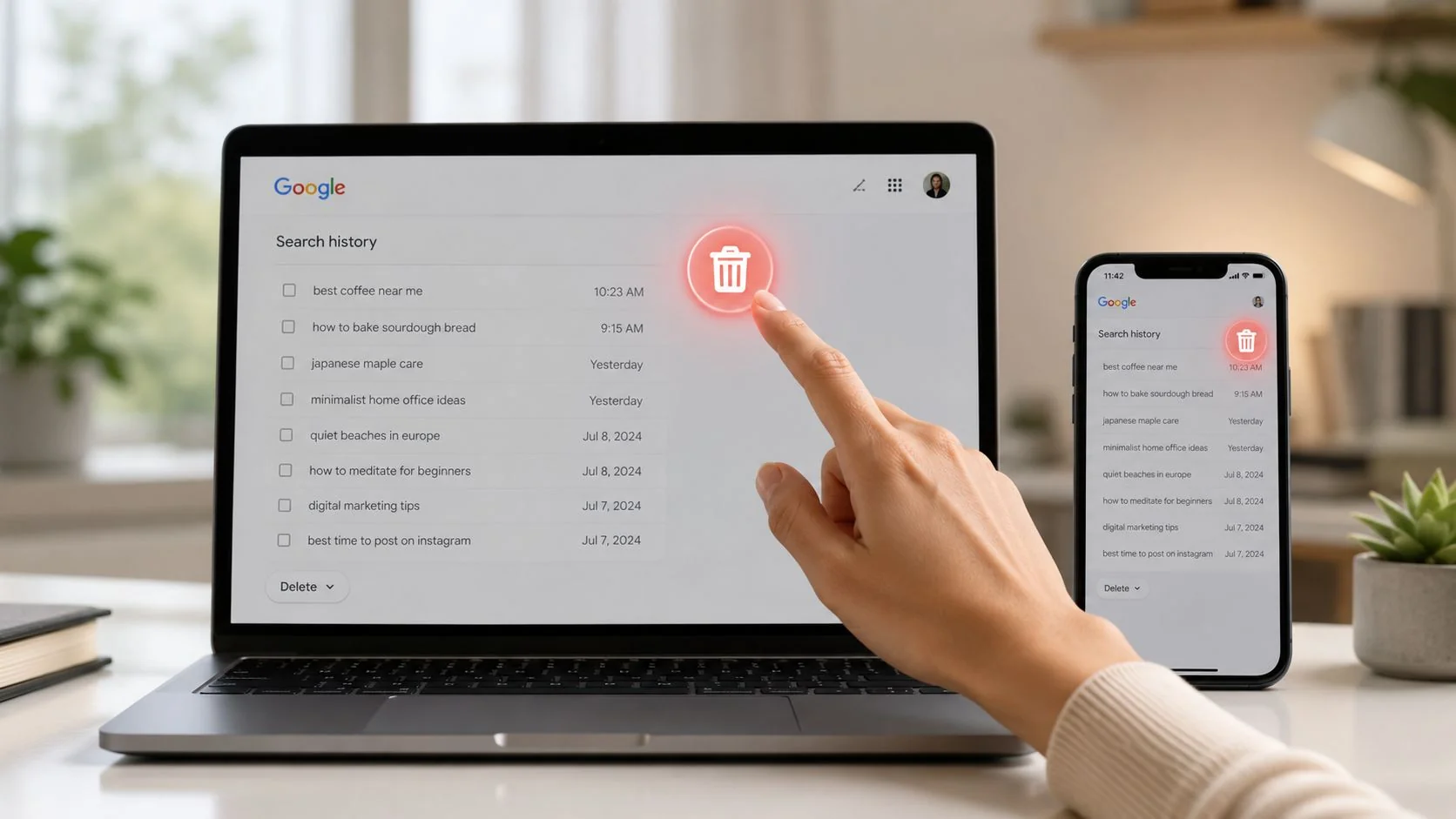
The Delete controls provide the cleanup route. Depending on the entry or range you select, you may be able to remove an individual item, a group, or activity within a selected period. Google says users can browse activity by date or topic and delete part or all of it, but deletion screens can vary by product and account configuration. Check the confirmation message, then search the same term again to verify what changed.
My Activity can display grouped events. Expand a group when you need to understand the individual actions inside it. You may also see items marked with an eye icon that were created while Web & App Activity was paused. Treat those labels as a reminder that activity visibility and activity collection aren't always identical.
For a more focused walkthrough of this specific record, use this guide to see your Google search history. Once you've reviewed the raw timeline, play the explanation below before changing settings. The next question is what Google's systems infer from those events.
Decoding the Inferences in My Ad Center
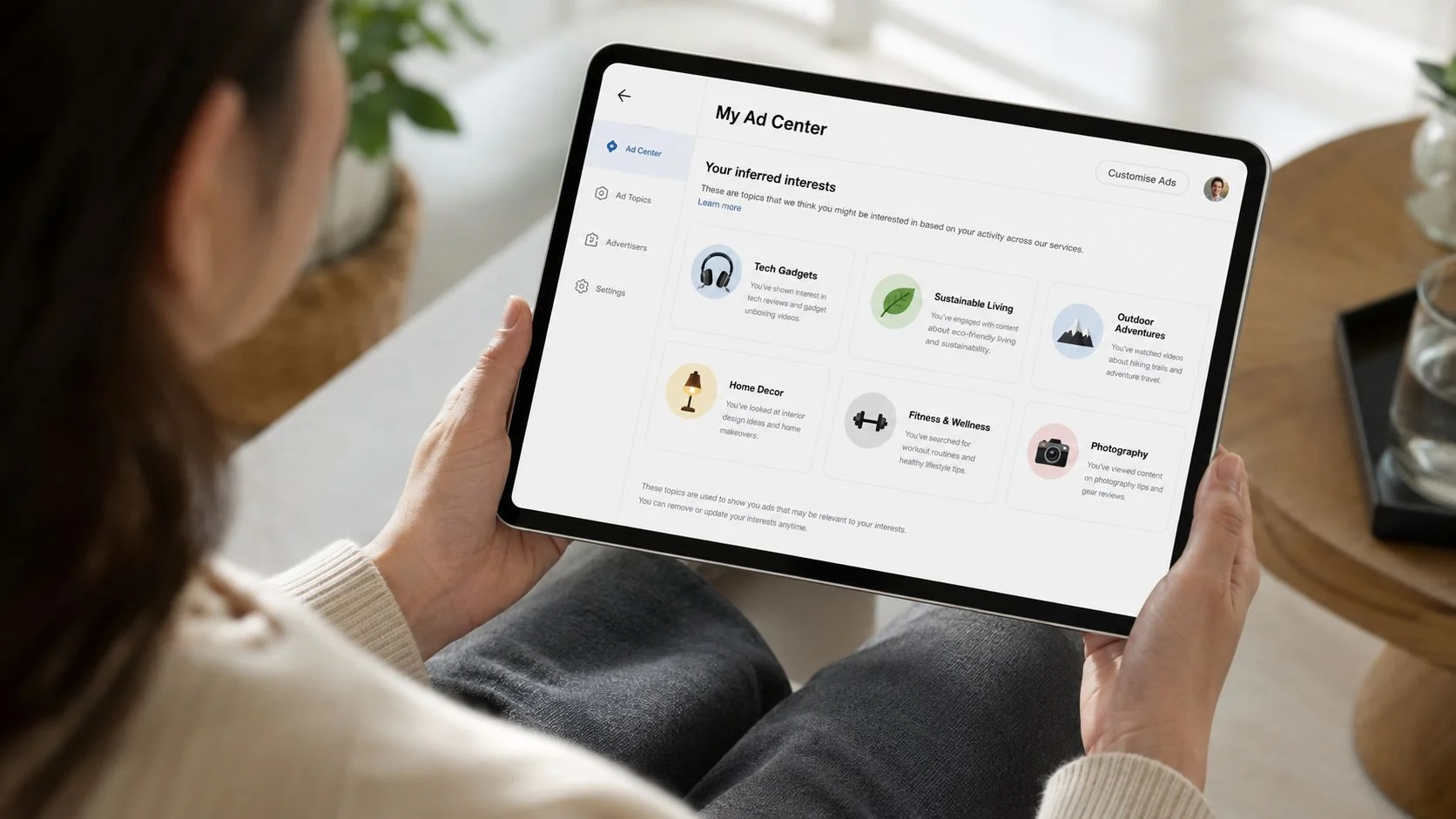
My Ad Center answers a different question from My Activity. Instead of listing every past action, it presents some of the interest categories, personalization signals, and account-related information Google may use to shape ads. Visit My Ad Center while signed in, then look for the privacy or personalization controls available to your account.
Compare the profile with your real behavior
Open Manage Privacy to see which broad signals are feeding ad personalization. Google documents controls for activity on sites and apps, YouTube History, and areas where you've used Google. Your screen may use slightly different labels as settings change, so read the explanatory text beside each control rather than switching everything off automatically.
Then inspect Customized Ads and Topics. These views can contain categories that feel accurate, outdated, overly broad, or outright incorrect. Compare each one with your actual behavior:
- Current interest: A topic you actively search for or watch may explain why related ads appear.
- One-time curiosity: A single search doesn't necessarily represent a lasting preference, even if an algorithm associates it with your account.
- Shared-device noise: Another person's activity can influence what a household sees when accounts, browsers, or devices overlap.
- Context confusion: Research for work, a gift, a family member, or a health concern can look like personal interest.
You can turn off a topic or adjust a signal when you don't want it used for future ad personalization. That action changes targeting controls. It doesn't automatically delete the underlying search, browsing, YouTube, or account record from My Activity or another Google product.
Turning off ad personalization and deleting account history are separate jobs. Complete both if you want to change the profile and reduce stored records.
Google also separates inferred advertising information from public information about you. If you're researching how personal details may appear outside Google's account systems, this guide on finding data held by data brokers provides useful context. The next audit surface is where you manage retention, deletion, and account-level privacy choices.
Auditing Data and Privacy Plus Google Takeout
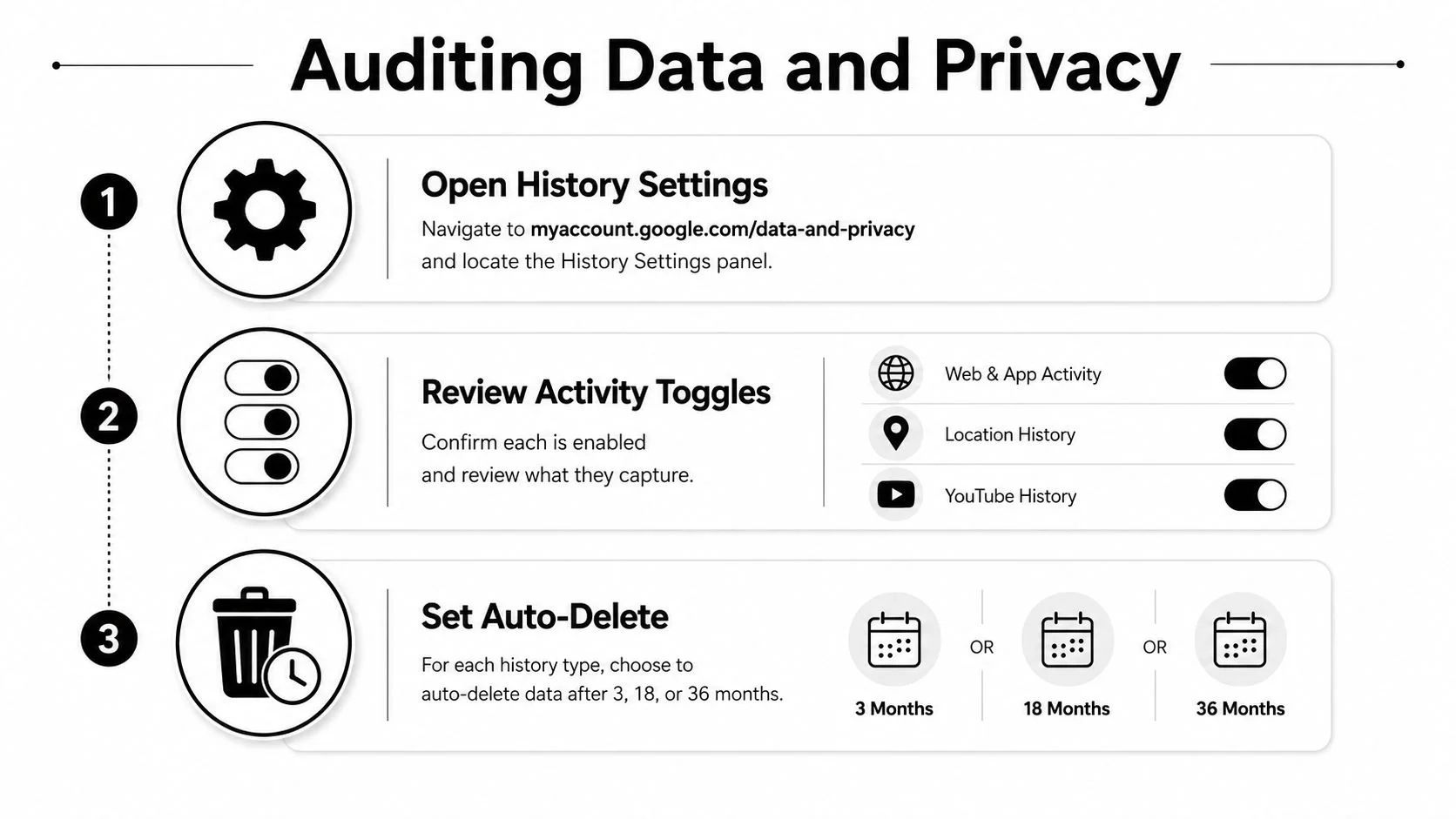
Suppose you open History Settings and see only a few familiar entries. That screen is a starting index, not a complete inventory. In Google Account Data & privacy, review Web & App Activity, Location History, and YouTube History separately. These are the main activity areas Google provides for saved personal activity, while individual products may retain additional records in their own settings.
Retention controls can include three months, 18 months, or 36 months, depending on the history type and the options available on your account. Choose the period that matches your privacy needs instead of assuming the default is suitable. Google's help material says some core activity settings may default to automatic deletion after 18 months. A shorter period removes older records from the available history sooner, but it does not erase every record held by every service.
Read the page as a control panel
Open Data from apps and services you use. Each entry may summarize saved information and link to a product's settings or download options. The Google privacy dashboard provides another summary of services and account data, with options to download information or open service controls, as explained in Google's privacy dashboard help.
Select Download your data to open Google Takeout. Choose only products relevant to this audit, such as Search, Maps, YouTube, Gmail, or Ads. A smaller selection makes the archive easier to read. Use JSON when available for a machine-readable structure, and request a single archive for a one-time review rather than recurring exports.
Read the archive for patterns, not file by file:
- Location records: Repeated entries can reveal routines, workplaces, visits, or travel.
- Search clusters: Related searches may show temporary research that an advertising profile interprets as a continuing interest.
- Voice material: Audio files can show whether voice activity was saved to the account.
- Ads folders: Review labels and available files carefully. If
inferred_segments.jsonappears, compare its categories with topics in My Ad Center.
Use what you find to shorten retention, delete history, review connected apps, or strengthen sign-in protection. Google allows extra verification before viewing full My Activity history and provides Turn off and delete activity for removing saved records. For an audit sequence that also examines services beyond Google, follow this personal digital cleanse guide.
Checking Results About You and Account Security
Private account history is only one side of exposure. Search for your name, email address, phone number, and home address through Google's Results about you feature, available through Google's removal guidance. Add the identifiers you're comfortable monitoring, then enable notifications if the feature offers them for your account.
Treat the dashboard as a queue. Separate items into already removed, in progress, and to review. A result may contain an old profile, exposed contact information, or a page that connects your identity with an employer or home address. Removal from Google Search doesn't necessarily delete the information from the original website, so record the page owner and pursue removal at the source when appropriate.
Public-search cleanup protects a different layer of privacy than deleting account history. You need both checks.
Inspect Gmail's access trail
On Gmail's web interface, open the Last account activity link near the bottom of the inbox. Review the dates and times, access types, countries, and IP addresses shown in the activity table. Browser access may look different from IMAP access, and a location can reflect a network or service route rather than your exact physical position, so compare the entries with your own travel and device use before treating one as proof of compromise.
Sign out of unfamiliar sessions and open Google's Security Checkup at myaccount.google.com/security-checkup. Remove third-party app access you no longer use, review recovery phone and email details, and consider passkeys or another strong sign-in method. These steps reduce the chance that someone else can use your account to create new activity or access existing records. For a broader prevention routine, see this guide to account takeover prevention.
What Different Google Profiles Reveal in Real Life
The same data category can create different risks depending on the person behind the account. A search about salary negotiation might be ordinary professional research for one user, while a series of location records can expose sensitive routines for another. The interpretation matters as much as the existence of the record.
Consider a job seeker whose Google account contains searches for resume templates, salary research, and interview preparation. Maps activity shows regular trips toward offices belonging to competitors, YouTube is dominated by industry channels, and the advertising profile appears to classify the account as actively job seeking. A recruiter running a search ad could encounter signals about the person's interests or even see public identifying information before an interview, depending on how the account and public web results connect.
Now consider a dating-app user. Location History may record weekend visits to specific bars, Google Photos may organize images containing the person's face, and synced contacts or Gmail activity may connect dating-app matches with drafts or correspondence. My Ad Center may associate the account with nightlife or local entertainment. None of these records alone tells the whole story, but together they can reveal routines, relationships, and identity clues.
| Data Type | Job Seeker Profile | Dating-App User |
|---|---|---|
| Search history | Resume writing, interview preparation, salary research | Dating advice, venue searches, profile-related questions |
| Location activity | Commutes toward competitor offices or interviews | Weekend visits to identifiable bars and meeting places |
| YouTube activity | Industry channels and professional training | Relationship, nightlife, or social-content viewing |
| Photos and contacts | Professional images and work contacts | Face-organized photos, matches, and personal contacts |
| Inferred interests | Career transition or active job search | Nightlife, local venues, or relationship-related interests |
| Main privacy concern | Reputation, employment context, and timing of a job search | Personal safety, routine exposure, and relationship privacy |
These scenarios don't mean Google will expose a complete narrative to a recruiter, date, or stranger. They show why a one-size-fits-all deletion plan can fail. A job seeker may want to preserve professional records while limiting public results. A dating-app user may prioritize location and contact privacy. Audit by life context, not just by product name.
Your 30-Minute Google Audit and What to Do Next
A short audit works best when every block has a purpose and a verification step. Set aside ten minutes for My Activity, ten minutes for My Ad Center and Data & privacy, and ten minutes for Takeout. The aim isn't to erase your entire digital life in a panic. It's to identify what matters, change the right control, and confirm that the change took effect.
First ten minutes
Open My Activity and use Filter by date and product. Search for topics that could reveal sensitive plans, locations, health concerns, employment decisions, or relationship details. Delete individual items or a selected range, then search again for the same term. If it no longer appears, you've verified the visible timeline change.
Second ten minutes
Open My Ad Center and review Customized Ads, Topics, and Manage Privacy. Turn off categories or signals you don't want used for future ad personalization, then move to Data & privacy and inspect Web & App Activity, Location History, and YouTube History. Set automatic deletion to a shorter available period when it fits your needs, and confirm each setting shows the intended status.
Final ten minutes
Open Google Takeout and request a focused, single archive. Select only the services relevant to your concern, choose JSON where available, and inspect the resulting folders for location entries, search clusters, voice files, and advertising segments. The archive won't function as a perfect “everything Google knows” report, but it can reveal information that a compact dashboard view doesn't make obvious.
Repeat the My Activity and Results about you checks as a regular habit, especially after changing devices, sharing an account, moving home, beginning a job search, or using new dating and social apps. If this Google audit makes you curious about what exists on Facebook, data-broker pages, gaming profiles, breach databases, or people-search sites, Digital Footprint Check offers a free cross-platform check that searches public exposure across hundreds of online sources.
Digital Footprint Check can help you extend this review beyond Google by looking for exposed profiles, public records, breach-related information, gaming accounts, and social-media traces across 500+ platforms. Visit Digital Footprint Check to run the free checker, compare its findings with your Google audit, and turn unexpected results into a focused removal and account-security plan.