· Digital Footprint Check · Content Marketing · 16 min read
Learn How to Secure Your Phone: Remove Virus From My Phone
Need to remove virus from my phone? Our 2026 guide shows how to find & delete malware on Android/iPhone & secure your data. Get protected today!

Your phone starts acting off in ways that are easy to dismiss at first. The battery drops fast. A browser tab opens on its own. You tap one thing and get a fake warning that says your device is infected. Then the worry kicks in: how do I remove virus from my phone without making things worse?
That stress is justified. A phone infection isn’t just a performance problem. It can expose saved passwords, banking sessions, private photos, work email, dating app messages, gaming logins, and the contact list you rely on every day. If your phone is tied to your job search, your business, or family accounts, the damage can spread far beyond the device itself.
Is Your Phone Hiding a Virus Signs to Watch For
A lot of people first notice the problem in the middle of a normal day. Your phone gets hot while it’s idle. You see pop-ups even when you’re not browsing. Mobile data disappears faster than usual. An app you don’t remember installing is suddenly on the screen. Those are the moments when “my phone is being weird” turns into “something has access to my device.”
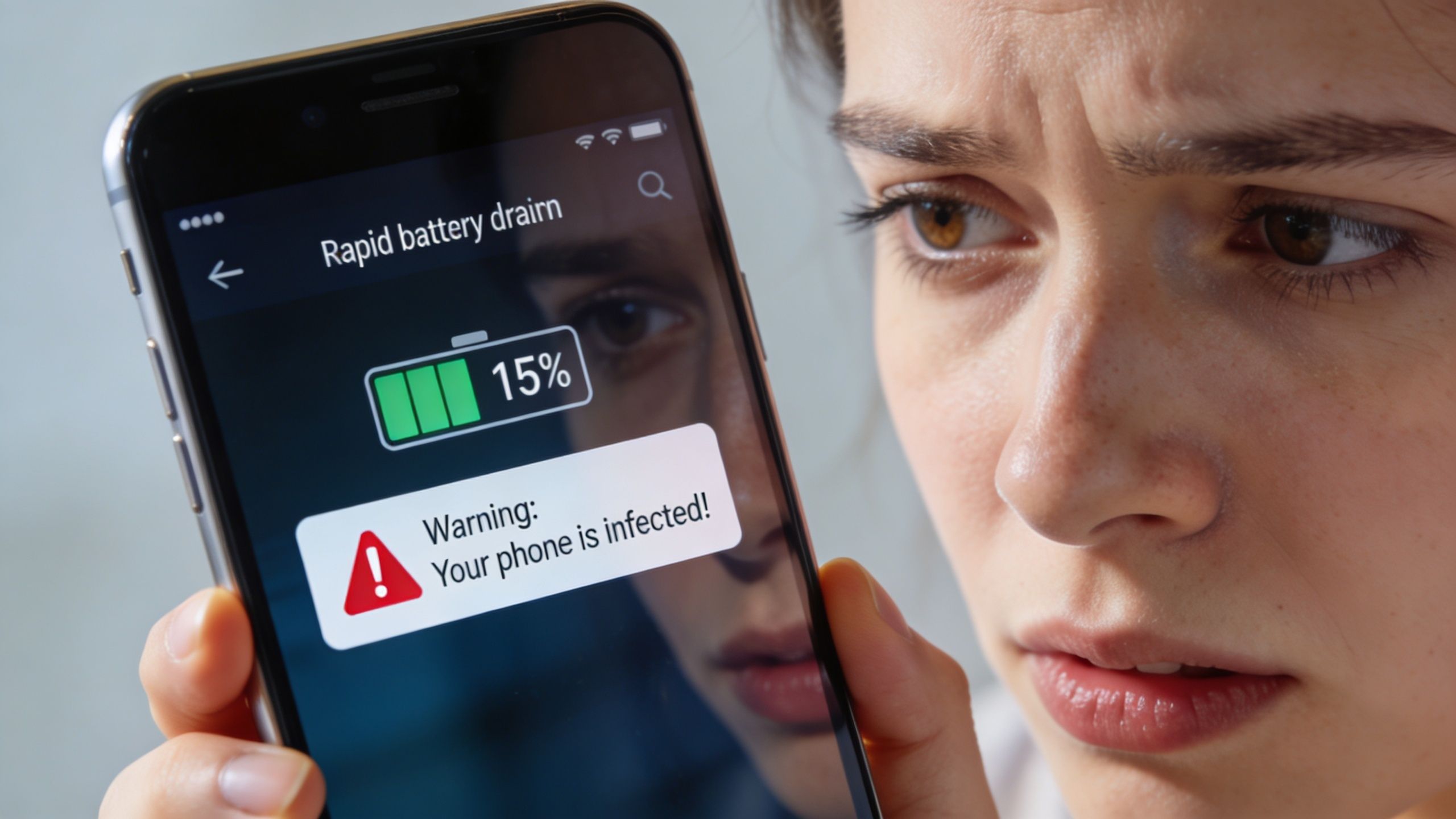
That concern is grounded in reality. In 2023, mobile malware attacks surged by 47% year-over-year, with over 5.4 million unique mobile malware samples detected globally. Android devices were the primary target, accounting for 97% of all mobile threats, according to the AV-TEST Institute in this mobile malware summary.
The signs people notice first
Some symptoms point to nuisance software. Others suggest a real compromise.
- Battery drain that changes suddenly means something may be running in the background when it shouldn’t.
- Data usage spikes can signal hidden communication with outside servers.
- Pop-ups outside your browser often come from a bad app, adware, or a malicious overlay.
- New apps or browser redirects suggest something was installed or permissions changed without your clear approval.
- Logins acting strange can mean saved sessions or credentials have already been abused.
Practical rule: If your phone is misbehaving and your accounts also start sending password reset prompts, treat it as both a device problem and a data exposure problem.
Why this matters beyond the phone
A compromised phone can affect your finances, job prospects, and personal safety. If a malicious app can read notifications, it may see one-time codes. If it can access your email, it may trigger password resets elsewhere. If it can read contacts or messages, it can impersonate you.
That’s why fake virus alerts are dangerous even when they look clumsy. They pressure you into tapping fast and thinking later. If a warning appears in a browser, stop and verify before taking action. A quick habit that helps is learning how to check if a website is safe before you download anything, grant permissions, or enter a password.
Red flags that deserve immediate action
If any of these happen, don’t keep using the device normally:
- Banking or shopping apps open to unfamiliar screens
- Contacts receive messages you didn’t send
- You see accessibility, device admin, or profile changes you didn’t approve
- The phone blocks you from uninstalling a suspicious app
At that point, the goal isn’t just to stop the annoyance. It’s to contain a breach.
Pinpointing the Problem Is It Malware or Just Annoying
Not every bad phone experience is malware. That distinction matters because panic leads people to do the wrong thing. I’ve seen users wipe a phone over a buggy app, then restore the same clutter, keep the same weak password habits, and end up with the same problem a week later.
That confusion is common. A 2024 Malwarebytes report notes that 65% of “virus” complaints on Android forums were misattributed to non-malicious causes like bloatware or OS bugs, with only 22% confirmed as malware, as described in this Malwarebytes discussion reference.
What each problem usually looks like
Real malware tries to steal data, hijack access, spy on activity, or force more downloads. Adware is often noisier. It floods the screen with ads, fake warnings, and redirects. Bloatware is usually pre-installed or bundled software that wastes storage, battery, or memory without acting like an attacker.
Here’s a practical symptom checker.
| Symptom | Likely Malware | Likely Adware | Likely Bloatware |
|---|---|---|---|
| Random pop-ups outside normal browsing | Possible, especially fake security prompts | Very likely | Uncommon |
| Strange app installs you don’t recognize | Very likely | Possible | Uncommon unless carrier/manufacturer app updates add clutter |
| Phone slows down after system update | Possible, but not enough on its own | Possible | Common |
| Browser redirects to junk pages | Possible | Very likely | Uncommon |
| High battery drain from one preloaded app | Less likely by itself | Possible if ad-heavy | Common |
| You can’t uninstall the app normally | Possible if it has admin privileges | Possible | Common for manufacturer apps |
| Account alerts or suspicious login activity | Strong sign | Less likely on its own | Unrelated |
| Constant notifications pushing offers or “cleanup” tools | Possible | Very likely | Possible |
Clues that point to malware
A true infection usually leaves a trail of control or data abuse.
- Permission abuse. A simple flashlight app asking for microphone, SMS, accessibility, or device admin access deserves suspicion.
- Persistence. The same issue returns after restarts, especially if the app relaunches itself.
- Account side effects. You see password reset emails, login prompts, or messages sent from your profiles.
Clues that point to adware or bloatware
Adware often behaves like a scammy salesperson. It wants taps, installs, and browser traffic. Bloatware acts more like dead weight. It clutters the device, drains resources, and may resist removal, but it usually isn’t trying to steal your banking login.
Don’t diagnose a phone by battery drain alone. Heat, lag, and pop-ups are useful clues only when you connect them to app installs, permissions, browser behavior, and account activity.
A simple way to test before you overreact
Use this short logic check:
- Think about what changed recently. Did you install an app from outside the official store? Tap a text link? Allow a strange permission?
- Check whether the problem follows one app. If the phone only acts up after opening a certain app, that narrows the search.
- Look at permissions and special access. Device admin access, accessibility access, and unknown install permissions deserve close review.
- Notice whether your accounts are affected. Device trouble plus account trouble is much more serious than device trouble alone.
If the evidence points to a malicious app, move to removal. If it looks more like bloatware or a system glitch, you may be able to disable the culprit, clear its data, or remove updates without going nuclear.
A Practical Guide to Removing Viruses from Android
When someone searches “remove virus from my phone,” this is usually the part they need most. Android gives you enough control to remove many threats yourself, but the order matters. If you jump around, you can miss the app that’s causing the damage or give it time to keep talking to outside servers.
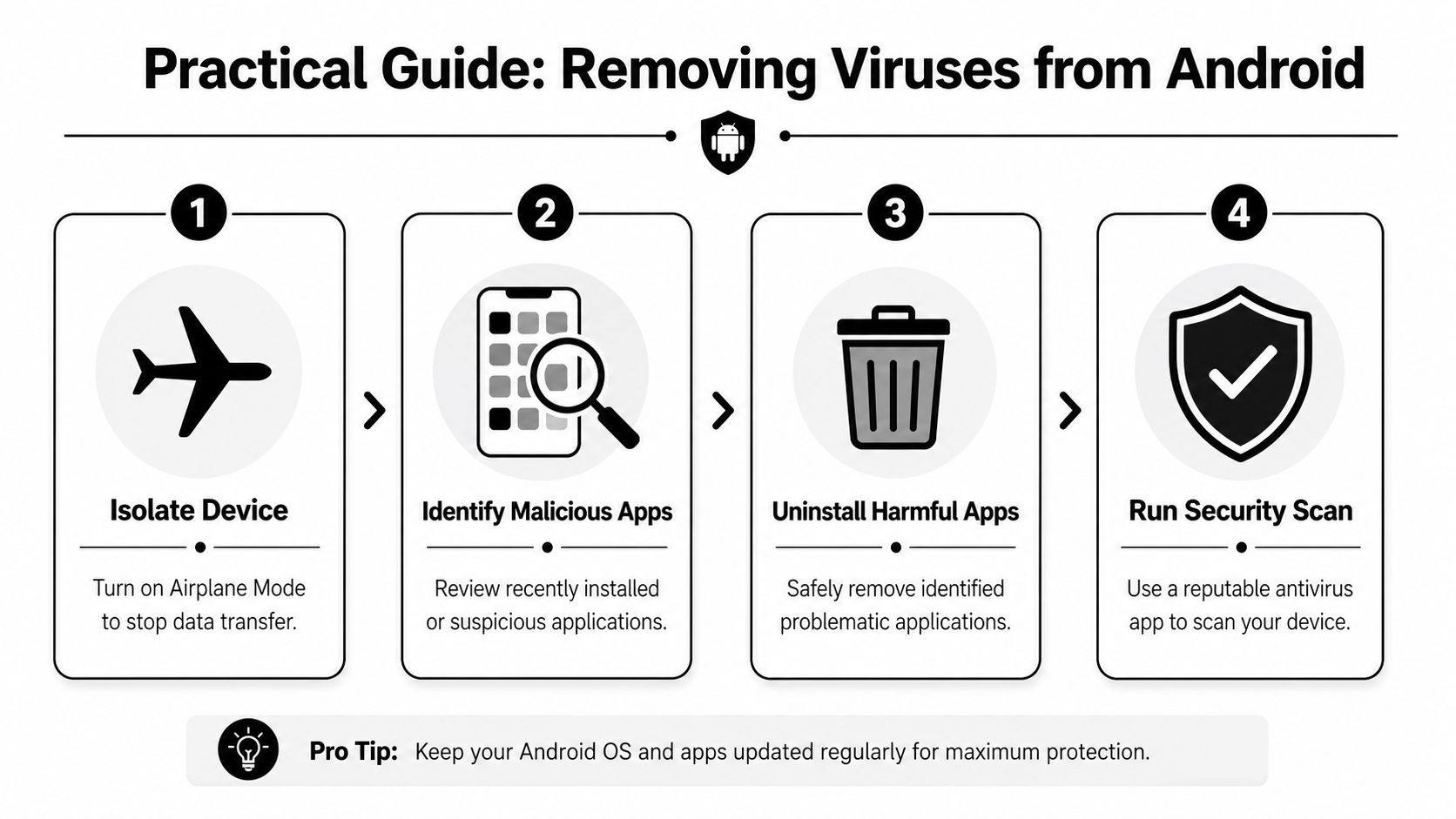
Start by isolating the phone.
Step one isolate the device
Turn on Airplane Mode first. That doesn’t remove malware, but it cuts off a lot of its ability to send data, receive instructions, or trigger more downloads. If you’re worried about a recent phishing tap or suspicious install, this is the fastest way to slow things down.
Then reboot into Safe Mode.
Safe Mode is a critical removal tool because it loads only essential system processes, preventing malware that uses auto-start permissions from re-executing. However, if malware has gained Device Administrator privileges, you must manually revoke them in Settings before you can uninstall the app, according to this Android Safe Mode removal guide.
On many Android phones, you can do this by holding the power button, then pressing and holding Power off until the Safe Mode prompt appears. Device makers vary, so the wording may look slightly different.
Safe Mode is useful because it changes the fight. Instead of the malicious app running and defending itself, you get a quieter system where that app is less able to interfere.
Step two inspect what was added
Once you’re in Safe Mode, open your apps list and think like an investigator, not a cleaner.
Check for:
- Recently installed apps you added before the problems started
- Apps with generic names like Cleaner, Security, Update, Booster, or Browser if you didn’t intentionally install them
- Apps you can’t explain because they don’t match anything you use
- Permissions that don’t fit the app’s purpose
If an app has device admin access, remove that first. On many phones, you’ll find it in settings related to security, special access, or device admin apps. If you don’t revoke that privilege, uninstall may stay greyed out.
A good baseline after cleanup is to review your broader personal cybersecurity best practices, especially app permissions, updates, and account security habits.
Step three uninstall and clean leftovers
Delete the suspicious app or apps one by one. If you’re unsure between two recent installs, start with the least important one. After each removal, look for behavior changes when you reboot normally.
Then clean the places where bad files often linger:
- Downloads folder for APK files, strange PDFs, or attachments you don’t recognize
- Browser downloads if you accepted any “security update” or “video plugin” prompt
- Browser cache and site data because fake warning pages often keep reappearing from cached junk
- App cache for the suspicious app and your browser
This walkthrough can help if you want a visual before you touch settings:
Step four use built-in protection and sanity checks
After uninstalling suspicious apps, run Google Play Protect and then a reputable security scan if needed. Don’t assume the first cleanup got everything. Some malware arrives with a downloader component, so the obvious app may only be part of the problem.
Also review these areas before you declare the phone clean:
- Default browser and home screen app. Malware sometimes changes defaults to keep redirects flowing.
- Accessibility settings. If an unknown app has accessibility access, revoke it.
- Notification access. A malicious app can abuse notifications to read codes or prompts.
- Install unknown apps. Turn this off for apps that don’t need it.
If symptoms disappear in Safe Mode but return in normal mode, you almost always still have a bad app or a bad permission in place.
Securing Your iPhone from Malware and Spyware
A lot of iPhone users assume they can skip this discussion. That’s a mistake. iPhones are generally harder targets for traditional malware, but that doesn’t mean they’re immune to security problems. On iOS, the more common mess involves phishing pages, calendar spam, bad profiles, shady browser prompts, and spyware installed through non-standard paths.
If you’re buying a replacement or secondary device after a scare, getting one from a reputable source matters because you want a clean starting point with clear hardware history. That’s why a vetted refurbished iPhone 14 can make more sense than a mystery marketplace listing.
The iPhone problems people call a virus
Most iPhone “virus” complaints fall into a few buckets:
- Safari redirects and fake alerts that try to scare you into calling a number or installing something
- Calendar spam from a subscription you accidentally accepted
- Unknown configuration profiles or VPN settings
- Spyware concerns tied to jailbreaking, physical access, or suspicious profile installs
What to remove first
Start with the browser because fake warning pages often live there.
- Open Safari settings.
- Clear history and website data.
- Make sure pop-up blocking and fraudulent website warnings are enabled.
- Reopen Safari and test whether the redirects stop.
Then check Calendar for subscriptions you didn’t approve. Spam calendars can fill the phone with fake system alerts that look like infections. Delete unknown subscribed calendars.
Profiles, device management, and spyware checks
Open Settings, then look for VPN & Device Management or the equivalent menu on your version of iOS. If you see a profile you didn’t install for work, school, or a known service, inspect it closely and remove it if it’s suspicious.
Also review:
- Battery usage by app for apps you don’t recognize
- Installed apps for anything unfamiliar
- VPN settings you didn’t configure
- Screen Time or restrictions that appeared without your input
If your iPhone shows signs of monitoring, profile changes, or settings that reappear after removal, stop treating it as a nuisance problem. Treat it as a privacy incident.
For a broader lock-down after cleanup, review practical steps on how to protect your data online. On iPhone, the biggest wins often come from tightening account security, browser habits, and profile control rather than hunting for classic malware.
Advanced Removal Running Scans and Factory Resets
If manual cleanup didn’t solve it, the next move is escalation. At this stage, people either fix the problem properly or make a bigger mess by restoring infected settings, reconnecting risky accounts too soon, or trusting a scan that missed the threat.
What antivirus apps do well and where they miss
Reputable mobile antivirus tools can catch a lot, especially known threats, suspicious behavior, and unsafe apps. On Android, names people commonly use include Malwarebytes and AVG. They’re useful, but they aren’t magic.
Reputable antivirus apps use signature-based and heuristic analysis, but zero-day exploits can still evade detection. Independent security audits show 15-30% false-negative rates. For best results, disconnect from the internet before scanning to prevent malware from communicating with its command-and-control server, according to this mobile malware scan guidance.
That trade-off matters. A clean scan does not always mean a clean phone.
When a scan is worth doing
Run a scan when:
- You removed suspicious apps but still don’t trust the device
- The phone keeps redirecting or reinstalling junk
- You suspect more than one malicious component
- You want a second opinion before a full reset
Disconnect from Wi-Fi and mobile data first. Then scan. If the scanner asks for broad permissions, read them carefully so you understand what it can inspect.
When a factory reset makes sense
A reset is the “erase the whiteboard and start over” option. It’s powerful, but only if you prepare properly.
Use it when:
- The phone still behaves strangely after Safe Mode cleanup
- You can’t remove the suspicious app
- Settings keep changing back
- You suspect deeper compromise or spyware
- You plan to hand the device to a professional and want your data off it first
Before resetting, back up photos, contacts, and essential files. Don’t rush into restoring every app and setting. That’s how people reintroduce the same problem.
Safe reset checklist
- Document what matters. Photos, contacts, notes, and authenticator recovery methods.
- Avoid backing up junk. Don’t preserve unknown apps, weird launcher settings, or browser garbage if you can help it.
- Sign out carefully of important accounts if the device is stable enough to do it.
- Reset the phone through the official system settings.
- Restore selectively. Install apps fresh from the official store instead of restoring everything blindly.
If the device contains irreplaceable files and you’re afraid of losing them, it can be smarter to get help before taking the scorched-earth route. A specialist service that can recover lost data may be worth considering when the alternative is wiping something you can’t replace.
A factory reset removes a lot of problems, but it doesn’t undo stolen credentials, reused passwords, or cloud accounts that were already exposed.
When to stop DIY and get help
Get professional help if the phone belongs to your employer, stores sensitive client information, shows signs of surveillance, or keeps acting compromised after a reset. The same goes for cases involving domestic abuse concerns, stalkerware, or a device that may have been tampered with physically.
After any serious incident, check whether the email tied to the phone has shown up in breach exposure by using a tool that answers is my email on dark web free check. A compromised mailbox often becomes the pivot point for reinfection and account takeover.
After the Virus Is Gone Secure Your Digital Footprint
Deleting the bad app is only half the job. The harder question is what happened while it was on the phone. If malware saw your notifications, browser sessions, email, cloud storage, or saved passwords, you may have a digital footprint problem now, not just a device problem.
This gets more important with cloud-linked devices. Post-2025, cybersecurity firms noted a 180% rise in “persistent cloud malware”, where viruses reinfect devices via compromised Google Drive or OneDrive accounts. Avast data suggests factory resets can fail in up to 35% of these cases if the user’s cloud account permissions are not revoked first, according to this persistent cloud malware report. That future-dated trend is a warning about where cleanup is getting harder, not easier.
What to do right after cleanup
Treat the incident like a possible breach.
- Change your email password first because email is the reset lever for everything else.
- Then change banking, shopping, social, work, dating, and gaming passwords on a clean device.
- Enable two-factor authentication where you can.
- Review active sessions and connected devices in your major accounts.
- Revoke app access you don’t recognize in Google, Apple, Microsoft, and social platforms.
Check the accounts that can hurt you most
People often focus on banking and forget the accounts that help attackers get there.
Review these first:
- Primary email
- Cloud storage
- Phone carrier account
- Password manager
- Work accounts
- Social media and messaging
- Gaming profiles and app stores
If an attacker keeps access to your cloud or email, the phone cleanup won’t stay clean for long.
Reduce what strangers can find next
A phone infection can expose more than login details. It can reveal usernames, old profiles, linked accounts, public posts, and breadcrumbs that make impersonation easier. Reducing that exposure matters, especially if you’re job hunting, dating online, managing a public-facing role, or protecting children’s accounts.
One practical follow-up step is reducing unnecessary public records and profile exposure through data broker removal. The less attackers can cross-reference after an infection, the harder you are to target again.
Clean device. New passwords. Reviewed sessions. Revoked permissions. That’s the difference between “I deleted the virus” and “I actually recovered.”
Your Phone Virus Questions Answered
Will a factory reset always remove a phone virus
No. It’s a strong option, but it isn’t perfect in every case. If the problem is tied to a compromised cloud account, risky backup, malicious profile, or account permissions that were never revoked, the trouble can come back after the reset.
Do antivirus apps slow down your phone
Sometimes, yes. That’s the trade-off for active scanning and monitoring. On a newer phone, the impact is often modest. On an older one, you may notice it more. If you only need a one-time check after an incident, you can scan, clean up, and decide whether you want ongoing protection.
How do phones usually get infected
The most common paths are suspicious links, unofficial app downloads, fake update prompts, scam ads, and permissions granted too freely. Physical access can also matter, especially in spyware cases.
Should I trust a repair shop with an infected phone
Only if you’re comfortable with their privacy practices and you’ve removed or backed up what you can first. If you need a reality check on what responsible handling looks like, this guide to Fixo’s data privacy during repair is a useful benchmark for the questions to ask before handing over your device.
What’s the first password I should change
Your email password. If someone controls your inbox, they can often reset everything else from there.
Can iPhones get viruses too
They can face real threats, but they often show up as phishing, rogue profiles, spyware, browser abuse, or calendar spam rather than the classic Android-style malicious app problem.
If you’ve had to remove virus from my phone, don’t stop at the cleanup. Check what personal data may already be exposed across social accounts, breach records, public profiles, and linked usernames with Digital Footprint Check. Start with the free checker at www.digitalfootprintcheck.com/free-checker to see what’s out there and take back control of your online identity.