· Digital Footprint Check · Content Marketing · 12 min read
How to Set Facebook to Private: a 2026 Guide
Learn how to set Facebook to private to protect your digital footprint in 2026. Follow our step-by-step guide for enhanced privacy.
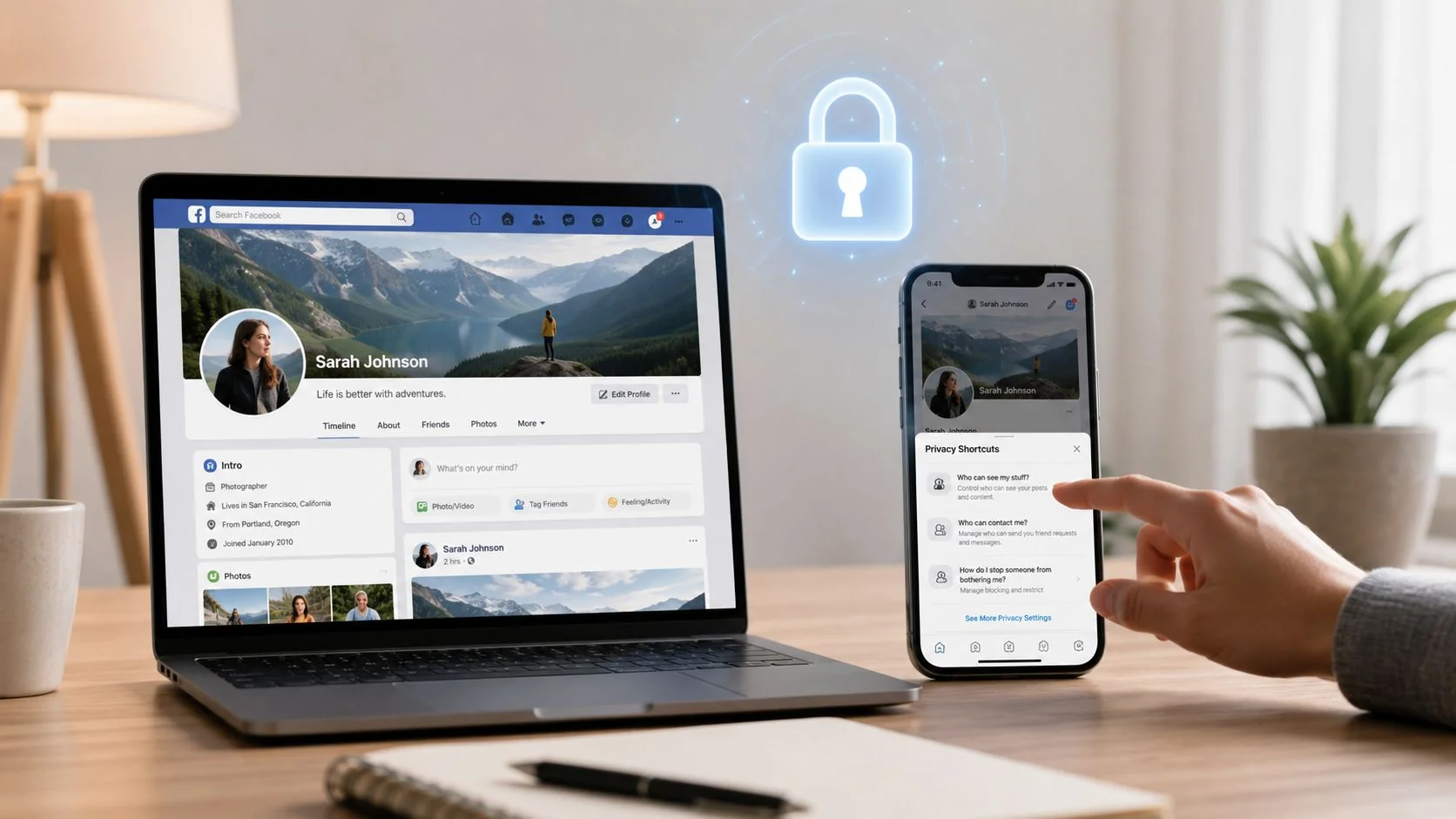
You just opened Facebook to check one harmless post, then noticed old photos, a public profile picture, a friend list, and a school or workplace detail you forgot you left visible. That's the moment most people realize “set Facebook to private” isn't a single switch, it's a cleanup job across posts, profile fields, tags, search visibility, and connected apps. If you want less exposure to strangers, recruiters, scammers, and anyone doing OSINT-style lookup on your name, you need to treat Facebook like a layered privacy surface, not a locked box.
Why Your Facebook Privacy Settings Matter More Than You Think
A lot of people assume privacy only matters if they've posted something dramatic. In practice, the quieter details cause most of the exposure. A public profile photo, an old work history, a visible friends list, or a tagged birthday post can reveal enough for someone to map your relationships, habits, and contact routes.
I've seen this happen in ordinary ways. Someone thinks their account is “private,” then a stranger can still piece together where they work, who they know, and which family members appear in their recent tags. That's not because Facebook has one obvious failure. It's because privacy on the platform now depends on granular audience controls, not one universal private mode, which is exactly how Meta frames its guidance around what you share and who can see it. Facebook's own help pages place the main controls under Settings & privacy and Audience and visibility, including tools to narrow future posts, limit older public content, and review tags before they appear on your profile, which is why the phrase set Facebook to private really means configuring several surfaces instead of flipping a master toggle. (Facebook Help on privacy controls)
What other people can infer from a public profile
Public data on Facebook can be enough for employer screening, scam targeting, or identity matching across platforms. An OSINT researcher doesn't need access to your private messages if your visible profile already exposes your hometown, mutual contacts, and a timeline full of life events. Even a small amount of detail can become useful when it's combined with other public sources.
That's also why privacy matters for personal safety, not just reputation. A visible friend graph can reveal who you live near, who you date, or which family member you message most. If you care about reducing your digital footprint, the goal is to remove easy signals first, then revisit the rest periodically.
Practical rule: if a stranger can learn something useful from your profile in under a minute, the account isn't private enough.
A useful companion resource for keeping website policies and public-facing disclosures tidy is Baslon Digital's privacy policy for Wix clients, especially if you manage your own site and want your public privacy posture to stay consistent across channels.
For a broader audit of what your name already exposes beyond Facebook, it helps to compare your social profile against your wider footprint. The starting point is your digital footprint snapshot, because Facebook privacy settings only matter fully when they're part of a wider cleanup.
Configuring Core Audience and Visibility Controls
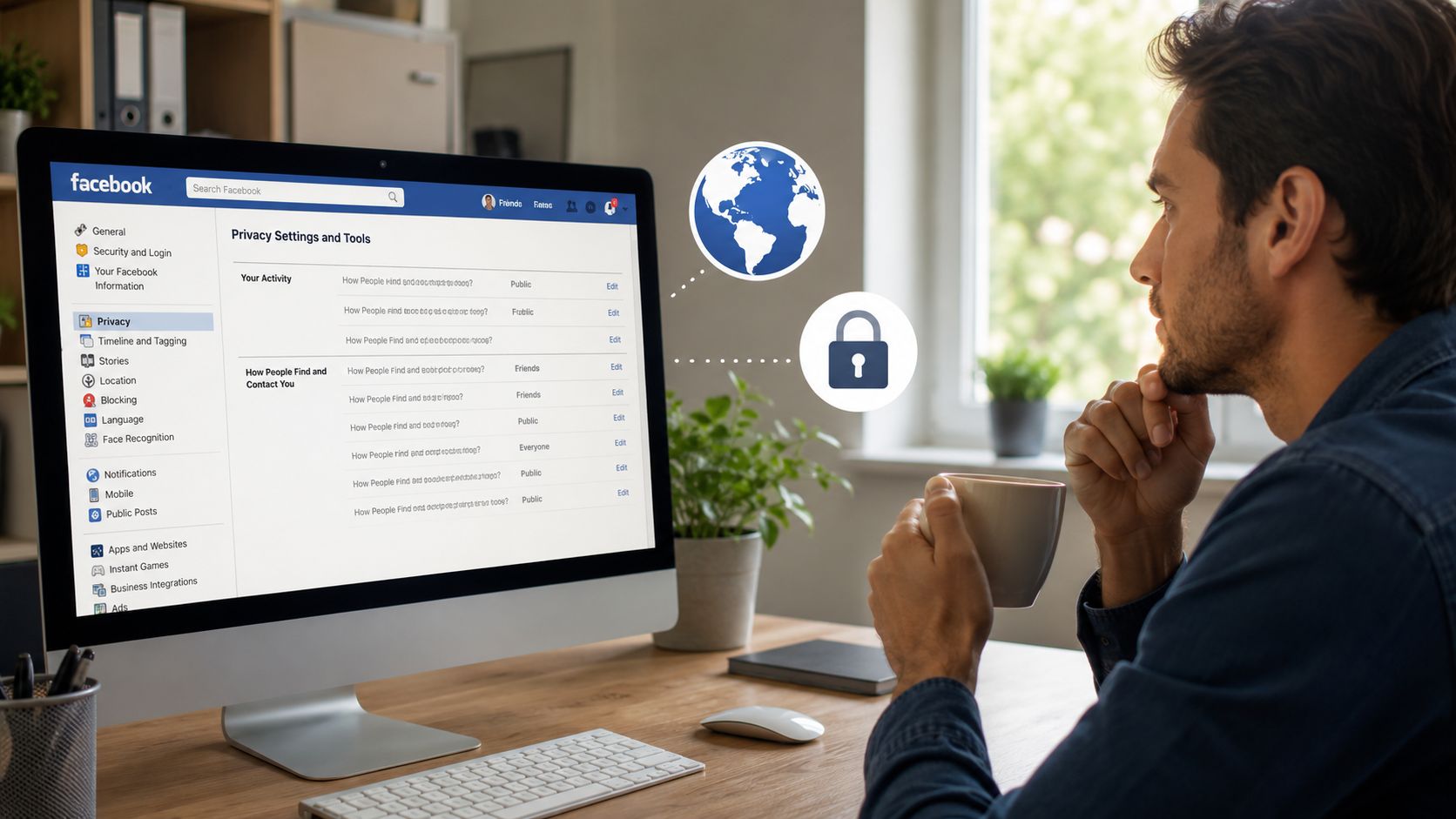
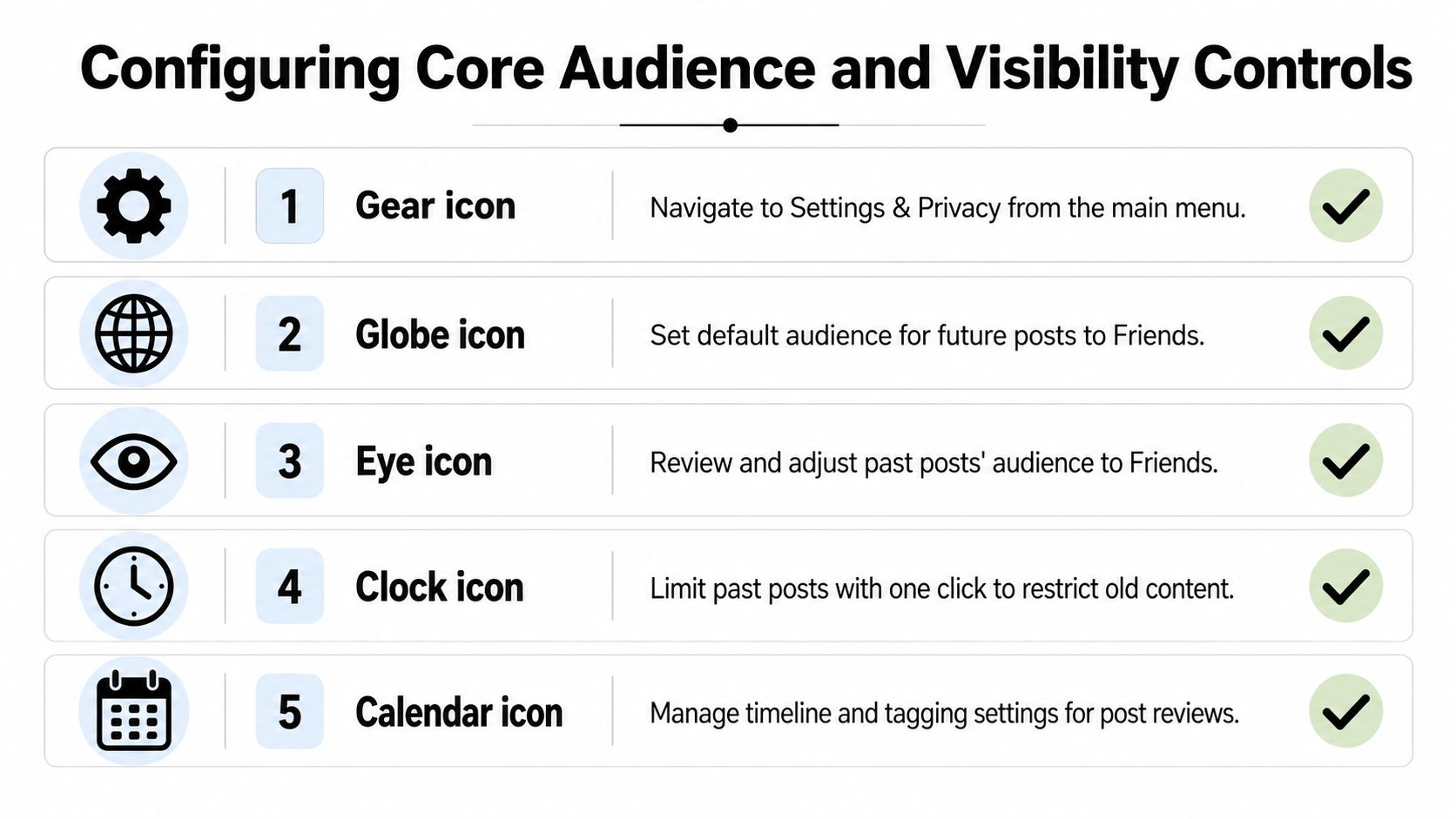
Start in Settings & privacy, then open Settings, and look for Audience and visibility. That's where Facebook keeps the controls that change who sees your content. The important mindset shift is simple, there isn't one private-account button, there are several audience settings that each affect a different exposure surface. (Facebook Help on granular privacy controls)
Tighten the default audience first
Set the default audience for future posts to Friends if you still want to share normally, or Only me if you want maximum restraint. The default audience shapes every post unless you override it later. Changing it once saves you from accidentally publishing a post to a wider audience than you intended.
Then use Limit Past Posts to reduce the visibility of older public content. Facebook's help pages document this tool specifically because older posts are often the easiest thing to miss. If you've been using the platform for years, that archive can contain holiday check-ins, old employer names, or photos that now feel too revealing.
Don't skip profile fields and stories
Your profile doesn't stop at posts. Phone number, email address, stories, reels, and public-content settings all need separate attention. A thorough privacy pass means changing each field's audience to Only me where possible, then checking whether non-friends can still view updates through stories or public-content surfaces. A YouTube walkthrough of Facebook privacy hardening also stresses that incomplete coverage is the main operational pitfall, because different sub-sections can remain exposed independently. (Privacy hardening walkthrough)
Here's the order I'd use if I were helping a friend do this fast:
- Open Privacy Checkup first. Facebook offers it as a guided path through the main visibility controls, which is useful when you don't want to hunt through menus one by one.
- Set future posts to Friends or Only me. This changes the default audience, which is the foundation of the rest of the cleanup.
- Restrict profile contact fields. Make phone number and email visible to Only me if they don't need to be public.
- Use Limit Past Posts. This pulls older public posts back from broad visibility.
- Review stories and public-content settings. These can stay exposed even after you tighten post privacy.
Your privacy won't be consistent unless every surface points in the same direction.
A concise desktop walkthrough of the same model is also covered in this Facebook privacy settings guide, which is useful if you're comparing what you see on mobile versus desktop.
Restricting Profile Discovery and Search Engine Visibility
Even if your posts are locked down, discovery settings can still leak your identity. Someone may not see your timeline, but they can still find your profile by email address, phone number, or search engine results if those channels are open. That's why audience privacy and discoverability privacy are related but not identical.
Close the lookup routes people forget
Go back into Settings & privacy and check whether people can find you by email or phone number. If those values are tied to other services, a stranger can use them to test whether they point back to your Facebook profile. The same goes for the setting that lets search engines outside Facebook link to your account. If that's left open, your profile can become easier to connect to by name search alone. (Facebook help on discovery settings)
You should also review who can send friend requests and who can see your friends list. Those two settings shape how much of your social graph is exposed. A public friends list is especially useful to OSINT researchers because it can reveal coworkers, relatives, and recurring contacts even when your posts are private.
Here's the trade-off in plain language. Limiting discovery makes your profile harder to find, but it can also make it harder for acquaintances to reconnect with you. For most people, that's a worthwhile exchange. If you're trying to stay reachable for real friends while reducing exposure to strangers, you can still keep requests open from a narrow audience and hide the parts that reveal your network.
A quick way to understand this is
- Email and phone lookup: shut this down if your contact info is already used elsewhere.
- Search engine linking: disable it if you want less surface area in Google-style discovery.
- Friends list visibility: narrow it if your network itself reveals too much about you.
- Friend request settings: keep them restrictive enough to reduce spam and impersonation attempts.
For a practical lookup test, use Facebook lookup by email as a reminder of how easily contact data can connect accounts when discoverability settings are loose.
Managing Timeline Tags and Third-Party Content Exposure
Your own privacy settings don't stop other people from posting about you. That's the part many users miss. A friend can tag you in a public photo, and that content can surface your name, face, and associations to people outside your intended audience even if your personal posts are locked down.
Turn on tag review and timeline review
Enable the tag-review toggle so you can approve posts and photos before they appear on your profile. Facebook's help pages explicitly call out tag review as one of the core building blocks of a more private account, and for good reason. Without it, someone else's post can become part of your visible timeline with very little warning. (Facebook Help on tags and timeline controls)
Then audit your Activity Log for older tags and mentions. Old content tends to linger in exactly the places people forget to check. Even when you remove a tag from your profile, the original post can still exist on someone else's account, so the exposure may not disappear completely. That's why the right goal is not just to delete tags, but to reduce where they can appear and how often they get attached to your name in the first place.
Understand what tagging can reveal
A single tagged post can do more than link your face to a picture. It can connect you to a location, a friend group, a workplace, or a recurring event. If the tag is public, the post becomes a social breadcrumb that anyone can follow. The same is true for comments and reactions on public content, which can still make your profile easier to map.
A locked profile can still leak through other people's audiences.
If you've already limited past posts, that helps, but it doesn't solve the tag problem by itself. Tag review is the control that keeps someone else's activity from becoming your exposure. In a messy real-world network, that matters more than people expect because friends, relatives, and coworkers often have different privacy standards from yours.
Locking Your Profile and Tightening App Permissions
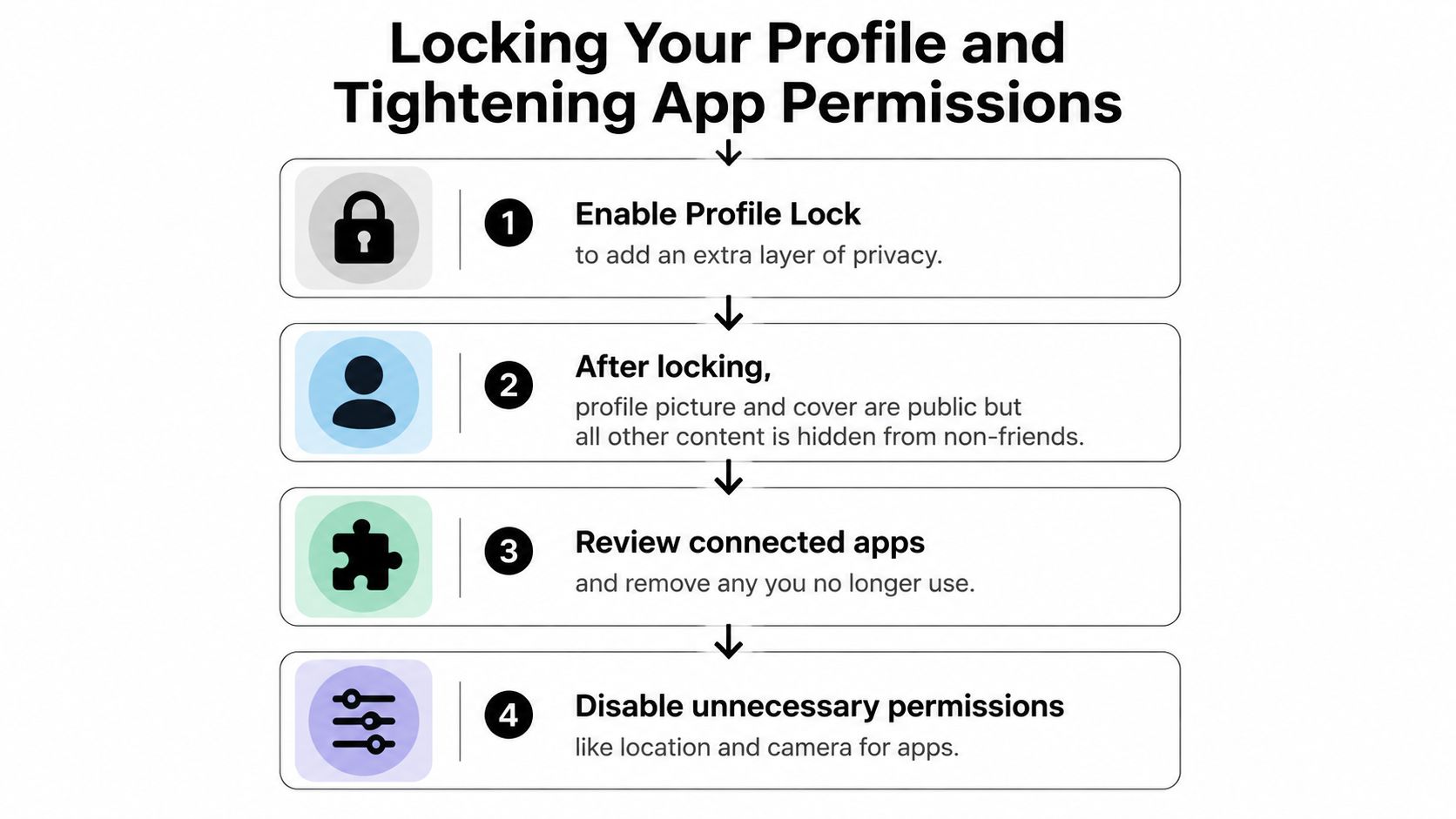
Facebook's ordinary audience controls are the first layer. Profile Lock is the extra layer, where it's available. Support materials and third-party guides describe it as a separate restriction mechanism reachable from a profile's three-dot menu, then confirmed through Lock profile. The point is to reduce what non-friends can see without forcing you to manually curate every post forever. (Profile Lock overview)
What Profile Lock actually changes
Profile Lock adds a stricter view for people outside your friend list. It's designed to make profile exposure less generous by default, especially around items that people often forget to hide manually. That said, it doesn't erase the need for audience settings. If your posts, tags, and discovery options are still wide open, the lock is only one part of the hardening process.
The most useful way to think about it is as a guardrail, not a magic shield. It tightens profile access, but it doesn't solve the broader problem of what you've already shared elsewhere or what other people can still tag you in. That's why it works best after you've already narrowed future posts and past content.
Audit connected apps and ad preferences
Next, review connected apps and websites that have access to your Facebook data. Remove anything you don't use anymore. Every extra connection is another place where data can move, and the safest account is the one with the fewest active permissions.
Also check ad preferences and app-level permissions. If an app doesn't need location, camera, or broader account access, turn those off. Facebook itself uses these settings differently from a privacy audience control, but they still shape how much data leaves the account boundary.
A simple pass looks like this:
- Open connected apps and websites. Remove stale services first.
- Check permission scopes. Keep only what the app needs.
- Review ad preferences. Reduce the targeting signals you're comfortable with.
- Revisit after changes. Old permissions often come back through forgotten logins.
For a focused cleanup workflow, app permission management is the right next step if you want to think about Facebook data the same way you'd think about any other account surface.
Auditing Your Digital Footprint Beyond Facebook Settings
Facebook privacy settings only change what's visible inside Facebook. They don't reach the copies, caches, screenshots, aggregator pages, or other profiles that already picked up your name. That's why a clean Facebook account can still sit inside a messy broader footprint.
Check what's already out there
OSINT thinking helps. If your email, phone number, username, or old photos have already surfaced on other platforms, locking Facebook alone won't pull them back in. Public records, data breach databases, and social profiles can still connect the dots even when your timeline looks tidy. Digital Footprint Check is built around that broader view, searching 500+ platforms to show what's publicly accessible about you or your employees. Use that number as a practical benchmark for scope, not as a promise that every platform matters equally.
A consistent public identity matters too. If your Facebook name, old bios, and other profiles all tell slightly different stories, the mismatch can be more revealing than any single profile. That's why maintaining a consistent digital brand across channels is useful, even when you're not trying to be public-facing all the time. Maintain a consistent digital brand is a helpful mindset if you manage professional identity as well as personal privacy.
Make privacy a recurring check, not a one-time task
The strongest move is to verify what still shows up after you've tightened settings. Run a check, review the results, and then decide what needs to be changed on Facebook versus what needs to be changed elsewhere. If credentials appear in breach data, update passwords. If a public profile still exposes an old phone number or employer, edit the source and then watch for the copies to age out.
Use check my digital footprint as a final verification step after your Facebook cleanup, because what matters most is not what you think you hid, it's what remains searchable.
If you want to see what Facebook, search engines, and public data are still revealing about you, run a privacy review with Digital Footprint Check. It's the fastest way to confirm whether your Facebook hardening reduced your exposure or just made the profile look cleaner on the surface.