· Digital Footprint Check · Content Marketing · 12 min read
App Permission Management: a Practical Cross-platform Guide
Master app permission management with step-by-step instructions for iPhone, Android, desktop, and SaaS. Audit, revoke, and protect your digital footprint today.
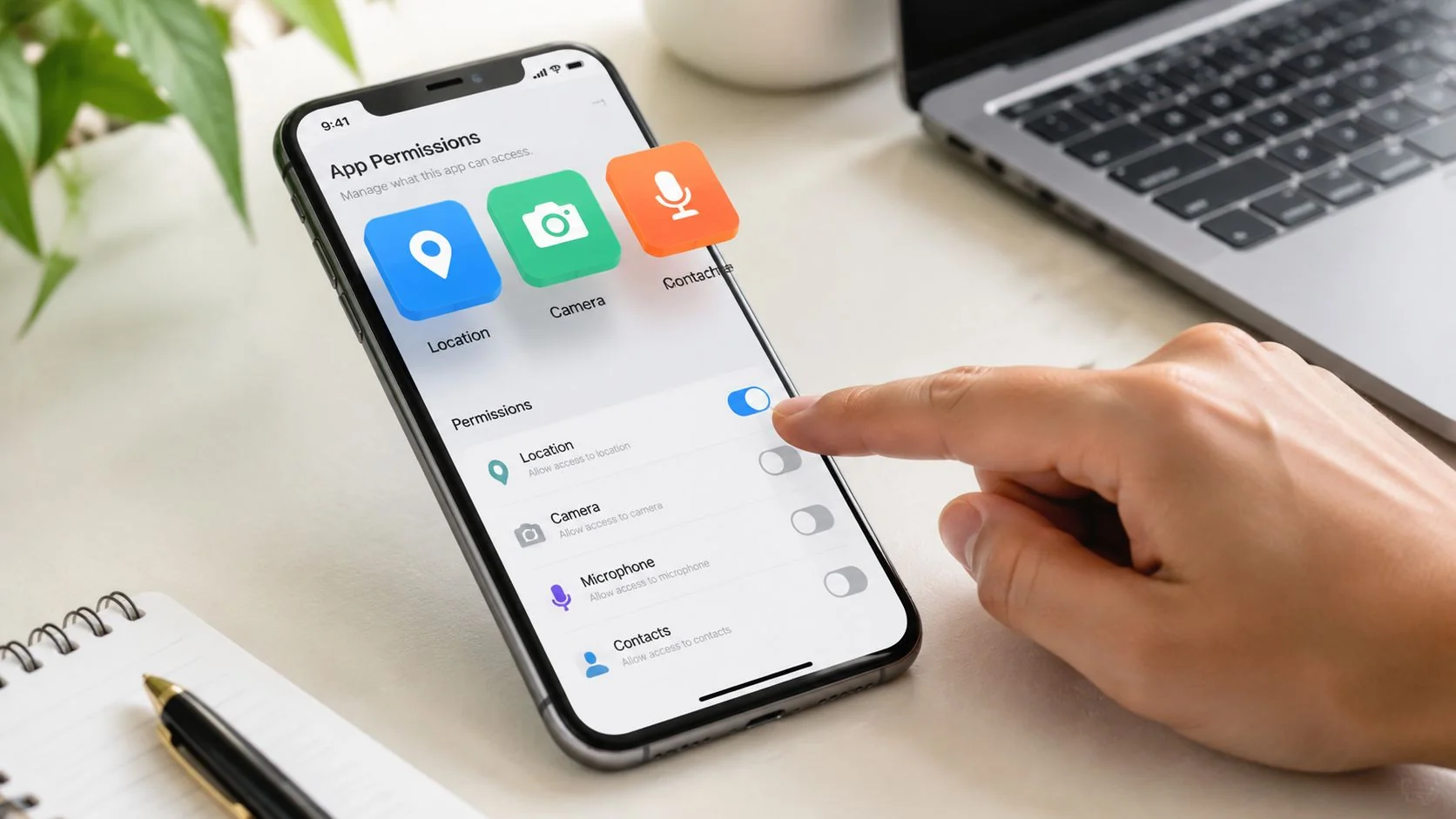
You probably have at least one app on your phone right now that asked for far more access than it needed, and you tapped Allow because you wanted the app to work. That one tap is how permission creep starts. A flashlight app asks for location, a photo editor asks for contacts, a random utility wants the microphone, and a month later your device is full of quiet, unnecessary access grants that you never revisit.
App permission management is the habit of cutting that access back before it becomes a privacy problem, a security problem, or a reputation problem. Permissions are supposed to let an app do a specific job, but in practice they also expose location, contacts, photos, camera, microphone, and account data to developers, ad networks, and anyone who gets into the app’s orbit. Pew’s early baseline made that clear years ago. In its large-scale analysis, the average app requested five permissions before installation, the most permission-heavy app in the dataset asked for 127 permissions, and the study counted 235 unique permission types across 41 app categories in 1,041,336 Google Play apps (Pew Research, 2015).
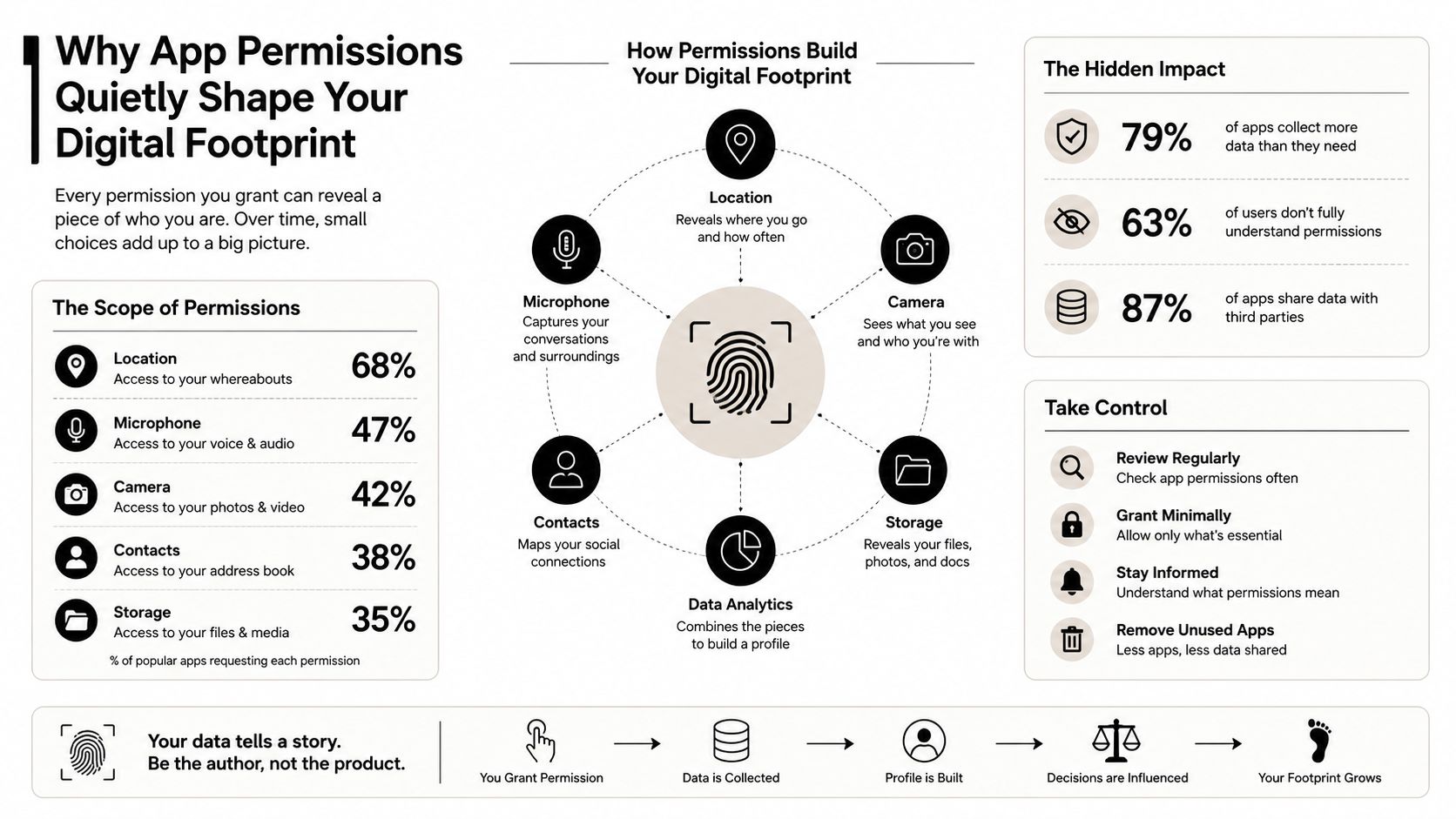
A clean permission screen is not the same as a clean digital life. Over time, those small grants build a shadow profile that can affect job prospects, personal safety, gaming accounts, dating app trust, and scam exposure. If you want to see how far your public footprint reaches beyond the phone itself, start with a scan of your visible identity at Digital Footprint Check’s digital footprint overview.
Why App Permissions Quietly Shape Your Digital Footprint
Permissions function as a gate between basic app use and sensitive data access. An app asks for access because it wants to read, record, or change something that your operating system normally keeps locked down. The problem is that the prompt usually appears at the exact moment you need the app to work, so people approve it without a real review.
That is how a harmless-looking install turns into a data problem. A free flashlight app does not need your contacts. A note app does not need your microphone. A calculator does not need your location. When an app asks for those things anyway, it is not just a settings annoyance. It is a sign that the app may be built to collect more data than the job requires.
Permissions are a gate, not a formality
Phone and desktop permissions separate basic use from sensitive access. CISA tells users to review which categories of data installed apps can reach, then deny anything they do not want the app to have (CISA). That is the right way to treat the issue. Permissions control your digital footprint because they decide which apps can reach the data that later gets shared, synced, inferred, or leaked.
Practical rule: if the app’s core job still works without the permission, keep it off.
The public-facing risk shows up later. A dating app with broad photo access can expose more than intended. A gaming account linked to a social login can inherit more identity clues than the player realizes. A work app with overbroad account access can reveal team structure, contacts, and activity patterns that were never meant to be public.
Permissions also create a history problem. The app you installed two years ago may not be the app it is today, and the access you granted back then may still be active now. That is why permission management is not a one-time cleanup. It is exposure control, and it belongs on the same checklist as password hygiene and breach monitoring. The same review also helps you spot how far your public-facing identity reaches beyond the device, including what shows up in a Digital Footprint Check scan.
Auditing and Revoking Permissions on iPhone and Android
Start with the categories that matter most. Location, contacts, microphone, camera, photos, tracking, and health deserve the fastest review because they expose the most useful data for profiling, impersonation, or surveillance. If an app doesn’t clearly need one of these, revoke it. If the app breaks, that tells you more about the app than the permission screen ever will.
Audit the phone first, then kill the outliers
On iPhone, open Settings, then Privacy & Security, and review each permission category one by one. On Android, open Settings, go to Security & privacy or Privacy, then open Permission Manager and sort by permission type or app. Android’s own guidance says to request permissions only when the user requests the action, and to test the app under multiple granted and revoked combinations so permission-path bugs don’t slip through (Android permissions overview).
Use this decision rule:
- Location. Keep While Using for navigation, delivery, ride-hailing, and maps. Deny Always for weather, shopping, and games.
- Contacts. Allow only if the app’s core value depends on finding real people you already know. Otherwise, cut it.
- Microphone and camera. Keep them only for calling, scanning, recording, or live capture. Everything else gets Never.
- Photos. Give access to selected photos when the app supports it. Don’t hand over your entire library for a one-off upload.
- Tracking. Turn it off unless you have a specific reason not to.
- Health. Treat it as sensitive by default. Most apps don’t need it.
On iPhone, Privacy Report gives you a useful look at which apps are contacting domains and sensors, so use it as a sanity check after each cleanup. On Android, review the permission history, then uninstall any app that still feels greedy after you’ve stripped it back. CISA’s guidance is blunt here, remove apps you no longer use, because dead apps are still installed apps, and installed apps still matter (CISA).
Don’t debate every request. If the app won’t function without broad access and you don’t trust it, delete it.
If you think a phone is acting strangely, compare the behavior against a spyware checklist before you keep arguing with the app itself. A useful starting point is how to find spyware on your phone.
Managing Desktop Apps, Browsers, and Extensions
A clean phone audit is incomplete if your laptop is still wide open. Desktop apps, browser site permissions, and extensions can expose the same data through different routes, and browsers are especially messy because one click can hand a website access to your camera, microphone, location, or notifications.
Treat browsers like an app store with live permissions
In Chrome, open chrome://settings/content and review site permissions for camera, microphone, location, notifications, USB devices, and pop-ups. In Edge, use the site permissions section in settings. In Safari, check website settings and remove any grant you don’t recognize. The rule is simple, a website should get access only when you’re actively using the feature that needs it.
Extensions deserve separate treatment because they sit above normal site permissions. A single Chrome extension can read the pages you visit, and that’s the kind of access people forget about for years. Remove anything you don’t actively use. For the rest, disable broad host access and narrow it to specific sites where possible. If you’ve never audited your extension list, start with how to remove apps from Chrome.
| Permission | Safe to Grant | Revoke or Delete App | Audit Frequency |
|---|---|---|---|
| Location | Navigation, ride-hailing, delivery apps | Weather, shopping, games | Monthly |
| Microphone | Calling, voice notes, recording tools | Flashlights, utilities, casual apps | Monthly |
| Camera | Video calls, scanning, social posting | Anything that doesn’t capture media | Monthly |
| Contacts | Messaging or address-book based apps | Most games and utilities | Monthly |
| Notifications | Messaging, calendar, banking alerts | Promotions and low-value apps | Weekly |
| Browser extensions | Password managers, ad blockers you trust | Unknown or unused extensions | Weekly |
Don’t ignore macOS and Windows privacy settings
On macOS, check Privacy & Security for camera, microphone, screen recording, accessibility, full disk access, and files and folders. Those last two matter more than people think, because a desktop app with broad file access can read documents, exports, and backups. On Windows, review app permissions in the Privacy section and then look at which desktop apps still have access to your device hardware and files.
The main mistake is treating browsers as separate from the rest of the system. They aren’t. Browser grants, desktop app permissions, and extension access all stack together. If one layer is sloppy, the whole machine stays exposed.
What the Numbers Say About Modern Permission Behavior
The old permission problem was already big. Pew’s 2015 baseline showed 235 unique permission types across 1,041,336 Google Play apps, with the average app requesting five permissions before installation and the most extreme case reaching 127 permissions (Pew Research, 2015). That matters because it proves the issue was never a fringe case. It was normal across the mobile ecosystem.
Today, the problem is less about ignorance and more about fatigue. A 2026 privacy survey reported that 70% of users find permission requests frustrating, 86% would uninstall apps that demand too much access, 58% worry permissions compromise their data security, and 46% say apps ask for more than they need (Forasoft summary of the 2026 privacy survey). The same study found the most concerning permissions were location at 64%, camera at 56%, and contacts at 45%.
A 2024 Usenix/SOUPS Android study adds the scale problem. Participants had between 15 and 202 installed apps, with a mean of 99.42 apps, and the sample included 36,904 granted permissions versus 40,175 denied permissions. That number spread tells you why one-time cleanup fails. The average person is not managing three apps and a browser anymore. They are managing an entire permission system.
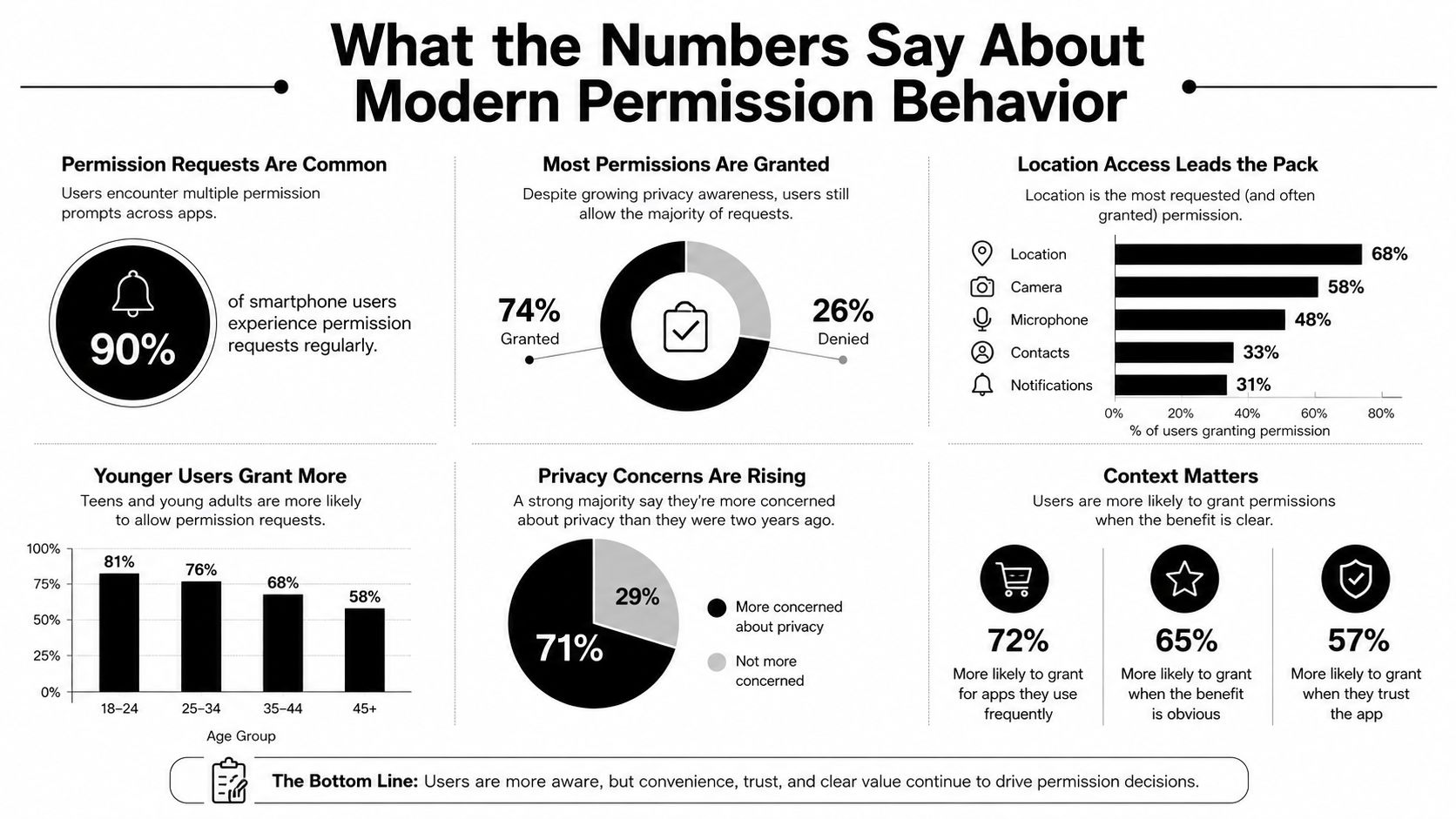
Key takeaway: users are more skeptical now, but they are also carrying more apps than ever. That makes scheduled audits required.
The practical conclusion is simple. Stop reacting to every prompt in the moment. Build a recurring review and treat permissions like cash flow, not a one-time purchase.
From Personal Devices to SaaS and Workplace App Governance
Consumer guides stop at the phone. That’s not enough anymore. The same permission problem shows up at the account level when employees connect Google Workspace, Microsoft 365, Slack, CRM tools, note apps, and file platforms to third-party services they barely remember approving.
Device settings can’t fix account-linked access
A revoked camera permission on a phone does nothing to an OAuth token that still lets a cloud app read mail, files, or calendars. That’s where SaaS permission management comes in. UpGuard frames it as user-level least privilege, then asks the right questions, like which third-party apps an employee account can reach and whether that access still fits the person’s role (UpGuard). That’s the gap most consumers never see.
For work accounts, audit the connected apps list directly in the account admin console or security settings. Remove anything unused. Revoke access when someone changes roles. Kill tokens for ex-employees and ex-contractors immediately. If you’re in HR or IT, treat this as a routine access review, not a special project.
CISA’s guidance still applies here in spirit, review what data categories are exposed, deny unnecessary access, and remove apps you don’t use (CISA). For employee-facing policies that touch telematics or other workplace data, workplace telematics consent guidelines are a useful model for thinking about notice, scope, and ongoing consent.
Practical rule: if an account change would make the grant awkward to explain in a meeting, it probably needs to be revoked.
This is also where consumer habits break down. People often review permissions on their personal phone and assume the work side is just as tidy. It isn’t. One sloppy SaaS grant can expose shared docs, internal notes, customer records, or team calendars even if the phone itself is locked down. For small teams trying to tighten this up, cybersecurity tips for small businesses can help frame the broader access review.
Building a Permission Audit Habit That Actually Sticks
A permission audit only works if it becomes routine. Waiting until something feels wrong is how people end up cleaning up after a breach, a suspicious login, or a creepy app behavior they should’ve removed months earlier.
Use a cadence, not motivation
Set a 30-second weekly check for the obvious stuff, new apps, new browser extensions, and any permission prompt you approved in a hurry. Add a 10-minute monthly review for the big categories, especially location, camera, microphone, contacts, photos, and connected accounts. Then schedule a quarterly deep audit that includes phone, desktop, browser, and work-account permissions.
Use triggers too. Review immediately after a major OS update, after installing five or more new apps, or after any data breach disclosure that affects an app or service you use. Android’s guidance is still the benchmark here, request permissions only when the user asks for the action, and test every permission-protected path so revoked access doesn’t break the experience (Android permissions overview).
- Deny by default. If the app can still work without the permission, keep it off.
- Use Once or While Using first. Avoid Always unless there’s a real reason.
- Remove apps not opened in 90 days. If you don’t use it, it shouldn’t keep collecting access.
- Screenshot permissions before reinstalling. That makes it easier to compare what changed.
- Delete the app if it keeps asking. Repeated prompts are usually a product decision, not a necessity.
The point is discipline, not perfection. You want fewer standing grants, fewer forgotten extensions, and fewer cloud connections that outlive the job they were meant to do. Once that rhythm is in place, permission prompts stop controlling your behavior.
Closing the Loop With a Digital Footprint Check Scan
A clean permission list doesn’t automatically mean a clean public profile. The apps and accounts you used before the cleanup may already have exposed contact details, usernames, old photos, gaming handles, or profile data that keeps circulating long after you revoked access.
That’s why a permission audit should lead into an OSINT check. Digital Footprint Check searches 500+ platforms to surface what’s publicly visible across social media, data breach databases, gaming profiles, professional networks, and public records, which makes it a natural verification layer after you tighten access. If you want to see how much of your identity is already out there, use the free checker at Digital Footprint Check.
Gamers can use that scan to check linked accounts and visible handles. People dating online can use it to verify whether the person they’re talking to has a consistent public presence. HR teams can use it as part of compliant screening. The same cleanup that removes unnecessary permissions also gives you a clearer picture of what’s already public and what still needs attention.
If you want to know whether your app cleanup reduced exposure, run a scan with Digital Footprint Check. It shows what’s publicly visible across hundreds of platforms, so you can see the footprint your permissions, apps, and linked accounts may have left behind.