
· Digital Footprint Check · Content Marketing · 12 min read
How Do I See My Google Search History: Privacy Guide
Learn how do I see my Google search history, manage My Activity, and protect your digital footprint with practical privacy tips and OSINT strategies.
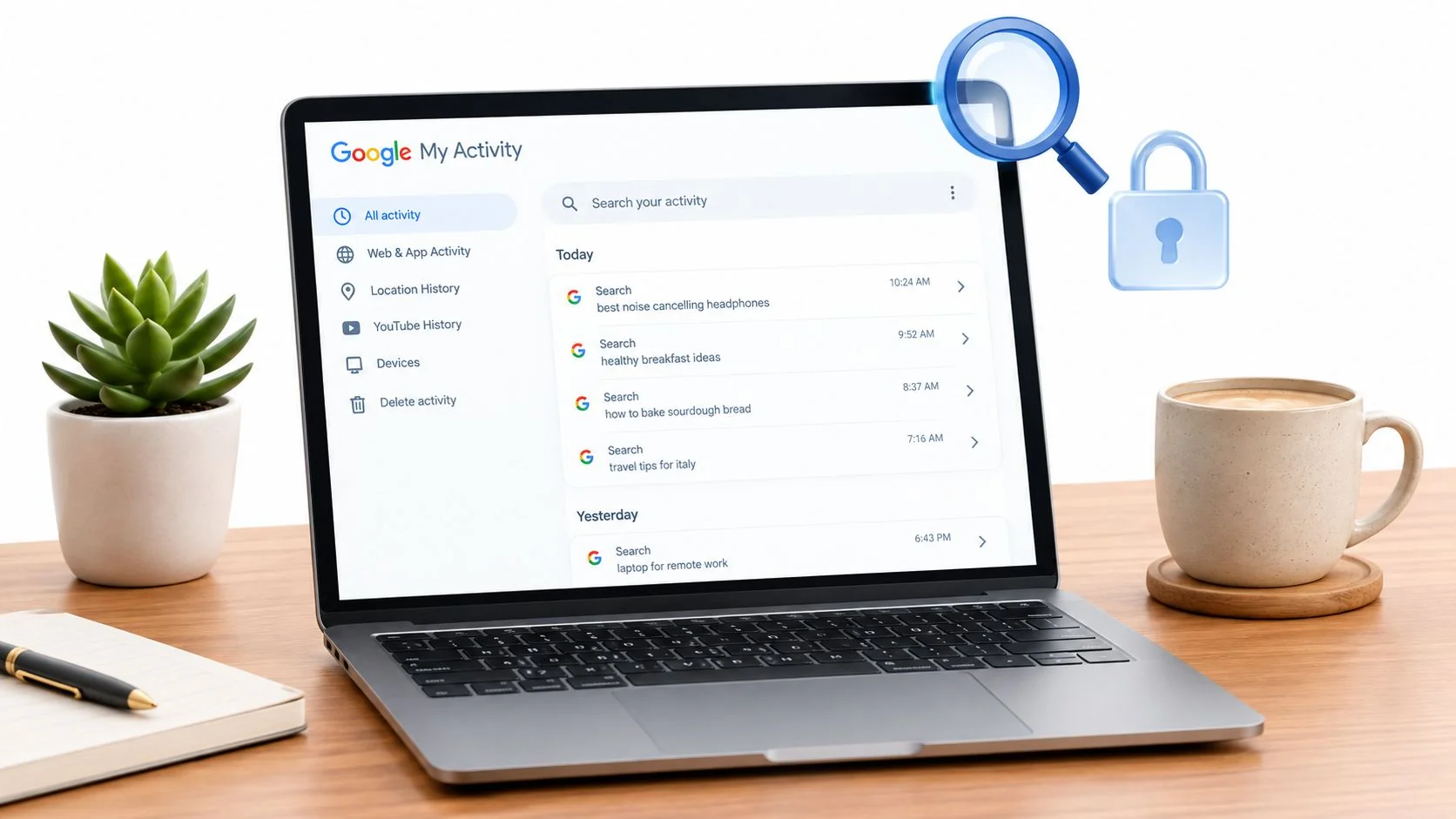
You're looking up something personal on a shared laptop, then realize the browser's address bar suggests searches you made days ago. Or you sign in to Google on a new phone and wonder whether old queries, visited pages, Lens searches, or voice requests followed your account. If you're asking, “How do I see my Google search history?”, the important detail is that there are two different trails to check: local browser history and Google Account activity.
Google's account-level record lives in My Activity. It can include more than typed keywords, and the visible record may be incomplete if activity logging was paused, deleted, or governed by automatic deletion. The practical approach is to open the account activity hub, isolate Search events, inspect what was saved, and then choose deletion or retention settings based on the sensitivity of the data.
Accessing Your Google Search History
A browser history page only shows activity stored by that particular browser and device. Google Search history is different. It's tied to your Google Account, so searches can appear in My Activity even when you made them on another signed-in device, provided the relevant activity setting was enabled.
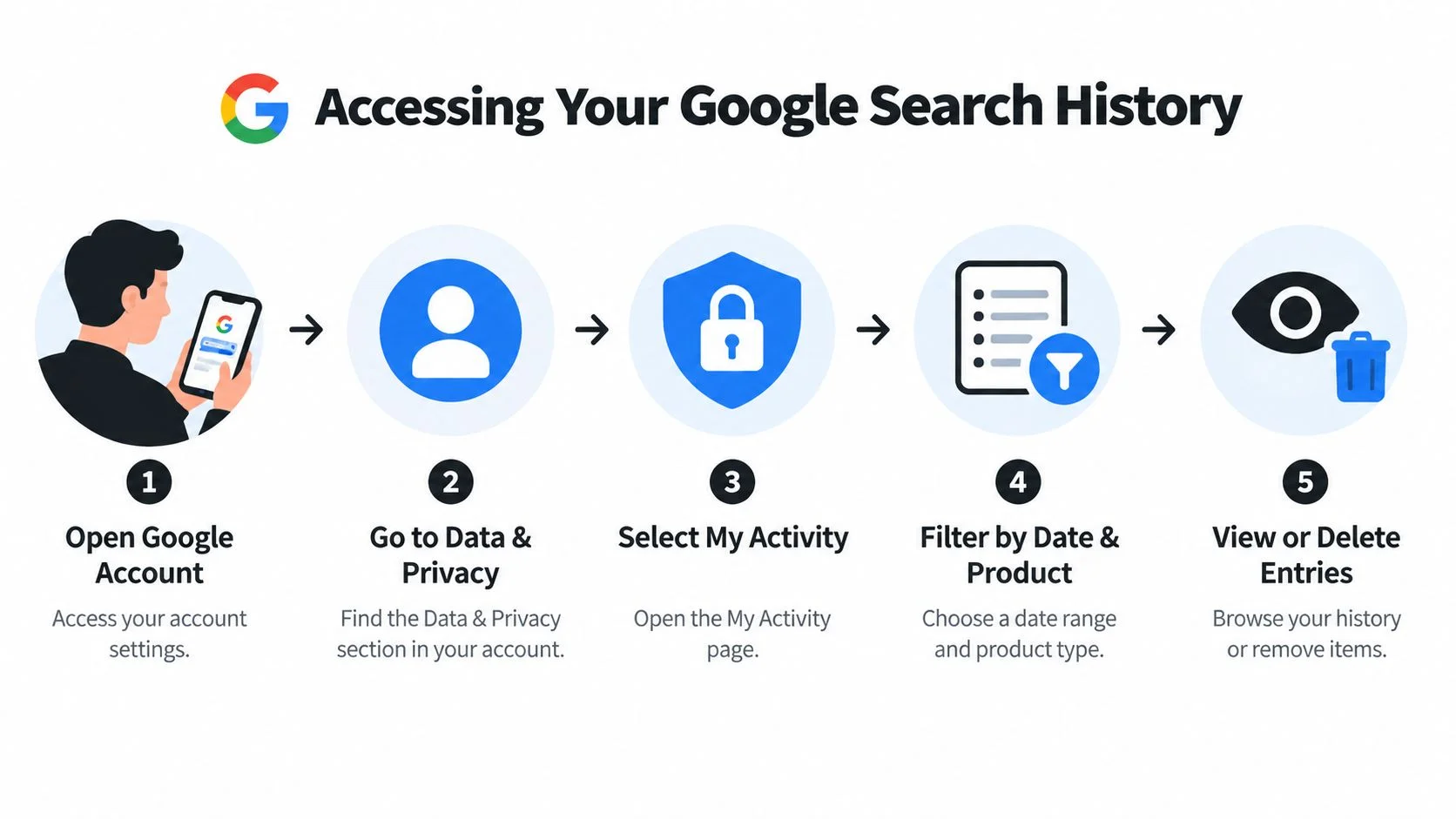
Open My Activity on desktop
- Sign in to the Google Account you want to inspect.
- Open My Activity.
- Find the activity search box and the Filter by date & product control.
- Select Google Search under the product filters.
- Add a date range or keyword if you're looking for a particular event.
- Apply the filters to display matching activity in reverse chronological order.
Google's current help documentation confirms that My Activity lets users view and filter activity by date, product, and keyword, then delete individual entries or configure automatic deletion through the same account-management environment (Google's My Activity guidance).
If Google displays Manage My Activity verification, complete the additional identity check before reviewing the log. This setting adds friction to access, which is useful when someone can open your browser but shouldn't be able to browse your account activity.
Use the Google app on mobile
On Android or iPhone, open the Google app, tap your profile picture, choose Search history, and select the activity-management option. Depending on the current interface, Google may take you directly to My Activity or to Search history settings first. From there, use the same date, product, and keyword filters available on desktop.
Privacy distinction: Deleting Chrome history doesn't automatically remove account activity, and clearing My Activity doesn't erase every local browser record.
The first visit can feel more revealing than expected because My Activity is a centralized account hub rather than a simple browser timeline. It may show searches, sites visited from search results, and other Google product activity associated with your account. For a broader account review, compare the results with this guide to what Google knows about you.
Understanding Modern Search Data Categories
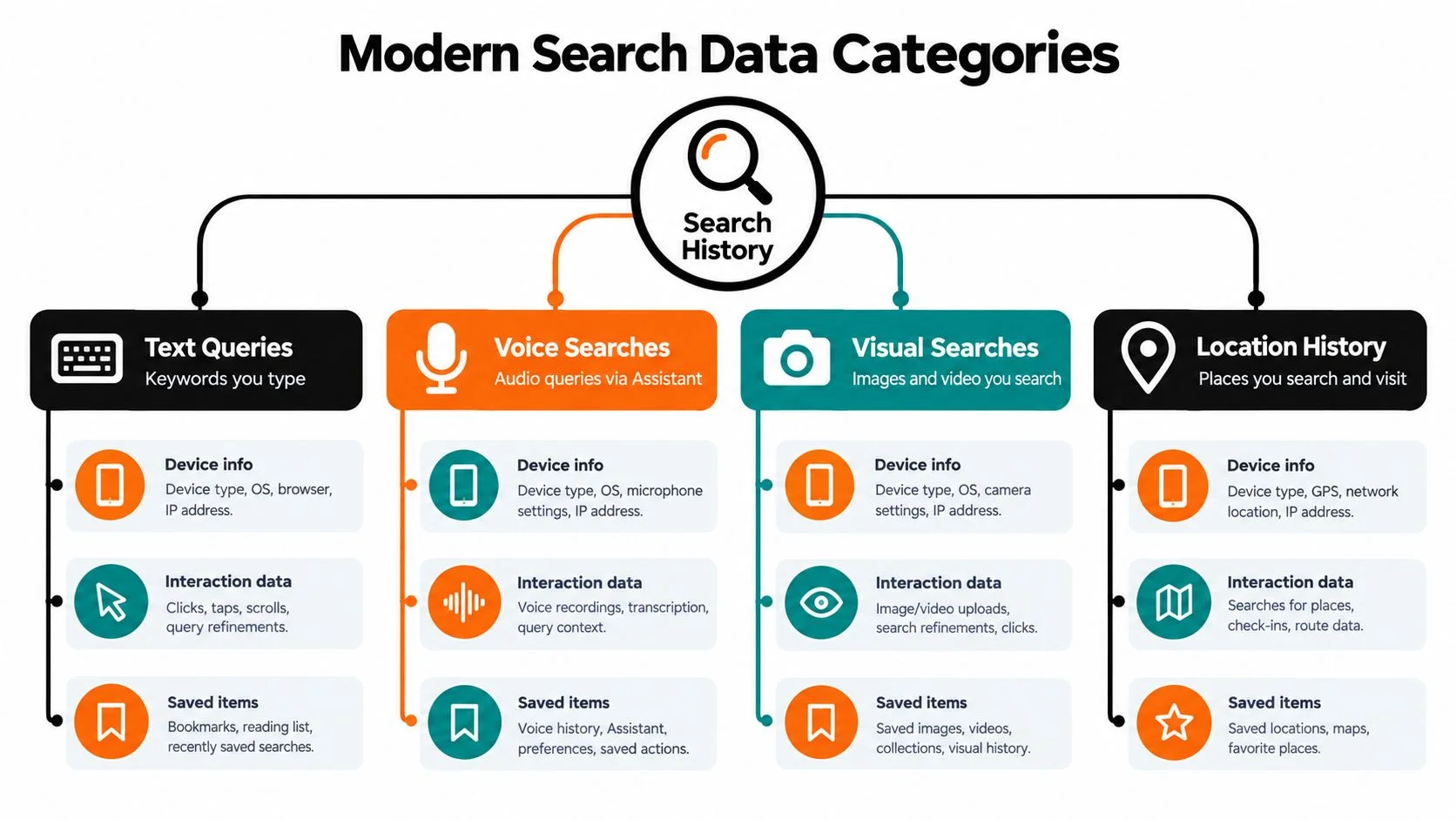
The old mental model was simple: you typed a phrase, Google saved the phrase, and you later deleted it. That model no longer describes the full range of activity that can sit around Search. Google's current help pages describe Search Services History as a broader category that can include searches, site interactions, generative AI responses, general location, and media (Google's Search Services History documentation).
Search Services History is broader than text
Traditional text queries remain part of the picture, but Search can now involve several input types:
- Typed searches record the words you submit through Google Search.
- Voice queries can create activity associated with voice-based interactions.
- Lens activity can connect an image or camera-based search with your account activity.
- Uploaded media may include images, files, audio, or video used during search-like interactions.
- Generative AI interactions can involve prompts, responses, and related activity tied to newer Search experiences.
- Site interactions can show how a search led you to a website or other Google-managed result experience.
Google also distinguishes Personalized Recommendations from Search Services History. These controls serve different purposes, so turning off one category doesn't necessarily answer every question about personalization or saved activity.
Check Save Media separately
The Save Media subsetting deserves particular attention. It can govern whether media such as images, files, audio, and video are saved in connection with search-like interactions. If you use Lens, voice features, uploaded files, or AI-style Search experiences, don't assume that deleting a familiar text query provides a complete review of the associated material.
The practical privacy issue is context. A typed search about a general topic may reveal little by itself. A voice request, Lens image, uploaded document, or AI interaction can carry more personal meaning, especially when combined with timestamps, location context, and other account activity.
Google says users can turn Search Services History off and choose whether to delete existing activity at the same time. That choice matters because pausing future collection and deleting past records are separate decisions. Newer accounts may also have automatic deletion enabled by default, but that doesn't mean every relevant record disappears immediately or that all activity categories use identical controls.
For local browsing, private browsing can reduce what a browser keeps after a session, but it isn't a substitute for account-level privacy settings. Review Chrome Incognito mode with that limitation in mind.
This short visual guide can help you understand the difference between the familiar activity timeline and the newer categories connected to Search.
Filtering and Auditing Your Activity Log
Opening My Activity is easy. Auditing it properly requires a narrower method, because the default view can combine searches, website visits, videos, and other account events. Start with a question, such as “Did I search for this topic during a particular week?” Then use the filters to test that question instead of scrolling through everything.
Isolate Search events
Use the activity search field for a distinctive word or phrase. Then select Filter by date & product, choose Google Search, specify the relevant date range, and apply the filter. If you're checking whether a search occurred during a sensitive event, filter by the smallest practical period rather than browsing the entire timeline.
Google's desktop support documentation says My Activity can show searches, visited websites, and watched videos. It also exposes item-level details such as the exact date and time and the reason the activity was saved (Google's desktop activity instructions).
Inspect individual records
Open an individual activity item instead of relying only on its summary. Look for:
- Timestamp: Confirm when Google says the event occurred.
- Product label: Check whether the entry belongs to Search or another service.
- Saved-activity explanation: Review why Google retained the event.
- Related activity: Note whether a search is grouped with a website visit or another interaction.
- Deletion control: Remove only the item if the rest of the date range is useful.
A privacy audit isn't just a search for embarrassing queries. It can also identify patterns that reveal health concerns, financial pressure, relationship problems, travel plans, or information about another person. The risk increases when someone else can access the account, when a device remains signed in, or when credentials are exposed.
Treat gaps as information
A missing event doesn't prove that Google never received it. Web & App Activity may have been paused, an automatic deletion window may have removed older data, or the account may have used a different profile. Google also warns that saved activity depends on account settings, so My Activity isn't guaranteed to match the full history stored in every browser or app.
A clean-looking timeline can reflect deletion or paused logging, not necessarily a clean digital trail.
For browser-level records, inspect the relevant device separately. For account-level records that appear deleted or incomplete, use a focused guide to checking deleted history, while keeping expectations realistic. Deletion can remove an entry from the user-facing activity view without making every related system, browser, backup, or third-party record disappear.
Deletion Strategies and Retention Controls
Deletion works best when you match the method to the problem. Removing one query is precise, but it requires you to know what to look for. A rolling retention policy reduces the amount of old activity that remains available, but it won't necessarily address a sensitive event you want removed immediately.
Google introduced automatic deletion controls for activity data on May 1, 2019, initially offering 3 months or 18 months. The available Search history retention choices have since expanded to 3 months, 18 months, or 36 months (Google's 2019 auto-delete announcement).
Choose the control that fits the exposure
| Method | Best Use Case | Privacy Impact |
|---|---|---|
| Individual deletion | Remove one sensitive search or activity item | Precise, but easy to miss related events |
| Custom date range | Clean activity from a shared-device session or defined period | Removes a broader slice without wiping everything |
| Delete all history | Start over when the archive itself creates unacceptable exposure | Strongest immediate reduction, with greater loss of useful records |
| Automatic deletion | Maintain ongoing account hygiene | Reduces long-term retention, but doesn't replace a review of newer activity |
| Turn off Web & App Activity | Stop future account-level saving under that control | Pausing future collection doesn't automatically delete existing history |
To delete an individual item, open it in My Activity and use its delete option. For a day, custom range, or all-time removal, use the main deletion controls and confirm the scope carefully. The interface may group related events, so read the confirmation screen rather than clicking through automatically.
Understand pause versus delete
Turning off activity logging addresses future collection under the selected setting. It isn't the same as erasing previously saved data. Google provides a combined option that lets users turn the setting off and delete activity at the same time, but the categories shown and the exact scope still deserve review.
Automatic deletion is a sensible default for people who want less historical exposure without constantly managing individual entries. Select the shortest window that still supports your practical needs. If you share devices, handle sensitive research, or have reason to believe an account was accessed, use targeted or range deletion first instead of waiting for the retention cycle.
For a more detailed cleanup workflow, follow this guide to delete Google history and searches.
Search History and Your Digital Footprint
Search activity forms one part of a much larger digital footprint. Public usernames, social profiles, breach exposure, gaming accounts, professional pages, dating profiles, and public records can reveal information that never appears in My Activity. Conversely, a compromised Google Account can add private intent signals to the information an investigator, scammer, or unauthorized person already has.
Saved history can expose sensitive intent patterns if an account is compromised. Google's account privacy documentation also reflects how activity connected to Search and other services can attach substantial personal context to one account (Google's account activity privacy information).
Why intent matters
A single query rarely tells a complete story. A sequence can suggest a medical concern, job search, relationship difficulty, debt problem, planned trip, or interest in a particular person. That sequence can affect personal safety and reputation if someone uses it to impersonate you, pressure you, target a scam, or make an unfair assumption.
OSINT, or open-source intelligence, usually works by connecting lawful, publicly accessible clues. An exposed email address may connect to a social account. A reused username may point to a gaming profile. A professional page may reveal an employer or location. Search history is usually private account data, not an open public source, but an account breach or shared login can place it beside those public clues.
Real-world consequences
Job seekers often focus on polishing LinkedIn while ignoring old public usernames, forum posts, or gaming profiles attached to the same identity. Dating app users may verify a match's public consistency, but they should avoid treating search results as proof of character or consent. Parents managing family devices need to distinguish account privacy from local browser privacy, especially when several people use one profile.

Your search history is private account data, but your broader identity trail often isn't. Protect both.
The sensible response isn't to assume every search will become public. It's to reduce unnecessary retention, secure the account, avoid password reuse, and audit the public profiles that could be combined with private information. That approach also helps with identity theft, romance scams, catfishing concerns, and reputational damage without turning a single search entry into a verdict about anyone.
Ongoing Privacy Monitoring and Protection
Deleting old searches is a useful cleanup step, not a complete privacy program. Your Google Account deserves periodic review, but so do the public services connected to your email addresses, phone numbers, usernames, and old profiles.
Start with account security. Use a unique password, enable available sign-in protections, review active sessions and recovery options, and don't leave a shared device signed in. If several family members use the same browser or account, separate profiles and accounts are safer than relying on everyone to remember which history belongs to whom.
Build a repeatable review
A practical routine can include:
- Google settings: Review Web & App Activity, Search Services History, Personalized Recommendations, and Save Media.
- Public exposure: Search your names, usernames, email addresses, and phone numbers to identify accessible profiles.
- Breach awareness: Check whether old credentials or account identifiers have appeared in known exposure sources.
- Reputation checks: Review professional pages, gaming profiles, forum activity, and dating-related public information.
- Device hygiene: Clear local browser history when appropriate, sign out of shared devices, and remove accounts you no longer use.
- Family boundaries: Don't inspect another person's private account without consent, even when you share hardware.
AI-powered search and identity products are changing how people discover information about themselves, so readers who want a broader overview can compare AI search monitoring tools. Use any service carefully, confirm its privacy practices, and avoid uploading sensitive material unless you understand how the provider handles it.
Google's controls are easier to manage when you review them deliberately rather than waiting for a privacy scare. Use this guide to Google Search privacy settings as a checklist, then extend the review beyond Google to the accounts and profiles that shape your public identity.
Digital Footprint Check offers a free way to examine publicly accessible information across online profiles and other digital sources, including possible breach and identity connections. Visit Digital Footprint Check to see what your public footprint may reveal, then use the results to secure exposed accounts, remove unnecessary information, and monitor changes over time.