· Digital Footprint Check · Content Marketing · 15 min read
How Do Password Managers Work
Discover how do password managers work to secure your digital life. Our 2026 guide covers encryption, master passwords, and storage options for identity safety.
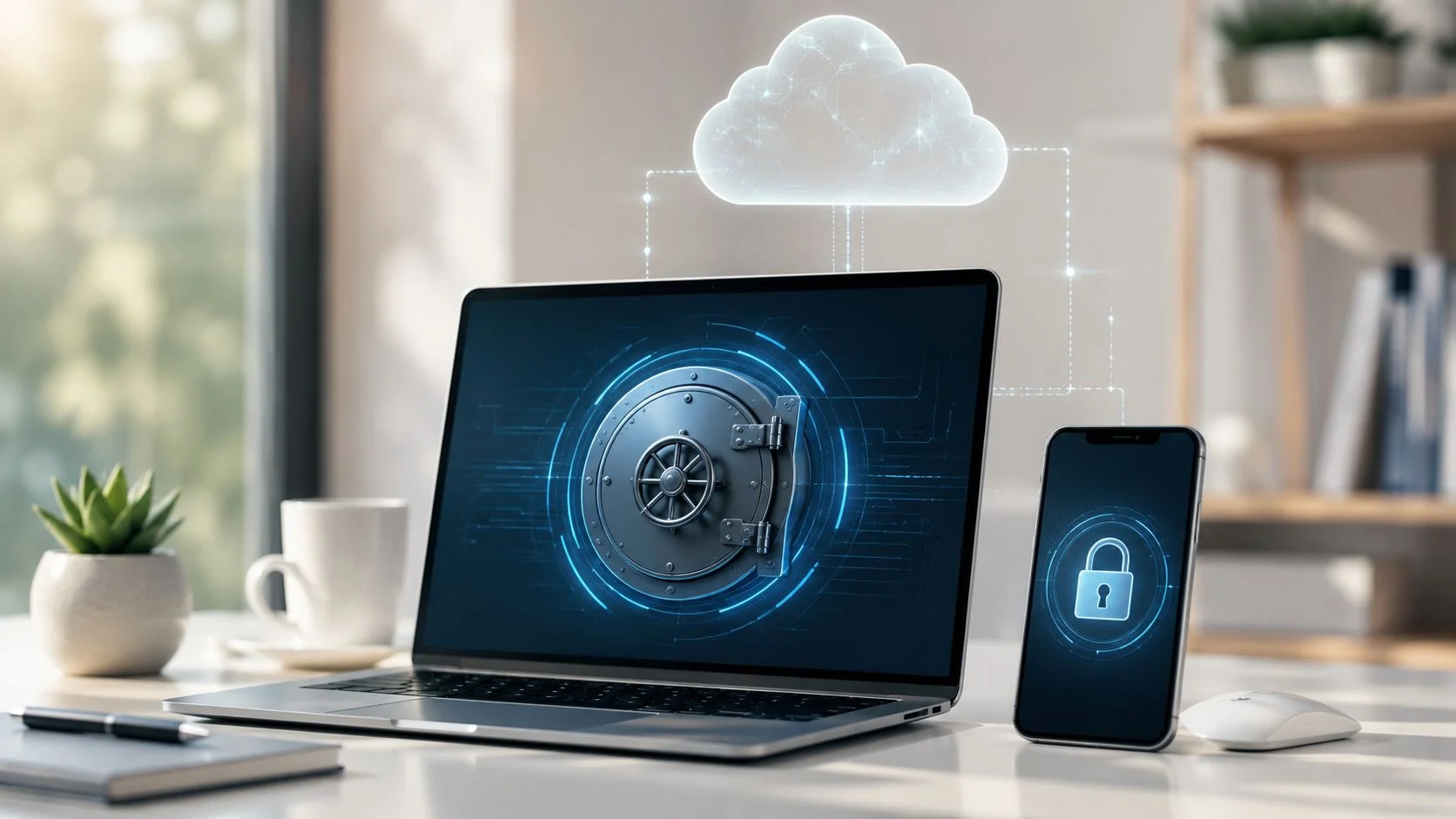
You probably have the same problem many people do. One email for work, one for shopping, one for social media, one for banking, one for streaming, and a handful more you only touch once in a while. The result is a mental pileup of passwords, and if you've ever reused one because it felt easier, you already know why that gets risky fast.
That's where password managers fit into modern digital life. They take the burden of remembering dozens of logins and replace it with one protected entry point, a master password. Used well, they make account security more manageable, less repetitive, and far less dependent on memory alone.
Why You Can No Longer Remember All Your Passwords
The modern login problem isn't just inconvenience, it's overload. Between work accounts, banking, shopping, social media, school portals, streaming apps, and gaming profiles, people end up managing far more credentials than any one person can comfortably keep straight. Security educators have been pointing to that same reality for years, enterprise users today may need to handle dozens or even hundreds of accounts (Sophos).
That pressure changes behavior. People recycle passwords, make them simpler, or rely on browser memory because it feels faster in the moment. The problem is that once one site is breached, reused credentials can turn one weak point into a chain reaction across other accounts, which is exactly why password hygiene matters so much in practice.
The memory problem becomes a security problem
A good analogy is a house with many doors but only one keyring. If every door used the same key, one lost key would expose the whole house. Password reuse works the same way, except the attacker doesn't need to pick every lock separately.
Practical rule: if a password is memorable because it's short, common, or repeated, it's usually too easy for someone else to guess or reuse.
Password managers became mainstream because they solve the memory problem without lowering the security bar. They generate unique credentials, store them for you, and reduce the temptation to fall back on weak patterns. If you're trying to locate old accounts tied to one inbox, a service like find all accounts linked to email can help you see how wide that login sprawl has become.
Why this matters beyond convenience
This isn't just about saving time on forgotten passwords. It's also about reducing exposure on accounts tied to your job prospects, private messaging, shopping history, and sometimes even your gaming identity. If you also use a comprehensive AI chat solution to sort through account-related questions or workflows, a password manager keeps the authentication side from turning into another manual chore.
That's the shift. Instead of forcing your brain to act like a security system, you let a dedicated tool do what it was built to do, store credentials safely, generate new ones when needed, and keep the rest of your online life from depending on memory alone.
The Core Concept Your Encrypted Digital Vault
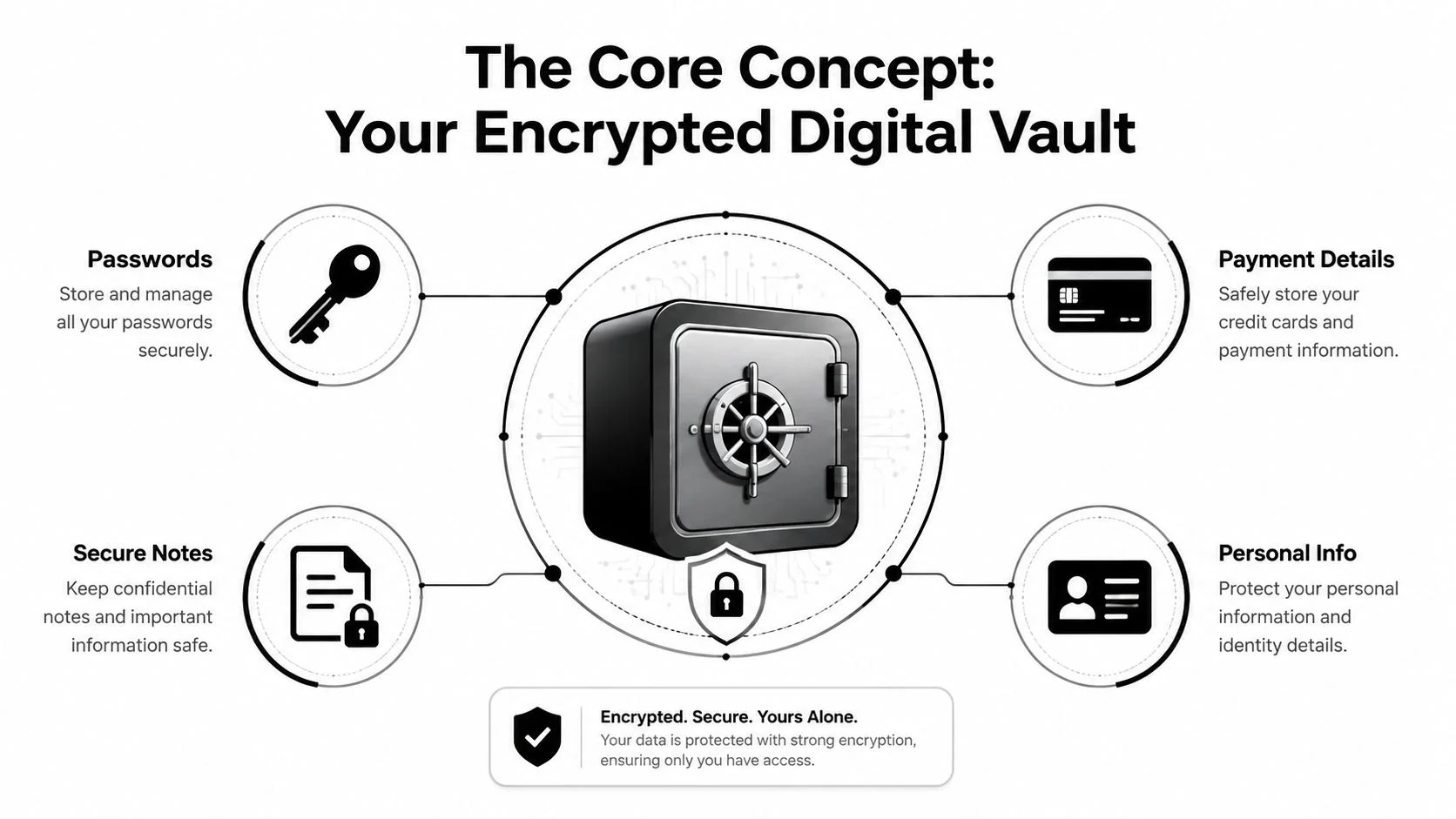
A password manager works like a bank vault that only opens with one master key. Inside that vault sit your passwords, and in many products, other sensitive items too, like credit card details, PINs, and secure notes (Lifehacker). You don't hand the vault to the internet. You lock it, keep the key, and only open it when you need something specific.
The important part is that the manager doesn't just “remember” your logins in plain text. It stores them in an encrypted vault and accesses that vault with a single master password (Reddit). That's what makes it different from a spreadsheet, a notes app, or a browser's basic save feature.
The master password is the only key you need
Think of the master password as the one key that opens everything else. The password manager uses it to access your vault, and once you're in, the app can autofill credentials without making you memorize every individual login. That's why losing the master password can make the vault inaccessible even to the provider, because the provider doesn't hold a readable copy of your key material (Reddit).
This also explains why browser “remember password” features aren't equivalent. A browser may store convenience data, but that doesn't mean it's built around the same vault model. A true password manager treats each saved item as something to lock away first, then retrieve only when you authenticate.
If you want a broader privacy-oriented view of how people organize digital tools, the internet privacy tools resource is a useful companion read.
Why encryption changes the trust model
The vault approach changes the question from “Can the company read my data?” to “Can the company ever decrypt my data?” In a properly designed password manager, the answer is no, because the provider stores encrypted data rather than readable passwords. That difference matters, because it means your vault is protected even if the service itself is hosting it.
The whole point of the vault is simple, encrypt first, store second, and decrypt only on your device.
That's the core mental model to keep in mind. A password manager is not a digital filing cabinet with the door left open. It's a locked container that exists specifically to keep sensitive information unreadable until you choose to open it.
How Encryption Keeps Your Data a Secret
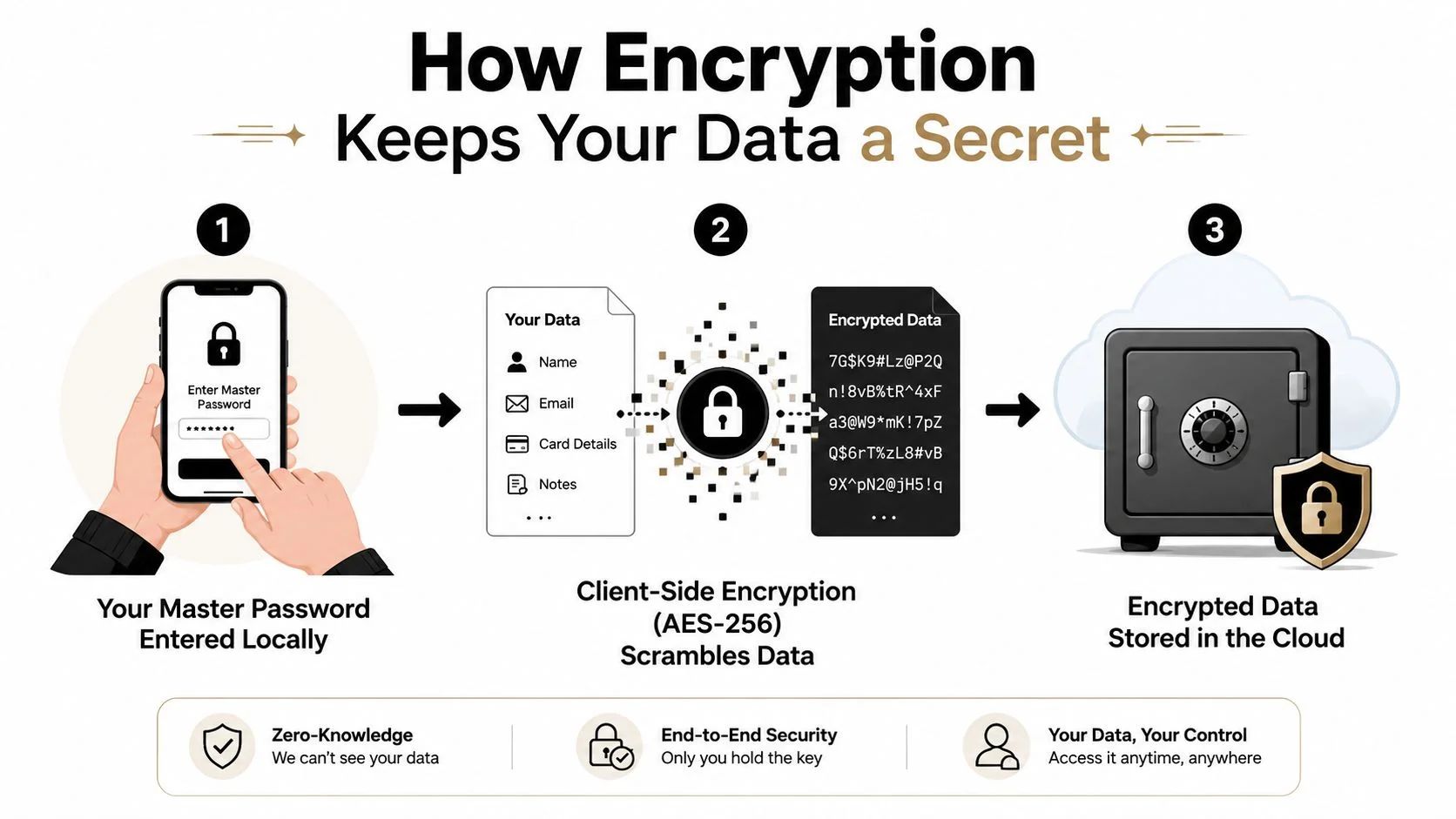
Encryption is what turns your readable data into scrambled text that's useless to anyone who intercepts it. In many password managers, the scrambling happens on your device first, before the data ever reaches the cloud, which is why people describe it as client-side encryption (YouTube). A simple way to think about it is sealing a personal letter in an envelope before handing it to a mail carrier.
The master password is the starting point. On the device, the app turns that password into the key needed to encrypt and decrypt the vault, while the server receives only the encrypted version (YouTube). In other words, the provider hosts the container, but it doesn't hold the readable contents.
Client-side encryption keeps the secret local
The most important detail is where the transformation happens. If encryption happens locally, the service never gets your plain credentials, only ciphertext. That's why this design is often described as “local first,” because the device does the sensitive work before anything leaves it (YouTube).
This is the main reason people trust password managers more than basic storage apps. A plain note or spreadsheet can be opened if someone gets into your device or cloud account. An encrypted vault adds a separate layer, so the stored file is still unreadable without the right key.
If a breach has ever made you wonder how exposed your own data might be, a what is a data breach explainer can help connect the dots between leaked information and account risk.
Zero-knowledge means the provider can't read the vault
This local encryption model enables zero-knowledge architecture. In a zero-knowledge system, the provider doesn't receive the decryption key in plaintext, so it can't read your stored passwords even if it stores the encrypted vault (YouTube). That's the security shift from “trust the company” to “trust the cryptography.”
A useful mental shortcut is this, if the company can't read your vault, then a customer support agent can't casually peek at your passwords, and a server compromise still leaves attackers with unreadable data. That doesn't make the service magical. It just means the design reduces how much any one party can see.
Why that matters in real life
The reason this matters is trust. You don't need to trust every employee at the service provider, because they don't have the readable data in the first place. You trust the design, the math, and your own ability to protect the master password.
That's also why a password manager can be both convenient and private. It syncs encrypted data, but it still keeps the vault itself opaque to the provider. The service handles storage, not visibility.
Local Storage vs Cloud Syncing Which Is Right for You
Some password managers keep everything on one device. Others sync encrypted vaults across phones, laptops, and tablets. Both models can be secure when implemented well, but they solve different problems, and the right choice depends on how you work.
A local-only setup gives you more direct control. A cloud-syncing setup gives you more convenience. If you care about the trade-off, it helps to compare them side by side instead of assuming one is automatically better.
| Feature | Local-Only Storage | Cloud-Syncing |
|---|---|---|
| Main advantage | Keeps the vault tied to one device you control | Makes the vault available across devices |
| Backup style | You manage backups yourself | The service typically handles syncing and backup behavior |
| Risk if device fails | Access can be harder if you lose the device or don't back it up | Your vault can still be reachable from another device |
| Privacy posture | Fewer moving parts, no dependency on a syncing server | More convenience, but depends on the provider's security model |
| Best fit | Users who prefer manual control and fewer sync points | People who switch between phone, laptop, and tablet often |
Local-only storage favors control
With local storage, the encrypted vault lives on your device. That can feel reassuring if you dislike putting sensitive data on a remote server. The upside is simple, you're in charge of where the vault lives and how it's backed up.
The downside is also simple. If the device is lost, damaged, or not backed up properly, access becomes a problem. That's not a flaw in encryption, it's a reality of keeping your only copy in one place.
If you're comparing providers or setup habits, the password manager best practices guide can help you think through how you'll use the tool day to day.
Cloud syncing favors access
Cloud syncing solves the everyday pain of logging into the same accounts from multiple devices. You sign in once, and the encrypted vault follows you, so your phone, browser, and laptop stay aligned. That's especially useful for people who work across devices, travel, or manage both personal and work credentials.
The trade-off is that you're relying on the provider's infrastructure to move encrypted data safely. The important qualifier is “encrypted.” In a well-designed system, the provider still can't read the vault contents, but it does become part of your security chain.
Choosing the model that matches your habits
If you're highly organized, keep strong backups, and prefer a minimal attack surface, local-only storage may feel right. If you'd rather avoid lockouts and want consistent access across devices, cloud syncing is usually the more practical route.
The decision isn't convenience versus security. It's whether your security setup fits the way you already live. A password manager should lower friction, not add another source of confusion.
Beyond Storage Autofill Generation and Security Audits
The best password managers do more than store logins. They help you enter them faster, create better ones, and spot weak habits before they turn into account problems. That's why they feel less like a locker and more like an active security assistant.
Autofill reduces mistakes and friction
Autofill is one of the most useful features because it removes the need to type passwords over and over again. The manager recognizes the site, fills the right fields, and gets you in without making you retype long strings from memory. That convenience also reduces exposure to keyloggers, because you're not manually entering credentials as often.
Many tools also integrate through browsers or apps, so the process feels natural rather than clunky. You open the site, the vault recognizes the login form, and the manager handles the field entry. The result is fewer typing errors and less temptation to reuse the same password everywhere.
Generators and audits change password habits
A password generator creates strong, unique credentials for each account, which directly addresses reuse. Instead of choosing something easy to remember, you let the tool create a random string and store it for you. That one change removes the main reason people fall back on weak patterns.
Security audits make the manager more proactive. They scan the vault for reused, weak, or old passwords and flag the entries you should change. That turns password maintenance from a guessing game into a simple review process.
A few practical habits matter here:
- Use generated passwords for critical accounts. Email, banking, and social media deserve unique credentials.
- Let autofill do the typing. It lowers friction and keeps you from reusing memory-based shortcuts.
- Review warnings regularly. Reused and weak passwords are easier to fix when the vault points them out.
- Keep sensitive extras in the vault. Credit cards, PINs, authenticator keys, and secure notes belong in one protected place when the tool supports it (Lifehacker).
Bottom line: a password manager is strongest when you let it replace manual habits, not just store old ones.
That last part matters. If you use the manager only as a digital hiding place for the same weak passwords, you keep the risk while losing the benefit. The true value comes from generation, autofill, and auditing working together.
Understanding the Risks and Limitations
A password manager is powerful, but it isn't a shield against every threat. The biggest risk is still the master password, because it sits at the center of access. If someone guesses it, steals it, or tricks you into typing it on the wrong site, they can get much further than they should.
The master password needs real care
A weak master password undermines the whole system. The manager can protect stored credentials, but it can't make a bad master password strong after the fact. A long passphrase built from unrelated words is easier to remember and harder to guess than a short, recycled login.
That means the master password deserves the same seriousness as the keys to your home. If you leave it simple for convenience, you've created the one opening attackers will look for first.
Malware and phishing still matter
Password managers can't stop malware already on your device from watching what you type or intercepting activity in other ways. They also can't stop you from entering the master password into a fake login page if a phishing attack looks convincing enough. The tool protects stored data, not every bad decision around it.
That's why it helps to think in layers. Use the manager, yes, but keep browser caution, device hygiene, and site verification in the habit stack too.
Evaluating trust is part of the decision
A provider earns trust by being transparent about how it protects the vault. Public security audits, clear encryption design, and a business model that doesn't depend on selling access to your data all matter. If a service can't explain how it keeps encrypted vaults unreadable, that's a warning sign.
If you're also dealing with old files, device transfers, or account cleanup, myhalo's guide to data destruction is a good reminder that secure deletion matters too. Removing outdated copies of sensitive data reduces the places an attacker might eventually find it.
What a manager cannot replace
A password manager is not a full cybersecurity program. It won't fix a compromised device, and it won't save accounts already exposed through past breaches. It's a strong control, but it works best when you pair it with careful device use and account review.
Proactively Protecting Your Digital Identity
A password manager helps you move forward with stronger logins. It does not automatically tell you which old credentials already leaked in past breaches, which is why proactive monitoring matters. If your email address, usernames, or old accounts have been exposed before, you still need to know where to start changing things.
Password managers protect the future, breach monitoring exposes the past
That's the important split. The manager creates unique passwords from now on, while breach monitoring tells you where your identity has already shown up in risky places. Together, they close the gap between prevention and cleanup.
Digital Footprint Check fits that second job by searching for publicly accessible exposure across the web, including data breach databases, social profiles, gaming profiles, and public records. If you want to pair stronger passwords with account discovery and exposure review, the platform's personal cybersecurity best practices resource is a practical place to start.
Why exposure checks help you act faster
If an old email or username has been tied to a breach, you can prioritize the accounts that matter most, starting with email, financial services, and social platforms. That order makes sense because those accounts often provide access to everything else. A password manager then helps you replace the old credentials with new, unique ones without having to invent each one yourself.
For people managing reputation, dating safety, or gaming identities, that review can also surface forgotten accounts that still matter. Exposed logins can create unnecessary risk even when the account seems inactive.
Before you close the loop, use a free exposure check to see what's already out there. Then change the credentials that need changing, retire the ones you no longer use, and keep the rest inside your password manager where they belong.
Use Digital Footprint Check to scan for exposed accounts, leaked credentials, and public digital traces that a password manager can't see. It's a practical way to connect stronger login habits with real exposure review, so you can protect what's already live and clean up what's already been leaked.