
· Digital Footprint Check · Content Marketing · 11 min read
How to Remove a Browser Hijacker and Reclaim Your Browser
Learn how to remove a browser hijacker with this practical, step-by-step guide covering symptoms, cleanup, malware scans, and prevention in 2026.

Your browser starts acting weird in the middle of a normal workday. The homepage is different, search results are full of junk, pop-ups keep nagging you, and every fix you try seems to last about five minutes. That's usually the moment people realize they're not dealing with a bad website. They're dealing with a browser hijacker.
A hijacker is not just an annoying setting change. It can live in extensions, startup pages, notifications, installed software, shortcuts, and browser sync. If you want a plain-language refresher on the bigger category, what malware is is a useful starting point before you dig into cleanup.
The good news is that most hijacks can be removed if you stop treating them like a cosmetic problem and start treating them like a persistence problem. A Google study of roughly 100,000 Chrome Web Store extensions submitted between January 2012 and 2015 found 9,523 malicious extensions, and 64 of those, about 1% of malicious extensions, accounted for 83% of all malicious-extension installations, with 46.6 million active users combined (Google research PDF). That's why you don't guess and click around. You inspect, remove, verify, and only then trust the browser again.
When Your Browser Stops Feeling Like Yours
You open your browser and the homepage isn't what you set. The search bar sends you somewhere unfamiliar. A shopping site shows strange ads in places that used to be clean. Then a notification appears from a site you've never visited, and the browser wants permission for more pop-ups.
That's the kind of mess people brush off as a glitch, then spend a week chasing ghosts. It isn't a glitch when the same symptoms keep coming back after you close the tab or restart the browser. That's a takeover pattern.
If you're wondering whether a weird redirect is safe, the faster move is to check the destination before you click deeper. A quick way to triage suspicious behavior is to compare it against a basic safety checklist like how to check if a website is safe. If the browser is steering you into odd domains, fake updates, or aggressive prompts, trust your instincts and stop using that session.
Practical rule: if the browser feels different after you've already changed the settings back once, assume something is persisting behind the scenes.
That matters because the cleanup window is short. You want to know whether you're looking at a one-profile annoyance, a browser-level problem, or something deeper in the system. The rest of the process should answer that question fast, not waste time on random clicks.
For wider context on the threat, the FBI's 2024 Internet Crime Report recorded 859,532 suspected internet-crime complaints and more than $16 billion in reported losses, a 33% increase from 2023, with phishing or spoofing, extortion, and personal-data breaches as the top three complaint categories (FBI report). Browser hijacks sit close to that abuse chain because they create the redirects and fake prompts that make the next scam easier to land.
Recognizing the Warning Signs of a Hijack
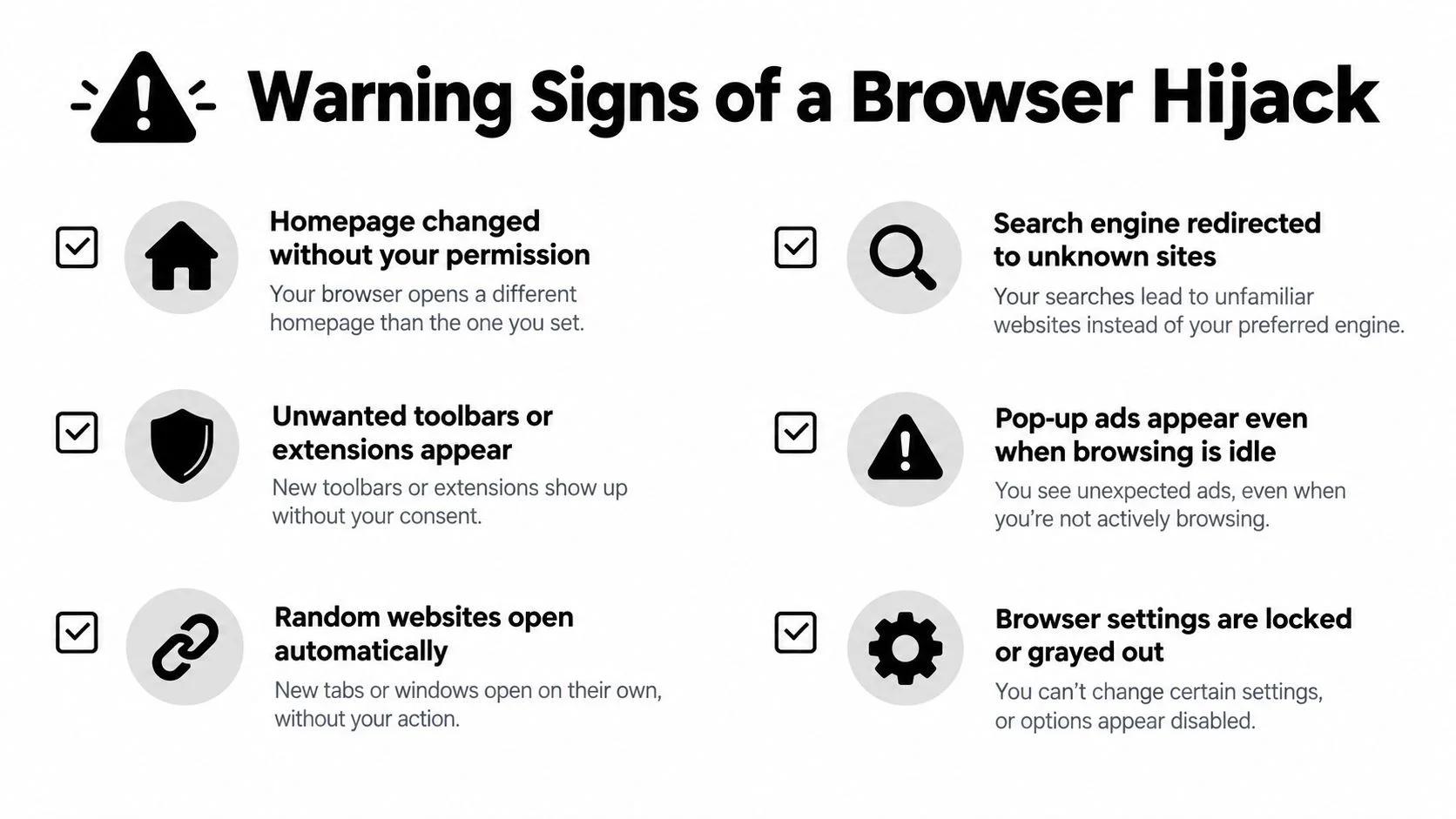
Start with symptoms you can verify. A homepage changed without permission means something overwrote a browser setting. If your search engine redirects to unknown sites, especially after an ordinary query, treat the behavior as a hijack until you rule out a legitimate cause.
Check the rest of the browser chrome. Unwanted toolbars or extensions are strong warning signs, as are pop-up ads while you're idle on a page that should be quiet. Random tabs opening by themselves, or notification requests from sites you have never visited, point to interference rather than normal browsing.
Separate a hijack from account and policy problems before deleting anything. A compromised account can spread unwanted behavior through sync. A managed browser policy from work or school can also lock settings or reinstall extensions. Check whether the browser is signed into a profile controlled by an employer, school, or family sync arrangement, and learn how to find spyware on your phone if mobile sync is involved.
Use persistence as your first triage test. If the behavior appears in one profile but not another, inspect that profile's extensions, startup settings, and sync data first. If it follows you across browsers, stop blaming the browser alone. Inspect installed programs, startup items, and shortcut targets before resetting anything. If those checks reveal persistence, plan for an offline malware scan and a privacy review after cleanup.
The attached checklist helps you compare several symptoms instead of chasing one popup. Hijackers often combine ad injection, redirects, and forced notifications, so a cluster of changes deserves incident-response treatment.
Before deleting files, build an incident response strategy. Identify what changed, preserve enough evidence to understand the cause, then remove it in a controlled order.
Why Resetting the Browser Usually Is Not Enough
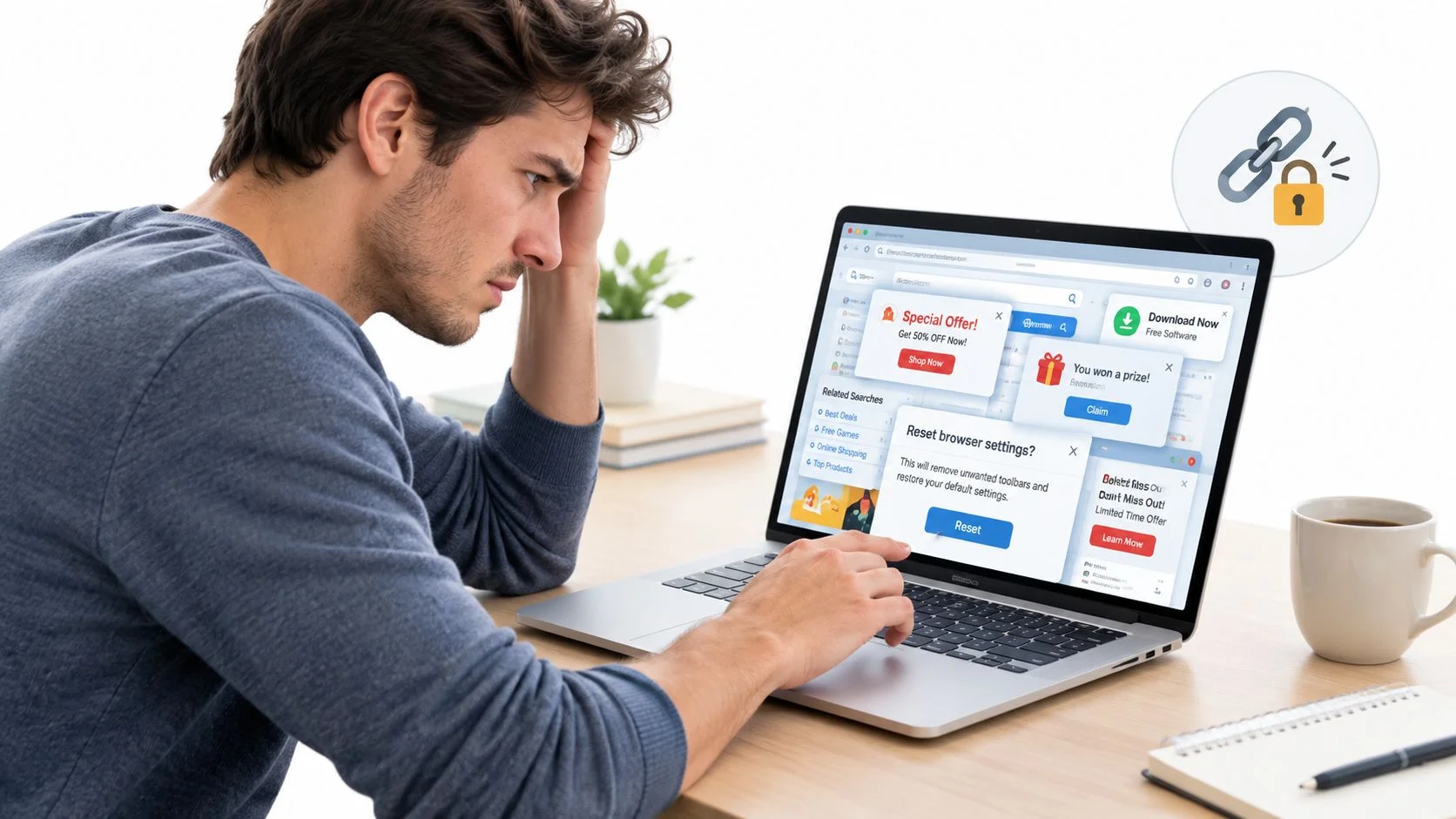
Resetting a browser clears visible settings, not necessarily the infection that changed them. Use it as one step in an incident-response sequence, not as the diagnosis or the cure.
An installed program, scheduled task, modified shortcut, managed policy, or synced profile can restore the same homepage, search engine, or extension after the reset. Chrome guidance also warns that extensions may return after a reset. If the unwanted behavior reappears after reboot, the persistence mechanism is still active.
The CISA advisory recommends collecting relevant artifacts and logs before remediation, applying mitigation steps, and verifying that the adversary has been removed rather than merely hidden. Apply that standard here. Record the symptoms, identify what survives cleanup, and confirm the browser stays clean.
Before you reset, remove unknown add-ons using this guide to remove apps from Chrome, then check browser shortcuts, scheduled tasks, installed programs, startup entries, and managed policies. Review synced profiles as well. These are the locations that can put the hijack back.
For browser-specific cleanup, reset only after those persistence points are clear. The better sequence is to remove unknown programs and extensions, clear managed policies and shortcut hijacks, reset the browser, reboot, then verify the homepage and search stay clean. If the hijack affects multiple browsers or returns after reboot, skip repeated resets and run an offline malware scan. After cleanup, review saved passwords, active sessions, extensions, and notification permissions from a known-clean state.
For a practical reference, browser hijacker repair help reinforces this order, particularly on Windows systems where shortcuts and leftover software often maintain the problem.
Resetting is a cleanup step. Persistence determines whether it is enough.
Your Step-by-Step Removal Workflow
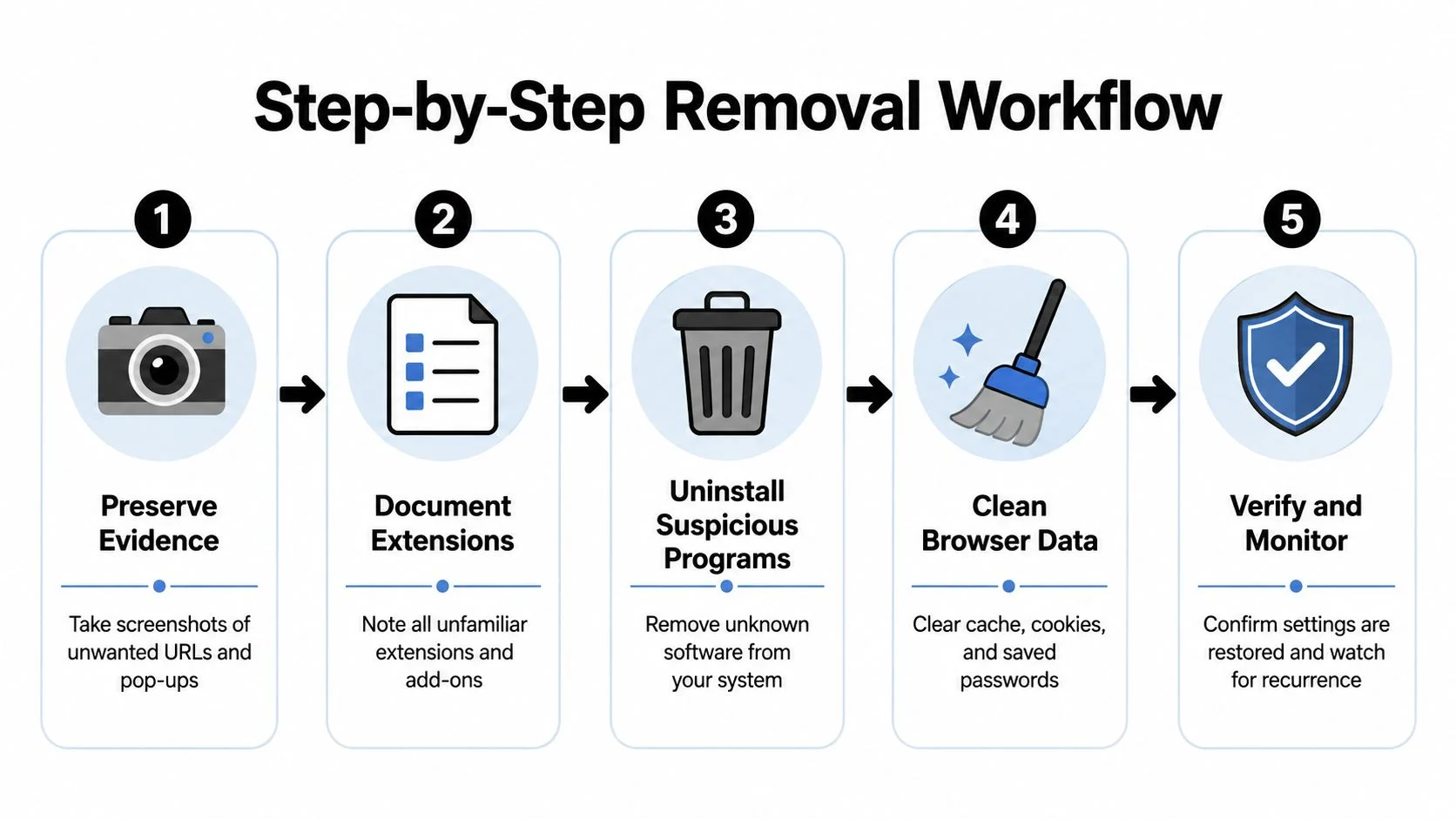
Start by preserving the basics. Take screenshots of the unwanted homepage, the redirect, the suspicious extension names, and any odd notification prompt. If you can see install dates or extension IDs, capture those too. Don't delete evidence before you've recorded it, because once the browser is clean, you may lose the clue that explains how it got there.
If you suspect account exposure, move to a known-clean device before you touch passwords. Use that clean device to sign out of sensitive sessions, change important passwords, and enable multifactor authentication. On the infected machine, disconnect from the network if you see signs of credential theft or remote control.
Then remove the obvious persistence points. Uninstall unknown programs from the operating system's app list, especially anything installed near the first incident. After that, check every browser on the machine, not just the one that looks broken, and remove extensions you never intentionally installed. Restore the homepage, new-tab page, and default search provider in each browser, then reset the browser profile if the settings still look forced.
Once the visible pieces are gone, update the browser and operating system. That matters because stale software makes it easier for unwanted changes to come back. After updates, run a full antivirus scan. Microsoft guidance says a Full scan is the more thorough in-session option, while Microsoft Defender Offline runs after a restart without fully loading Windows and can scan without an internet connection (Microsoft Defender scan guidance).
Practical rule: if the hijack survives a normal cleanup or returns after reboot, stop treating it like a browser problem and run an offline scan.
After scanning, restart twice and check again. Review browser policies, startup URLs, and notification permissions one more time. If the hijacker returns after reboot, something outside the browser is still present.
If you want another walkthrough while you compare notes, browser hijacker removal help can be useful for understanding what browser data cleanup does and does not remove.
Diagnosing Persistent or Cross-Browser Hijacks
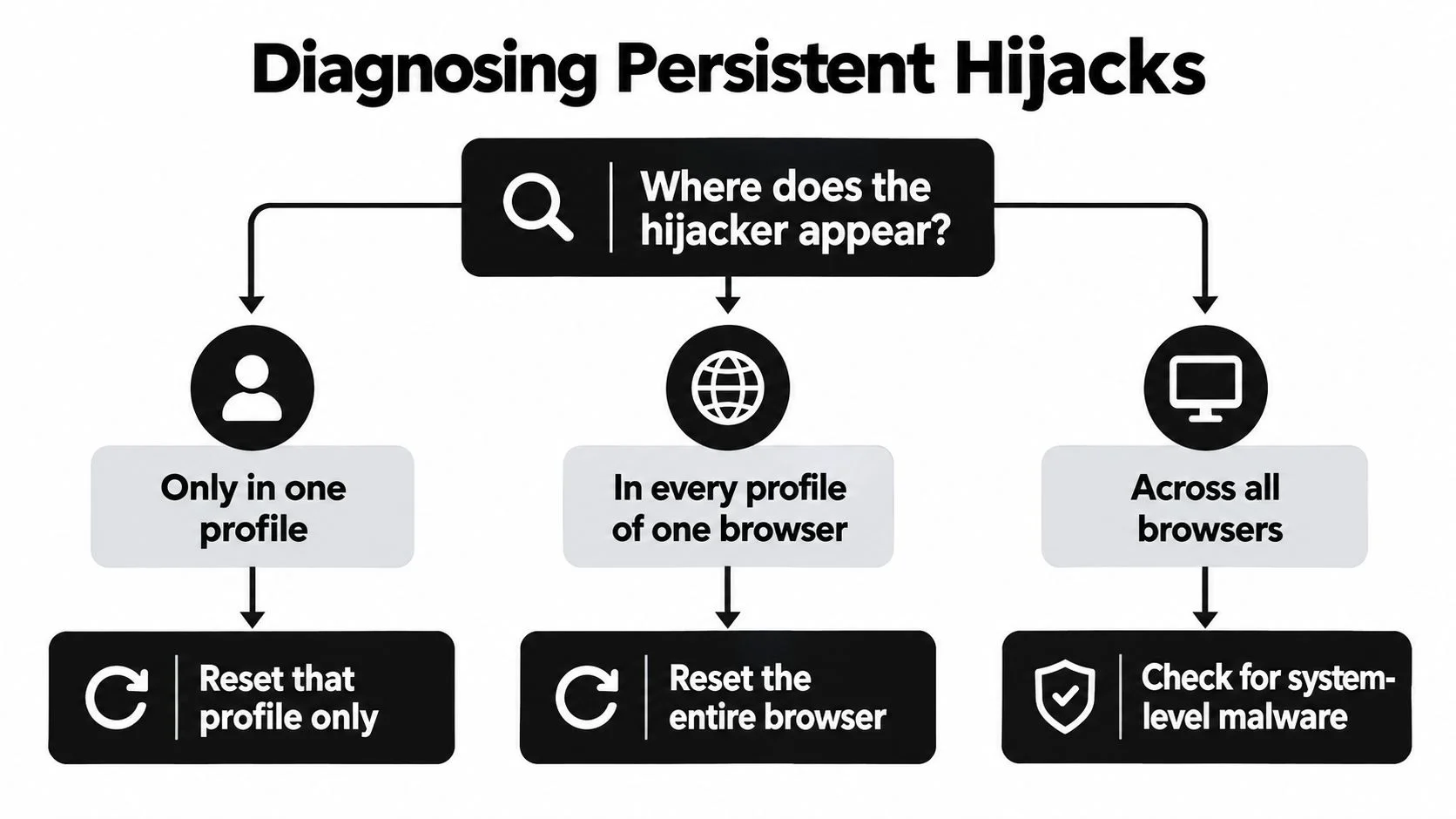
Ask three questions and answer them plainly. Does the hijacker appear in only one profile, in every profile of one browser, or across all browsers after a reset and reboot? That scope tells you where the fix lives.
If it shows up in only one profile, you're usually looking at a synced extension, profile corruption, or a bad browser account state. If it affects every profile in one browser, suspect a browser-level policy, modified shortcuts, or a browser-specific add-on package. If it appears across all browsers, stop assuming the browser is the problem and inspect the machine itself.
Here's the decision pattern in plain terms:
| Where the symptom appears | Most likely cause | What to do |
|---|---|---|
| One profile only | Synced extension or profile issue | Reset that profile and review sync |
| Every profile in one browser | Browser policy or local add-on persistence | Rebuild the browser and inspect policies |
| Across all browsers | Installed software or system-level persistence | Run full and offline malware scans |
Look at running processes, recently installed software, and browser shortcut targets. If a shortcut opens with a strange added URL or parameter, that's a clean clue. If a program keeps coming back after deletion, or if a managed policy keeps rewriting settings, you've got a persistence mechanism outside the browser.
Microsoft's hijack guidance is blunt here, running Windows Security > Virus and threat protection > Scan options > Full scan first, then a Microsoft Defender Offline scan if the problem returns after restarting (Microsoft support answer). That sequence is not busywork. It's the fastest way to catch software that hides during a normal session.
If the threat keeps rebuilding policies, affects multiple user profiles, or survives offline scanning, stop fighting it alone. That's the point where you escalate to qualified incident-response help instead of downloading random remover tools.
What to Check on Your Aisle After Cleanup
A hijacker doesn't just mess with the browser, it can expose the rest of your identity. Historical FTC enforcement showed browser-manipulation spyware could capture names, addresses, email addresses, telephone numbers, browsing and shopping history, and online transaction information, not just redirect searches (FTC enforcement action). That is why the cleanup ends with account review, not with a congratulatory reboot.
Start with email, then banking, social, gaming, and any professional accounts tied to the affected browser. Check signed-in sessions, recent login activity, recovery settings, and connected devices. If you see anything unfamiliar, change the password from a clean device and revoke the bad session.
The same goes for synced devices. If the browser was using sync, inspect the same extension list and sign-in history on other machines and phones. A hijacker can travel through your own account ecosystem, so one cleaned laptop doesn't guarantee the rest of your footprint is untouched.
If you want a quick companion check for the wider exposure side of the problem, how to check if your email has been hacked is a good next step after the device is stable. That's especially relevant if the hijack showed login pages, fake security warnings, or unusual account prompts.
A browser hijack is often the first visible sign that your digital footprint needs a broader review. Clean the machine, then check the accounts, the saved sessions, and the places where your data might already be circulating.
Habits That Actually Prevent the Next Hijack
Keep the browser and operating system on automatic updates. That's not glamorous, but it closes the easiest doors first. Install extensions only after you've checked whether they're needed, whether the permissions make sense, and whether the publisher is trustworthy.
Skip free bundled installers from unfamiliar download portals. That's where a lot of junk gets attached to a normal download, and users click through too fast to notice. Review notification permissions on a regular basis too, because a noisy site doesn't need your full attention to become a nuisance.
Use a reputable password manager instead of saving everything in the browser. That lowers the temptation to let the browser remember more than it should, and it keeps you from reusing the same weak habits after cleanup.
Treat future browser weirdness as worth investigating on day one. Small annoyances are cheaper to fix before they turn into account exposure or system-level cleanup.
The prevention mindset is simple. Watch for the first weird redirect, the first odd extension, and the first notification prompt you didn't ask for. Early action is faster than a full remediation later.
If you want a clearer picture of what else is publicly exposed about you after a browser incident, use Digital Footprint Check to review your online presence and spot hidden risks. It's a practical next move after you've cleaned the device, secured your accounts, and want to see what other parts of your digital footprint may still need attention.