· Digital Footprint Check · Content Marketing · 14 min read
Can Iphone Get Virus? the 2026 Security Guide
Can iPhone get virus? Yes, but the real threats are malware and spyware. Learn the signs of a hacked iPhone, removal steps, and how to protect your data.
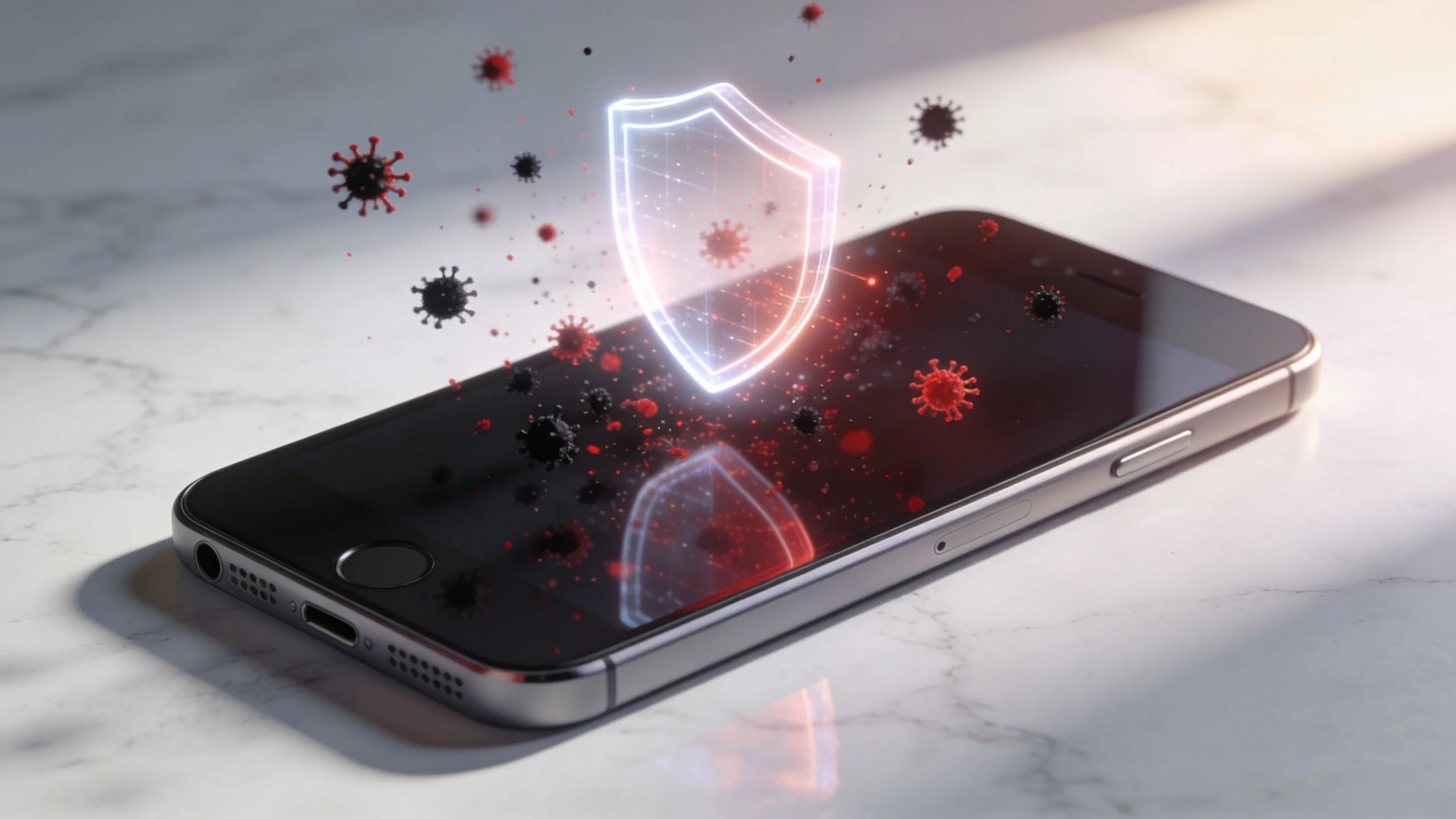
Traditional viruses on iPhones are exceptionally rare. In 2022, iOS malware appeared in less than 0.01% of global mobile scans, compared with 5 to 10% for Android, and the bigger risk usually comes from phishing, malicious links, spyware, or user actions rather than a classic self-spreading virus.
That answer is more useful than the usual “iPhones can’t get viruses” line, because it points to the part that matters. If you’re worried about whether your iPhone is safe, the core question isn’t just can iphone get virus. It’s also what happens to your accounts, messages, photos, contacts, and online identity if your device or Apple ID gets exposed.
A lot of popular advice stops at reassurance. It tells you Apple devices are secure, and that’s true in important ways. But reassurance alone won’t protect your banking logins, your gaming accounts, your dating profiles, or the professional accounts tied to your name.
So Can an iPhone Really Get a Virus?
The honest answer is yes, but not in the way commonly understood.
When people say “virus,” they usually imagine old-school malware that hops from file to file and spreads across a device by itself. That kind of threat is unusually hard to pull off on iPhones. Apple designed iOS to make self-spreading infections difficult, and real-world infection rates reflect that. According to Surfshark’s write-up on iPhone virus risk, Kaspersky detected iOS malware in less than 0.01% of global mobile scans in 2022, compared with 5 to 10% for Android.

That’s the reassuring part. The catch is that “rare” doesn’t mean “impossible.”
What most people call a virus is often something else
On iPhones, the more realistic threats are:
- Phishing pages that steal your Apple ID or banking login
- Spyware that secretly monitors activity
- Malicious links sent by text, email, or direct message
- Compromised apps or profiles that abuse trust
- Jailbreak-related malware on modified devices
So if your phone starts acting strangely, the label matters less than the outcome. If an attacker gets your login, your iCloud data, or access to your messages, the damage is real whether you call it a virus or not.
Practical rule: Don’t get stuck arguing over the word “virus.” Focus on whether something can steal data, hijack accounts, or monitor activity.
That matters even more now because many compromises start outside the device. A fake Apple security text, a spoofed password reset email, or a social engineering trick can do more damage than a traditional virus ever could. If you’re curious how much can be done from a phone alone, this look at what hacking with an iPhone can involve helps show why mobile security deserves serious attention.
Why iPhones Are So Secure The Walled Garden Explained
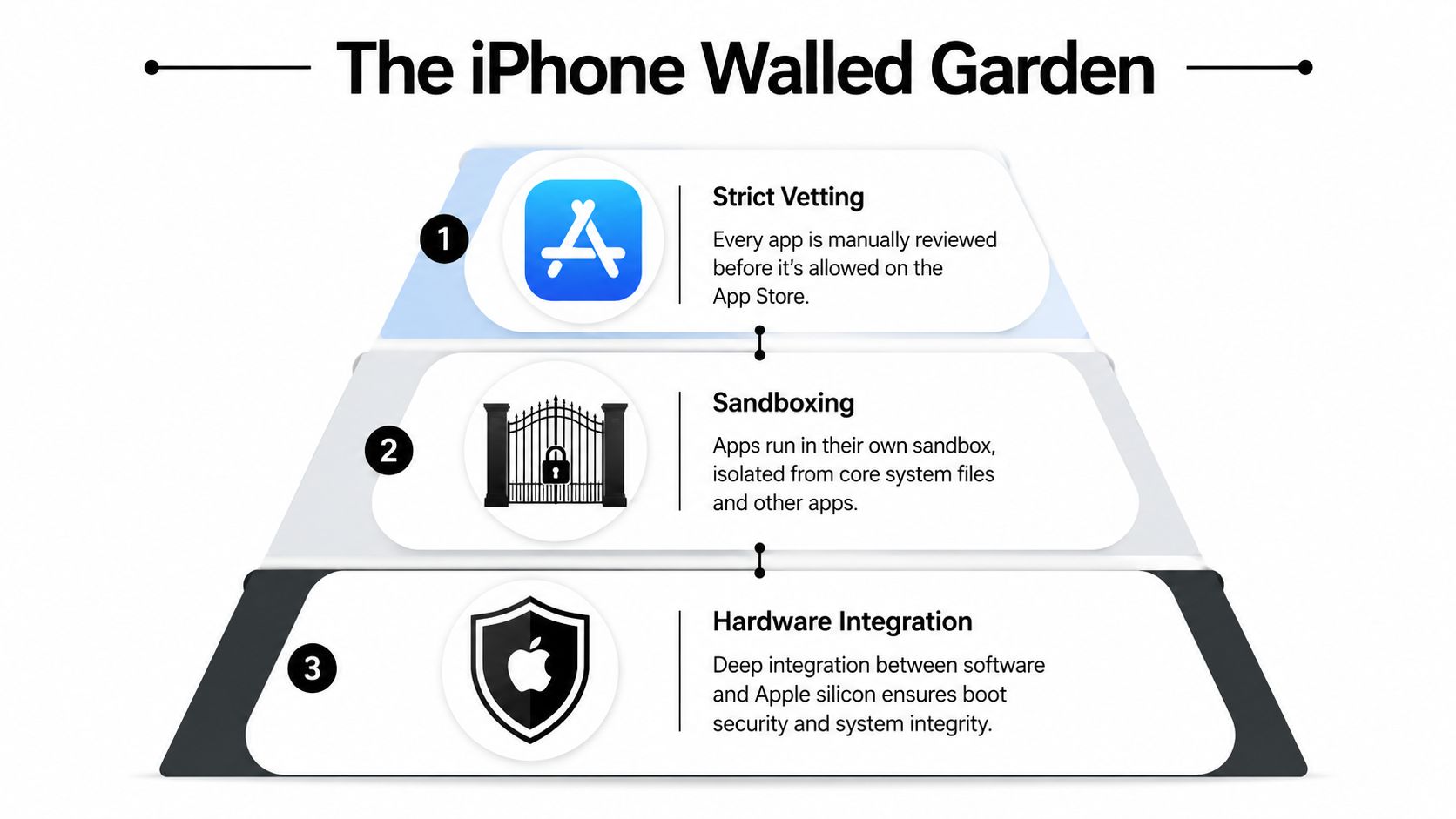
Apple’s security model works a lot like a walled garden. You’re allowed inside, but there are gates, guards, and clear boundaries on where each app can go.
That’s why can iphone get virus isn’t a simple yes-or-no question. The better answer is that iPhones are built to make traditional malware behavior difficult from the start.
Sandboxing keeps apps in separate rooms
The biggest protection is sandboxing. Think of every app on your iPhone as being locked in its own room. It can do its job inside that room, but it can’t freely wander into another app’s space or start rewriting system files.
According to Malwarebytes’ explanation of iPhone malware removal, iOS sandboxing is the main technical barrier to viruses, because each app runs in an isolated virtual space. That makes it technically impossible for malware to self-propagate the way traditional computer viruses do.
If you’ve ever wondered why iPhone security feels different from old Windows malware stories, that’s the reason. A bad app usually can’t turn your whole phone into a chain-reaction infection.
The App Store acts like a guarded entrance
Apple also controls the main route onto the device. Apps don’t just appear on iPhones from anywhere. They usually come through the App Store, where Apple screens them before distribution.
That doesn’t mean every app is perfect. It means there’s a checkpoint. Compare that with a more open ecosystem, where users may install software from many different places with fewer restrictions.
Here’s the simple version of Apple’s model:
- App review: Apple checks apps before they’re broadly distributed.
- Code signing: Apps need Apple’s approval to run in the expected way on iOS.
- Permission controls: Apps must ask before accessing things like your microphone, photos, or location.
- Security updates: Apple can patch known issues through iOS updates.
Apple’s strength isn’t magic. It’s control. The tighter the ecosystem, the fewer easy paths attackers have.
Jailbreaking changes the rules
Some readers get confused. They hear “iPhones don’t get viruses,” then see stories about infected devices and assume Apple’s protections failed across the board.
Often, the missing detail is jailbreaking. Jailbreaking removes key protections, weakens code signing, and opens doors that Apple normally keeps closed. Once that happens, the walled garden isn’t really walled anymore.
That’s why a standard, updated iPhone and a modified iPhone shouldn’t be treated as the same security case.
The Real Threats Facing Your iPhone in 2026
Most successful iPhone attacks don’t look like a movie hacker typing into a black screen. They look like a text from “Apple,” a fake login page, a tempting giveaway, or a prompt asking you to trust something you shouldn’t.
That’s important because the modern answer to can iphone get virus is less about self-replicating malware and more about how people get tricked. According to this breakdown of iPhone infection behavior, phishing and malicious links account for over 55% of documented infection attempts.
Phishing is still the biggest everyday danger
A phishing attack on iPhone usually starts with urgency. You get a message saying your Apple ID is locked, your parcel couldn’t be delivered, your bank needs verification, or your iCloud storage payment failed.
You tap. The page looks real. You sign in. Now the attacker has your credentials.
That’s why many people think they “got a virus” when the actual problem is stolen account access. The phone may still be technically healthy, but your identity isn’t.
Other threats that matter
A few others deserve attention because they target trust rather than brute force:
| Threat Type | How It Works | Primary Goal |
|---|---|---|
| Phishing link | Sends you to a fake sign-in or payment page | Steal credentials or payment details |
| Malicious attachment or message | Tries to get you to open or approve unsafe content | Trigger compromise or collect information |
| Suspicious configuration profile | Changes settings or routes traffic through attacker-controlled systems | Monitor activity or weaken security |
| Jailbreak-related malware | Exploits a device whose protections were removed | Install spyware or persistent malware |
| Zero-day spyware | Uses a previously unknown flaw to break into a device | Surveillance, data theft, account access |
Jailbreaking and sideloading raise the risk
If you jailbreak an iPhone, you trade built-in protection for freedom. Some people do it to customize the device or install software outside Apple’s default path. The security cost is real.
Sideloading and alternate app distribution can also create new judgment calls for users. The issue isn’t that every non-App-Store app is malicious. It’s that you become more responsible for verifying trust, and many users don’t have the tools or habits to do that well.
A similar warning applies to mobile identity attacks outside the phone itself. If an attacker can hijack your number, they can intercept codes and reset accounts, which is why this guide on how a clone SIM card attack works is worth understanding alongside device malware risks.
If an attacker can’t beat the operating system, they’ll often go around it and target your logins, your phone number, or your decisions.
Rare doesn’t mean harmless
Highly advanced spyware exists, and it doesn’t need to be common to be dangerous. These attacks are more likely to target journalists, executives, activists, or people with valuable access, but the lesson applies to everyone. A secure phone lowers risk. It doesn’t eliminate the need for caution.
Signs Your iPhone Might Be Compromised
Users generally don’t wake up one morning and see a giant “infected” banner on their iPhone. What they notice first is that the phone feels off.
Maybe the battery is dropping unusually fast. Maybe Safari keeps redirecting. Maybe your device gets warm while you’re barely using it. One odd symptom alone doesn’t prove malware, but a pattern should get your attention.
Everyday signs that deserve a closer look
Here are the clues I’d take seriously:
- Battery drain that feels sudden: Background abuse, hidden browser activity, or a bad app can keep working when you think the phone is idle.
- Unusual data use: Spyware or a rogue service may send information out in the background.
- Overheating during light use: Constant background processing often creates heat.
- Pop-ups or redirects in Safari: These often point to malicious sites, scam scripts, or browser abuse.
- Apps you don’t remember installing: That’s a major red flag, especially if they ask for broad permissions.
- Random account logouts or security prompts: Sometimes the phone is fine, but your accounts are already under attack.
A lot of people blame “just a buggy update” for too long. Sometimes they’re right. Sometimes that delay gives an attacker more time.
The symptom and the likely cause
This is the part readers often find most helpful. The symptom can hint at the kind of problem.
| Symptom | What it may suggest |
|---|---|
| Browser redirects | Scam pages, adware-like behavior, malicious web scripts |
| Fast battery loss | Background activity, spyware, abusive app behavior |
| Data spike | Uploading information, background communications |
| Strange new settings or profiles | A suspicious configuration change |
| Device instability | Malicious app behavior or a serious software issue |
If you’re concerned about surveillance rather than a traditional virus, this guide on how to find spyware on your phone can help you think through the signs more clearly.
A short visual walkthrough can also help if you want to compare what you’re seeing on your own device:
Multiple small warnings at once usually matter more than one dramatic symptom by itself.
How to Detect and Remove Malware from Your iPhone
If you suspect something is wrong, act quickly and methodically. Don’t start by downloading random “cleaner” apps that promise miracle results. On iPhone, the safest approach is usually a short checklist that starts simple and escalates only if needed.
Speed matters here. According to Kaspersky’s resource on iPhone threats, iOS spyware detections in 2026 Q1 were 3x higher than in 2024, which is a useful reminder that once compromise is suspected, delaying updates and cleanup is a bad idea.
Start with the least disruptive steps
Clear Safari history and website data
Go to Settings, then Safari, then clear history and website data. This can remove malicious site data, scam scripts, and persistent redirects tied to browsing.Review your apps carefully
Look for anything you don’t recognize, don’t use, or installed right before the problems started. Delete suspicious apps first.Check permissions
Open Privacy & Security settings and review which apps can access your microphone, camera, photos, contacts, and location. If an app’s access doesn’t make sense, remove the app or revoke permissions.
Check for deeper configuration issues
Some iPhone problems don’t come from a visible app icon at all.
- Inspect profiles: Go to Settings, then General, then VPN & Device Management. If you see a profile you didn’t intentionally install, treat it as suspicious.
- Look at VPN settings: An unknown VPN can route traffic through someone else’s system.
- Review calendars and subscriptions: Scam calendars and notification permissions can make a device feel infected even when the issue is account-based or browser-based.
A compromised phone isn’t always “full of malware.” Sometimes one bad profile, one bad permission, or one stolen login creates the whole mess.
Restart, update, then reassess
After cleanup, restart the iPhone. Then install the latest iOS update. Security updates matter because they close known holes attackers may already be using.
If you manage devices for work or just want a broader detection mindset, this article on preventing malware from disrupting operations is useful because it focuses on catching trouble early rather than waiting for obvious failure.
When a factory reset makes sense
A full erase is the strongest option when symptoms continue or you suspect serious spyware. Before doing it:
- Back up carefully: Avoid restoring from a backup created after the problems began, if you can identify a cleaner older backup.
- Change passwords first on a trusted device: Start with your Apple ID, email, banking, and other high-value accounts.
- Enable stronger account protection: Turn on two-factor authentication where available.
Then erase the phone and set it up again. If you restore, use caution with old apps and settings.
If you want a more focused cleanup process, this walkthrough on how to remove virus from my phone covers the practical sequence clearly.
Beyond Device Security Protecting Your Digital Footprint
Cleaning the phone is only half the job. If spyware, phishing, or account compromise touched your iPhone, you also need to think about everything that may have left the device.
That includes your email address, saved passwords, contacts, messages, cloud access, photos, location history, shopping accounts, gaming profiles, and anything tied to text-message verification. People often underestimate the damage. They fix the symptom on the phone, but ignore what the attacker may already have.

The bigger danger is data exposure
This is the most important shift in mindset. According to NordVPN’s summary of iPhone malware risk, Zimperium’s 2025 analysis found malware on only 0.02% of iOS devices, but 15% of those infections led to data exfiltration events linked to major breaches.
That means the headline problem often isn’t “my phone had malware.” It’s “my information may now be elsewhere.”
Why that matters in real life
A compromised digital footprint can affect much more than one device:
- Job prospects: Old usernames, exposed email addresses, or leaked account links can surface during background checks or reputation reviews.
- Personal safety: Private contact details, location clues, and social profiles can help stalkers or scammers map your routines.
- Financial risk: If your email and phone number connect multiple accounts, one compromise can trigger account recovery abuse.
- Gaming and dating accounts: These often get ignored, but they can reveal identity clues, spending patterns, and social connections.
Remove the malware, then assume your online identity may still need cleanup.
What to do after the device is clean
Treat post-compromise recovery like an audit:
- Change passwords for critical accounts
- Review Apple ID security settings
- Check email forwarding rules and recovery methods
- Look for unfamiliar logins on major accounts
- Search for exposed profiles, usernames, and breach traces tied to your identity
That last part is where many people fall short. Device security protects the phone in your hand. Digital footprint monitoring protects the parts of you already scattered across the internet.
Proactive Steps for Long-Term iPhone and Identity Protection
The best iPhone security strategy is simple. Keep the device hard to exploit, and keep your identity hard to abuse if something slips through.
Build habits that reduce your exposure
A strong routine looks like this:
- Keep iOS current: Security updates close known vulnerabilities.
- Use unique passwords: Your Apple ID should never share a password with shopping, gaming, or social accounts.
- Turn on two-factor authentication: This limits damage when credentials are stolen.
- Slow down on links: Most iPhone compromise attempts still rely on getting you to tap first.
- Review permissions regularly: Camera, microphone, contacts, and location access should all make sense.
- Avoid jailbreaking unless you fully accept the risk: It weakens the protections that make iPhones safer in the first place.
Think beyond the phone
Long-term protection also means watching for account takeover, not just malware. If someone gets your Apple ID, email access, or your phone number, they may not need to infect the device at all. This guide to account takeover prevention is a useful companion to any phone security plan because it focuses on the identity side of the problem.
If you remember one thing, let it be this. The question isn’t only can iphone get virus. It’s whether your security plan covers the full chain, from device protection to account recovery to online exposure.
If you want to see what personal information may already be exposed online, try the free checker from Digital Footprint Check. It helps you look beyond the device itself and identify where your email, phone number, usernames, and public profiles may already be visible so you can take action before a rare phone compromise turns into a much bigger identity problem.