· Digital Footprint Check · Content Marketing · 13 min read
What Is Network Name? SSID, Privacy and Safe Naming
What is network name? Learn what an SSID is, how it differs from BSSIDs and hostnames, and how to pick a private one.
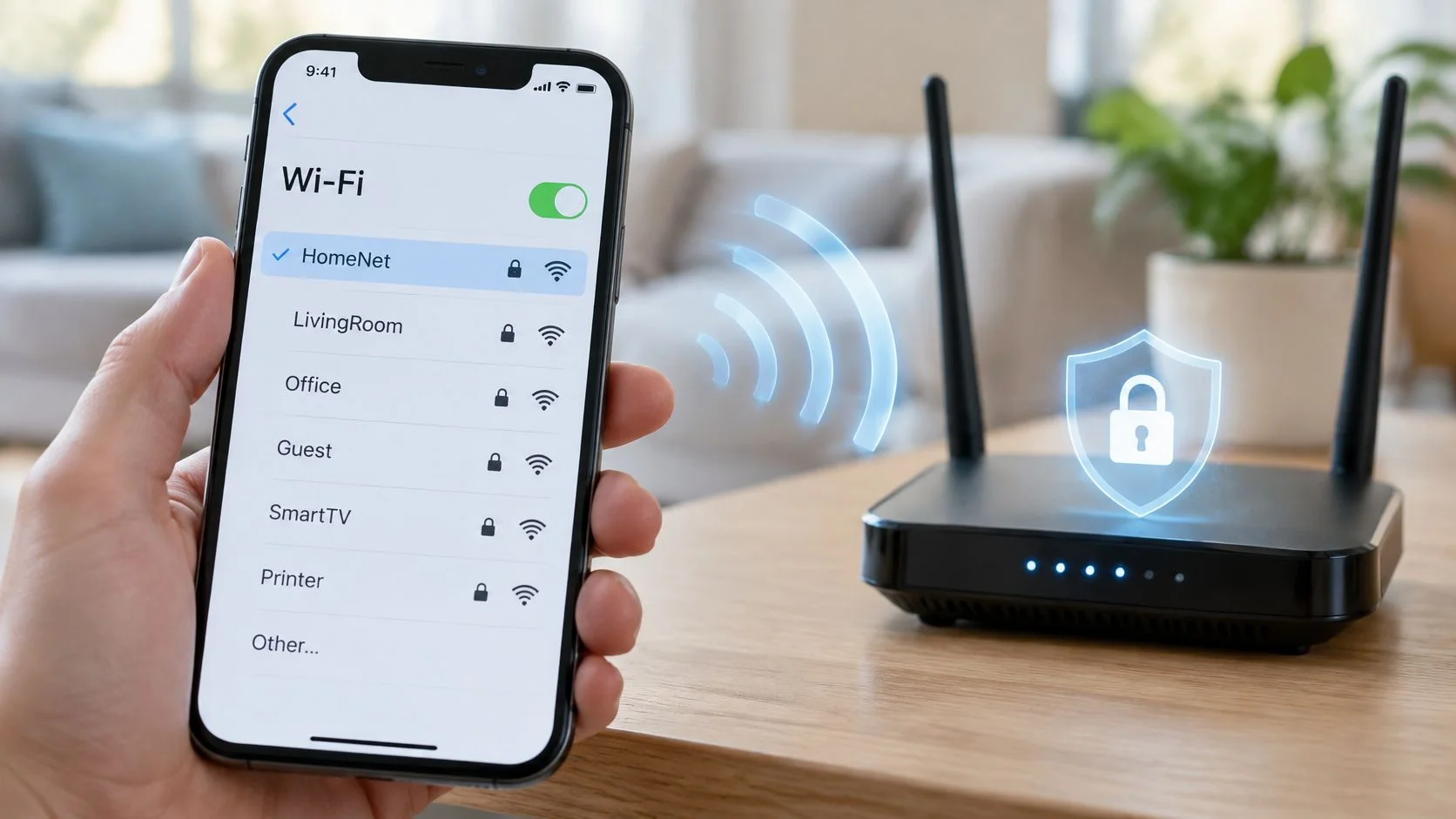
A network name is the human-readable label, called the SSID, that identifies a Wi-Fi network in device menus, and it doesn't secure the network by itself. So if the name doesn't lock anything, why can it still reveal who you are, where you live, and which places you visit?
That's the gap most explanations miss. They tell you how to find the label, then stop, as if a lock icon next to it means nothing personal is showing. In reality, the lock protects your traffic, not the name itself, and the name is the part everyone nearby can read for free.
What a Network Name Is and How It Works
Say you're setting up a laptop in a new apartment. You open Wi-Fi settings and see a dozen entries, each one a network name, each one pointing to a different router within radio range. You tap yours, enter the password, and you're online. The question "What is network name?" sounds simple because that moment feels simple, but the name is doing a specific technical job.
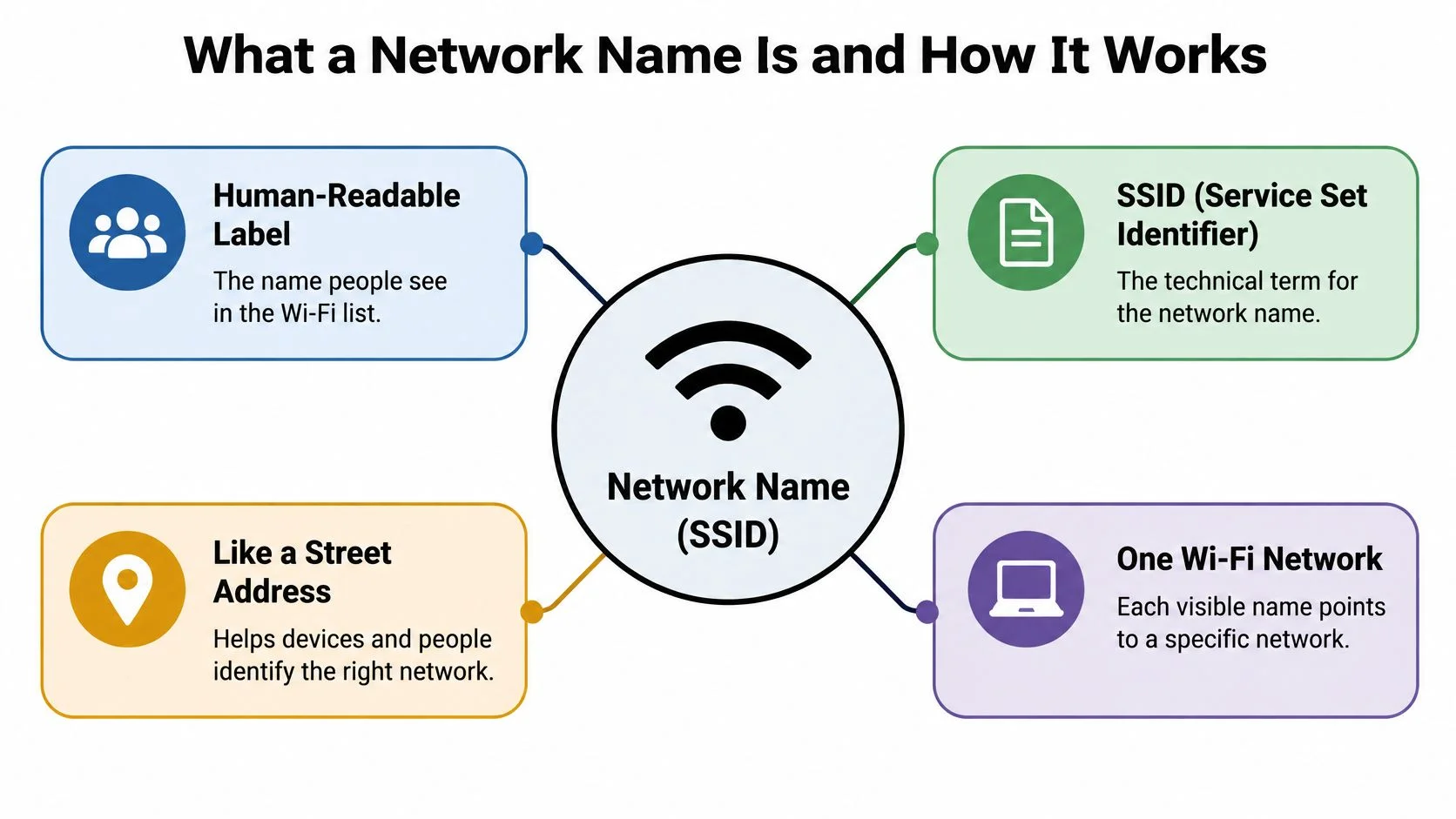
A street name on a map helps you find the right block, but it doesn't tell you who lives there, and it doesn't prove any door on that street is locked. A network name works the same way. It identifies, it doesn't authenticate.
The Term Behind the Label
In Wi-Fi language, that label is the SSID, short for Service Set Identifier. Your router broadcasts it in regular announcement frames called beacons, and it also appears in probe responses when a device asks who's nearby. That's why the name shows up before you ever type a password. Your phone is just reading what the access point is already announcing.
The SSID field is small by design, holding 0 to 32 characters. That zero-length case deserves a note, because it confuses people. A blank SSID field acts as a wildcard meaning "any," and it isn't proof that a network is hidden.
Where the Standard Came From
The naming system comes from IEEE 802.11, first approved in 1997 with data rates up to 2 Mbps, and in 1999 802.11b raised theoretical speeds to 11 Mbps and helped drive broad consumer adoption, according to Cisco's history of Wi-Fi. Those early speeds sound tiny now, but the framework they established, discover a named network, then connect, is still the one your phone uses.
Practical rule: The name gets you to the door. The password and encryption decide whether you get in.
Either you or the router manufacturer sets the name. Most routers ship with a factory default, often the brand plus some numbers, and plenty of people never change it. That matters for the same reason it matters what online privacy actually covers, because defaults are visible to strangers. A network called "Linksys" isn't automatically unprotected, and a clever pun doesn't make a network safe. The two things, name and security, are separate jobs.
Network Name Versus BSSID, Hostname and Operator Name
Four different names show up around one home network, and mixing them up causes most of the confusion people hit. This quick reference keeps them apart.
| Identifier | What It Identifies | Where You See It | Who Can See It |
|---|---|---|---|
| SSID (network name) | The wireless network, shared by all its access points | Wi-Fi menu on phones and laptops | Anyone within radio range |
| BSSID | One access point's MAC address | Router admin page and Wi-Fi analyzer apps | Anyone scanning nearby radio traffic |
| Device hostname | One device on your local network | Router's connected-devices list | Devices on the same network |
| Mobile operator name | The cellular network, derived from MCC and MNC codes | Phone status bar | Your phone and your carrier |
Why Duplicate Names Trip People Up
The SSID names the network as a whole. The BSSID names one specific radio broadcasting it. A mesh system puts several nodes around your home, each with its own BSSID, all announcing the same SSID, so your phone can move from the kitchen node to the bedroom node without you picking a new name. Open a Wi-Fi analyzer app like NetSpot and you'll see those separate BSSIDs listed under one familiar name.
Dual-band routers create the opposite puzzle. If the 2.4 GHz and 5 GHz bands carry separate SSIDs, your phone lists two names, something like HomeNet and HomeNet-5G, for what's really one household setup. Neither case is a fault. It's just the difference between naming a network and naming a radio.
An Identifier, Not a Credential
IEEE material places the SSID in management frames such as beacons, probe requests and responses, and association requests, and it's an identifier, not an authentication credential or encryption mechanism, as IEEE 802.11 mentor material on virtual access points specifies. Renaming your network changes what people see. It changes nothing about who can get in.
Two quieter identifiers deserve the same scrutiny. A hostname like "Sarahs-MacBook-Pro" or "Kids-iPad" appears in your router's device list and can be visible to other devices on the network, including a guest you gave the password to. A BSSID looks like a string of numbers and letters, but it's tied to a physical access point in a physical place.
The operator name in your phone's status bar is a different animal entirely. It's derived from cellular codes, and the actual label shown may come from the USIM in your phone or from network signaling, so the displayed brand alone isn't proof of which network you're on.
Check the SSID when you want to connect, the BSSID when you're troubleshooting a weak spot or a rogue access point, and the hostname when you're reading the device list to spot something that doesn't belong.
Where Network Names Appear in Everyday Use
You meet network names in a few predictable places, and each one asks something slightly different of you.
| Place | What you see | Watch for |
|---|---|---|
| Phone or laptop Wi-Fi list | Every visible SSID with a signal icon | Look-alike names from nearby networks |
| Router app or admin page | The SSID and security mode set during setup | Default names that still reveal the brand |
| Phone status bar | Operator name derived from MCC and MNC | Labels that differ from the expected brand while roaming |
| Public hotspot list | Venue-style names such as café or airport labels | Duplicate names with no staff nearby |
Start with the Wi-Fi list itself. Each SSID appears with a signal icon, and a small lock if the network requires a password. That's your phone summarizing those broadcast announcements into something readable. The router app is the other side of the same coin, where the name sits next to the password and security mode during setup.
The cellular case works differently. 3GPP defines a PLMN identifier as a three-digit Mobile Country Code plus a two- or three-digit Mobile Network Code, and your handset maps that combination to the operator name you see, according to 3GPP material on PLMN identification. On shared or roaming networks, that label can differ from the brand you pay each month.
Public hotspots are where names get risky. Anyone can set up an access point called "Airport_Free_WiFi," so if you see that sitting next to "Airport Free WiFi," treat both as unverified and ask staff which one is real. The same caution applies to basics like whether hotel Wi-Fi is safe. A name alone never confirms legitimacy. People do.
Fixing Duplicate, Missing and Reconnect Problems
Most network name problems look alarming and turn out to be naming logic, not broken hardware.
- Two names for one network: Your phone lists HomeNet and HomeNet-5G because the 2.4 GHz and 5 GHz bands use separate SSIDs. That's a setup choice. Check both names in your router app before assuming a neighbor's network has appeared.
- One name, several radios: A mesh system broadcasts one SSID across several nodes. The name stays put while the BSSID your phone joins changes as you walk between rooms, which is why a weak-signal complaint in one corner is a node problem, not a name problem.
- Devices won't reconnect after a rename: Every saved device still holds the old SSID and keeps looking for a network that no longer announces itself. Forget the old entry and rejoin on each TV, printer, speaker, and laptop. Do the annoying fixed devices first, since phones take seconds.
- The network doesn't appear at all: Check that you're in range and that the device supports the band the network uses, since older gadgets often can't see 5 GHz. If the network is set to hidden, type the name manually. Just know that a hidden SSID isn't hidden from radio traffic, so don't treat that setting as a privacy fix.
One more case hides in the admin page. Open the connected-devices list and read the hostnames and BSSIDs there. If a hostname reveals a child's name or an employer's laptop identifier, treat that as personal data worth renaming in the device's own settings.
Use the SSID to connect, the BSSID to troubleshoot a specific access point, and the hostname to read the device list. Matching the identifier to the job fixes most confusion.
Privacy Risks Hidden in a Network Name
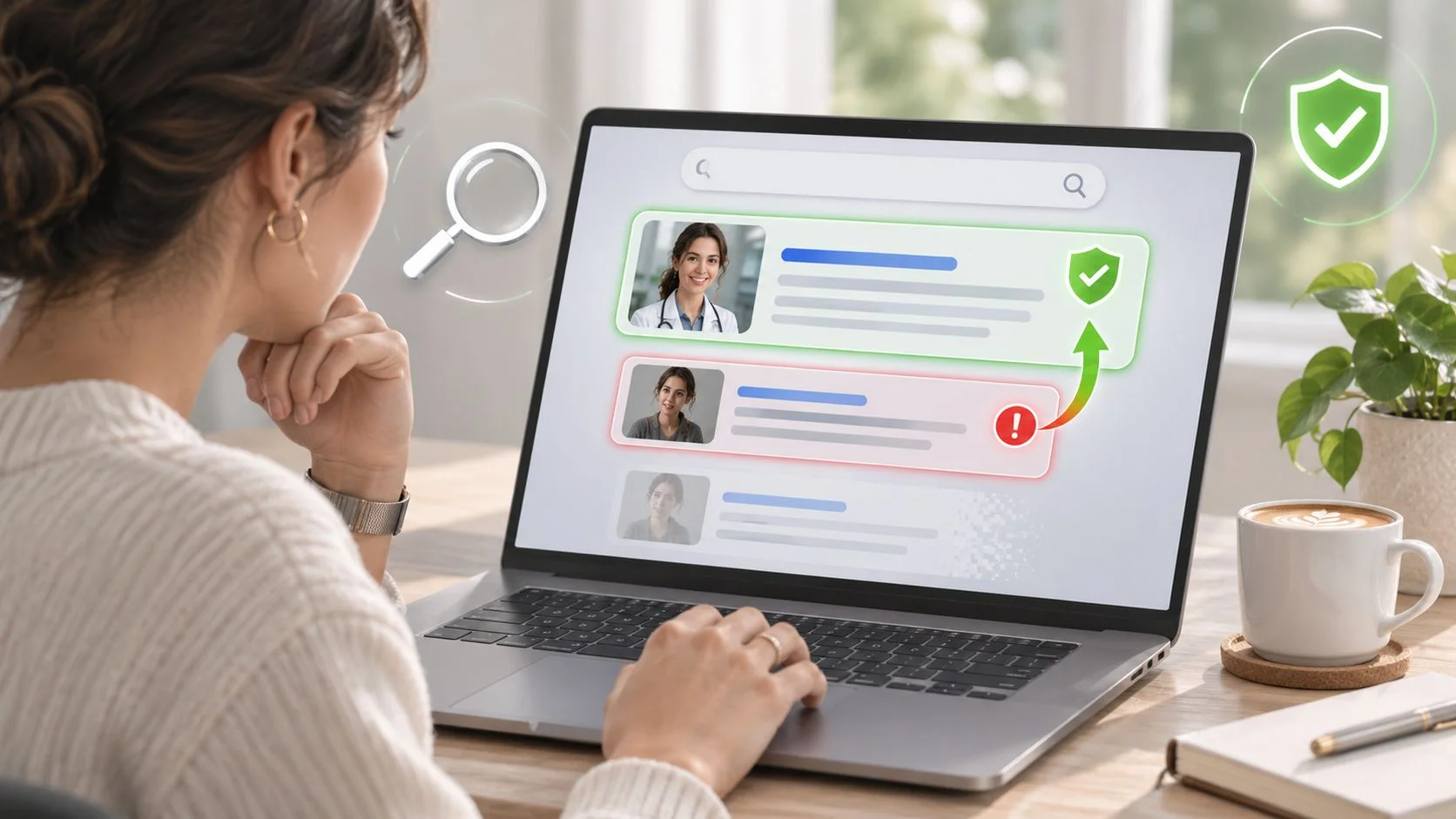
Could a Wi-Fi label reveal where you live or work? The split view below shows how an ordinary network list can indirectly describe the homes and offices nearby.
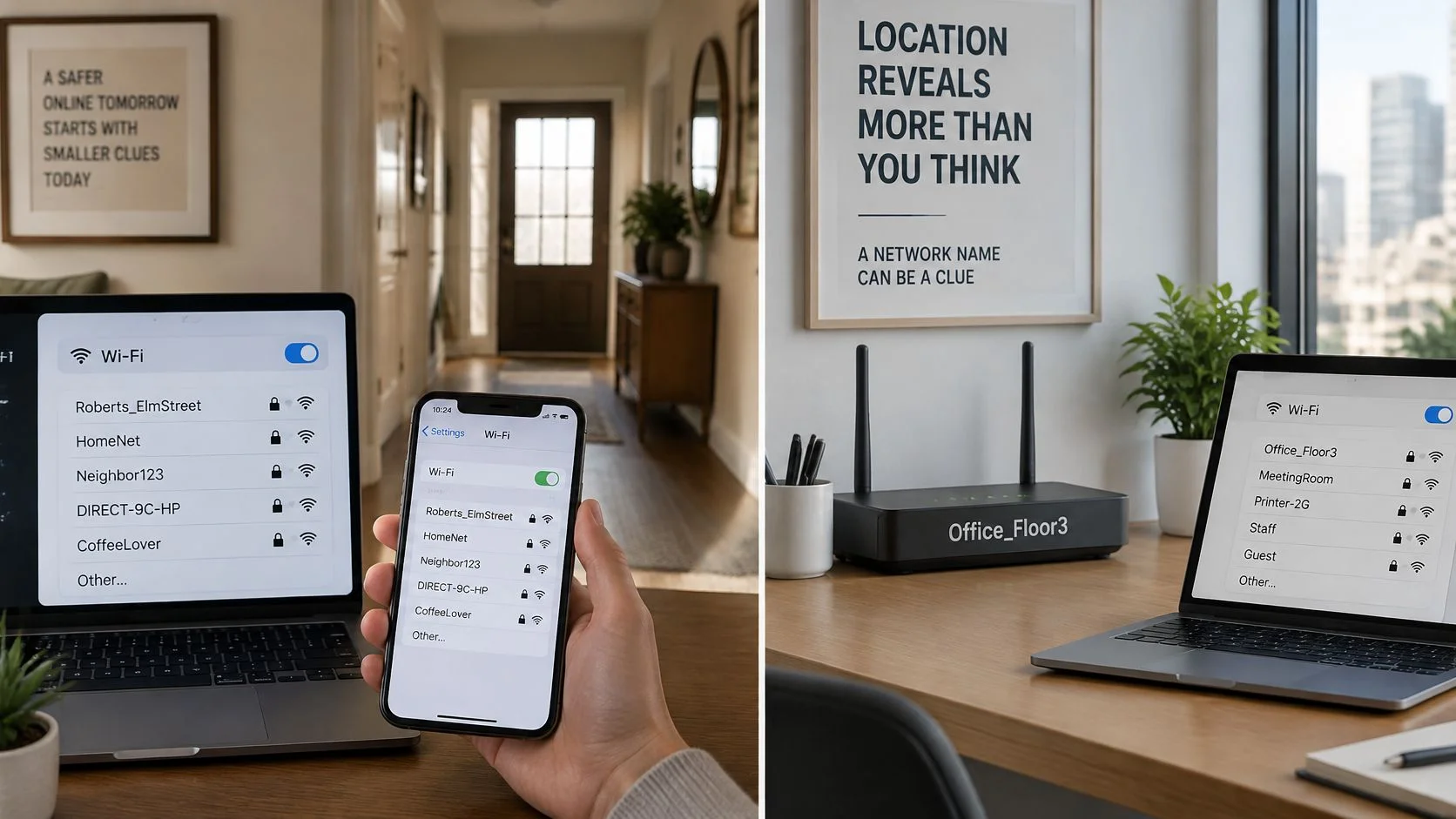
A home network named with a surname and street, or an office network named for a company and floor, shares clues with anyone nearby. They need no password to read the name. Encryption protects the data you send over the network, but the SSID, the Wi-Fi network name, is broadcast so devices can find it. It works like a sign above a door: encryption can protect what happens inside, but it does not conceal the sign.
How a Label Becomes a Fingerprint
An SSID can become a privacy identifier when it is considered alongside other networks a device encounters. A handful of observed Wi-Fi networks may be enough to single out a person, because the combination of home, workplace, gym, and a relative's network can be distinctive.
Phones scanning for saved networks, hotspot logs, apps with location permissions, and connected devices can add clues to a movement pattern. The privacy question is broader than Wi-Fi alone. For example, understanding whether your internet provider can see your history helps distinguish what an internet provider may observe from what nearby devices can learn from a broadcast network name.
Everyday labels can reveal more than intended. Surnames, apartment or room numbers, employers, schools, and distinctive small-business names may connect a network to a household or organization. A home SSID that matches a personal username may also help link a location to public profiles. In the same way, a visible network name can offer a small clue when someone is checking whether a claimed location fits a story. One clue may not prove anything, but identifiers become more revealing when combined.
The short video below shows how visible these signals can be in everyday settings.
Hiding an SSID does not remove every identifying signal. An access point may still respond to connection requests, and a device searching for a saved network can announce the name it is looking for. The apparent privacy comes at a cost: instead of a visible label, your own devices may broadcast the network name as they search.
Choosing a Network Name That Protects Privacy
A good network name threads a needle. It should be unique enough that your devices and guests don't accidentally join a neighbor's similarly named network, yet generic enough that it discloses nothing about identity, address, employer, or household. A neutral word pairing you'll recognize, like a color plus an object, does the job without describing you.
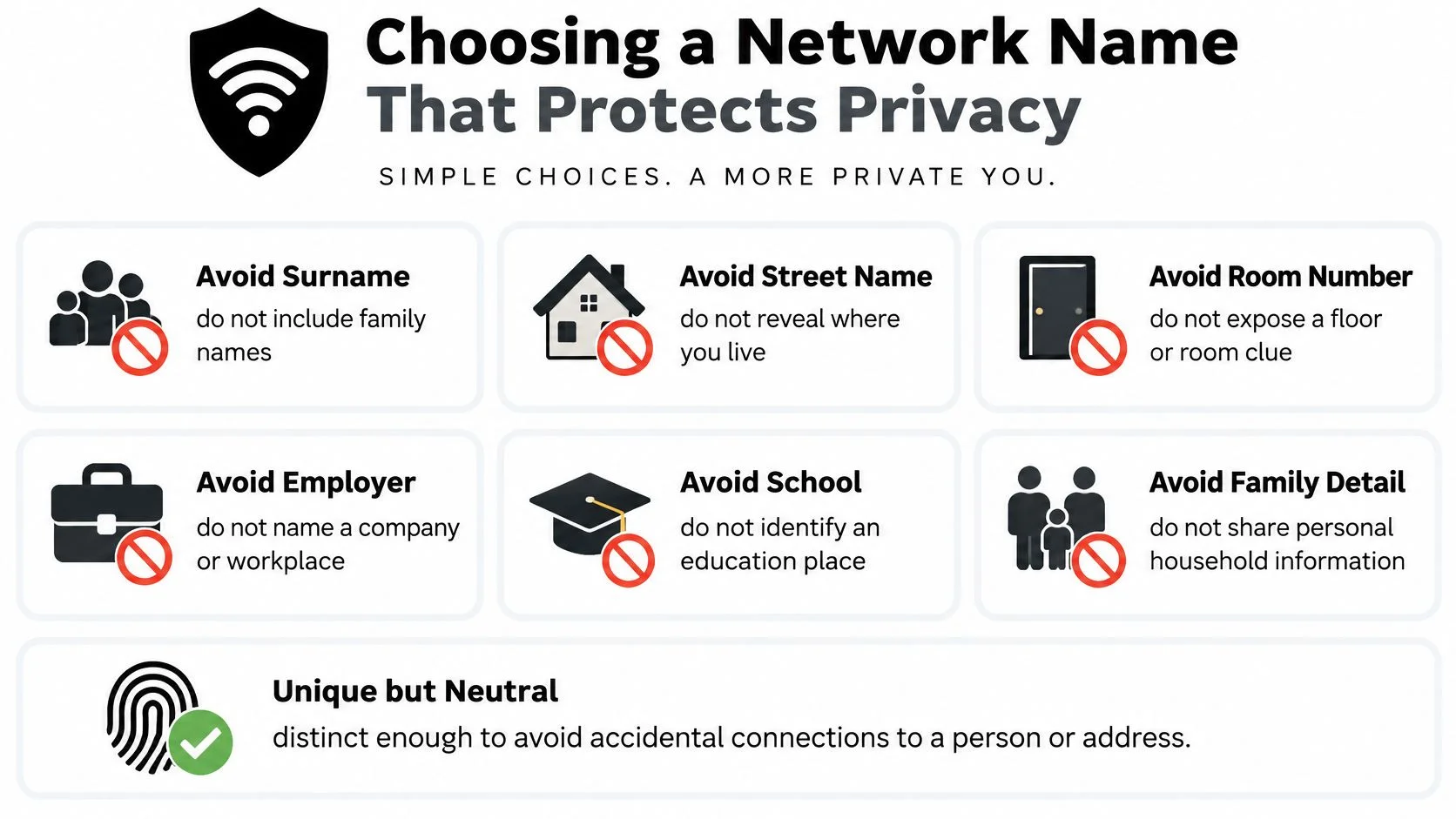
Run any candidate name against this checklist before you save it.
- No surname: Family names connect the signal to a household.
- No street or building clue: Street names, apartment numbers, and room numbers narrow your location to a door.
- No employer or school: Workplace and campus names reveal routines and affiliations.
- No family detail: Children's names, pet names paired with other clues, and birthdays all feed social engineering.
- No default brand string: A factory name can reveal the provider or a recognizable organization.
That last point matters more than people think. As Huawei's SSID encyclopedia entry describes, an SSID can identify one wireless network or a group of coordinated networks, while the BSSID identifies an individual access point. SSIDs are treated as potentially sensitive because Wi-Fi signals can support detailed movement and behavior profiles.
The Trade-Off Worth Stating Plainly
A memorable or branded SSID is easier to use. Guests find it fast, and staff at a café can point customers to it. But memorability increases discoverability and social-engineering risk. A name resembling a known store, airline, or gaming handle invites trust, and scammers exploit exactly that reflex with look-alike hotspots aimed at harvesting logins, the same trust trick behind catfishing and romance scams.
Separate your networks to limit exposure. Put visitors and smart devices, cameras, plugs, game consoles, on a guest network with its own neutral name, and keep your primary network's name for your own devices. For remote work on networks you don't control, a properly set up iPhone VPN configuration adds protection the name can't.
Renaming never changes security. WPA2 or WPA3 with a strong, unique password controls access. Matching or different names across the two bands is a usability choice about how devices roam, not a security one. And in public, treat a venue-style name with no staff nearby to confirm it as a red flag, however polished it looks.
Check and Rename Your Network Name Today
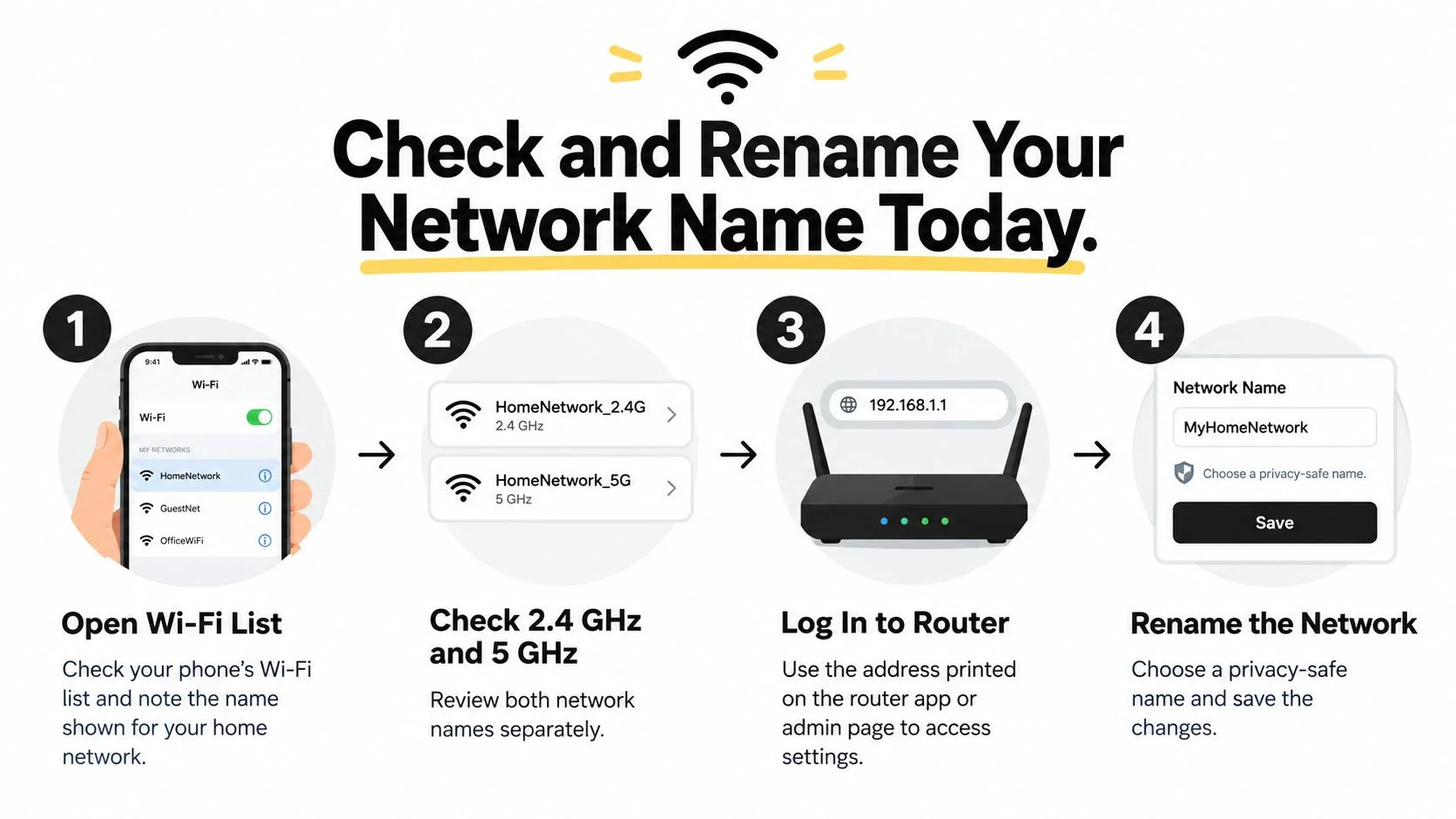
Work through these steps in order. The whole job usually takes one sitting, and most of it is reconnecting gadgets.
- Open the Wi-Fi list: Note the name your home network shows, then check whether the 2.4 GHz and 5 GHz bands use the same name or two different ones.
- Log into the router: Use the app or the admin address printed on the router label. Read the current SSID alongside the security mode.
- Judge the name: Apply the checklist from the previous section. If the name contains a surname, street, room number, employer, or school, it goes.
- Rename and save: Enter the new neutral name and keep the security mode at WPA2 or WPA3. Don't change the password in the same step unless you need to, since changing one thing at a time makes reconnect problems easier to diagnose.
- Reconnect everything: Rejoin each saved device, including TVs, printers, speakers, and laptops. If one refuses, the troubleshooting steps earlier cover the usual causes.
- Confirm the password: Check that it's strong and unique to this network. The password, not the name, controls access, and a reused password puts gaming accounts and email at risk too.
One connection is easy to miss. If your old network name reuses a username you use online, that handle may already link to public profiles. Our free username search looks for public profiles associated with a username, so you can see whether your router was advertising a handle tied to your identity. A broader digital privacy check shows what else is public alongside it, from exposed emails to old accounts that could affect job applications or personal safety. Run the free checker at www.digitalfootprintcheck.com/free-checker and review what strangers can already piece together.
Your network name is only one visible thread in a much larger public trail of usernames, profiles, and exposed details. At Digital Footprint Check, you can search for the public profiles and personal information connected to you across the web and see what a scammer, employer, or curious stranger could find. Visit today, run a check on your own details, and close the gaps before someone else uses them.