
· Digital Footprint Check · Content Marketing · 12 min read
How to Find My Contacts on Facebook Safely
Learn how to find my contacts on Facebook on desktop and mobile, upload phone contacts safely, and stop Facebook from keeping your address book.
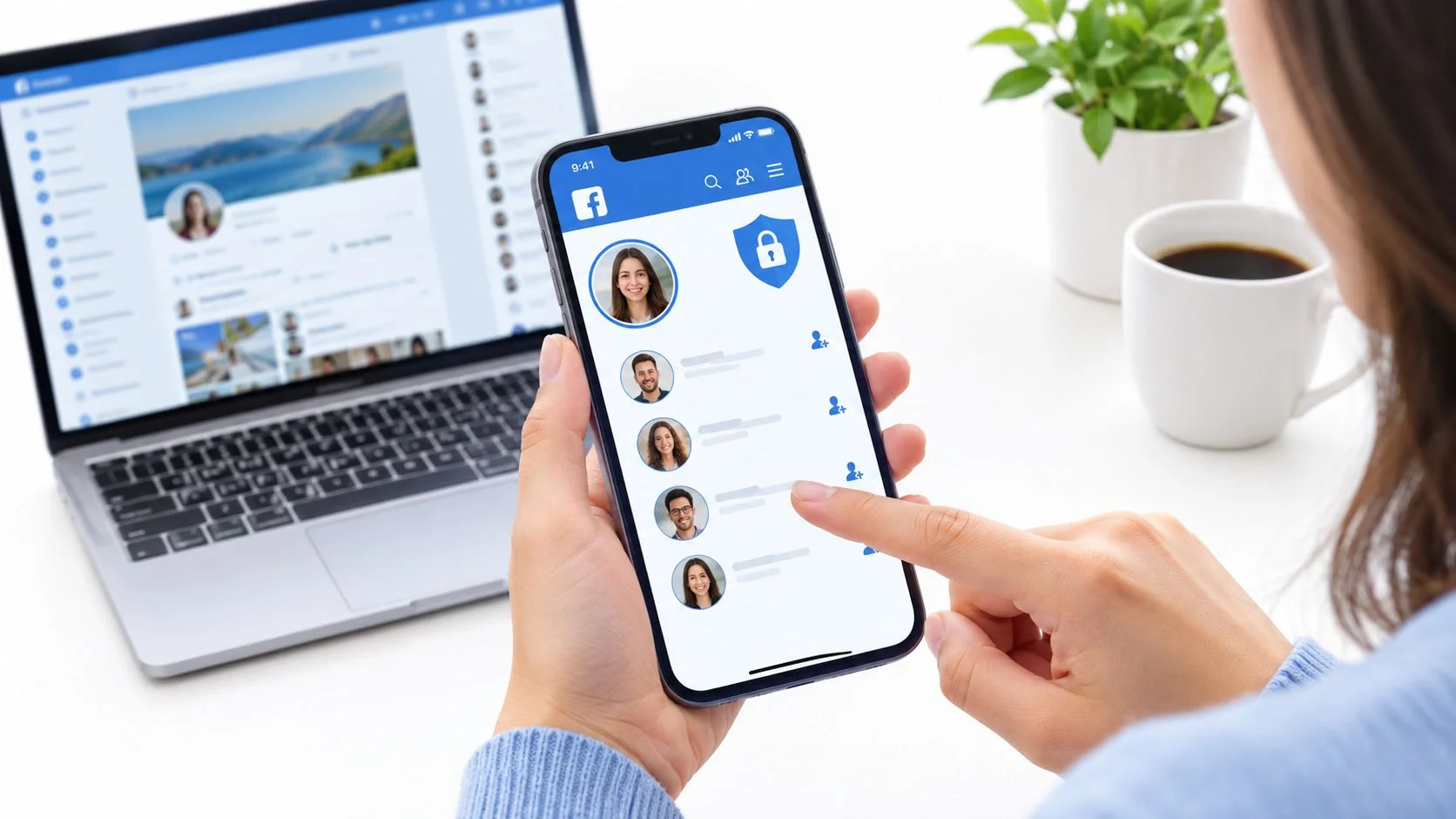
You've saved an old classmate's number, opened Facebook, and found several profiles with the same name. Or you've switched phones and want to reconnect with relatives without handing over your entire address book. Finding the right person should be straightforward, but search results, suggestions, and contact uploads don't work the same way.
If you're wondering how to find my contacts on Facebook, start with the least intrusive method that fits the job. Search by name when you can, upload selectively when necessary, and treat removing uploaded data as a separate task from switching sync off.
Choose the Right Discovery Method First
Facebook contact discovery methods compared
| Method | What It Needs | Best For | Main Limit |
|---|---|---|---|
| Name search | Full name, optional city or school | Distinctive names you know well | Common names return many results; privacy settings may hide Add Friend |
| Phone or email upload | Current saved number or email, device permission | Old classmates and relatives saved by number | Depends on current identifiers and discoverability |
| People You May Know | Shared friends, school or workplace | Reconnecting after years apart | Suggestions, not a searchable directory |
| Mutual-friend browsing | A mutual's visible friend list | Confirming a half-remembered identity | Fails when the list is hidden |
| Friends list export | Download of your information from Accounts Center | Recording existing connections | Doesn't discover new people |
| Messenger contact sync | Messenger sync enabled | Finding people you already chat with | Controlled separately from Facebook |
Choose by what you know. Name search is a poor starting point for someone saved only as “Plumber,” while uploading contacts is unnecessary when you know a distinctive full name and workplace. Suggestions aren't the right tool when you need an answer about a particular person.
Mutual-friend browsing is useful only when the list is visible. An export won't recover someone you never added, and Messenger sync shouldn't be enabled just because Facebook search disappointed you. For public-profile alternatives, consider these social media search approaches.
Test matching rather than assuming it works
Contact uploading is probabilistic, not a complete directory lookup. Current identifiers, account settings, and contact quality affect whether a match appears.
For a consented test, label 20–50 known contacts, upload only those records, and calculate precision as correct matches divided by all returned matches, and recall as correct matches found divided by eligible Facebook accounts in your labeled set. Facebook publishes no universal match-rate benchmark, so record both results for your own test rather than trusting someone else's success percentage, following the limitations described in Facebook's contact-uploading guidance.
Practical rule: A suggestion is a lead to investigate, not confirmation that you've found the person.
Search for a Friend by Name on Desktop and Mobile
Finding someone by name doesn't require an address-book upload. Start there when you remember who they are, even if you haven't spoken recently.
Search on desktop
- Sign in at Facebook. Click the search bar at the top.
- Type the person's full name as they use it on Facebook, then press Enter.
- Choose People to separate personal profiles from other results.
- Apply available filters for city, workplace, school, or mutual connections. Filter labels and availability can vary, so use whichever relevant options your interface offers.
Don't add every detail immediately. Someone who moved away may still list an old city, and an employer filter can exclude a person who changed jobs. Start with the name, then introduce the strongest detail you know.
The example below illustrates why comparing profiles matters before selecting a result.

Search in the mobile app
- Open Facebook and tap the magnifying glass.
- Enter the name and select the People tab.
- Tap Filters, where available, and narrow the results using the same identifying details.
For example, searching Maria Lopez alone may leave you comparing many profiles. Adding the school you attended together gives you a more useful starting point than guessing from a small profile photo.
If results remain ambiguous, keep a short checklist of what you actually remember. These OSINT tools and techniques can help organize public-information checks without turning a simple reconnection into intrusive research.
Verify before sending a request
Compare the profile photo with your memory, then look for a shared school, employer, or recognizable mutual friend. A name plus a distinctive detail is more useful than a name alone, a practical lesson reflected in Nielsen's account of Facebook's expanding social network.
A missing Add Friend button doesn't prove the account is inactive or nonexistent. The person may restrict who can send requests. Don't compensate by messaging several similar profiles with personal details about your shared past.
Finally, try former surnames, maiden names, familiar nicknames, and the school name used when you knew them. People's identities and profile details change; your memory may be accurate but out of date.
How to Upload Phone Contacts Safely
Use contact uploading when you have a saved number or email but name search hasn't helped. It's a matching process, not a command that reveals every Facebook account belonging to your contacts.
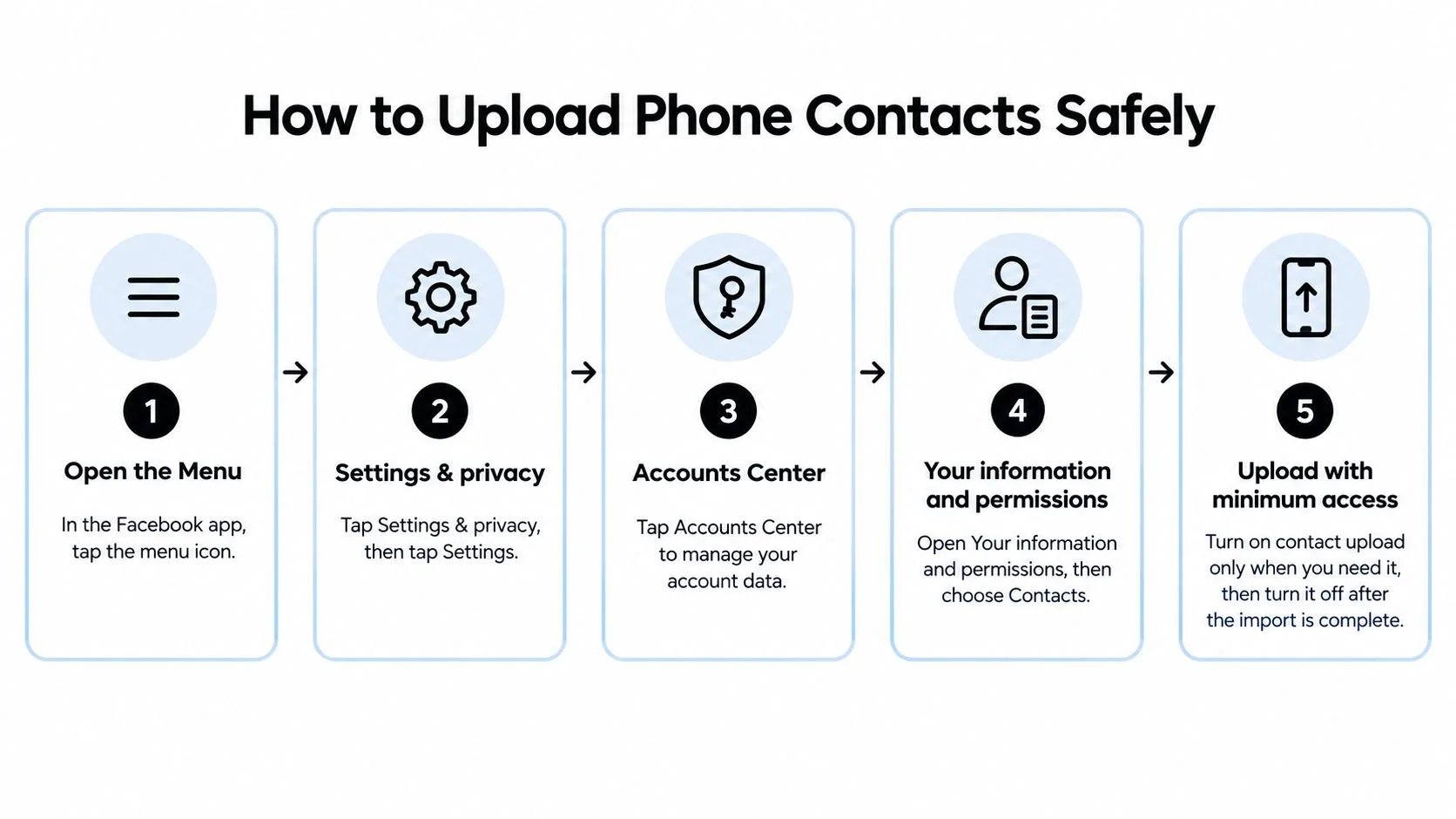
This visual summarizes the menu route. In the app, look for Upload contacts within the information-and-permissions controls.
Give Facebook only the access you need
- In the Facebook app, open the menu, then choose Settings & privacy → Settings.
- Open Accounts Center → Your information and permissions → Upload contacts.
- Select the Facebook account that should receive the uploaded information. Check carefully if you manage several accounts.
Pause before granting permission. Your address book contains other people's information, not just yours. It may include a coworker's private mobile number, a client's email, or a relative who doesn't want their details shared. Upload only contacts you have a legitimate reason to find, and don't include unrelated third-party records without consent.
- Grant address-book access. Depending on your device and permissions, you may be offered the entire address book or selected contacts. Choose selected contacts when available.
- Test a known contact first. Check whether their number includes the country code in international format, and record which number or email you're testing.
- Review any suggestions or invitations. Uploading doesn't automatically add anyone as a friend, and matching may involve identifiers associated with Facebook, Messenger, or Instagram accounts.
- If nothing appears, check spelling, country code, and alternate email addresses. The person may use different credentials, have deactivated their account, or restrict lookup.
These steps follow Facebook's guidance for finding friends through contacts. Don't assume that accepting a permission prompt guarantees a result, or that granting broader access will solve a failed match.
Keep the upload narrowly scoped
Suppose you're trying to reconnect with a cousin whose saved number predates a move abroad. Correcting the country code is a sensible troubleshooting step; uploading your work address book isn't. If the current identifier still doesn't match, ask through an existing trusted channel.
For a menu walkthrough alongside the written steps, use the video below.
Review app permission management if you're unsure what access you granted. Permission should match the task, not whatever the app requests by default.
A one-time search doesn't need to become an ongoing upload arrangement.
When you've finished, use the cleanup controls below. Leaving the process running isn't necessary just because you wanted to find a relative today.
How to Export Your Friends List and Reuse It
Facebook doesn't offer a friends-file import that recreates connections. An export is a record of existing friendships, not a way to add everyone to another account or turn names into phone contacts.
It can still be useful when you're reviewing an old account, checking whom you've already connected with, or keeping a private reference before changing how you use Facebook.
Download a readable copy
- Open Accounts Center → Your information and permissions.
- Choose Download your information, then Request a download, or the equivalent download option displayed.
- Select Some of your information and tick Friends, or the connections category Meta presents.
- Choose HTML for straightforward reading or JSON for structured processing. Select the date range and submit the request.
- Wait for the notification, then download and extract the archive.
- Open the HTML file to review the available names and friendship dates.
JSON isn't automatically a spreadsheet. Choose it only if you're comfortable importing or transforming structured data; HTML is the simpler option for checking names manually.
Reuse the record without exposing it
To add someone to your phone, copy their details manually only when you already have those details legitimately. A friendship record shouldn't be treated as a directory of private numbers or email addresses.
The phone-upload process matches identifiers, not a file containing names alone. If your export reminds you of a former colleague, use their name for a fresh search or ask a mutual acquaintance for an introduction.
Storage warning: Keep the archive private, avoid shared work folders, and delete it when you're finished.
Friendship dates and names can reveal relationships you wouldn't otherwise publish together. Don't upload the archive to an unfamiliar conversion service merely to make it easier to read.
Remove Uploaded Contacts and Lock Down Discovery
Turn off future uploads and delete contacts already stored by Facebook. These are separate tasks. Revoking phone permission only blocks further address-book access from that device; it does not remove an earlier upload. Meta's contact-uploading guidance also notes that Messenger has separate contact-upload controls.
Disable uploads and delete stored contacts
In Facebook, open Settings & privacy → Settings → Accounts Center → Your information and permissions → Upload contacts. Select the Facebook profile, then turn off continuous contact uploading. Menu labels may vary by app version. Return to Your information and permissions, choose Manage contacts or the contact-management option shown, and select Delete all contacts. Confirm the deletion, then revisit the contact-management screen to check that the uploaded contacts no longer appear.
In Messenger, tap your profile picture or menu, open Settings → Phone contacts → Upload contacts, and turn off contact uploading. If your version shows separate call-and-SMS upload controls, review and disable those too. Messenger's switch is separate, so turning off Facebook uploads alone may leave Messenger syncing contacts.
| Control | Where to Find It | What It Stops |
|---|---|---|
| Device contact permission | Phone settings for Facebook and Messenger | Further address-book access from that device |
| Continuous Facebook uploading | Accounts Center, Your information and permissions → Upload contacts | Automatic re-sends when contacts change |
| Previously uploaded contacts | Accounts Center, Your information and permissions → Manage contacts | Retention of uploaded copies after deletion completes |
| Messenger contact and call-and-SMS sync | Messenger Settings → Phone contacts | Uploads controlled separately from Facebook |
| Phone and email lookup visibility | Facebook privacy settings for contact details | Identifier-based discovery where supported |
Check every phone and tablet you use, and review each app on signed-in devices. Revoke operating-system contact permission for both apps if they no longer need address-book access. A replacement phone is a good time to repeat the checks, since settings may not carry over after installation, account setup, or backup restoration.
- Review periodically. A quarterly reminder is a practical habit, not a guarantee that settings will stay unchanged.
- Audit discoverability. Check phone and email lookup controls, and review how to set Facebook to private.
- Test cautiously. Ask someone you trust to check what they can find. An unsuccessful lookup does not prove that nobody can find you through another account or identifier.
Your address book contains other people's names, numbers, and email addresses. Contact uploads expose those details to Facebook, so keep syncing on only if its suggestions are worth that ongoing access.
Verify a Contact's Identity Before Trusting Them
Start with the profile photo. Run a reverse-image search using Google Lens or TinEye and inspect the surrounding pages, not just the thumbnails. A face appearing under several unrelated names is a warning sign, while no results only means you haven't found a contradiction.
The FBI's romance-scam guidance recommends researching a person's photo and profile and warns that criminals use public social-media details to build trust. A convincing connection story can come from information you've already published.
Signals that a related account is genuine
| Check | Strong Signal | Weak Signal |
|---|---|---|
| Profile photo reverse search | Consistent name and photographic history across years | Same photo under unrelated names, or a stock image |
| Username reuse | Same handle with consistent photos and posts over time | Common handle shared by unrelated people |
| Employer and school match | Consistent history across LinkedIn, alumni pages, and bios | Details appearing only on a new profile |
| Account age and mutual friends | Established activity with recognizable overlapping friends | Recent account with generic-looking connections |
These are comparison signals, not an identity score. A longstanding account can still be misused, and a genuine person may keep very little public information.
Compare the story across public accounts
Search the username on Instagram, LinkedIn, and X. Treat common handles as weak evidence, and compare employer, city, school, and dates across independent public accounts or an alumni page. Don't count identical copied biographies as independent confirmation.
Check visible account history and ask a real mutual friend whether they know the person. Use these checks for dating-app verification and unfamiliar gaming contacts too, particularly before linking a private profile to a public gaming identity.
The checklist below gives you a compact reference before sharing anything sensitive.
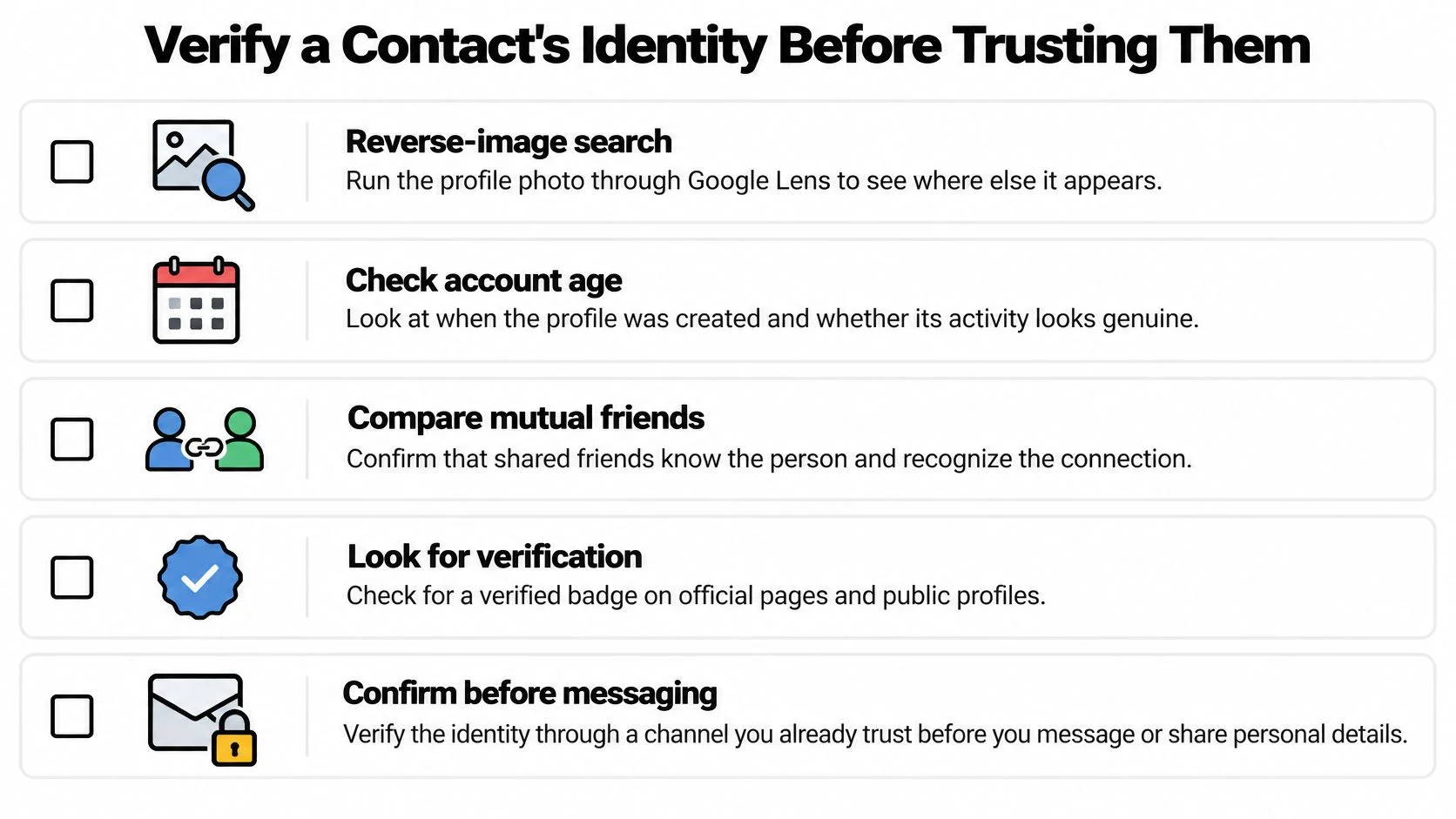
A verification badge alone shouldn't settle the question. Compare the account's identity claims with information you can independently confirm, using these checks for fake profiles on Facebook.
You can also try the free public-profile checker alongside manual searches to look for consistent identifiers. Every returned account is a lead to verify, not proof of ownership.
Stop when the conversation becomes a financial request
The consequences aren't limited to awkward messages. The FBI reported more than 19,000 victims and approximately $735 million in confidence or romance-scam losses in 2022, illustrating the stakes of trusting an invented relationship (FBI romance-scam reporting).
Watch for repeated excuses to avoid a video call or meeting, secrecy, sudden investment advice, and pressure to move to WhatsApp before verification. Moving platforms alone isn't proof of fraud, but don't ignore it when combined with financial pressure. The FBI's cryptocurrency romance-scam warning advises against investing based solely on advice from someone met online.
Never send money to someone you've met only online or by phone. Requests for bank details, identity documents, account credentials, or intimate images are reasons to stop. If money has moved, report the account to Facebook and the fraud to the appropriate law-enforcement channel.
Use only public information, never pretexting or fake accounts, and keep conversations on-platform until identity is confirmed. Apply the same restraint to your own digital-footprint audit: review exposed details that could affect personal safety, identity theft risk, or professional reputation and job prospects.
Digital Footprint Check offers public-profile checking to help you review identifiers and accounts connected to your online presence. Visit Digital Footprint Check and use the free checker to investigate an unfamiliar Facebook connection or audit your own exposure, then verify each result before acting on it.