· Digital Footprint Check · Content Marketing · 15 min read
Previous Google Searches: How to View, Clear and Limit Them
Learn how Google saves your previous Google searches, where to view them, what clearing really removes, and how to limit future exposure.

How many copies of your Google search history exist right now, in places you've never opened?
Most advice on this subject stops at one screen. Open Google My Activity, click Delete, and the job is treated as finished. A search you typed years ago can sit as a dated entry in your account, as a line in Chrome on a laptop you no longer use, as a cached result on an old phone, and as a synced record pulled in from a tablet you handed to a family member. Clear one of those and the others stay exactly where they were.
This walkthrough keeps that fuller picture in view. It covers what Google saves, how to view your previous Google searches, which surfaces hold a copy, who can realistically see them, what each deletion control removes, and how to reduce what gets recorded in the first place. It's written for people who aren't security professionals and who would rather know the limits of a tool than trust a button labelled Delete.
What Google Saves When You Search
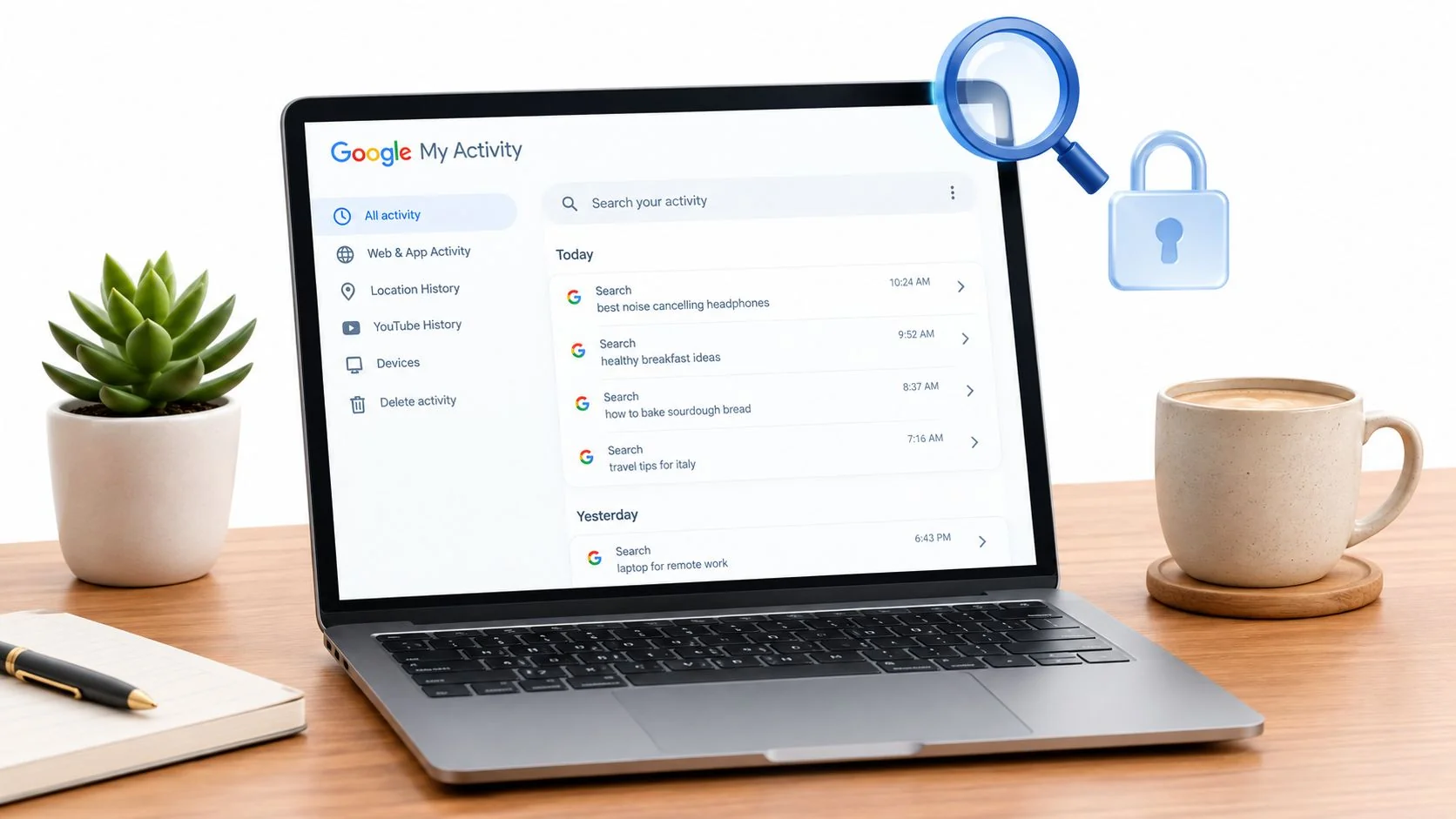
Picture a receipt. Every search you run while signed in can leave a dated entry, filed in a drawer you own: the query, the time, and often the device it came from. Nothing dramatic happens in the moment. The drawer just fills.
Three things keep it filling. The first is Web & App Activity, which saves searches and related activity from Google services whenever the setting is on. The second is optional: Chrome history plus activity from sites, apps and devices that use Google services can be folded into the same account-level record. The third is your signed-in account, which ties all of it together across phone, laptop and tablet, so a search you ran on a work laptop can appear in the same list as one you typed on your phone at midnight. Google's explanation of saved activity is blunt about this: your search history is not a single browser-only record, and deleting one copy doesn't necessarily remove the other.
Where the record really lives: a search is stored once, against your account, but it is shown to you through several surfaces, and each surface has its own delete control. Clearing one is not clearing all of them.
Why a single week of searching turns into a detailed timeline
Say you spent Tuesday evening comparing rental flats near a job you're interviewing for, Thursday morning checking whether a symptom needed a doctor, and Saturday hunting for a birthday gift for a sibling. Three unrelated moments in one ordinary week.
In My Activity they sit in a single column, in date order, side by side. The query text is revealing on its own. The sequence is more revealing still, because timing supplies context that no single search contains. A symptom search at two in the morning, four days after a job-search query, paints a picture neither entry would paint alone.
That record earns its keep. It makes autocomplete faster, it resurfaces a page you half remember, and it personalizes results. Those are real benefits, and they're why the setting exists.
Cookies form a separate but related layer of the same picture. Our walkthrough on how to delete tracking cookies covers the browser side of what gets stored about you.
Two questions follow from all of this, and the rest of this guide answers both. Where do you look? And what does deleting something remove?
How to View Your Previous Google Searches
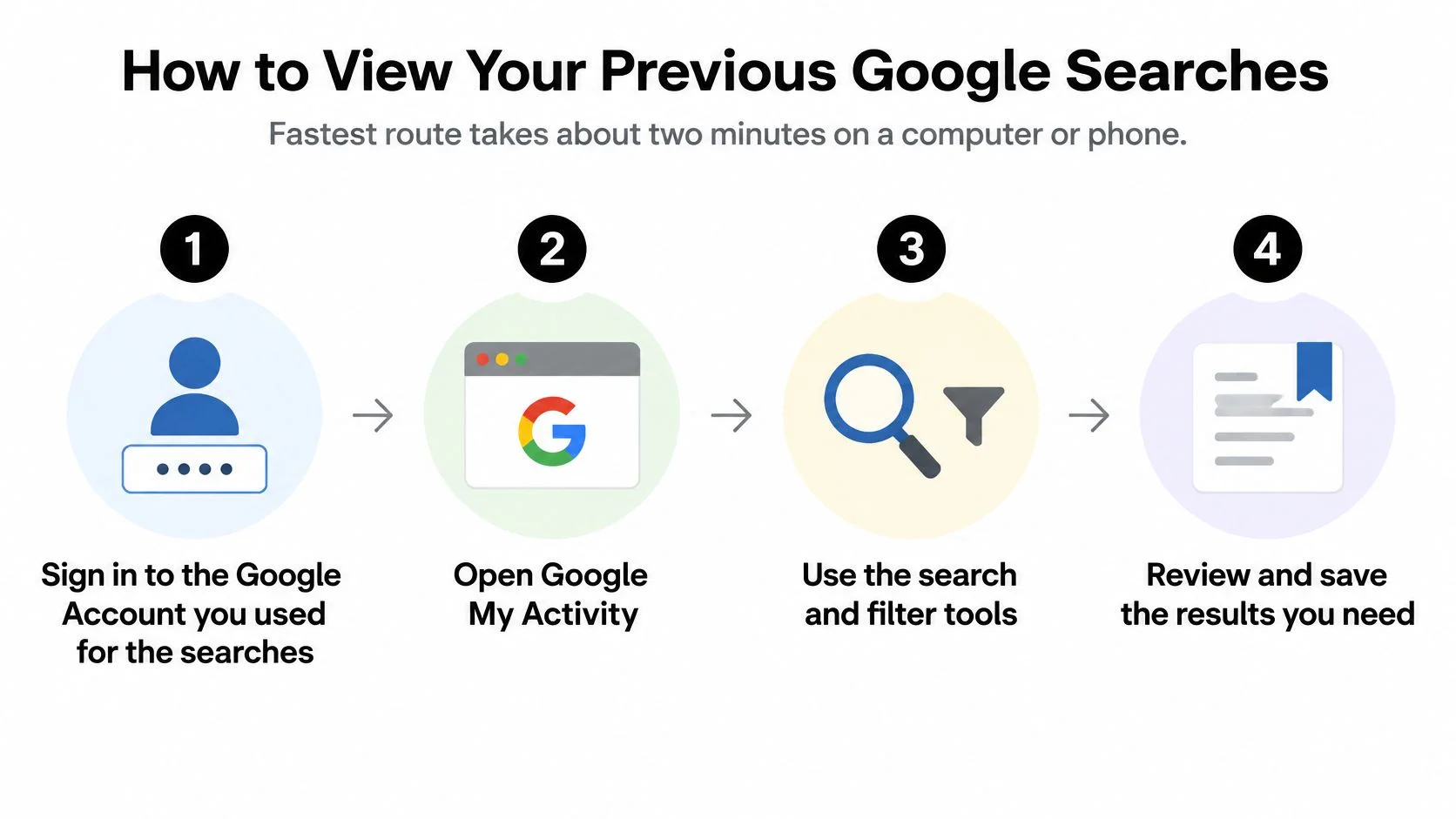
The fastest route takes about two minutes on a computer or a phone, and it needs no special tools.
The route, step by step
-
Sign in to the account you searched from. Use the Google Account that was active when you ran the queries, not a guest session and not a work profile you borrowed. Once signed in, look at the profile image in the top right corner; the photo or initial tells you which account you're currently in.
-
Open Google My Activity. Go to myactivity.google.com, or reach it through your Google Account settings under Data & privacy. You should land on a reverse-chronological feed of cards, with today at the top.
-
Filter the feed to Search. Open the filter panel and select the Search product. Entries from YouTube, Maps and Play drop out of view. What's left is your search record.
-
Scroll to the date, or set a range. Each entry shows the query, the time, and often a small device icon. If you know roughly when something happened, a date range is faster than scrolling.
-
Open an individual entry. You'll see its details, and often the results and pages you went on to visit from that query. A vague memory becomes a concrete list.
-
Check Chrome history separately. Open your browser's history page. Pages you clicked and URLs you typed directly live there, and some of them never reached the account.
Where readers get stuck
Two mistakes account for most of the confusion. Looking only in browser history misses searches made inside the Google app on a phone, because those never pass through a desktop browser. Looking only in My Activity misses local browser entries, especially on a device where you weren't signed in.
There's a third trap worth knowing. If activity saving was paused during a period, the list for that period will look empty. An empty list means nothing was saved, not that nothing happened.
A complete check has three marks against it: every signed-in device reviewed, the date range you care about covered, and a short written note of any gaps you still need to examine.
Where Else Your Search Record Lives
One check is never enough, because a search record has more than one home. Google's own documentation describes deletion of activity saved to your Google Account, and it says nothing about the other places a copy can sit. As Google's search history help page sets out, the account controls are granular, covering individual items, date ranges, all activity, and automatic deletion after 3, 18 or 36 months. Every one of those controls works on the account. None of them reaches your browser.
Places a search record can survive
| Surface | Where to check | What it holds | Cleared by My Activity deletion? |
|---|---|---|---|
| Google Account activity | Google My Activity | Searches saved to the signed-in account | Yes, for the items or date range you delete |
| Search Services History | My Activity filters | Search-related records listed separately | Only for the filter you have selected |
| Browser history | Chrome or another browser's history page | Pages and searches typed in that browser | No, clear it in the browser |
| Device-level records | Phone or computer settings and app data | Local artifacts such as cached results | No, account deletion does not remove them |
| Other signed-in devices | Google Account device list | Activity that syncs from each device | Yes where sync is on, check each device |
The coverage routine
Work through four moves and you'll have the map most guides skip.
- Confirm the account. Sign in and verify which account is active before you change anything.
- Check the filters. Open My Activity and look at Search specifically, not the mixed feed.
- Inspect each device. Browser history on the laptop, the phone, the tablet, and anything else you've used.
- Review synced devices. Your Google Account device list shows what's connected. Remove anything you don't recognise.
The distinction that matters most sits in the last two rows of that table. Deleting in My Activity removes saved account activity. It does not wipe local browser copies, and it does not reach a device that logged the same query under its own history.
Practical rule: do the coverage check before the purge. Google states that deleted search history cannot be recovered, so anything you may need to reference later should be noted first.
Incognito windows deserve a mention here because people treat them as a cleaning tool. They aren't one. They prevent new local history from being written during that session, and they do nothing to records already stored; our guide to Chrome incognito mode explains what the mode does and doesn't cover.
Here's a simple test. If you can't verify one of those five rows, write that down as an open item rather than assuming it's clear.
Who Can See Your Searches and When
Two ideas get tangled together in most answers to this question: a search being publicly findable, and a search being visible to someone with access. They're separate privacy categories with separate risks.
My Activity is a personal record organised by date and time. It is not a public lookup service. Knowing someone's name, email address or phone number tells you nothing about what they searched for.
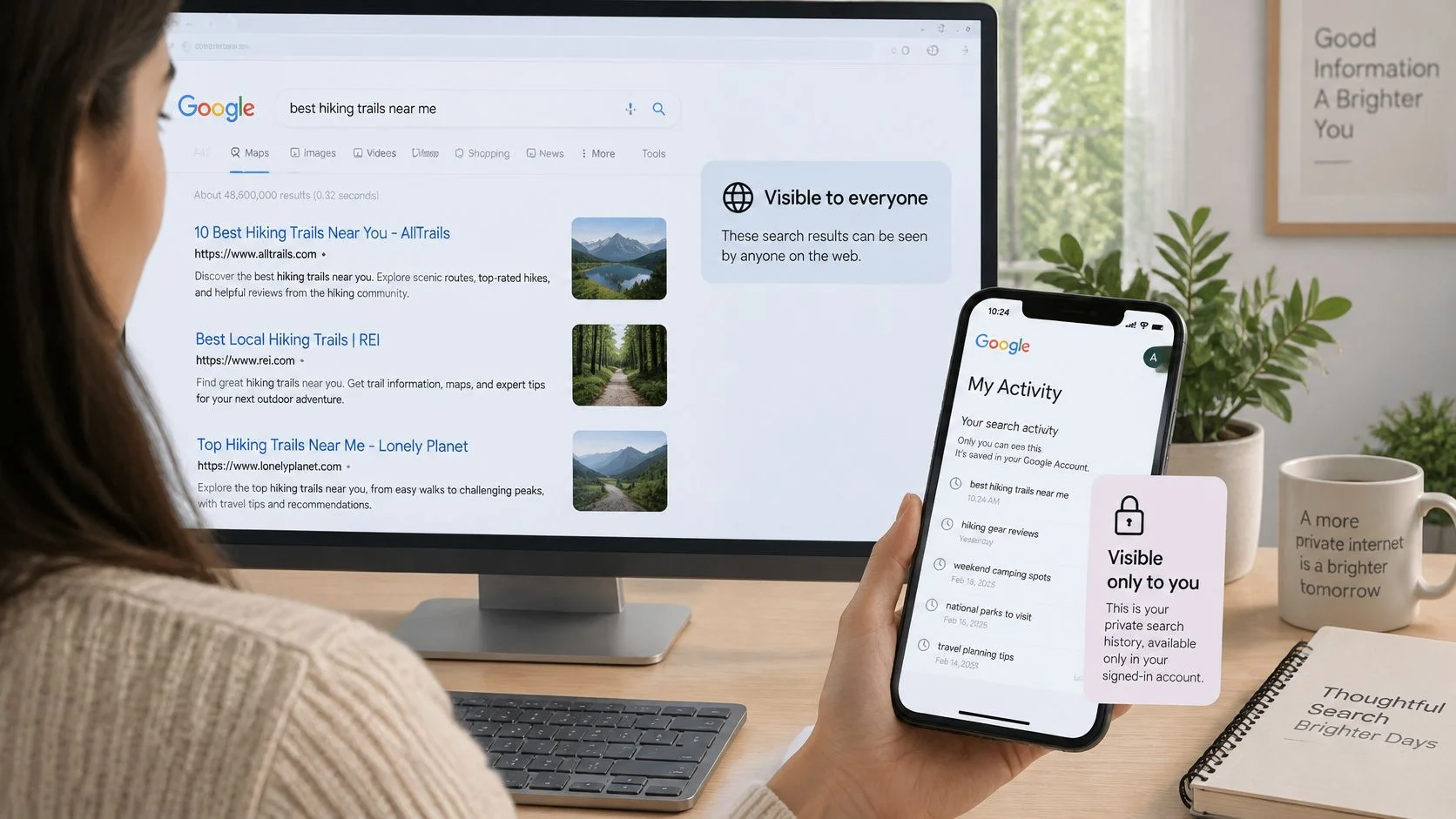
Who can view search history, by access situation
| Situation | Access needed | Can they see your searches? |
|---|---|---|
| Someone who knows your name, email or phone | Only the identifier | No, My Activity is not a public lookup |
| Employer or hiring manager | Your account or device; a background check is not enough | No, unless it is a company-managed account they administer |
| Partner using a shared browser or device | Unlocked device or synced browser profile | Yes, if history is saved there |
| Parent on a supervised account | Supervision set up on the account | Yes, within the supervision settings |
| Anyone holding your account password | Your login | Yes, all saved activity |
| Investigator without your consent | No permission or lawful basis | Not through Google's own tools; seek legal guidance |
What changes on a company-managed account
If your employer issued the account or administers it, the usual assumptions shift. An administrator can control settings, and the account itself belongs to the organisation. That's the scenario where a manager could plausibly see activity without touching your phone. It's also why the sensible habit is to keep personal searches in a personal account rather than mixing them.
Background checks run on their own rules, and those rules have limits. A hiring platform such as StoryCV publishes details on information collection that show what a recruiter can pull into a candidate file. Search history isn't on that list. A recruiter working from a screening report can't tell what you typed last Tuesday.
Google's My Activity overview makes the same point from the other direction: activity is organised for the account holder's own review, and saving can be turned off, deleted, or set to expire.
The network layer is worth a mention too, because it answers a different version of the same question. What your broadband provider can observe is a separate matter from what Google stores, and our explanation of whether your internet provider can see your history covers that side.
If someone else has access you didn't grant, act calmly and in order: sign out of shared devices, remove unknown devices from your account, change the password, turn on two-step verification, and talk to a trusted adviser or a domestic-safety service if the situation feels unsafe. Accessing another person's account without consent isn't something this guide supports, whatever the reason.
Clearing, Auto-Delete and Pausing Compared
If you change one setting today, change this one: set auto-delete to 3 months. It's the shortest window Google offers, and it keeps the drawer from becoming an archive.
Search history controls and what each one does
| Control | What it removes | What it leaves behind | Best for |
|---|---|---|---|
| Auto-delete after 3 months | Saved activity older than 3 months | Activity from the last 3 months | Privacy-first users |
| Auto-delete after 18 months | Saved activity older than 18 months | Activity from the last 18 months | A balance of history and privacy |
| Auto-delete after 36 months | Saved activity older than 36 months | Activity from the last 36 months | Keeping a long history |
| Delete individual items | The entries you select | Everything else in the account | One sensitive search |
| Delete a date range | All activity in the chosen dates | Activity outside the range | Clearing a specific period |
| Delete all activity | All saved activity in the account | Anonymized aggregate data and local device copies | A full account reset |
| Pause activity saving | New searches while paused | Existing entries until you delete them | A short sensitive session |
Deletion is not erasure
This is the caveat that most how-to content leaves out. Google's page on deleting search activity confirms that anonymized versions of deleted searches may be retained for functions such as aggregate search trends. Some device or network-related information follows separate retention behaviour as well.
What that means in practice: the row disappears from your view, and a de-identified trace can persist in aggregate data. That's a reasonable privacy outcome. It isn't the same as erasure, and you shouldn't expect it to be.
The order that works
- Open My Activity and select Delete.
- Choose the scope: an item, a date range, or all activity.
- Open Web & App Activity settings and set auto-delete to 3 months.
- Open your browser's history and clear the local copy separately.
- Recheck My Activity and record the date, the setting, and the data source you cleared.
That last step isn't paperwork for its own sake. When you're reconstructing what you did months later, a note with a timestamp and a covered date range is the only reliable evidence you'll have.
Nothing comes back. A cleared range is a permanent removal. Save a screenshot or a short note of anything you might need to reference, such as a confirmation number or a medical query you'll discuss with a doctor, before you clear it.
Steps to Limit Future Exposure
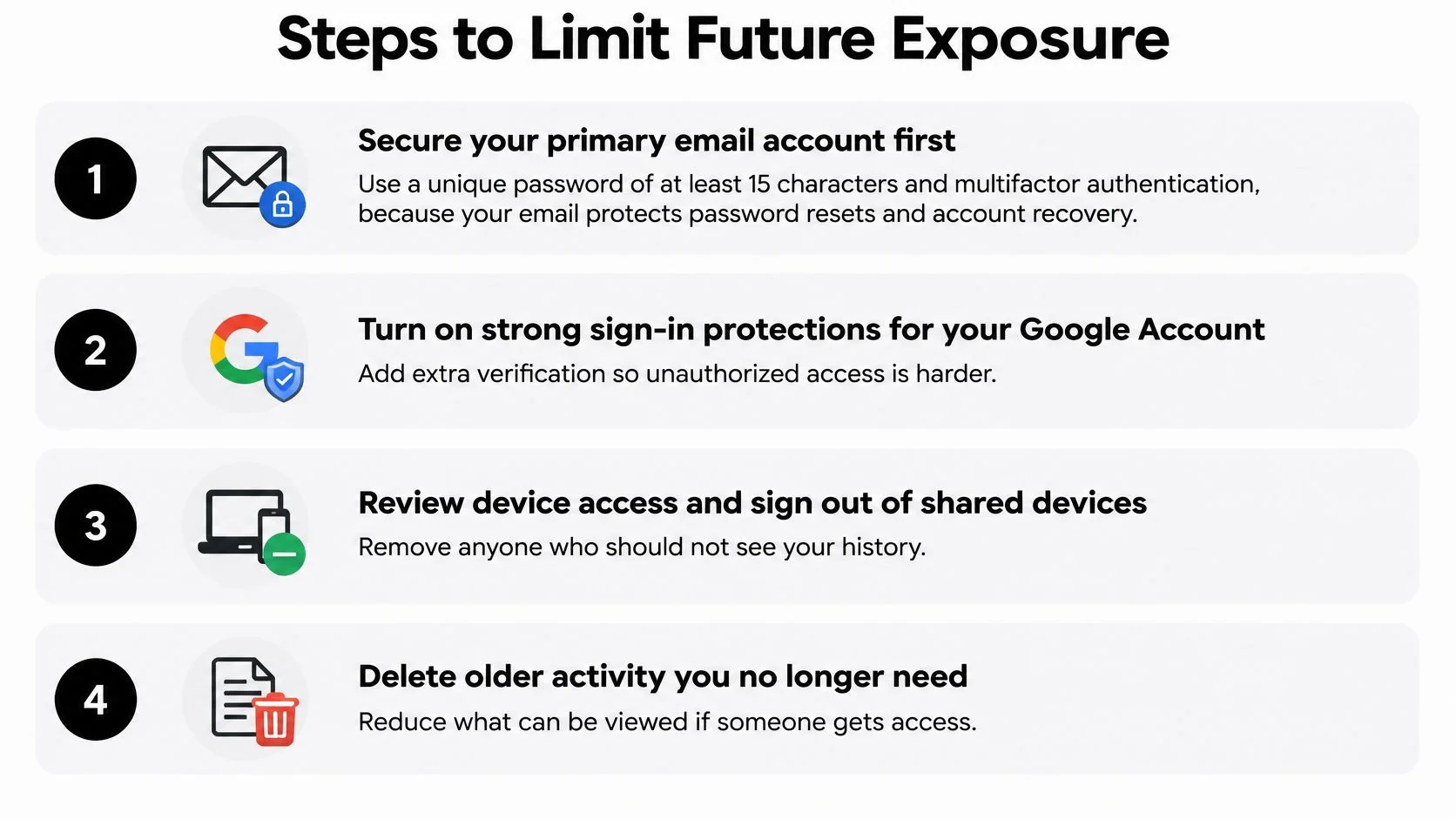
Clearing shrinks the archive you already have. These steps reduce what gets created in the first place and what can be used against you if an account is compromised. They're in priority order for a reason.
-
Secure your primary email account first. It usually controls password resets for everything else, so it's the single highest-value account you own. The NIST password guidance recommends a minimum length of 15 characters when a password is required, along with multifactor authentication, a password manager, and passkeys where they're offered.
-
Give every important account its own password. Gaming, dating, shopping, social and work accounts all deserve unique credentials generated by a password manager. Protect the manager itself with MFA, because it becomes the key to everything inside it.
-
Pick the stronger second factor. Multifactor authentication means a stolen password alone won't get someone in. NIST cautions that text-message codes are more vulnerable than other methods, so choose an authenticator app or a hardware security key when the service supports one.
-
Shorten the retention window and check both settings. Set auto-delete to the shortest option, then confirm what your browser is doing separately. Our guide to browser privacy settings walks through the local side.
-
Prune device access. Sign out of shared computers and remove old or unknown devices from your Google Account. A forgotten tablet on a shelf is still a signed-in device.
-
Audit what's public about you, not just what's saved. Usernames, birth dates, workplace, city and travel clues get combined with leaked details to make a convincing approach. The stakes are financial: the FBI's Internet Crime Complaint Center logged 859,532 complaints and $16.6 billion in reported losses in 2024, a 33 percent increase on 2023, according to its 2024 Internet Crime Report. If you're job hunting, the activity attached to your name matters for a second reason, and discreet job hunting for tech professionals covers how to research and apply without your current employer watching.
-
Never share codes, payment details or identity documents with someone you've only met online. Verify identity through a channel you chose yourself, not one supplied in the message. The Federal Trade Commission's 2024 Consumer Sentinel data recorded 845,806 imposter-scam reports, with 22 percent including a reported dollar loss totalling $2.95 billion. Romance fraud is the sharpest edge of it: the FTC logged 64,003 romance-scam reports in 2023 with $1.14 billion in reported losses and a median loss of $2,000 per victim, the highest median among imposter categories it tracks, per its 2024 romance scam analysis.
Check Your Public Footprint Next
Google's controls cover the Google record. They say nothing about the username you reused on a forum in 2016, the breach your email appeared in, or the profile you abandoned with your workplace listed.
That's a different question, and a public-footprint check answers it. We offer free tools for exactly this: a Profile Checker, Username Search, Data Breach Checker and Reverse Email Search. Your first search is free, with no credit card required.
Be clear-eyed about the limits. Results depend on what you enter and which sources are available, and no search can guarantee a complete picture.
- Run your details through the free checks. Your main email address and your most-used username first.
- Note what comes back. Breach exposures, public profiles, old accounts you'd forgotten.
- Change, close, then repeat. Update the affected passwords, tighten or close stale profiles, and run the check again to see what changed.
If you'd like a broader method for this, our guide on how to check your digital footprint sets out the full routine.
One action for this week: run the free check on your main email address and username, and compare what you find against the coverage routine above.
Digital Footprint Check searches more than 500 sources to show what's publicly visible about you, from social profiles and gaming accounts to breach exposures and forum activity, and we never store or sell your search queries. Google's own controls only reach the account record, so a scan is the practical next step after you've mapped and cleared what Google holds. Start at Digital Footprint Check with your first search free and no credit card required.