· Digital Footprint Check · Content Marketing · 13 min read
Google Delete Search History: the Ultimate Guide for 2026
Learn how to google delete search history on any device, enable auto-delete, and clear residual traces in 2026.

You’ve just searched for a medical symptom, researched a surprise gift, or looked up salary information before a job interview. You delete the visible query from your browser and assume the problem is solved. Then an old suggestion appears on another device, a related result remains personalized, or someone using your computer sees a familiar autocomplete entry.
That’s why Google delete search history isn’t a single-button privacy solution. Your activity can exist in your Google Account, on the browser or app you used, and in traces outside Google that deletion can’t control. The right approach is layered: remove saved account activity, control future retention, clear local data, and audit what remains publicly visible.
Why Deleting Google Search History Is Harder Than It Sounds
A job seeker may research a former employer, compensation, or a private career change on a shared laptop. Someone shopping for a gift may repeatedly search for the same product, then hand a phone to a partner. A person researching a health concern may delete the visible query and still see it return in suggestions or activity records.
The browser’s Delete button handles only the local browser layer. Google account activity requires separate controls in My Activity and Google Account privacy settings. Those controls can remove an individual search, a day, a custom date range, or stored activity across the selected account activity, as described in Google’s Android Search history guidance. Turning off Web & App Activity and setting auto-delete address future retention, but neither option replaces a targeted cleanup of existing records.
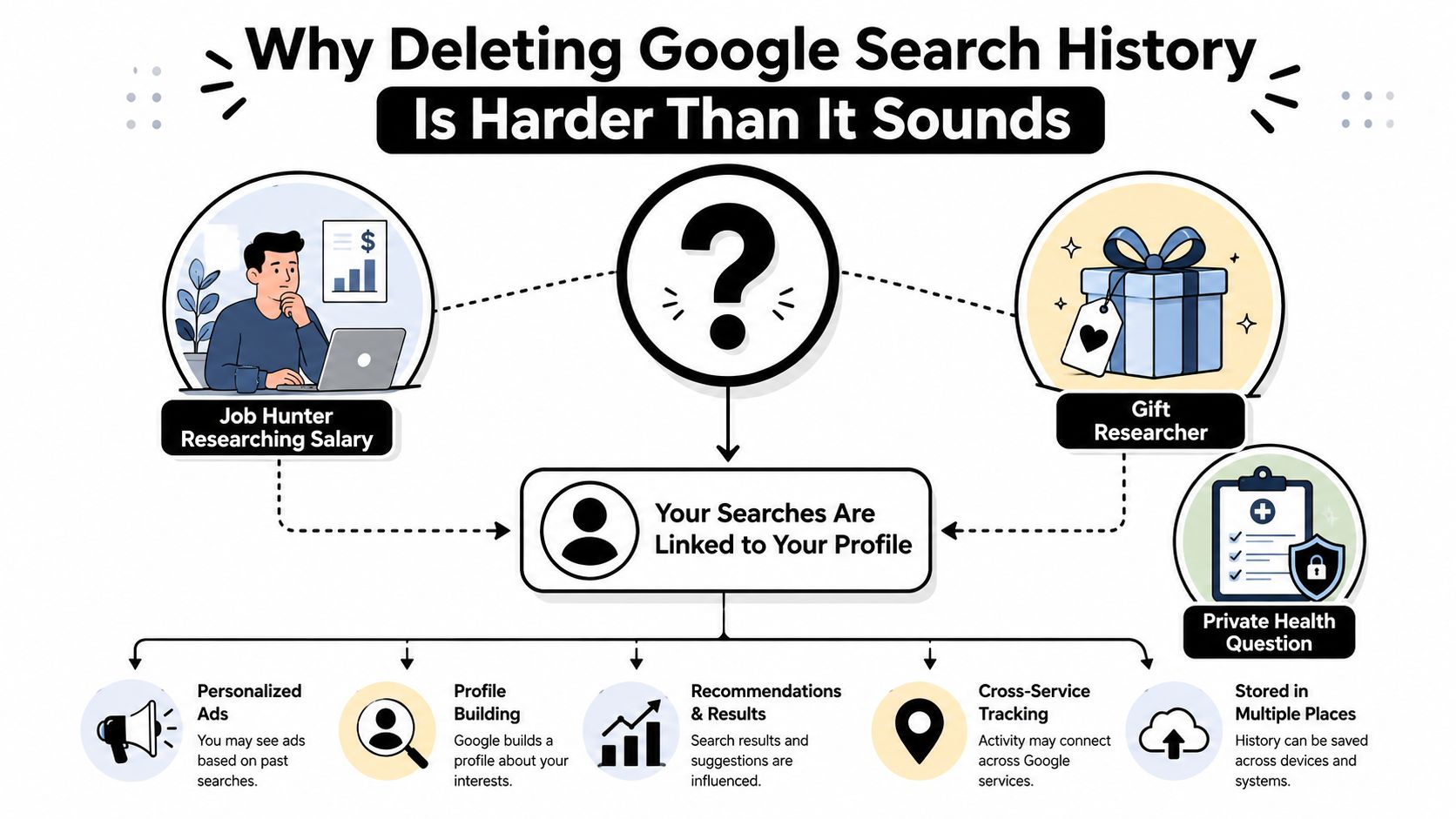
The three cleanup layers
Your Google Account is the first layer. My Activity can show Search and activity associated with other Google products or connected surfaces. Removing an entry there changes what Google keeps in that account layer. It does not clear browser records, app data, or copies held by other services.
Your device is the second layer. Chrome may retain browsing history, cookies, and cached files, while the Google app may preserve recent searches or local suggestions. Clear those records separately after handling the account, then check other signed-in devices if the same account is in use.
The wider web is the third layer. A query can lead to websites, public profiles, forums, image results, or pages indexed by other services. Deleting the query does not delete those pages, remove information collected by a site, or control what another person has copied.
Practical rule: Treat deletion as a privacy cleanup, not an invisibility switch.
Network visibility is separate as well. Removing Google Search history does not erase records held by websites, an employer-managed device, or network services. For a related privacy question, review whether your internet provider can see your history, then check the account, device, and wider-web layers independently.
Cleaning Up Your Google Account Through My Activity
If a sensitive search is still visible in your Google account, start with My Activity, not the browser menu. On a computer, open myactivity.google.com while signed in to the relevant Google Account. On Android, open Google Account settings or the Google app’s account controls, then find Web & App Activity and its activity-management options.
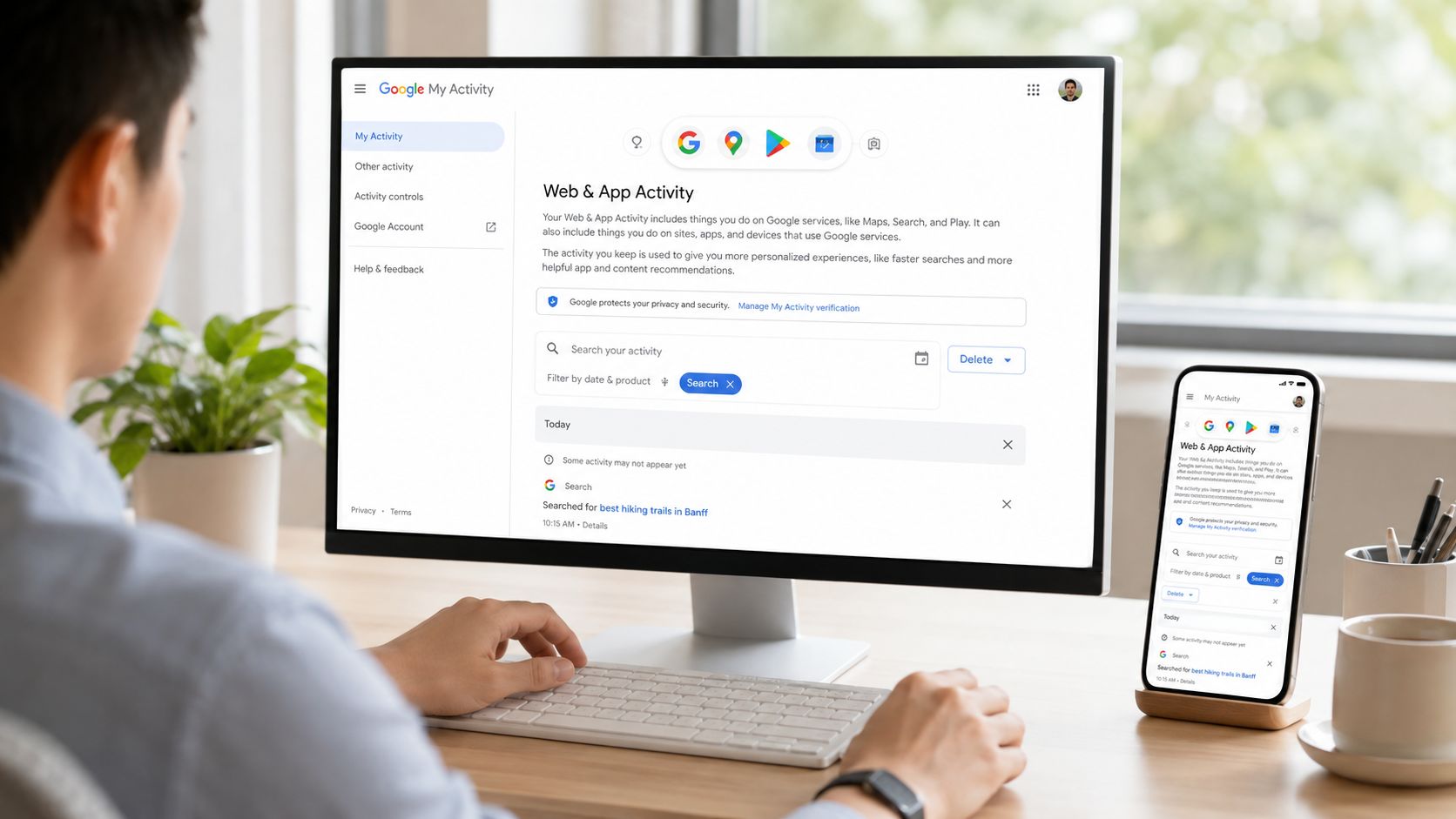
Filter before you delete
My Activity combines activity from several Google services. The dashboard can include Search, Location, YouTube, and other activity, with controls for deleting individual entries, a day, a custom period, or all stored activity. Google’s account guidance explains how to review and remove this information through Google Account activity controls.
Do not delete from the unfiltered feed. Choose Filter by date & product, select Google Search, add a date range when needed, and select Apply. This matters if you also use YouTube, Maps, Assistant, or other Google services. A broad deletion can remove records you intended to keep.
You then have three useful options:
- Individual entries: Open the menu beside a search and select Delete. Choose this for one sensitive query or a small group of entries.
- A date range: Open the deletion control, choose a custom range, and confirm the dates. This is suited to a specific research period.
- All time: Select Delete all time for the strongest account-level cleanup. Check which products are included before confirming.
On Android, the current path centers on Search history, followed by Delete all time when you want to erase stored searches. App labels may change after updates, so look for Search history, deletion controls, and the account’s activity settings rather than relying on an exact menu name.
Read the confirmation screen carefully. If Google offers to remove activity from other products, select only the records you intend to erase. Preserve Maps Timeline or YouTube history if those records still matter to you.
Review first, delete second. Date and product filters show what Google has associated with the account and help prevent an overbroad cleanup. For a wider account review, use this guide to see your Google search history.
After removing existing activity, open Web & App Activity and decide whether to choose Turn off. That setting stops future activity from being saved under the control, but it does not remove older records by itself. If Google displays Turn off and delete activity, inspect the scope before confirming because the option combines future control with deletion.
Keep the functions separate: delete removes existing records, pause changes future saving, and auto-delete applies ongoing retention rules. Account cleanup is only one layer. Browser history, app caches, other signed-in devices, and traces across the wider web require separate checks.
Choosing the Right Auto-Delete Setting
Manual deletion is a reset. Auto-delete is maintenance. Google describes it as a rolling system that continuously removes activity older than the retention period you select, rather than wiping everything immediately (Google’s privacy announcement).
Google offers three retention windows for Search history under Web & App Activity: 3 months, 18 months, and 36 months. You can also leave auto-delete off and retain activity until you remove it manually. The setting applies forward as an ongoing rule, so it won’t necessarily erase all recent activity when you turn it on.
Auto-Delete Retention Windows Compared
| Retention Window | Privacy Level | Best For |
|---|---|---|
| 3 months | Strongest ongoing reduction | Privacy-focused users who don’t need older activity for personalization |
| 18 months | Balanced | Users who want routine cleanup without choosing the shortest window |
| 36 months | More history retained | Users who value longer continuity and personalization |
| Off | Lowest automatic protection | Users willing to review and delete activity manually |
Google introduced auto-delete controls in 2019, first with 3-month and 18-month choices, then expanded the options to include 36 months. Google also says new accounts may have 18-month auto-delete enabled by default for Web & App Activity (Google’s auto-delete announcement).
My recommendation is straightforward. Choose 3 months if you regularly search sensitive topics, share devices, or want to minimize retained account history. Choose 18 months if you want a practical middle ground. Choose 36 months only when the continuity is useful enough to justify keeping older activity. Leave auto-delete off only if you have a specific reason and a reliable manual review routine.
To change it, open your Google Account’s Web & App Activity controls, find the auto-delete option, select the retention window, and confirm. Check the setting after major account changes rather than trusting a default you never reviewed.
Clearing Local Browser History and App Caches
Deleting activity from My Activity doesn’t remove every record on the device. Chrome may still hold visited pages, cookies, and cached files, while a Google app may display recent searches locally. Google’s help material notes that Search activity can include more than typed queries, including websites visited through Chrome and other connected surfaces, so filtering by product or device can prevent an incomplete cleanup (Google Search activity discussion).
Chrome on desktop
Open Chrome, select the three-dot menu, choose Delete browsing data, and select the time range you need. For a complete local cleanup, review Browsing history, Cookies and other site data, and Cached images and files before confirming.
Cookies can sign you out of websites and remove site preferences. Cached files generally improve loading speed, but they can preserve local copies of page elements. If the computer is shared, clearing all three categories is the more defensible choice.
Chrome on Android
Open Chrome, tap the three-dot menu, select Delete browsing data, choose the relevant time range, and review the data categories. Confirm only after checking whether you want to remove cookies and cached files as well as history.
Chrome on iPhone or iPad
Open Chrome, tap the menu, choose Delete browsing data, select the time range, review the categories, and confirm. iOS manages app storage differently from Android, so you may not see a direct “clear cache” button inside Chrome.
Google app storage
On Android, open Settings, Apps, Google, and Storage, then use Clear cache. Avoid Clear storage unless you understand that it can reset app data and preferences.
On iOS, the Google app may not provide an equivalent cache-clearing control. Use the app’s own history and privacy controls, then delete and reinstall the app if local data remains and you’re comfortable signing in again afterward.
Don’t mistake Incognito for deletion. It limits local browser storage for a session, but it doesn’t erase account activity already saved or information held by websites.
If deleted history returns on another device, inspect Chrome sync. Signed-in Chrome devices can share browsing data, and a device that hasn’t completed the deletion may repopulate what you thought you removed. Sign out of shared devices, verify the account in Chrome, and repeat the account and local cleanup where necessary. For future sensitive browsing, review what Chrome Incognito does, but use it as a preventive habit, not as a replacement for account controls.
What Still Stays Visible After You Delete
The most common mistake is treating deletion as a reset of every privacy signal. Google distinguishes among removing activity from My Activity, turning off Web & App Activity, and enabling auto-delete. Its account guidance also makes clear that available retention choices include 3, 18, and 36 months, and that deleting search history doesn’t automatically reset personalization, syncing, or account-level retention (Google Account activity controls).
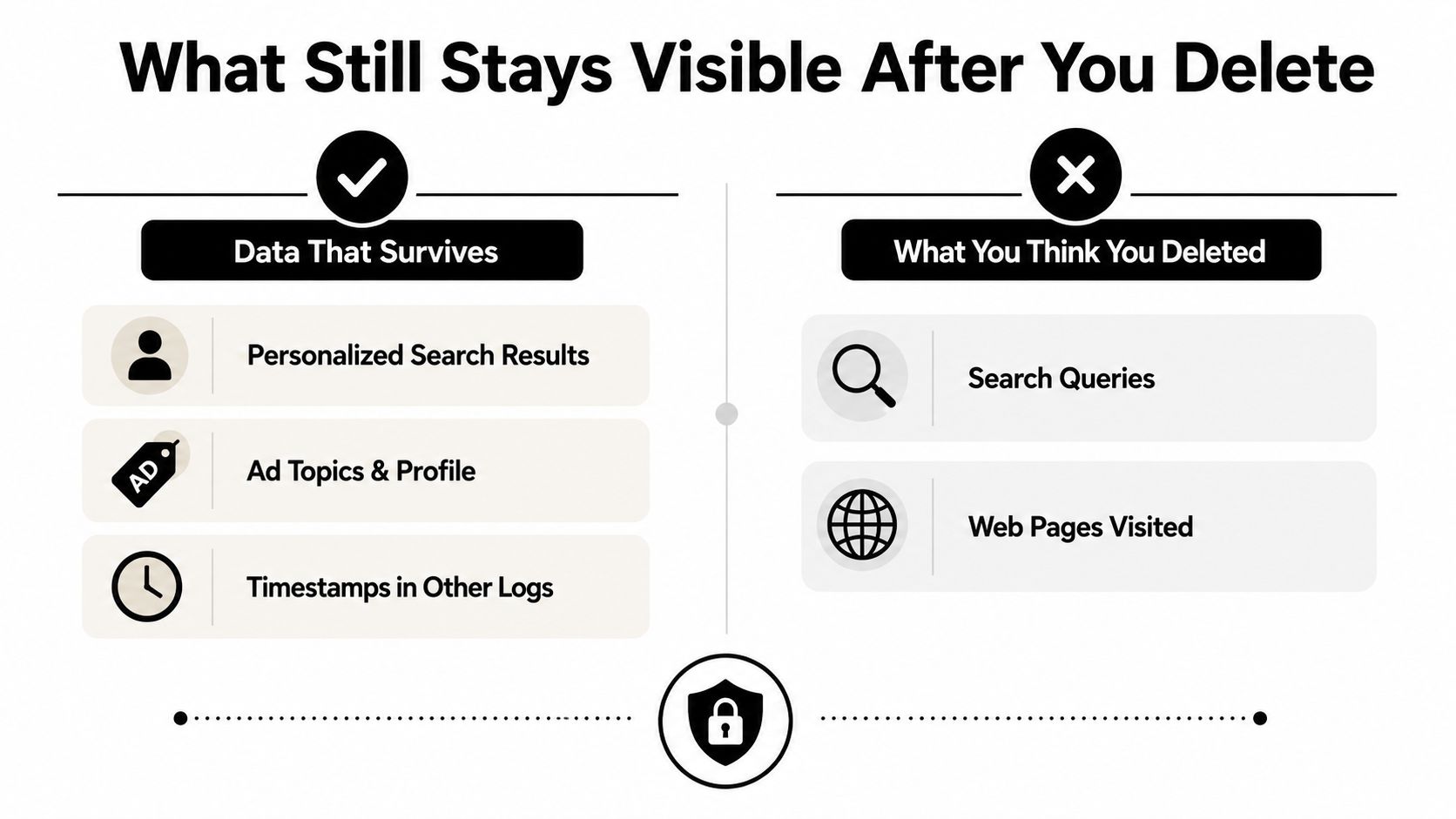
What deletion does and doesn’t cover
Your Google Account cleanup can remove saved search activity within the selected scope. It doesn’t remove the website you visited, a public post you read, or a profile that appears in search results. If a page contains personal information, you must address the page owner or use an applicable removal request separately.
Personalization also needs a realistic interpretation. Removing history can change the activity available to Google, but results, recommendations, and advertising controls may not immediately look different. Other account settings, device signals, and activity sources can influence what you see.
Timestamps and related records can exist outside My Activity. A website may record a visit, an organization may retain activity on a managed device, and another service may preserve its own log. Deleting Google Search history doesn’t give you control over those systems.
Why private browsing isn’t a cure
Incognito or private browsing can reduce what a local browser saves during a session. It doesn’t make you anonymous to websites, network operators, or services where you sign in. It also doesn’t retroactively remove searches saved during ordinary signed-in browsing.
Search engines may also show pages, snippets, or images that reflect information you wanted to keep private. The query itself may be gone from your account while the public result remains. That’s the boundary most quick guides skip.
Use this guide to removing personal information from Google when the problem is a public result rather than an account record. The remedy depends on where the information lives, not just on whether you deleted the search that led you there.
Verifying What the Web Still Says About You
Deleting search history cleans the Google account layer. It does not show what an employer, recruiter, scammer, former partner, or casual acquaintance can find by searching your name. Treat public exposure as a separate digital-footprint audit.
Start manually, without signing in. Open an incognito window, search your name, and review standard web, image, and news results. Repeat the search with usernames, old email addresses, and phone-linked identifiers that you have used publicly. Record the pages that remain visible.
Record what matters
Create a short risk list:
- Old profiles: Note abandoned social, dating, gaming, and forum accounts.
- Exposed contact details: Record public email addresses, phone numbers, locations, and employer information.
- Reputation issues: Flag outdated posts, misleading profiles, copied images, and hostile discussions.
- Security warnings: Investigate breach references and reused usernames instead of ignoring them.
Search-history deletion can reduce future account-level retention, yet it cannot reveal every account connected to your identity. Manual searches show prominent results, but they may miss poorly ranked profiles, breach records, gaming identities, and public-record references.
Digital Footprint Check searches more than 500 platforms, including social networks, data-breach databases, gaming profiles, and public records. Use it as a separate check after reviewing Google, especially when protecting job prospects, tracing old gaming identities, or checking whether contact details have spread.
A clean My Activity dashboard is not proof of a clean public profile. Verify both separately.
Fix the highest-risk items first. Remove or restrict abandoned accounts, secure exposed credentials, request corrections for inaccurate public information, and save pages that may create a safety concern. Do not publish more personal details while trying to correct an old result.
Use this digital-footprint checking guide to structure the manual review. Compare its findings with the three layers involved in cleanup: your Google account, local browser or app storage, and the public web. Each layer requires its own action.
A Repeatable Privacy Cleanup Checklist
需要完整重設時,按這個順序處理。刪除 Google 帳戶中的紀錄,只完成其中一層。
- **檢查 My Activity:**篩選 Google 搜尋,刪除個別項目、日期範圍或全部紀錄。
- **設定自動刪除:**依照需要保留的歷史紀錄,選擇 3、18 或 36 個月。
- **處理 Web & App Activity:**不想讓未來搜尋繼續由這項設定保存,就將它暫停。
- **清除本機資料:**刪除 Chrome 歷史紀錄、Cookie、快取檔案,以及相關 Google 應用程式資料。
- **檢查公開曝光:**搜尋姓名與使用者名稱,查看個人檔案、外洩紀錄、遊戲帳戶和公開資料。
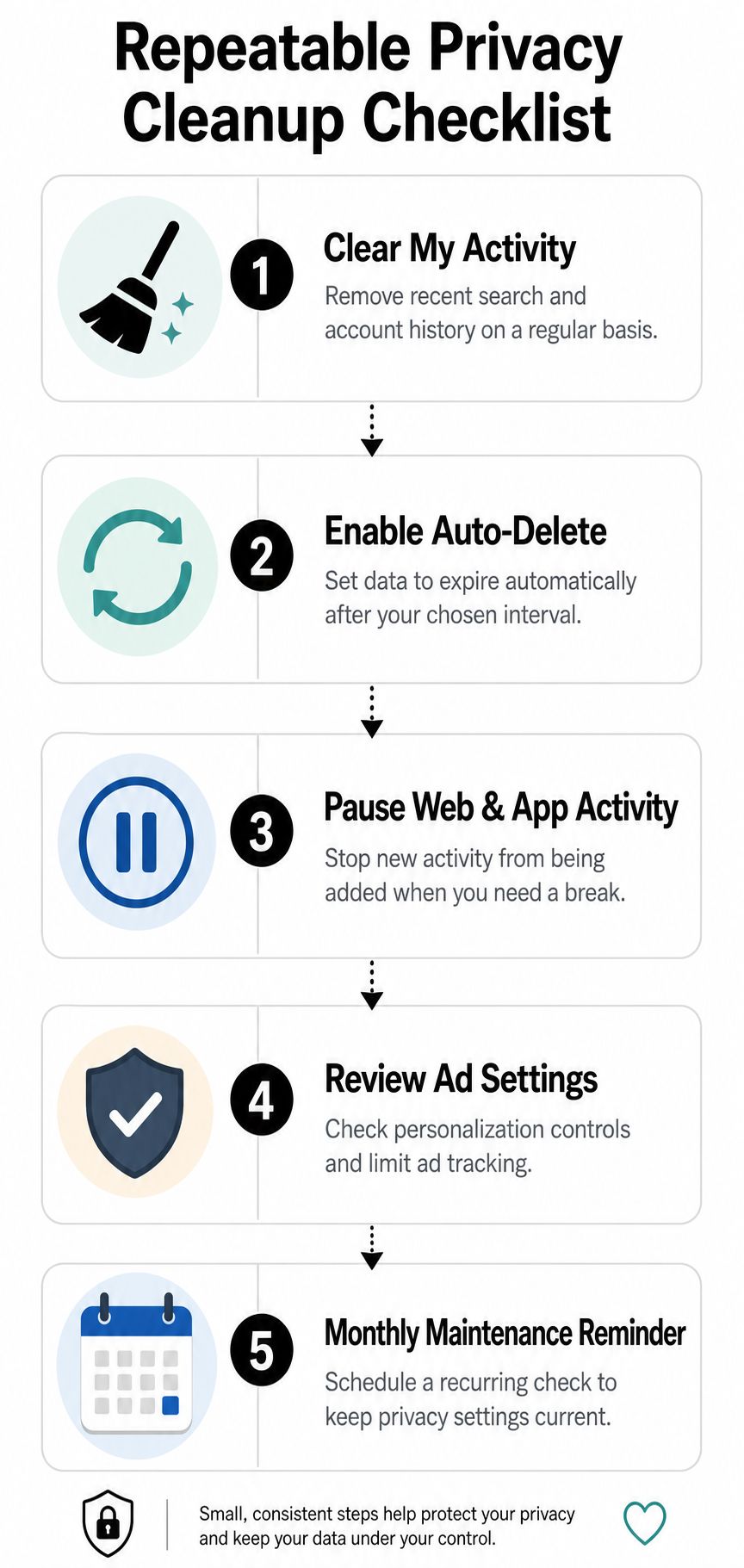
敏感搜尋可在適當情況下使用無痕模式。共用裝置要登出 Google,不要在他人使用的電腦保存密碼,搜尋前也要確認目前登入的帳戶。設定定期提醒,同時檢查 Google 設定與公開足跡。
請記住:刪除已保存的活動、控制未來保存、清除本機副本、確認公開痕跡。一個按鈕無法完成四項工作。
Digital Footprint Check 可掃描超過 500 個平台,涵蓋社交網絡、外洩資料庫、遊戲個人檔案與公開資料。前往 Digital Footprint Check 進行檢查,確認清理 Google 搜尋紀錄後仍有哪些資訊可見。