
· Digital Footprint Check · Content Marketing · 15 min read
How to Configure Google Search Privacy Settings Securely
Guide to Google Search privacy settings. Manage Web & App Activity auto-delete, SafeSearch, Incognito behavior, ad personalization and account controls.

You're researching a sensitive health issue, checking an address, or looking up a personal problem, then wondering whether that search will follow you across devices, ads, and services. That concern is reasonable. Google Search privacy settings don't operate as one simple privacy switch. They determine what Google saves, what it can use for personalization, what remains visible in your account, and whether other people can easily discover personal information through Search.
The right approach is to separate three goals: reduce account-level retention, limit personalization and inference, and remove high-risk results from public Search. Pausing history helps with the first goal, but it doesn't automatically erase existing records or prevent every form of inference. Search-result removal can reduce discoverability, but it doesn't delete the original webpage.
This guide gives you a practical configuration path through Web & App Activity, My Activity, auto-delete, SafeSearch, Incognito, ad personalization, and Google's personal-information removal tools. It also applies different privacy profiles to casual users, job seekers, and people researching sensitive subjects. If you're building a broader plan for safeguarding your digital privacy, start with the account controls below, then audit the public information that search engines and OSINT tools can still connect to. Beginners can also use this internet privacy guide to cover related accounts and devices.
Introduction to Google Search Privacy Controls
A sensitive search made while signed in can become part of a wider account record. Web & App Activity controls whether Google saves Search activity, can include Chrome history and voice or audio activity, and offers automatic deletion periods of 3, 18, or 36 months. Google's Search activity documentation identifies 18 months as the default auto-delete option for new accounts. These settings also influence whether Search history is used to personalize experiences across Google services.
The record can contain more than query text. Google's account tools may show timestamps, device type, referrer information, language, Android usage diagnostics, Chrome browsing history, and activity from sites and apps using Google services. A Consumer Reports guide to Google privacy settings specifically explains that Google's activity dashboards can display Search, Chrome, Android, and Assistant history, including when each activity occurred.
Configure the controls in this order:
- Review existing activity in My Activity before changing retention.
- Decide whether Search Services History should remain enabled.
- Separate saved history from personalized recommendations. Pausing one does not necessarily disable the other.
- Set auto-delete so older records are removed without relying on memory.
- Review ad personalization and the interests Google has inferred.
- Use Google's removal process for exposed personal information in Search.
- Audit your wider digital footprint, including public social profiles, gaming accounts, professional pages, and breach exposure.
Practical rule: Pausing history limits future account retention. It does not erase past records, stop every inference, or remove traces from public websites.
The trade-off is straightforward. Retained activity can improve recommendations and preserve useful account history. Disabling it reduces centralized retention, while some Google experiences become less personalized. For sensitive searches, choose reduced retention over convenience. A broader internet privacy guide can help you review connected accounts and devices, while a plan for safeguarding your digital privacy should also address what OSINT tools can connect outside Google.
Web & App Activity and My Activity Walkthrough
A shared laptop can expose more than a search query. Sign in to your Google Account, open Data & privacy, find History settings, then select Web & App Activity. This page shows whether Search and browsing activity is being saved and provides access to the related controls and stored records.
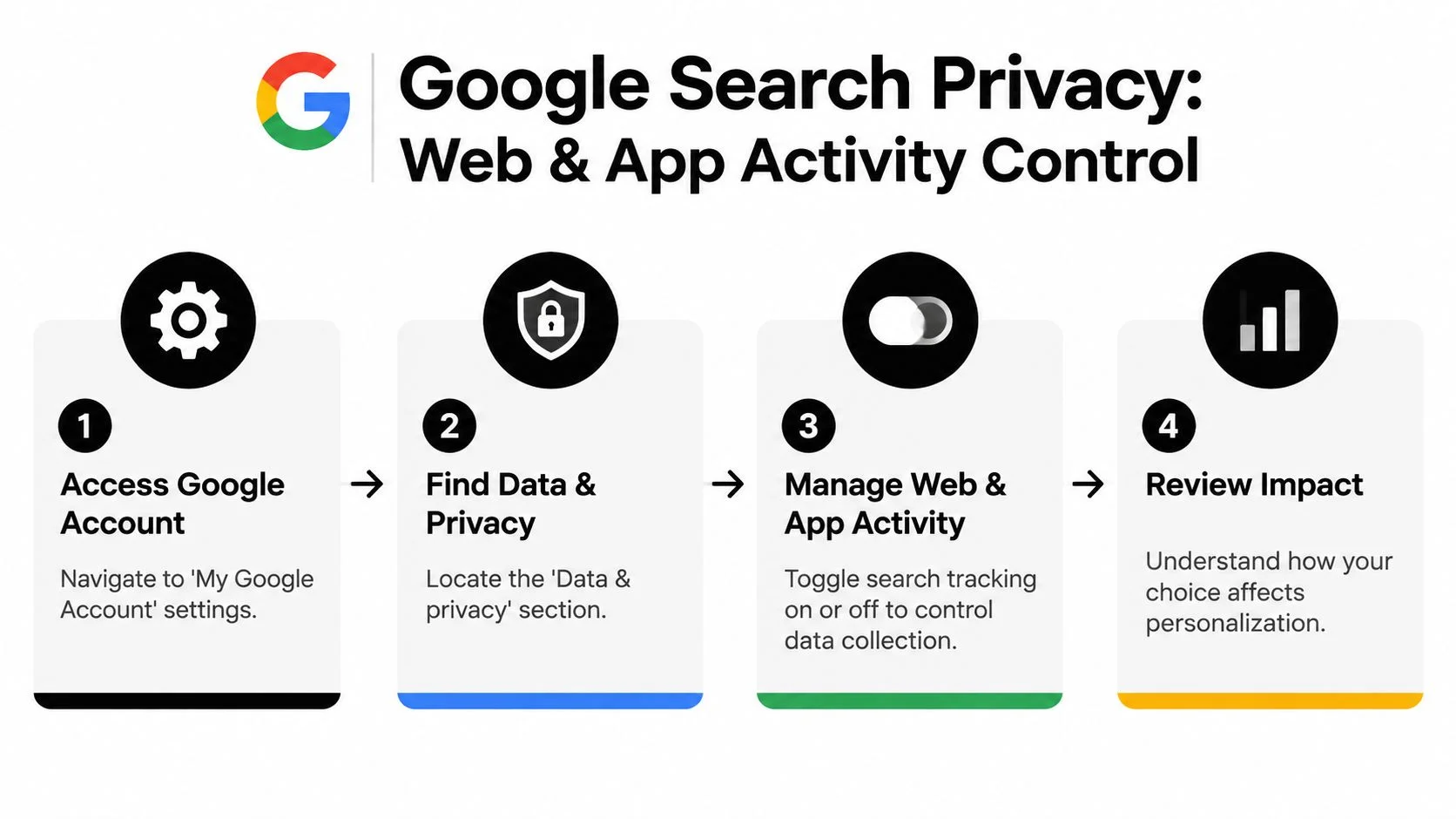
Review these controls individually:
- Save activity: Turn it off to stop future Search and browsing activity from being saved through Web & App Activity.
- Include Chrome history: Keep it off if Chrome browsing records should not connect to account activity.
- Include voice and audio activity: Disable it if eligible voice and audio interactions should not enter the same activity record.
- Auto-delete: Select a retention period rather than keeping activity indefinitely.
- Review activity: Open My Activity and examine records already attached to the account.
Google changed this model in June 2026. Settings previously grouped under Web & App Activity were separated into Search Services History and Search Services Personalization. (Google privacy settings) Treat them as separate decisions. Pausing saved history does not automatically stop personalized recommendations, because permitted signals may still shape Google experiences.
Set the history preference, then inspect personalization on its own. For sensitive searches, turn off both where the available controls support that choice. This addresses the inference gap that pausing history alone leaves open. A search record can disappear from the account while Google still uses other permitted signals to tailor results or recommendations.
Verify what remains stored
Open My Activity after changing the settings. Filter entries by product, date, or activity type, then inspect activity from Search, Chrome, Android, and Assistant. Look for connected details such as the device used and the time of the activity.
Repeat the check for every signed-in Google Account and device. Multiple browsers, Chrome profiles, and shared devices can create separate paths for activity, so do not assume one change covers them all. Use this guide to see your Google Search history when you need a focused account review.
Check again after a sensitive search. Confirm whether a record was saved, then review personalization separately. This verification matters because account controls limit Google's retained view, while public websites and other accounts can still contribute signals that OSINT tools connect elsewhere.
Auto-delete and Manual Deletion Options
Auto-delete is the control I recommend for those prioritizing privacy without daily account management. In Data & privacy, open Web & App Activity, select the auto-delete option, and choose the available retention period. Google's support documentation lists 3 months and 18 months, with an option to keep activity until you delete it manually. (Google Web & App Activity deletion options)
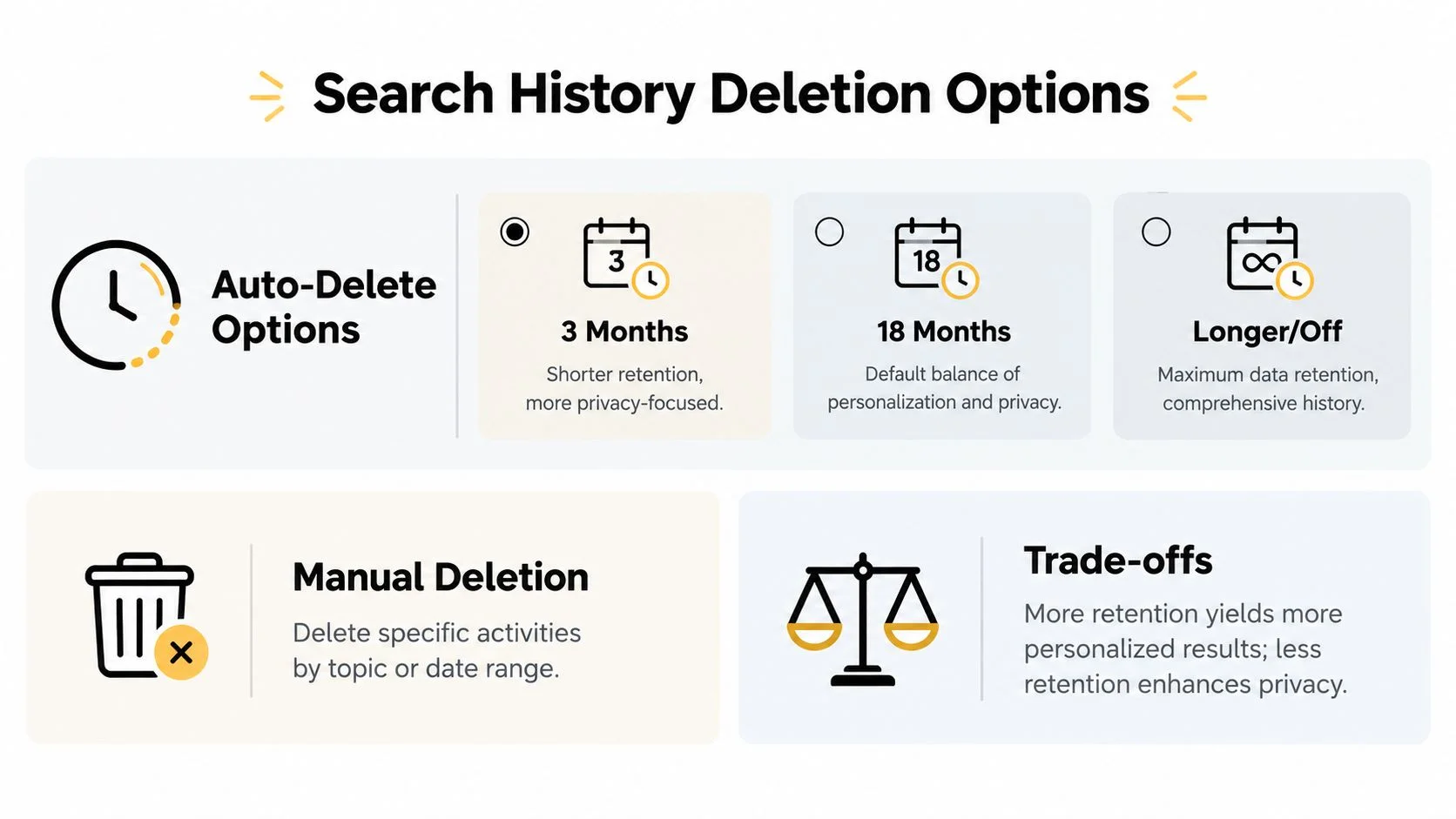
Choose based on your exposure, not on a generic privacy slogan:
| Setting | Practical fit | Trade-off |
|---|---|---|
| 3 months | Privacy-focused users, shared-device users, and people researching sensitive subjects | Less historical data remains for personalization |
| 18 months | Users who want Google's default balance | More activity remains available to the account |
| 36 months | Users who value a longer retained history | Greater account-level exposure |
| Until manually deleted | Users who intentionally need a comprehensive history | Requires active maintenance and creates maximum retention |
The 3-month option is my default recommendation for a privacy-conscious personal account. Choose 18 months if you rely heavily on personalized Google experiences and accept the retention trade-off. Keeping activity until manual deletion makes sense only when you have a clear reason to preserve it.
Delete recent or targeted activity
Google's Search product page says users can delete the last 15 minutes of saved Search history with one tap. That's useful after an especially sensitive lookup, but it's not a replacement for a regular audit. Use the quick-delete action immediately, then review My Activity for related Chrome, Assistant, or app records that may sit outside the exact Search entry.
For a broader cleanup, open My Activity and delete records by product, date range, or topic. Review the result before confirming, because a wide deletion can remove useful history along with the sensitive material. A targeted cleanup is usually safer than repeatedly deleting everything without checking what the account contains.
You can follow this practical guide to delete Google history searches, then confirm that the relevant activity no longer appears in My Activity. Remember that deleting a saved account record doesn't remove a webpage, browser record on another device, or information held by a third party.
SafeSearch Filters and Incognito Mode Behavior
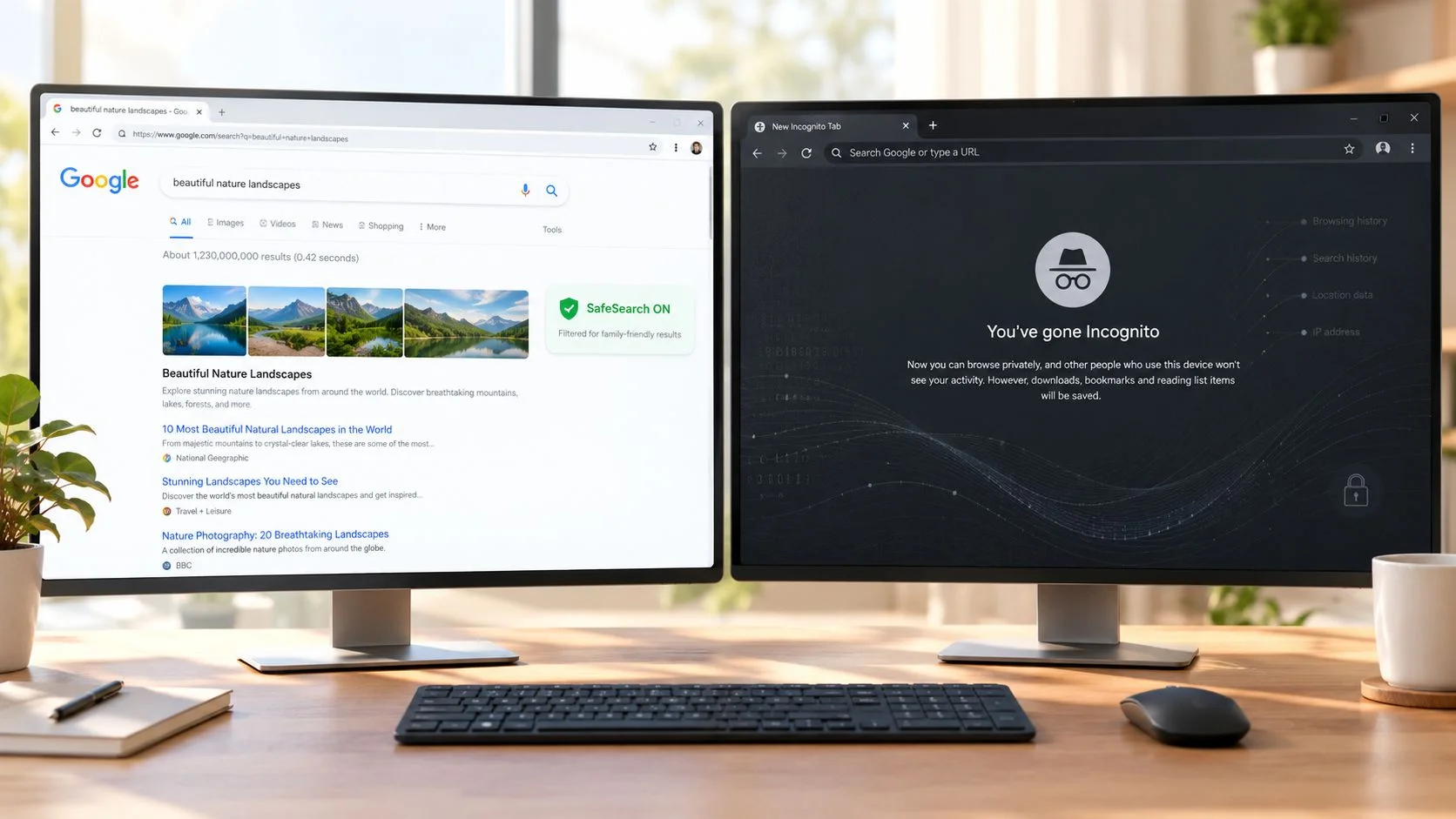
A family member uses the shared tablet for general searches. An employee checks a sensitive topic on a work computer. These situations need different controls. SafeSearch and Incognito solve different problems. SafeSearch filters explicit results. Incognito limits some local browsing records after the session ends. Neither one provides complete privacy.
| Control | What it helps with | What it doesn't solve |
|---|---|---|
| SafeSearch | Filters explicit results from Search | It doesn't erase Search history or stop account activity collection |
| Incognito | Limits local browser history and session persistence | It doesn't guarantee anonymity from Google, websites, networks, or account sign-ins |
| Web & App Activity | Controls account-level saving of Search and related activity | It doesn't remove public webpages or every possible inference |
| Search removal | Reduces discoverability of qualifying personal information | It doesn't delete the underlying webpage |
Set SafeSearch on family devices, workplace systems, or accounts where explicit results could create a safety or reputational concern. Treat it as a content control, not a data-minimization setting. A filtered query can still enter an account record while the relevant activity setting remains active.
Incognito helps separate a session from the normal browser history on that device. It does not conceal activity from every other party. Signing in, using a service, downloading files, or revealing identifying details can connect the session to you. Websites, network operators, and service providers may still receive information required to deliver the page.
Address the inference gap
Pausing saved Search history answers one question only: whether certain activity remains in the account history. It does not answer what Google may infer from other signals. Google separates Search Services History from Personalized Recommendations, so review both controls when limiting profiling. Check the ad personalization dashboard as well.
OSINT creates a separate risk. Search results, public profiles, exposed documents, and recurring interests can be combined by someone researching you, even after you pause or delete account history. Search removal can reduce discoverability of qualifying personal information, but it does not delete the underlying webpage.
Use SafeSearch for content filtering, Incognito for local separation, and account controls for retention and personalization. For a practical explanation of its limits, read this guide to Chrome Incognito mode. Recheck these controls on shared devices and maintain separate privacy profiles for personal, family, and work use.
Ad Personalization and Activity Controls
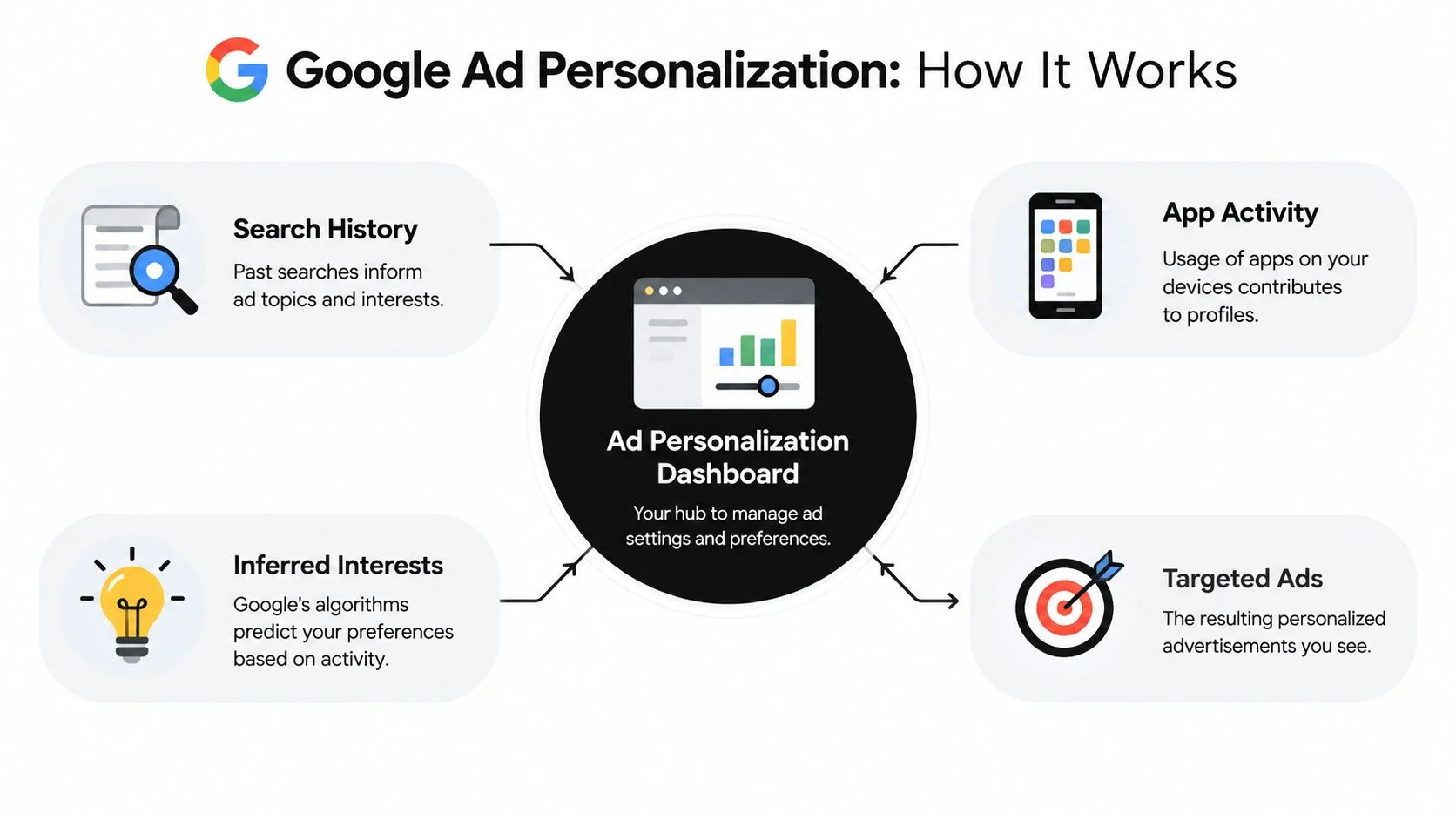
A single search can influence what you see later. Search for a product, health concern, destination, or financial service, and related advertising may appear across Google services. Review more than whether Google saved that query. The larger privacy issue is whether search history, app use, and inferred interests combine into a profile that predicts your behavior.
Google's activity controls can include timestamps, device type, referrer information, language, Android usage diagnostics, Chrome browsing history, and activity from sites and apps that use Google services. Review these controls separately from ad personalization, because pausing history does not necessarily erase existing advertising preferences.
Read the dashboard as a profile
Open your Google Account, select Data & privacy, then locate the advertising or personalized-ad settings. Examine the categories linked to your activity. They may describe broad interests rather than exact searches, but they reveal how Google interprets recurring behavior.
The profile may draw on several signals:
- Search history: Previous queries can identify repeated topics and interests.
- App activity: Activity on connected devices can add context.
- Inferred interests: Google can predict preferences from patterns, even without a direct statement.
- Targeted ads: Available personalization tools can align advertisements with those inferred topics.
Disable ad personalization if limiting behavioral profiling matters more than receiving advertisements related to recent interests. Ads will continue, but their connection to your activity should be weaker. If you retain personalization, remove categories that are inaccurate, sensitive, or outdated.
Separate convenience from exposure
Turning off Web & App Activity does not automatically clear every advertising preference. Open the ad dashboard separately, delete or disable available activity controls, and confirm whether personalization remains active. Use the account controls guidance from Consumer Reports on Google activity controls as a practical reference for reviewing these settings.
Treat search privacy as one part of a wider exposure map. Job seekers should review searches and account profiles that could reveal sensitive interests on shared accounts. Gamers should audit linked Google accounts and public gaming identities separately, because changing Search settings cannot remove a public profile. People researching scams, health concerns, or relationship issues should also consider what connected services and public sources may reveal.
Privacy Profiles for Different Users and OSINT Implications
A single privacy configuration won't fit every person. The right setting depends on what an attacker, employer, scammer, abusive partner, or curious acquaintance could do with connected information.
The casual browser
You use Google for shopping, directions, recipes, entertainment, and ordinary research. Choose 3-month auto-delete, review Web & App Activity, and disable Chrome history inclusion if you don't need cross-service continuity. Keep SafeSearch available on shared devices, and review ad personalization so inaccurate interest categories don't follow you.
This profile prioritizes low maintenance. You get automatic cleanup without sacrificing every personalized feature, and you can still delete a recent sensitive search immediately.
The job seeker or public professional
Your concern is discoverability, not only account retention. Recruiters and clients may find public social profiles, old usernames, gaming accounts, forum posts, or exposed contact details through ordinary searches and OSINT tools. Search history itself usually isn't public, but it can influence the recommendations and advertising environment connected to your signed-in account.
Use a shorter auto-delete period, separate personal and professional Google accounts, and avoid searching sensitive career or identity matters from a shared workplace browser. Audit your public name, email addresses, phone numbers, usernames, and profile photographs across the web. Digital Footprint Check is one option for searching public exposure across social, professional, gaming, breach, and public-record sources.
The high-risk researcher
This profile applies if you investigate abuse, fraud, political threats, medical issues, stalking, or other subjects where exposure could create personal danger. Pause Search and browsing activity, disable personalized recommendations where possible, use a separate browser profile, and avoid mixing identifying account sessions with sensitive research.
Incognito alone isn't enough. Use account-level controls, minimize sign-ins, review devices, and keep recovery information secure. Also consider how search-result snippets, cached pages, public usernames, and data-broker records could connect your identity to a topic.
OSINT tools can't read a deleted Google Account history merely because it once existed. They can, however, connect residual public data that remains elsewhere, such as an old profile, a reused username, a public post, an exposed email address, or a page indexed by Search. That's why account cleanup and public-footprint monitoring belong in the same privacy plan. Learn ethical methods in this guide to using OSINT.
Reduce discoverability when deletion isn't possible
Google supports a two-step workflow. First, pause Search and browsing activity in your account. Second, use Results about you or the Search removal flow to request delisting for specific URLs. Google says you can search for your name with a city or address, open About this result, select Remove result, and choose the reason related to personal information. The review applies only to the URLs submitted, not to an entire website. (Google personal information removal)
Eligible information can include phone numbers, email addresses, home addresses, government IDs, bank or credit card numbers, signatures, passwords, and private medical records. Google warns that Search removal may leave the underlying content online, so treat delisting as reduced discoverability, not full erasure.
Sensitive identity checks deserve the same discipline. If you're evaluating a platform's crypto card verification process, avoid exposing unnecessary identity documents in searches, screenshots, or public discussions.
Troubleshooting and Monitoring Your Settings
Google privacy controls can look different depending on your account, device, browser, region, or administrator settings. If a toggle is missing, first confirm that you're signed into the intended Google Account. Then open the control from the Google Account directly rather than relying on an old browser bookmark.
Use this audit checklist:
- Account check: Confirm the email address shown at the top of Data & privacy.
- History check: Review Web & App Activity and Search Services History separately.
- Personalization check: Inspect Personalized Recommendations and ad settings independently.
- Device check: Review Chrome profiles, Android devices, tablets, and shared computers.
- Activity check: Search My Activity for records after changing a setting.
- Removal check: Save the exact URLs submitted through Google's personal-information removal form.
- Public-footprint check: Search your name, email addresses, phone numbers, usernames, and profile images outside your account.
If activity still appears, identify where it came from before assuming the setting failed. A Chrome record may be local rather than account-linked. Another signed-in device may still be using a different account. A browser extension, Assistant interaction, or Google service may create a separate activity category.
Check search-result removal limits
Google's European delisting process applies a separate standard. Results may be removed from name-based searches when a page is “inadequate, irrelevant, no longer relevant or excessive,” subject to a public-interest assessment. Delisting is limited to queries connected to the requester's name, and Google says it applies the result removal across European Search domains while using geolocation signals to restrict access in the requester's country. (Google Transparency Report on European privacy delisting)
A delisted page can still appear for non-name searches. Website owners receive notice of affected URLs, not the requester's name. Keep evidence of the exposure, check the original page directly, and contact the publisher when full deletion is necessary.
Create a monitoring routine
Review your settings after changing devices, browsers, Google Accounts, or recovery information. Repeat a public-footprint search when your name, phone number, email address, professional role, or gaming username changes. Don't wait for a scam, impersonation attempt, rejected application, or unwanted contact to reveal that old data remains exposed.
For an independent view of what's publicly connected to your identity, run the free checker at Digital Footprint Check. It can help identify exposed profiles, usernames, breach-related records, and other public information that Google's account dashboard won't show.
Use Digital Footprint Check to scan your public digital footprint across social, professional, gaming, breach, and other online sources. Run the free check after changing your Google Search privacy settings, then use the results to prioritize account cleanup, removal requests, and ongoing monitoring.