· Digital Footprint Check · Content Marketing · 17 min read
How to Check Deleted History: a Complete 2026 Guide
Learn how to check deleted history on your browsers and devices. Our step-by-step guide covers recovering data from cache, cloud backups, and OSINT tools.

You clear a browser history entry, close the tab, and assume the trail is gone. Then a day later you need it back. Sometimes it's your own audit after a suspicious login, a child's device check after a safety concern, or a gut-level question about whether someone is hiding activity.
That's the point where individuals often search how to check deleted history and get bad advice. Some guides jump straight to recovery software. Others tell you to press Ctrl+H, which is useless once the visible log is gone. In practice, the answer depends on one question first: was the data only stored on the device, or was it synced to an account in the cloud?
That difference matters far beyond curiosity. It can affect job prospects if old searches or profiles connect back to your name, personal safety if a child is visiting risky sites, gaming account security if a compromised browser session exposed credentials, and dating or romance scam detection if someone's digital story doesn't match reality. The same logic applies to identity theft and reputation management. If you know where records are located, you stop wasting time on dead ends.
The Myth of Deleted Data
Deleted history rarely means what people think it means.
In many cases, the browser only removes the visible reference to a record. The underlying traces can still exist in a local database, a cache, a synced account, or another device that hasn't updated yet. That's why panic-driven clicking often makes things worse. The fastest way to lose recoverable evidence is to keep using the same device heavily after deletion.
What people usually miss
The biggest misunderstanding is the split between local browser deletion and cloud-synced deletion. Most guides blur those together, but they behave very differently. According to a Google Help discussion used heavily in OSINT circles, most existing content misses this distinction, and 60% of users attempting to recover deleted history are trying to audit a partner's or child's activity, where local recovery methods are often ineffective because the action involved synced data rather than only device data (Google Help discussion on deleted search history).
That matters in practical situations. If a person deleted browser history on a synced device, the actual record might still exist in the account. Or the deletion may already have propagated across linked devices, which changes what can still be found.
Practical rule: Before you touch recovery tools, decide whether you're investigating a device problem or an account problem.
A second issue is motive. People often aren't trying to “recover history” in the abstract. They're trying to answer a safety question. Is a teenager bypassing parental rules? Is a partner's story inconsistent? Did a compromised gaming profile lead to credential theft? Did someone involved in online dating recycle usernames, old bios, or breach-exposed email addresses? Broader footprint checks become useful when browser history is only one piece of a larger pattern. If you're trying to understand how old exposures get repackaged and sold, this breakdown of reseller strategies for old data breaches is a useful reminder that deleted local traces don't erase wider exposure.
Why the ownership question matters
A lot of confusion starts because people don't know who still holds the data after they click delete. The browser? The operating system? The synced account provider?
That's why it helps to understand the broader issue of who owns your personal data online. Once you see that browser history can exist in multiple places at once, the recovery path becomes clearer. “Deleted” is often only true in one layer.
Immediate First Aid for Local Devices
You clear a browser, hand the phone or laptop back, and five minutes later you realize you checked the wrong thing. That first hour matters. On a local device, fresh activity can replace the remnants that would have answered your question.
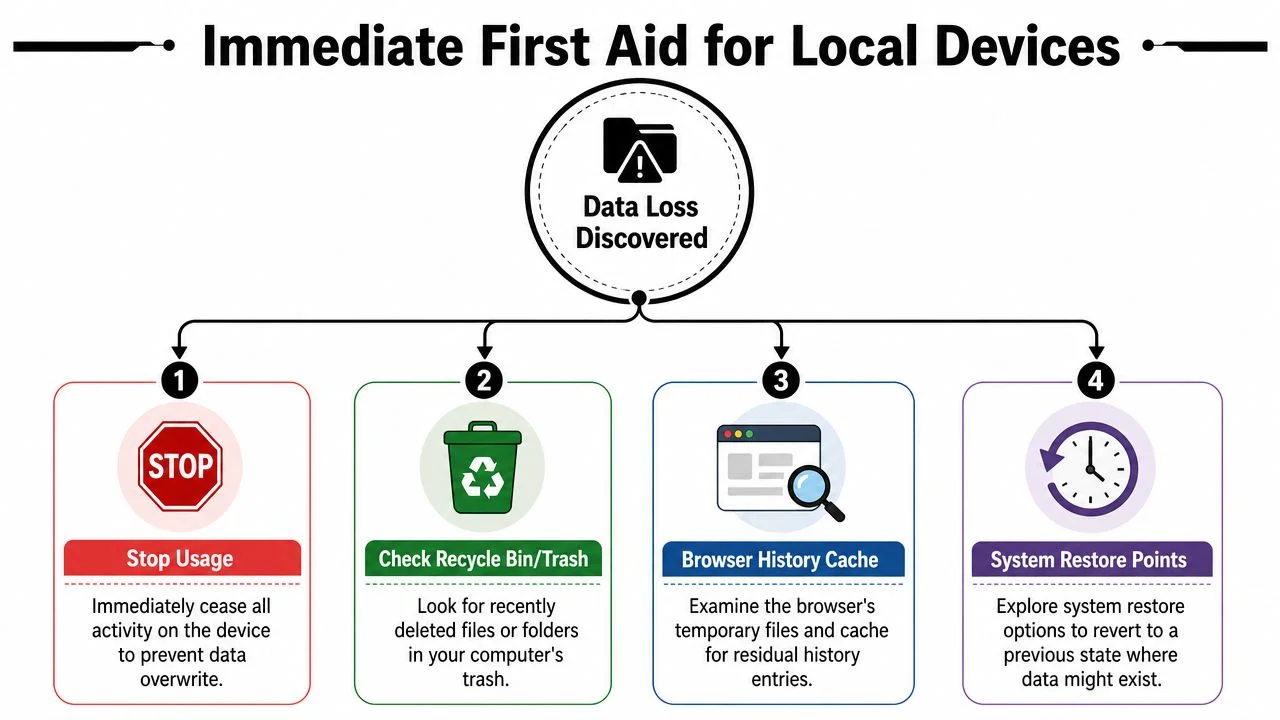
If your goal is a personal audit, parental check, or a safety review after suspicious behavior, treat the device carefully. Stop normal browsing. Do not run disk cleaners. Do not install random recovery apps on the same drive. Those actions can overwrite local traces before you even decide whether the answer lives on the device or in a synced account.
Check the DNS cache first
For a recent local check on Windows, start with the DNS cache. Open Command Prompt as administrator and run:
ipconfig /displaydns
This does not recreate browser history. It shows domain lookups handled by the system, which can still be present after someone clears the browser's visible history. Microsoft documents the command and its output in its ipconfig reference.
Use it for a narrow question. Did this machine recently connect to a given domain?
What you can get:
- Recent domains such as social platforms, shopping sites, gaming services, or adult sites
- A quick confirmation that the system resolved a site name
- Evidence outside the browser history page
What you will not get:
- Full URLs or the exact page visited
- Reliable long-term history
- Proof of who used the device, only that the device resolved the domain
That trade-off matters. DNS cache is useful for fast triage on one machine. It is weak evidence if you need a detailed timeline.
Check synced tabs before sync finishes updating
If the browser uses sync, look at synced tabs right away. In Chrome, chrome://history/syncedTabs/ can show open or recent tabs from other linked devices. Google's Chrome help documentation explains how synced browsing data and open tabs work across signed-in devices in Chrome Sync settings.
The local-versus-cloud distinction becomes practical. Synced tabs are not a pure local artifact like DNS cache. They reflect account-linked browser activity that may still be visible from another device before deletion finishes propagating.
That makes synced tabs useful in one specific situation. A phone was cleaned, but the laptop or tablet tied to the same account has not fully updated yet.
| Method | Best for | What you get | Main limitation |
|---|---|---|---|
| DNS cache | Very recent checks on one device | Domain names | No full URL or page title |
| Synced tabs | Linked devices using browser sync | Open or recent tabs from another device | Can disappear once sync catches up |
What not to do in the first hour
I see the same mistakes over and over when people panic after a deletion:
- Do not keep using the device normally. New browsing, updates, and app activity can replace recoverable traces.
- Do not install multiple recovery tools onto the same internal drive. The installation itself writes new data.
- Do not treat browser history as the only local clue. Clipboard entries, DNS records, downloads, and recent files can fill gaps.
- Do not assume deletion means simple cleanup. If the device behavior looks broader than history removal, check for signs of monitoring or tampering. A guide on how to detect spyware on your phone helps separate ordinary deletion from surveillance or account abuse.
One nearby artifact is often missed. Copied usernames, reset links, wallet addresses, and one-time codes can sit in the clipboard even when browsing traces are thin. If that angle matters, use this guide to find your device's clipboard history and compare it with what you see on the device.
Digging Deeper with Backups and Recovery Tools
A common real-world case looks like this. A parent checks a family laptop and finds the browser history wiped. Or someone doing a personal audit notices a gap after a login alert and needs to know whether the browsing record was deleted locally, or whether the actual trail sits in an account elsewhere.
This section deals with the local side. If cloud sync was off, or if the question is what this specific device stored before deletion, backups and recovery tools are the next places to check. Timing matters, and so does the type of storage involved.
For users without cloud sync enabled, file recovery tools sometimes pull back deleted browser history by scanning for remnants of SQLite browser databases. The available benchmark puts that recovery range at approximately 35 to 42 percent through file recovery tools that scan those remnants (browser history recovery benchmarks). On Windows systems with File History or System Protection enabled, the same benchmark says up to 29 percent of deleted browser history files can be restored through Restore previous versions of the browser profile folder (browser history recovery benchmarks).
Start with built-in backups
Built-in backups are usually the cleaner option because they restore an earlier copy of the browser profile instead of trying to piece together deleted fragments.
On Windows, check the browser profile folder for previous versions if File History or System Protection was active. Chrome, Edge, and Firefox all store history inside user profile data, and an older snapshot can restore far more context than a raw file carve. You may get timestamps, visit counts, and page titles instead of just scattered domains.
On macOS, Time Machine plays the same role. If a snapshot exists from before the deletion, restore the profile to a separate location first and review the files there. That avoids overwriting newer evidence on the live system.
Recovery tools can still help, with limits
Recovery software such as Recuva or Disk Drill works by searching unallocated space for deleted files or fragments. In browser cases, that usually means SQLite databases and related journal files.
Results vary for predictable reasons:
- Best case: the browser database was deleted recently and the sectors have not been reused.
- Partial case: the tool finds fragments, old cache references, or incomplete database rows.
- Failure case: normal device use, updates, or SSD garbage collection has already erased what mattered.
I tell people to treat recovery software as a last technical pass on the local machine, not as proof that nothing happened if it finds nothing. On a heavily used laptop, especially one with an SSD, local recovery can close fast. On a desktop that was powered down right after deletion, the odds are better.
Match the method to the reason you are checking
If the goal is parental oversight on a home computer, restoring a previous profile version is often enough to answer a narrow question: what was visited on this device before the history was cleared. If the concern is account compromise, stalking, employee misconduct, or harassment, local recovery alone rarely gives the full picture. It may show what was on the machine, but not what synced elsewhere, what was deleted from the account side, or whether another device was involved.
That distinction matters for privacy and safety. A failed local recovery does not rule out cloud records. A successful local recovery does not prove the activity started or ended on this device.
Document what you do
If this may turn into an HR issue, custody dispute, police report, or internal investigation, keep simple notes. Record the device, date, account status, the folders checked, the tools used, and whether anything was restored or exported. For people handling sensitive incidents, this guide on managing insider risk documentation explains how to preserve evidence and record steps in a way that holds up better later.
Preparation matters too. People who already have backups, restore points, and a repeatable process lose less evidence in the first hour. For households and small teams, a practical disaster recovery planning approach does more for real recovery than downloading three different recovery apps after the damage is done.
Accessing the Cloud's Permanent Record
A common real-world scenario goes like this: the browser on the laptop is empty, recovery tools find little, and the person checking assumes the trail is gone. In practice, the better record is often tied to the account, not the device.
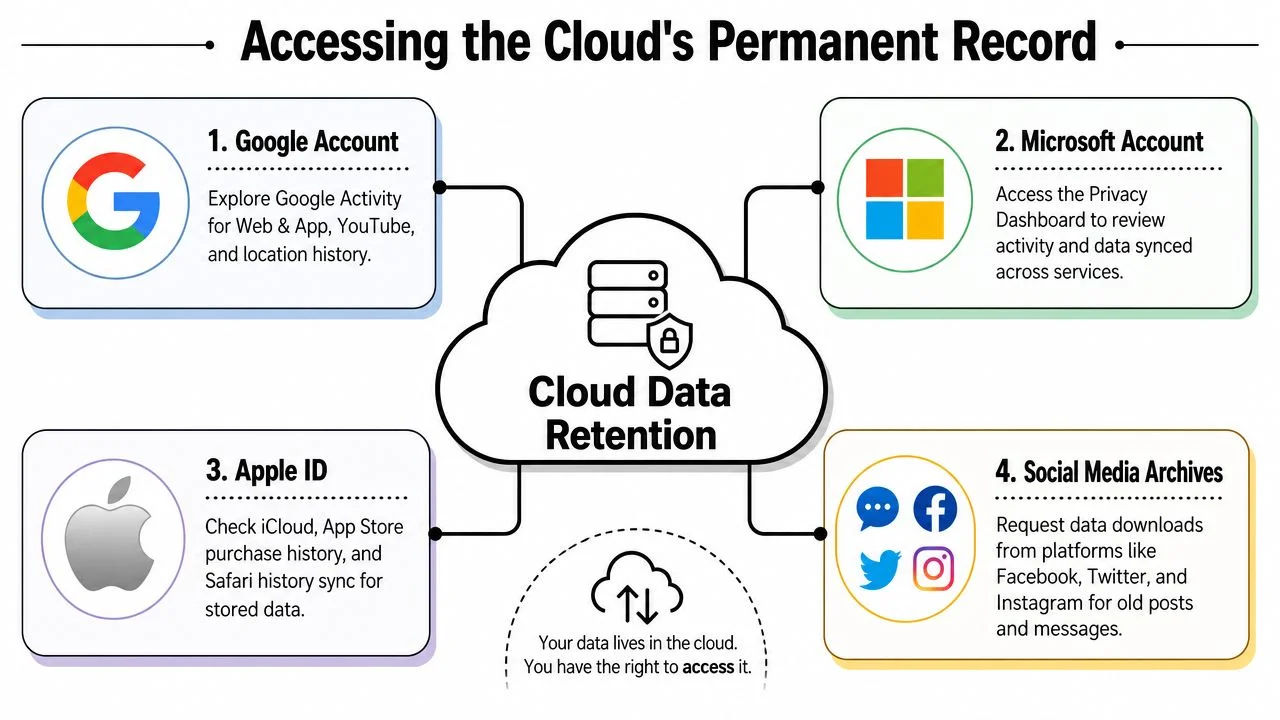
That distinction matters because local deletion and cloud retention are different events. A cleared browser on one phone or computer does not mean the same activity disappeared from Google, Microsoft, Apple, or another synced account. If the goal is a personal audit, a parental safety check on a family-managed account, or a review after suspected account misuse, the account side can answer questions the device no longer can.
The available benchmark says approximately 79% of all internet users have their browsing history automatically synced to cloud services like Google's My Activity (cloud sync and My Activity benchmark). The same benchmark says cloud-synced records can remain retrievable for up to two years after local deletion, and longer if auto-delete was never configured (cloud sync and My Activity benchmark).
Google My Activity is often the first place to check
If Web & App Activity was enabled, Google My Activity can preserve searches, visited pages, YouTube activity, and timestamps across multiple devices signed into the same account. For many cases, that is the fastest path to an answer.
Use a simple process:
- Sign in to the Google account that was active on the device.
- Open My Activity.
- Filter by date range first.
- Narrow by product if needed, such as Search, Chrome-related web activity, or YouTube.
- Export or screenshot what you find before changing any settings.
That last step matters. I advise people to preserve what they see before they start clicking around, especially if the issue could turn into a family dispute, workplace problem, or account recovery case.
Match the method to the question
Cloud review works best when the concern is tied to an account. Local recovery works best when the question is limited to one device. Mixing those up wastes time.
| Scenario | Best place to look first | Why |
|---|---|---|
| Shared family laptop with no signed-in sync | Local device artifacts | There may be no account history to check |
| Personal Google account used across phone and laptop | My Activity | The account can preserve activity after local deletion |
| Suspicious browsing on several devices | Account history plus device checks | Sync may show scope, while devices show context |
This is also where motive matters. A parent trying to confirm whether a child accessed risky content on a managed account is asking a different question from someone auditing their own privacy exposure after deleting history. In the first case, timestamps and cross-device records matter. In the second, the uncomfortable lesson is often how much the account retained after the browser looked clean. If you want to broaden that review beyond browser data, these beginner OSINT tools for tracing a wider digital footprint help fill gaps that cloud history alone will not cover.
Respect the line between access and intrusion
Only check accounts you own or are authorized to manage. Logging into someone else's cloud account without permission can create legal trouble fast, and in stalking or harassment situations it can also put the wrong person at risk.
For your own accounts, though, this check is one of the most useful reality tests available. It shows whether the deletion happened only on the device, or whether the account still holds the record.
The OSINT Approach to a Complete Picture
A deleted browser log rarely answers the question that brought someone here in the first place. A parent may be trying to confirm whether a child followed a risky link beyond one device. Someone auditing their own privacy may be trying to find out what still exists online after clearing history. Those are different problems, and neither is solved by staring at one browser database in isolation.
OSINT helps when the trail extends beyond the device. It uses public traces and reused identifiers, such as usernames, email addresses, profile photos, phone numbers, old bios, and forum handles, to check whether the same person or account appears elsewhere. In practice, investigators cross-check multiple sources because a single artifact is weak evidence. The benchmark cited here states that single-source verification is insufficient and that investigators should correlate sources such as SQLite rows, cache entries, and router logs (forensic cross-correlation benchmark).
Manual checks break down fast
Manual review still has a place. It works for narrow questions like whether a specific device reached a specific domain, or whether a synced account shows activity on a certain date.
It breaks down once the actual question is identity, pattern, or scope.
A deleted visit to one site might matter less than the identifiers attached to it. The same username may appear on a marketplace profile, a gaming forum, a public comment thread, and an old social account. A reused email can connect breach records, sign-up traces, and public-facing profiles. That is often how a partial browser clue turns into a fuller picture of behavior or exposure.
Typical use cases include:
- Dating safety: checking whether a phone number, email, or username appears on other profiles
- Romance scam detection: comparing reused photos, bios, handles, and public posts for contradictions
- Gaming account security: finding whether a gamertag is tied to exposed credentials, resale activity, or impersonation
- Personal reputation audits: locating old comments or dormant profiles still tied to your identifiers
For beginners, the practical starting point is learning which OSINT tools for tracing a wider digital footprint fit each identifier type. Username checks, reverse image searches, breach lookups, and search-engine operators answer different questions. Using the wrong method wastes time and can create false confidence.
Why professionals correlate instead of guessing
A browser artifact can show that a site was visited. It usually cannot tell you who used the device, whether the same activity happened on other platforms, or whether the identity behind it connects to a broader pattern.
That is why experienced analysts correlate. They compare local evidence with public traces and account-level clues, then look for overlap in timestamps, identifiers, and behavior. Done carefully, that method separates a one-off clue from a repeatable pattern.
One deleted history log can hide a session. It cannot erase every public trace tied to the same identity.
Ethical Lines and Proactive Protection
A deleted history check often starts with a personal reason, not curiosity. A parent is worried about grooming or self-harm. Someone is trying to confirm whether their own old device still exposes private activity. Someone else suspects cheating and wants proof. Those cases do not carry the same ethical or legal weight, and treating them as if they do is how people cross lines fast.
Device ownership matters. Account ownership matters. Consent matters. Local law matters too. Checking your own phone or your own browser account is one thing. Reviewing a child's device that you own for a clear safety reason can be defensible. Searching through a partner's synced accounts, a roommate's laptop, or an employee's personal browsing without authority can create privacy, workplace, and legal problems that are much larger than the history question itself.
Why serious recovery usually belongs in specialist hands
The practical split is simple. Local recovery and cloud review are different jobs.
If the concern is a local device, careless handling can destroy what you hoped to recover. Standard forensic practice includes disabling browser sync, creating a full disk image, and using carving tools to recover SQLite artifacts from unallocated space, as outlined in this professional browser forensics workflow. SQLite deletion behavior is also uneven. Some records remain recoverable until cleanup operations overwrite or vacuum them, while others are gone for good.
That is why I tell people not to keep clicking around on a live machine if the matter is serious. Every reboot, sync event, browser launch, and cleanup tool can change the evidence. If your real goal is safety or self-protection, the better use of your time is often an audit of your own accounts and exposure instead of an amateur recovery attempt.
Turn the lesson into protection
The useful lesson here is not how to watch someone more closely. It is how much of your own activity can survive deletion, especially once cloud syncing, backups, and old accounts enter the picture.
Start with the split that matters most:
- Local device check: review what is still stored on the phone, computer, browser profile, and local backups.
- Cloud account check: review Google activity, synced browser history, account backups, and provider logs tied to your login.
- Public trace check: look for old usernames, emails, phone numbers, dating handles, gamer tags, and stale profiles that still point back to you.
That approach is practical because it matches actual risks. A deleted browser record on a laptop affects privacy inside the home. A synced account, exposed identifier, or abandoned public profile can affect fraud risk, reputation, stalking exposure, and impersonation.
If that broader exposure is part of your concern, read this guide on how to prevent identity theft online. Prevention usually matters more than trying to reconstruct every deleted click after the fact.
Deleted history is often only one clue. The larger issue is usually account exposure, hidden services, public traces, or unsafe behavior that still exists somewhere else.