· Digital Footprint Check · Content Marketing · 16 min read
Master Proxy Server Setup on Any Os
Complete your proxy server setup on any OS. Learn about HTTP, SOCKS, and reverse proxies for privacy, OSINT, and security.
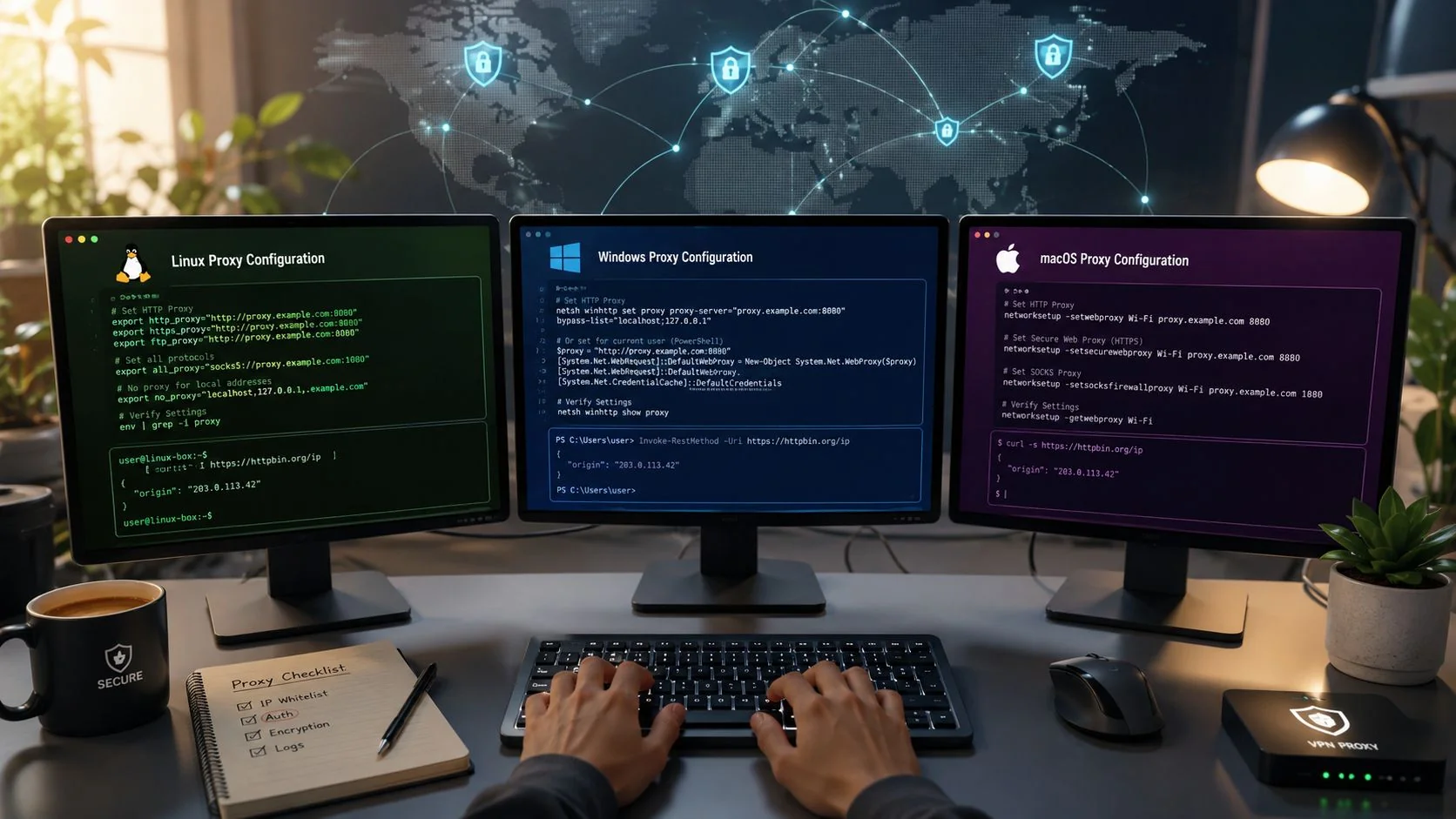
You're probably here because privacy stopped feeling abstract.
Maybe you're applying for jobs and don't want recruiters, data brokers, or sketchy sites connecting your research activity to your home IP. Maybe you're checking whether a gaming profile, old forum account, or dating app trail exposes more about you than it should. Maybe you just want a cleaner way to browse, investigate, and verify without broadcasting your identity every time you open a browser tab.
That's where a proper proxy server setup helps. Not as a magic invisibility switch, and not as a toy for power users. A well-configured proxy can hide your direct IP address, filter traffic, encrypt requests in the right contexts, and give you a safer way to separate your real-world identity from what websites, trackers, and bad actors can observe. A sloppy setup does the opposite. It creates false confidence.
Why Your Digital Footprint Demands a Proxy
A digital footprint becomes a problem long before identity theft makes headlines. It starts with smaller exposures. A recruiter finds an old username tied to a gaming forum. A scammer correlates your public profiles and sends a convincing message that looks personal. Someone on a dating app pieces together your workplace, city, and social accounts faster than you expected.
That's why digital privacy isn't only about secrecy. It's about control. Your online identity affects job prospects, personal safety, reputation, dating app trust, and account security.

What a proxy actually changes
A proxy sits between you and the site or service you're contacting. Instead of exposing your device directly, the destination sees the proxy's IP address. That matters when you're researching employers, checking for exposed accounts, reviewing your own public presence, or doing sensitive browsing that shouldn't map straight back to your home connection.
DriveLock describes proxy servers as intermediaries that hide client IP addresses, help prevent direct access to personal data by bad actors, and can function as firewalls and filters for inbound and outbound traffic through its proxy server overview. In practical terms, that means a proxy can reduce the amount of identifying network data you expose while also giving you traffic control.
Why basic setup guides fail people
Individuals often don't fail because they can't find the settings menu. Instead, they fail because they stop at configuration and never validate whether the setup protects them in practical scenarios.
Public data shows that 68% of users who configure proxies for privacy never test them against real tracking mechanisms, and existing setup content often misses the gap of proxy efficacy validation for OSINT and privacy auditing across 500+ platforms monitored by privacy tools, according to this discussion of proxy configuration blind spots.
Practical rule: If you haven't tested the setup for leaks and real tracking behavior, you don't know whether your proxy protects you.
A proxy also won't erase what's already public. It won't remove old posts, abandoned accounts, breached credentials, or cached people-search records. It helps protect the next interaction, the next search, and the next investigation. That's different from understanding the footprint you've already left across the web. For that broader context, it helps to understand what a digital footprint includes in practice.
Real-world stakes
When people hear “proxy,” they often think about technical anonymity. I think about outcomes.
- Job search privacy: researching companies, managers, or your own search visibility without tying every click to your personal connection
- Gaming account protection: separating game-related traffic and account checks from your home identity
- Dating safety: reviewing a match's claims or your own public data trail without exposing your location or routine
- Scam prevention: making it harder for attackers to correlate your browsing activity with your real IP
The important part isn't merely having a proxy. It's setting up the right one, hardening it, and checking that it masks the footprint you think it does.
Choosing Your Proxy Type Explained
Not all proxies solve the same problem. Picking the wrong one is one of the fastest ways to build a setup that technically works but doesn't match your privacy goals.
A simple way to think about it:
- HTTP proxy: a mail forwarder for web traffic
- SOCKS5 proxy: a full-service relay for many kinds of traffic
- Reverse proxy: a reception desk for websites you operate, not a privacy tool for your own browsing
What works for everyday privacy
If you only need to route normal browser traffic, an HTTP or HTTPS proxy can be enough. It's common, widely supported, and straightforward to configure.
If you're dealing with mixed traffic, a browser plus an OSINT tool, a launcher, a gaming client, or automation tasks, SOCKS5 is usually the better choice. It's recommended over HTTP/HTTPS for mixed or non-browser traffic because it supports any TCP or UDP traffic and provides better security for diverse workloads, according to this SOCKS5 configuration guide. That makes it a better fit for gaming account security, data breach monitoring workflows, and broader privacy protection that goes beyond a browser tab.
What doesn't solve the problem you think it solves
A reverse proxy protects and manages traffic for a server or website owner. It can help with caching, load handling, access control, and shielding an origin service. It doesn't hide your identity as an individual browsing the web. People mix these up all the time.
If your goal is personal privacy, reverse proxy discussions are usually noise.
Proxy Type Comparison HTTP vs SOCKS5 vs Reverse
| Proxy Type | Primary Use Case | Pros | Cons |
|---|---|---|---|
| HTTP | Web browsing and browser-based traffic | Simple to configure, widely supported, good for standard web requests | Limited to web traffic, not ideal for mixed applications |
| SOCKS5 | Mixed traffic such as browsers, automation jobs, CI tasks, OSINT tools, and gaming clients | Supports TCP and UDP traffic, broader app compatibility, better fit for comprehensive privacy use | Slightly more setup care needed, especially around DNS handling |
| Reverse | Protecting and routing traffic for websites and services you run | Useful for server-side security, control, and performance | Not designed to anonymize your personal browsing activity |
Use the least complicated proxy that matches the traffic you actually need to protect. If your setup spans browsers, tools, and clients, HTTP-only usually becomes a dead end.
A practical selection filter
Choose based on the activity, not on what sounds advanced.
For a job seeker checking search results and public profiles, HTTP may be enough if the activity stays in the browser. For a gamer protecting account-related traffic across launchers and support portals, SOCKS5 makes more sense. For an analyst using multiple tools and wanting one consistent privacy layer, SOCKS5 is the safer default.
If you're comparing broader internet privacy tools for personal security, this is the dividing line that matters most: browser-only traffic versus everything else.
Core Proxy Server Setup on Windows macOS and Linux
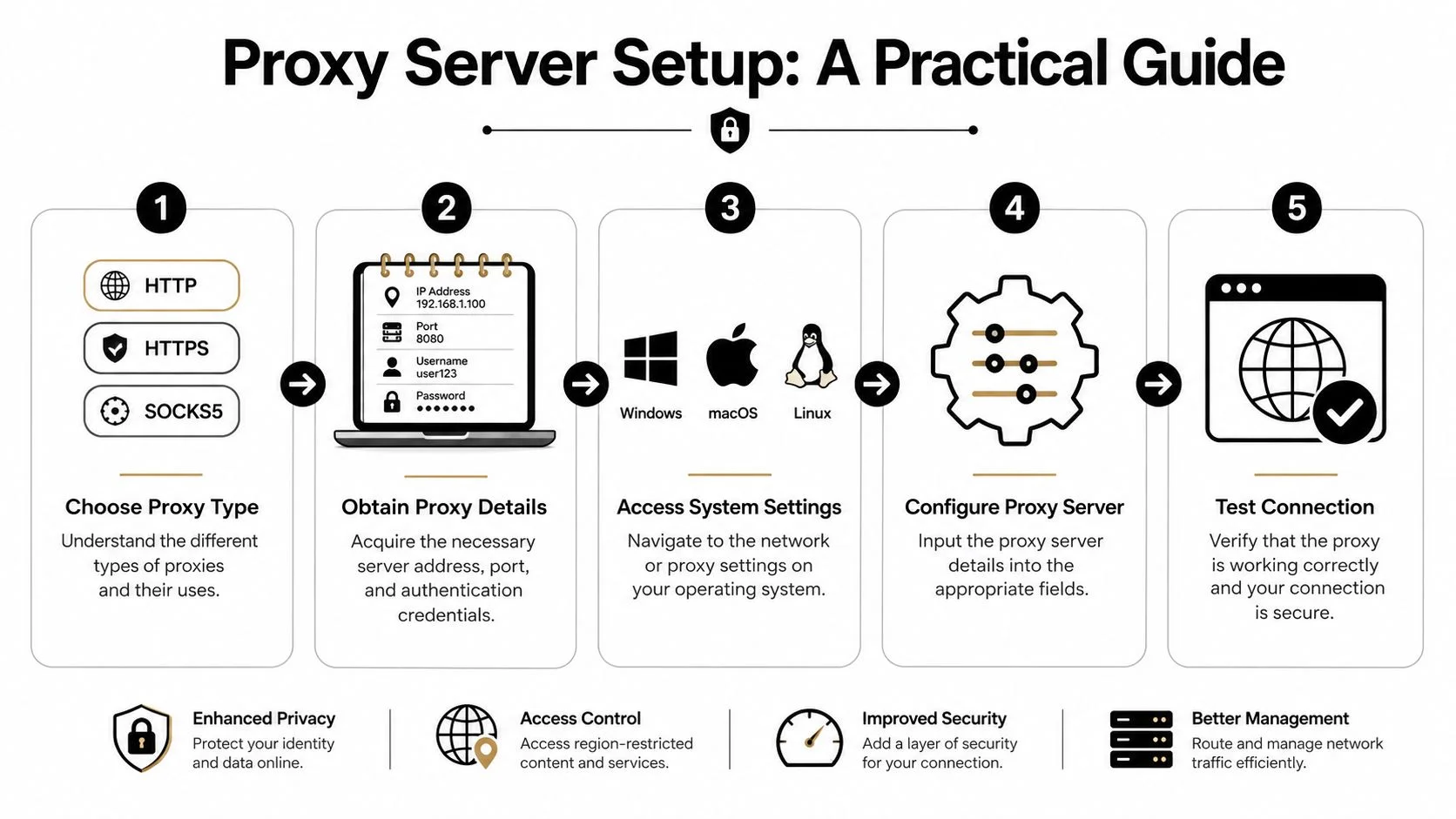
The mechanics matter because small mistakes create big privacy gaps. A good proxy server setup needs the right server details, the right protocol choice, and the right exception handling so you don't break normal local traffic.
A common baseline is port 8080. It remains a standard configuration point for HTTP proxy communication across manual and script-based setups, and Windows manual proxy configuration typically requires you to enter the proxy address and port 8080 explicitly, as described in this walkthrough on proxy setup basics.
Windows setup that avoids the usual mistakes
On Windows, manual proxy configuration is often the cleanest route when you already have the proxy address, port, and credentials.
Use this approach:
- Open Settings
- Go to Network & Internet
- Open Proxy
- Turn on Use a proxy server
- Enter the server address and port
- Save, then authenticate when prompted by the application
Windows also gives you something many generic guides skip: a useful exception list.
The exception list accepts multiple website addresses separated by semicolons, and the wildcard asterisk matches any site ending with the listed domain. Microsoft gives examples such as *.contoso.com; *.adatum.com in its Windows proxy documentation. That's valuable when you need local or intranet services to bypass the proxy cleanly.
Why exception lists matter
Without exceptions, users often send internal traffic through an external proxy by accident. That adds latency, breaks local services, and creates troubleshooting noise that looks like a proxy failure.
A better pattern is:
- Keep internal services local: add known intranet destinations to the bypass list where appropriate
- Separate privacy traffic from local admin traffic: your file share or office tool doesn't need the same route as a public web search
- Avoid blanket bypasses: broad exceptions can undo the privacy benefit you wanted
macOS setup in System Settings
On macOS, go to System Settings, then Network, choose the active network connection, and open the proxy configuration options. The exact labels vary slightly by version, but the process is consistent: pick the protocol, enter the server address and port, and provide authentication if required.
For browser-focused use, HTTP or HTTPS may be sufficient. For mixed-use privacy, select the proxy type that matches your provider and workload.
Keep one habit here: after saving the settings, test from the application you rely on. A browser may use the system settings differently than a tool, launcher, or scripted workflow.
A lot of people stop after “connected.” That's too early.
Here's a walkthrough if you want a visual reference before clicking through the menus:
Linux setup that works beyond the desktop
On Linux, the most portable approach is often environment variables, as Linux users commonly care about command-line tools, scripts, package managers, and automation jobs that won't always inherit desktop proxy settings.
Use environment variables such as HTTP_PROXY and NO_PROXY rather than hardcoding values inside applications. That approach is part of the recommended hardening path described in this proxy configuration guide for beginner to expert workflows.
What to define conceptually
- HTTP_PROXY: for applications that use HTTP proxy routing
- NO_PROXY: for destinations that should bypass the proxy, especially local services and internal tools
If you use Linux in a business or lab environment, this style of configuration is often easier to audit and safer to maintain than scattered application-specific settings. It's also relevant when you're dealing with mixed identity environments, remote administration, or directory-backed systems such as those discussed in guides to Active Directory on Linux.
A proxy setup that only works in one browser isn't a complete setup. If your workflow includes scripts, launchers, terminals, or background services, configure at the OS and application layers deliberately.
What a clean baseline looks like
A solid initial setup usually includes:
- One clear proxy type: don't mix protocols unless you know why
- Explicit server and port entry: especially on manual setups
- Authentication enabled when provided: open proxies create obvious risk
- Local exceptions where needed: enough to preserve internal functionality without gutting privacy
- Immediate testing from the actual workload: browser, game client, script, or research tool
That gets you connected. It doesn't mean you're secure yet.
Securing Your Connection and Preventing Leaks
You open a job listing from home, research the company through a proxy, and assume your IP is covered. Then your browser sends DNS requests to your ISP or exposes a local address through WebRTC. The page load looks normal, but your setup has already given away part of your real identity.
That is why leak prevention matters. A proxy only protects you if traffic, name resolution, and browser behavior all follow the same privacy path.

The leaks that matter most
DNS leaks happen when your device asks a resolver outside the proxy to translate a domain name into an IP address. Even if the website content goes through the proxy, that lookup can still expose where the request came from.
WebRTC leaks come from browser features designed for direct peer-to-peer communication. In the wrong configuration, those features can reveal your real IP address or local network details even while a proxy is active.
For casual browsing, that may sound minor. For a job search, OSINT work, reputation checks, dating safety research, or investigations tied to your home connection, it changes the risk. The target site, your ISP, or a third-party service can connect sensitive activity to your household, city, or usual identity.
How to test before you trust
Do not assume a successful page load means you are protected. Test from the same browser, profile, and device you plan to use for sensitive work.
- Run a DNS leak check: use a tool such as
dnsleaktest.comand confirm the resolver matches the proxy path, not your ISP - Check your visible IP and WebRTC exposure: browser leak test pages and browser privacy settings will show whether local or public addresses are still visible
- Compare apps, not just browsers: terminal tools, launchers, and background clients often bypass browser proxy settings
- Repeat the test after every change: browser updates, extensions, and VPN or proxy swaps can reopen leaks
If your DNS resolver, browser IP, and application traffic do not agree, the proxy is not protecting your footprint consistently.
Hardening moves that help
Good hardening is less about adding every setting and more about closing the paths that expose you.
- Use authenticated proxies: open endpoints are risky, and they are often abused, blocked, or monitored
- Prefer encrypted proxy connections where available: if the provider supports TLS, use it so credentials and traffic metadata are harder to intercept
- Set
NO_PROXYwith restraint: bypass local tools that need direct access, but do not create a long exception list that defeats the point of the proxy - Treat proxy credentials like passwords: store them in a password manager or environment variables, not in plain-text notes or reusable scripts
- Control browser features: disable or limit WebRTC if your workflow depends on location privacy
If you also manage remote access or tunneled workflows, resources on UpTime Web Hosting secure connections are useful for understanding how encrypted forwarding fits into a broader privacy setup.
One browser setting that closes a common gap
Firefox earns a specific mention because it gives clearer proxy behavior than many browsers. If you use SOCKS v5, enable Use this proxy server for all protocols so DNS requests follow the proxy path instead of resolving locally, as explained in this Firefox proxy configuration note.
That single choice matters more than it looks. A clean proxy IP with local DNS requests is still traceable in ways that can expose where you live, where you work, or which searches are tied to your home network.
If your goal is to hide your IP address more reliably, leak prevention is what turns proxy use from a cosmetic setting into real protection for your online identity.
Advanced Use Cases for OSINT Privacy and Safety
A proxy matters most when the search is personal.
You check what a recruiter, scammer, buyer, or stranger could learn about you from a name, old username, dating profile, or gaming handle. If those lookups go out over your home connection, you create a fresh trail while trying to measure the old one. A correct proxy setup reduces that exposure and gives you a cleaner view of what your public footprint looks like from the outside.
Security researchers use proxies to investigate without exposing their own location. The same approach helps job seekers review public search results tied to their name, people dating online examine warning signs before sharing personal details, and gamers separate marketplace or account research from their home identity. The value is not just anonymity for its own sake. It is reducing unnecessary links between your questions, your network, and your real-world identity.

Where proxies help in real life
These are the use cases I see come up most often:
- Reputation checks: search your name, aliases, usernames, and profile fragments without tying every query back to your direct connection
- Dating safety reviews: check public signals before giving someone your phone number, workplace, or regular locations
- Gaming account audits: review exposed usernames, linked communities, and resale-market references while reducing direct attribution
- Identity theft checks: look for exposed email addresses, handles, or profile details in places that should not contain them
Open-source intelligence is not only for investigators. It is a practical method for anyone who wants to measure exposure before someone else uses it against them. That matters if you are job hunting discreetly, leaving an abusive situation, screening a suspicious contact, or trying to keep a side project separate from your legal name.
The legal line matters
Proxy use does not turn weak judgment into acceptable research.
A common mistake in professional OSINT work is treating masked collection as harmless because the traffic is harder to trace. In regulated contexts, especially hiring and employee screening, that assumption can create compliance problems. Palo Alto Networks notes a projected significant increase in fines tied to misuse and poor controls in its discussion of proxy setup and compliance context.
That distinction matters for HR teams, private investigators, and anyone collecting background information on another person. Protecting your own privacy is legitimate. Building hidden profiles on people without consent or a lawful basis is a different activity with different consequences.
Ethical OSINT starts with a simple question: would you still defend this collection method if the subject asked how you gathered the data?
Better habits for safer investigations
Good proxy hygiene helps, but judgment is what keeps the workflow safe.
-
Verify before acting
One reused username or profile photo match is not enough to label someone fake, risky, or dishonest. -
Keep source context
A forum post, old clan page, cached profile, or screenshot means little without a date, source, and reason it matters. -
Limit collection to the purpose
Checking for scam indicators or public exposure is reasonable. Hoarding extra personal details because they are available is where personal safety work turns into surveillance. -
Test your assumptions against real exposure
If the goal is footprint reduction, measure what strangers can still find, not what your logged-in browser already knows.
If you are building this skill set, practical guides to OSINT tools for beginners help you develop a method that stays useful, targeted, and defensible.
Beyond Setup to Active Footprint Management
A proxy server setup isn't the finish line. It's one layer in a privacy routine.
The wrong assumption is that once traffic runs through a proxy, your digital identity is handled. It isn't. A proxy protects the path of current activity. It doesn't clean up old social posts, dormant gaming profiles, breach exposure, public records, or the trail you left years ago on forums and apps.
The better mindset is operational. Choose the right proxy type for the traffic you use. Configure it correctly on your operating system. Prevent leaks. Test it. Then keep checking what the outside world can still learn about you.
That ongoing review matters for job seekers managing professional reputation, families concerned about personal safety, people dating online, gamers protecting account visibility, and anyone trying to reduce identity theft risk.
Privacy works best when it becomes a habit:
- Review public exposure regularly
- Revisit browser and system settings after updates
- Check whether old accounts still reveal useful personal details
- Treat anonymity claims with skepticism until you've validated them
A proxy can help protect your next move online. Managing your footprint determines how much of your past is still working against you.
If you want to see what your online presence looks like from the outside, run a check with Digital Footprint Check. It's a practical next step for spotting exposed profiles, public identifiers, and account traces that a proxy alone won't remove. You can start with the free checker at Digital Footprint Check to review what's visible and decide what needs attention first.